ImageFX Not Available In Your Country Yet — Every Working Fix (2026 Guide)
You found Google ImageFX, clicked the link, and got this instead of an AI image generator:
“ImageFX isn’t available in your country yet.”
It’s one of the most frustrating messages in AI tools — because ImageFX is completely free, requires no subscription, and is genuinely one of the best image generators available right now. Getting blocked out of something free feels especially annoying.
Here’s what you need to know: most people who see this error can fix it in under two minutes. ImageFX is available in 149+ countries — including Pakistan, India, and most of Asia — and the “not available” error is almost always caused by something fixable: an active VPN routing you through a blocked region, a wrong account type, or a browser cache issue.
This guide tells you exactly which countries are actually blocked, why, and every working fix for 2026 — in the order most likely to solve your specific situation.
What Is Google ImageFX? (Quick Background)
Before the fixes, a quick explanation for anyone new to the tool.
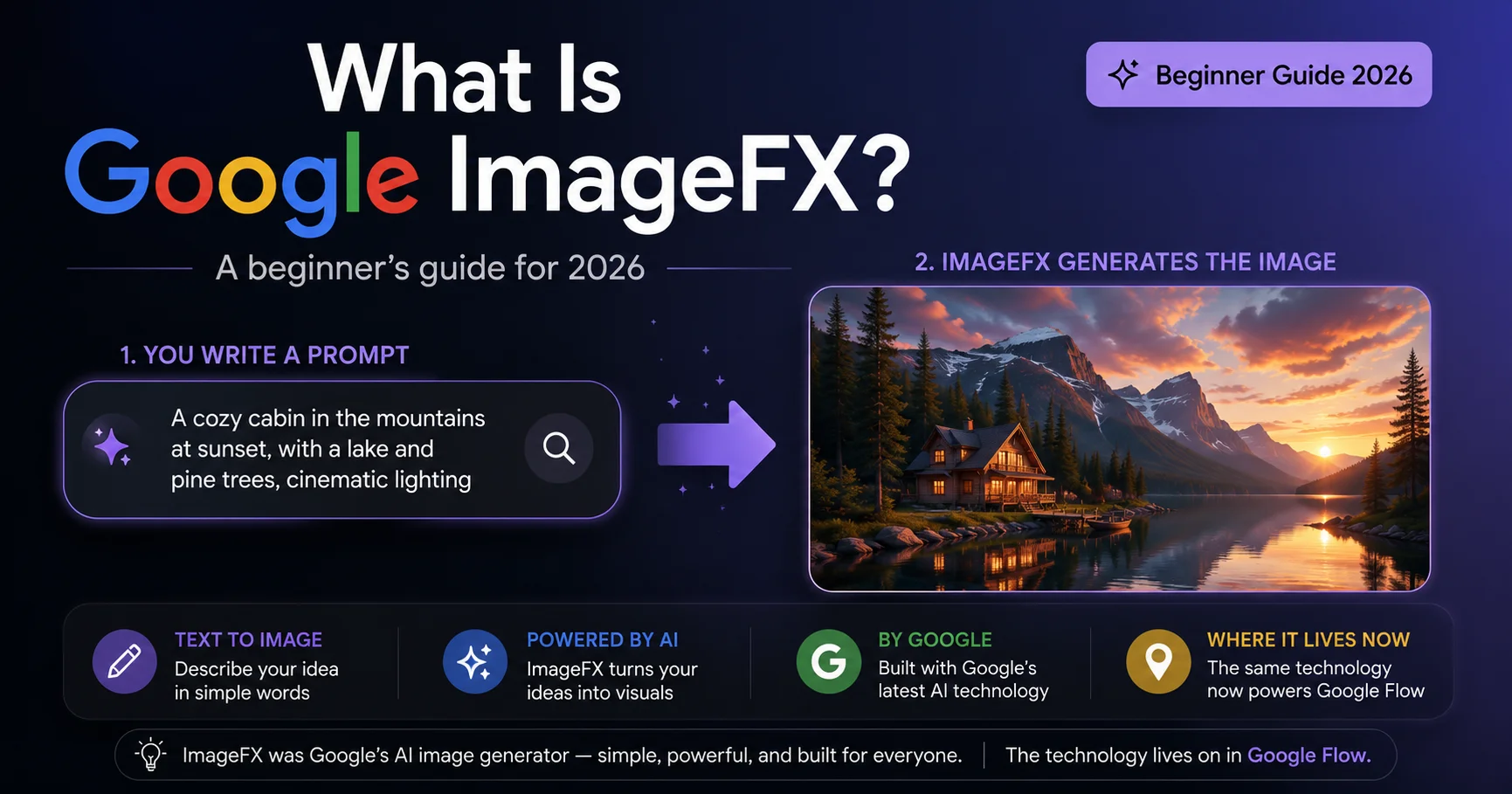
Google ImageFX is a free AI image generator from Google Labs, available at labs.google/fx. It runs on Imagen 4 — Google’s most advanced image generation model in 2026 — and produces high-quality, detailed images from text prompts.
Key things that make it worth the effort of fixing this error:
- Completely free — no subscription, no credit card
- No watermarks on downloaded images
- Powered by Imagen 4, the same model inside Google Flow AI
- Daily generation limit of approximately 40–80 images that resets every 24 hours
- Works directly in your browser — nothing to install
ImageFX sits alongside Google Flow AI as part of the Google Labs creative suite. If you’ve already used Google Flow AI for video, ImageFX is its dedicated image-focused companion — simpler interface, same underlying model quality.
For a complete look at what ImageFX can do, see our Google ImageFX complete guide.
Is Your Country Supported? — The 2026 List
First — check whether you’re in a supported country or genuinely blocked. This determines which fix you need.
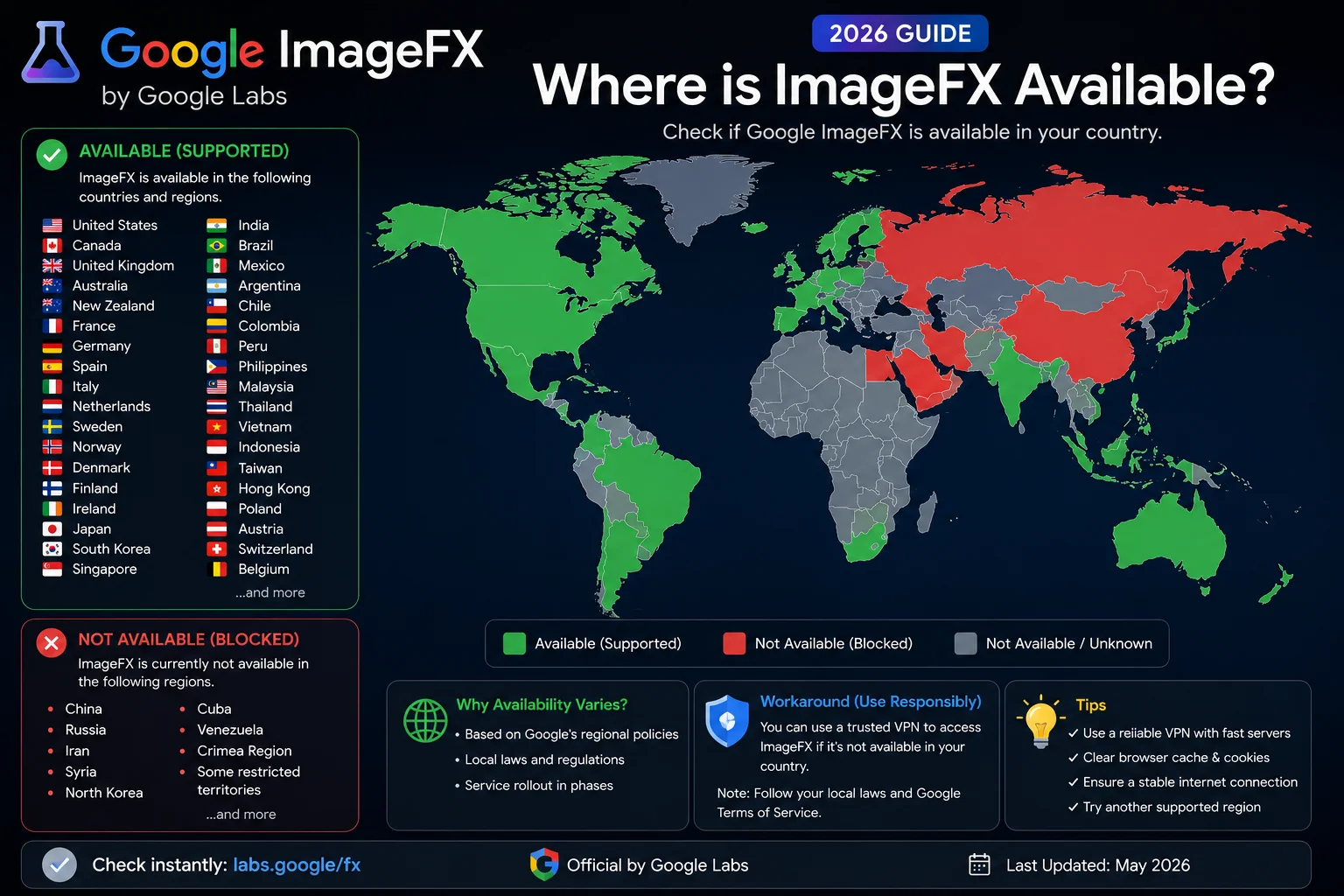
✅ SUPPORTED — ImageFX works here:
Google ImageFX is confirmed available in 149+ countries including:
🇵🇰 Pakistan | 🇮🇳 India | 🇺🇸 United States | 🇬🇧 United Kingdom | 🇦🇺 Australia | 🇨🇦 Canada | 🇿🇦 South Africa | 🇰🇪 Kenya | 🇳🇿 New Zealand | 🇦🇪 UAE | 🇸🇦 Saudi Arabia | 🇯🇵 Japan | 🇰🇷 South Korea | 🇸🇬 Singapore | 🇲🇾 Malaysia | 🇮🇩 Indonesia | 🇵🇭 Philippines | 🇹🇭 Thailand | 🇻🇳 Vietnam | 🇧🇩 Bangladesh | 🇳🇬 Nigeria | 🇪🇬 Egypt | 🇧🇷 Brazil | 🇲🇽 Mexico | 🇹🇷 Turkey | and 120+ more.
Important for Pakistan users: ImageFX is fully available in Pakistan. If you’re seeing the error in Pakistan, it’s not a genuine country block — it’s a fixable technical issue. Start with Fix 1 or Fix 2 below.
❌ BLOCKED or RESTRICTED — ImageFX has limited access here:
- Most EU countries — Blocked or restricted due to GDPR and EU AI Act compliance requirements. Germany, France, Italy, Spain, Netherlands, and other EU member states have varying levels of restriction.
- Russia and Belarus — Blocked due to sanctions-related service restrictions.
- Some additional markets — A small number of other countries have intermittent or full restrictions.
If you’re in a genuinely blocked country, Fix 4 (VPN method) is what you need.
Why Does This Error Appear Even in Supported Countries?
This is the part most guides skip over — and it explains why so many people in Pakistan, India, and other supported countries still see the “not available” error.
Reason 1: You have a VPN running. The single most common cause. If your VPN is connecting through a European server or any other blocked region, Google sees a blocked IP address and shows the restriction message — even though you’re physically in Pakistan or India. Google sees where your internet traffic appears to come from, not where you actually are.
Reason 2: You’re using a Google Workspace account. School accounts, work accounts, university accounts — any Google account managed by an organization rather than created personally at gmail.com — may have restricted access to Google Labs tools including ImageFX. This is a policy restriction at the organizational level, not a country block.
Reason 3: Your browser has cached the error page. If you visited ImageFX once from a restricted IP (maybe you had a VPN on that day), your browser may have saved the error page and keeps showing it even after the underlying issue is resolved.
Reason 4: Your ISP is filtering the connection. Some internet service providers use DNS filtering or proxy systems that can make your traffic appear to come from a different region than you actually are.
Understanding which of these is your actual problem makes the fix fast. Work through the fixes below from the top — most users are sorted by Fix 1 or Fix 2.
Fix 1 — Disable Any Active VPN (Most Common Fix)
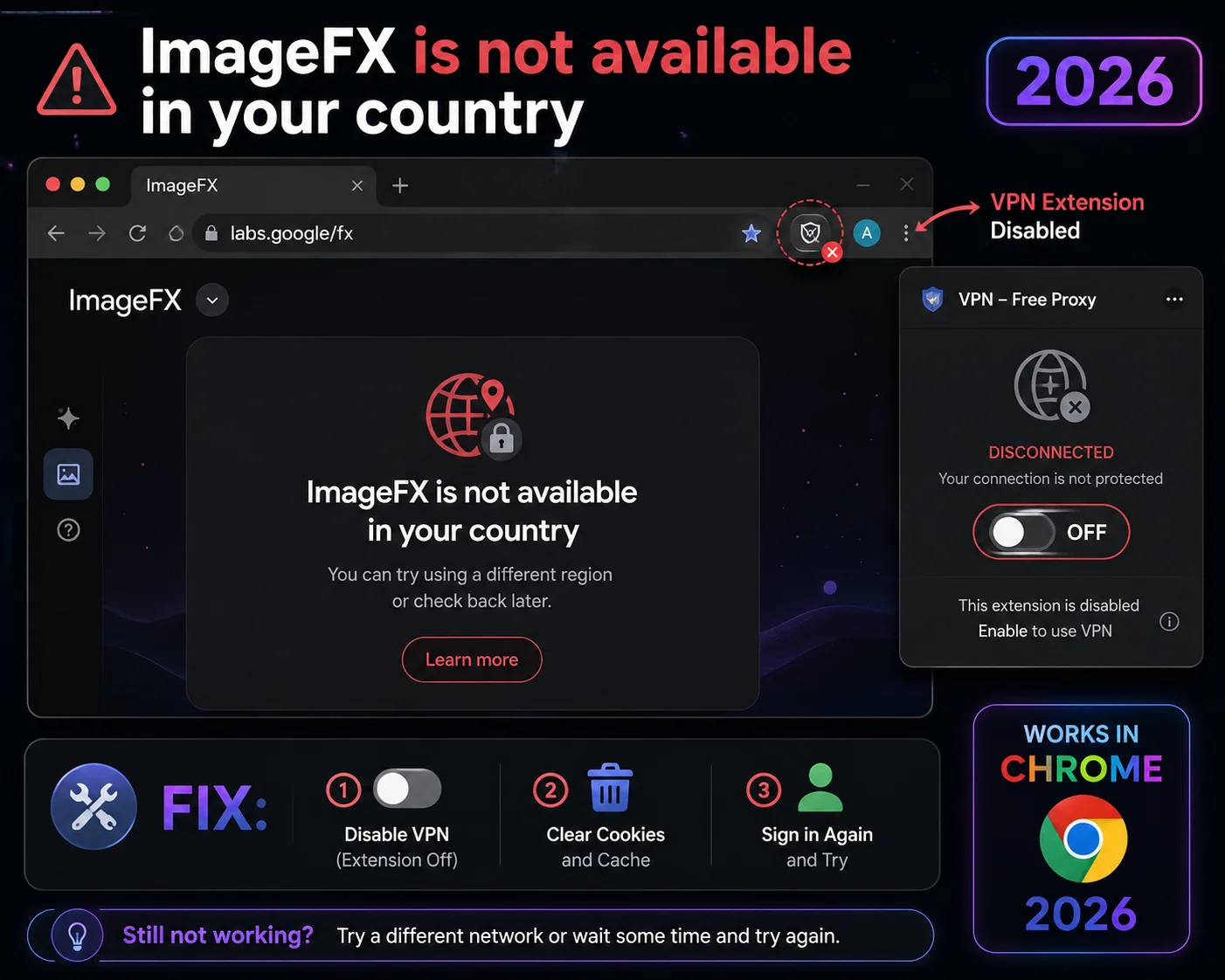
This is the fix that works for the majority of users in supported countries — especially Pakistan, India, and other Asian countries.
Step 1: Turn off your VPN completely. Not paused — fully off.
Step 2: Check for VPN browser extensions. Open Chrome and go to the three-dot menu → Extensions → Manage Extensions. Look for any VPN extension (NordVPN, ExpressVPN, Browsec, Windscribe, Hola, TouchVPN, or any similar extension) and toggle it OFF.
Step 3: Clear your browser cache. Press Ctrl+Shift+Delete (Windows) or Cmd+Shift+Delete (Mac). Select “Cached images and files” and “Cookies and site data.” Set time range to “All time.” Click Clear data.
Step 4: Close your browser completely and reopen it.
Step 5: Go directly to labs.google/fx — type this fresh, don’t use a bookmark.
Step 6: Sign in with your Google account when prompted.
If ImageFX loads correctly, you’re done. The VPN was the culprit.
If it still shows the error after all six steps, move to Fix 2.
Fix 2 — Use a Personal Gmail Account
The second most common cause of the ImageFX “not available” error is being signed into a Google Workspace account — a school, university, or work account managed by an organization.
How to check which account you’re using: Click your profile photo in the top-right corner of any Google page. If the account shows your organization’s domain (yourname@school.edu, yourname@company.com, or anything that isn’t @gmail.com), that’s likely the issue.
How to fix it:
Step 1: Sign out of your current Google account.
Step 2: Sign into a personal @gmail.com account. If you don’t have one, create one free at accounts.google.com — it takes about two minutes.
Step 3: After signing in with your personal account, go to labs.google/fx.
Personal Gmail accounts have full access to Google Labs tools. Workspace accounts often don’t — this is an organizational policy, not something you can override within the same account.
Fix 3 — Clear Cache and Use the Right URL
Sometimes the error is simply your browser showing you a saved error page. This happens when you visited ImageFX once from a restricted IP and the browser cached that response.
Step 1: Open a fresh incognito window. In Chrome: Ctrl+Shift+N. In Firefox: Ctrl+Shift+P. In Safari: Cmd+Shift+N.
Step 2: In the incognito window, go to labs.google/fx. Sign in with your personal Gmail when prompted.
If it works in incognito, the problem is cached data in your regular browser. Clear it:
Step 3: In your regular browser, press Ctrl+Shift+Delete → select all options → set time range to “All time” → click Clear.
URL note: Always use labs.google/fx for ImageFX. The old URL format (labs.google/genai-applications/image-fx/) sometimes redirects to the unsupported-country page even for users who have access. If you reach labs.google/fx/tools/image-fx/unsupported-country — that’s the blocked page. Use the direct labs.google/fx URL instead.
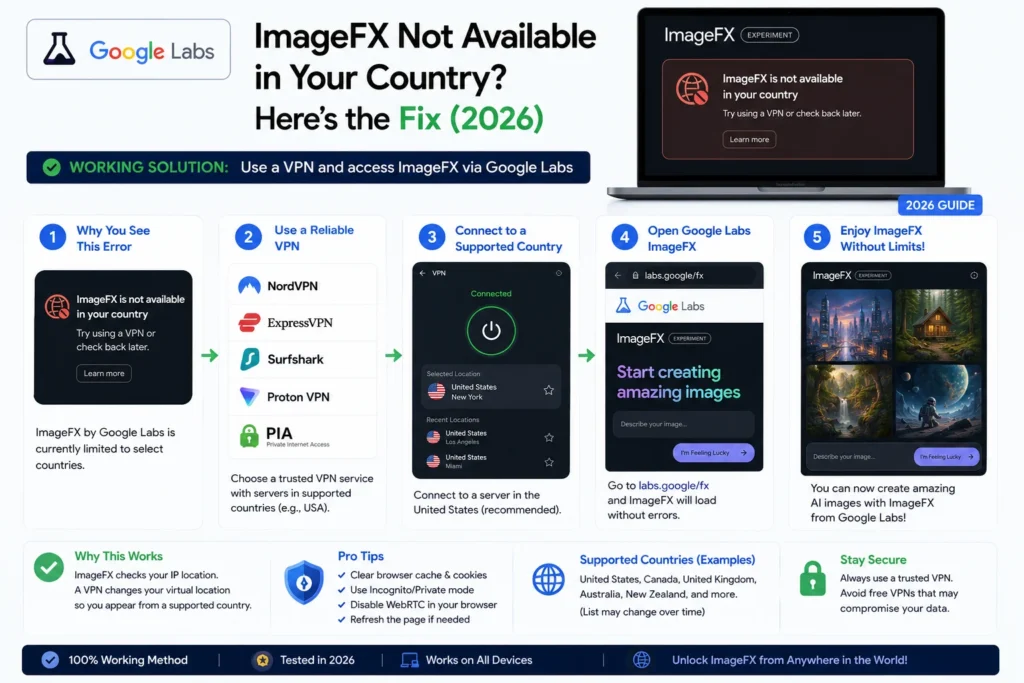
Fix 4 — VPN Method (For Genuinely Blocked Countries)
If you’re in a country where ImageFX is genuinely restricted — most EU countries, Russia, Belarus — you need a VPN to access it. Here’s the correct way to do this.
Which VPN works: Any reputable VPN with US or UK servers works for ImageFX. Unlike Google Flow AI (which requires US servers), ImageFX also accepts UK connections — giving you more server options.
Recommended options:
- ProtonVPN — Free tier available. Connect to a US or UK server. Reliable for ImageFX.
- Windscribe — Free tier with 10GB/month. US and UK servers available.
- NordVPN — Paid. Fast, reliable. Lots of US and UK servers.
- ExpressVPN — Paid. Consistently works for Google Labs tools.
Step-by-step:
Step 1: Download and install your chosen VPN.
Step 2: Open the VPN and connect to a United States or United Kingdom server. US cities that work well: New York, Los Angeles, Chicago. UK cities: London, Manchester.
Step 3: Verify your IP has changed. Go to whatismyip.com and confirm it shows a US or UK location.
Step 4: Open a fresh incognito browser window.
Step 5: Sign into your personal Google account.
Step 6: Go to labs.google/fx.
Keep your VPN connected throughout your ImageFX session. If you disconnect mid-session, you may lose access until you reconnect.
For EU users specifically: The EU and UK block is due to GDPR and the EU AI Act — not because Google doesn’t want EU users. Google has simply not built a compliant version for these regions yet. A VPN is the current workaround while that regulatory situation develops.
Fix 5 — Change Your DNS Settings
Some internet providers use DNS filtering that can interfere with access to Google Labs tools, making your connection appear to come from a different region.
On Windows:
- Settings → Network & Internet → Change adapter options
- Right-click active connection → Properties
- Select “Internet Protocol Version 4 (TCP/IPv4)” → Properties
- Choose “Use the following DNS server addresses”
- Preferred: 8.8.8.8 / Alternate: 8.8.4.4
- Click OK → restart browser → try ImageFX again
On Android:
- Settings → Network & internet → Private DNS
- Select “Private DNS provider hostname”
- Enter: dns.google
- Save → try ImageFX again
On iPhone:
- Settings → Wi-Fi → tap (i) next to your network
- Configure DNS → Manual
- Remove existing entries → add 8.8.8.8
- Save → try ImageFX again
Fix 6 — Try Mobile Data Instead of WiFi
Your WiFi router and your mobile data connection use different IP addresses. If your router has a VPN or proxy configured (common in office buildings, shared apartments, and university campuses), it can route your traffic through a restricted region without you knowing.
How to test: Turn off WiFi on your phone. Switch to mobile data. Open your mobile browser and go to labs.google/fx.
If it works on mobile data, the issue is your WiFi network’s configuration. You can either use mobile data for ImageFX, or ask your network administrator to check the proxy/VPN settings on the router.
Fix 7 — Try a Different Browser
This rules out browser-specific issues entirely.
Best browsers for ImageFX in 2026:
- Google Chrome — Best compatibility, most tested
- Microsoft Edge — Works well (Chromium-based)
- Brave — Works well (Chromium-based)
- Firefox — Works for most features
- Samsung Internet (Android) — Works on mobile
Open a browser you don’t normally use, sign into your personal Gmail, and go to labs.google/fx. If it works in the new browser, the issue is browser-specific — extension conflicts or settings in your regular browser.
After Getting In — What Can You Do With ImageFX?
Once you have access, here’s what ImageFX offers:
Free image generation — Type any description and get four image variations back in seconds. Imagen 4 produces clean, detailed, high-resolution results. No watermarks. No subscription needed.
Daily generation limit — Approximately 40–80 images per day on free accounts. The exact number varies by server load. Limits reset at midnight UTC. Google AI Plus subscribers get higher limits.
Prompt styles that work well in ImageFX:
- “A rainy evening street in Tokyo, neon reflections on wet pavement, cinematic”
- “A minimalist product photo of a wooden watch on a marble surface, studio lighting”
- “Portrait of a woman in traditional Pakistani dress, intricate embroidery, soft natural light”
- “Futuristic cityscape at sunset, flying vehicles, golden hour atmosphere”
For 100+ tested prompts that work specifically in Google’s Imagen model, see our Whisk AI prompts guide — all prompting principles apply directly to ImageFX.
Using ImageFX alongside Google Flow AI: ImageFX and Google Flow AI both use Imagen 4 for image generation. The difference is that Flow AI includes video generation, the Ingredients workflow, and more creative tools. ImageFX is faster and simpler for quick image generation. Many creators use both — ImageFX for fast image experiments, Flow AI for more involved creative projects. See our Google ImageFX guide for a full comparison.
ImageFX vs Google Flow AI — Which Should You Use?
Since both tools are free to start and use the same Imagen 4 model, a common question is which one to open when you want to generate an image.
| Feature | ImageFX | Google Flow AI |
|---|---|---|
| Price to start | Free | Free |
| Image generation | ✅ Yes | ✅ Yes |
| Video generation | ❌ No | ✅ Yes (paid) |
| Ingredients system | ❌ No | ✅ Yes |
| Daily image limit | ~40-80/day | Higher on paid |
| Interface complexity | Simple | More features |
| Best for | Quick single images | Full creative projects |
Short answer: Use ImageFX when you want a quick image fast. Use Google Flow AI when you want video, the Ingredients workflow, character consistency, or a more complete creative session.
Frequently Asked Questions
Q: Is ImageFX available in Pakistan?
Yes. Pakistan is confirmed on Google ImageFX’s supported country list. If you’re seeing the “not available” error in Pakistan, it’s almost certainly a VPN conflict (Fix 1) or a Workspace account issue (Fix 2). Follow those fixes first.
Q: Why is ImageFX not available in EU countries?
Google has excluded most EU countries from ImageFX due to GDPR and EU AI Act compliance requirements. These regulations impose strict rules on AI-generated content, data handling, and transparency. Google has not yet built a separate compliant version for EU users. EU users can access ImageFX via a VPN (Fix 4 above).
Q: Is it free to use ImageFX?
Yes, completely free. No subscription, no credit card, no watermarks. You just need a personal Google Gmail account. A daily generation limit (approximately 40–80 images) applies and resets every 24 hours.
Q: Can I use ImageFX on my phone?
Yes. Open your mobile browser (Chrome on Android works best) and go to labs.google/fx. ImageFX is web-based and works on mobile browsers without any app download.
Q: My VPN is always on for privacy. How do I use ImageFX without turning it off?
Switch your VPN server to a US or UK location rather than turning it off entirely. ImageFX accepts connections from US and UK IP addresses — so connecting through those servers lets you keep your VPN active while still accessing ImageFX.
Q: I got access but now ImageFX shows a daily limit error. What do I do?
You’ve hit the daily generation limit (approximately 40–80 images). The limit resets at midnight UTC — that’s 5:00 AM Pakistan Standard Time. Wait until then and your generations will refresh. Alternatively, a Google AI Plus subscription gives higher daily limits. See our ImageFX daily limit guide for full details.
Q: Is the “not available” error the same as a blank white screen?
No — these are different problems. The “not available in your country” message is a specific geographic restriction message. A blank white screen is a separate technical loading issue. For blank screen fixes, see our Google Flow AI blank screen guide — many fixes apply to ImageFX as well.
Q: Will ImageFX ever be available in the EU without a VPN?
Google hasn’t announced a timeline. EU availability depends on regulatory compliance work that Google hasn’t publicly committed to completing. For now, VPN is the only method for EU users.
Quick Fix Checklist — Screenshot This
| # | Fix | Best For |
|---|---|---|
| Fix 1 | Disable active VPN | Pakistan, India, Asia users with VPN running |
| Fix 2 | Switch to personal Gmail | School/work Google account users |
| Fix 3 | Clear cache + use labs.google/fx URL | Cached error page issues |
| Fix 4 | Connect VPN to US or UK server | EU, Russia, and genuinely blocked countries |
| Fix 5 | Change DNS to 8.8.8.8 | ISP filtering issues |
| Fix 6 | Switch WiFi to mobile data | Building/campus network proxy issues |
| Fix 7 | Try a different browser | Browser-specific conflicts |
Work from top to bottom. One fix at a time.
Final Thoughts
ImageFX not available in your country is one of those errors that sounds more serious than it usually is. For the vast majority of people seeing it — especially in Pakistan and across Asia — the tool is available and the error comes from something easily fixed.
Disable your VPN, switch to a personal Gmail account, and go directly to labs.google/fx. That combination solves the issue for 9 out of 10 users in supported countries.
If you’re in a genuinely blocked region like the EU, a US or UK VPN connection gets you in. ProtonVPN’s free tier is enough to test whether ImageFX works for your creative workflow before deciding if it’s worth a paid VPN subscription.
Once you’re in, spend some time exploring what Imagen 4 can do with the right prompt. And when you’re ready for video generation, character consistency, and a more complete creative studio — Google Flow AI is waiting at flow.google.
Related Articles on WhiskAILabs:
- Google ImageFX Complete Guide 2026
- ImageFX Daily Limit Explained
- ImageFX Supported Countries 2026
- Google Flow Not Available In Your Country Fix
- Whisk AI Not Available Fix
- Google Flow AI Tutorial — Step by Step
- What Is Google Flow AI?
- Whisk AI Prompts — 100+ Best Prompts
- Google Flow AI Blank Screen Fix
- Google Flow Generation Failed Fix
- News & Updates — WhiskAILabs
Official External Sources: