Whisk AI not working error screen with complete troubleshooting fix guide for login issues blank screen and country blocks in 2026Here is something worth knowing before you start reading.Every single problem people had with Whisk AI — the blank screen that wouldn’t load, the login page that kept refreshing, the “not available in your country” message that felt like a door slammed in your face, the results that came out blurry and wrong — every one of those problems had a cause. And causes have fixes.We didn’t write this guide by summarising other articles. We worked through these problems ourselves, read through hundreds of real user complaints on Google’s own developer forums, Reddit threads, and support communities, and kept only the fixes that actually worked. The ones that didn’t work consistently got cut.If Whisk AI is not working for you right now, you’re in the right place. Find the section that matches your situation and go straight to it. You don’t need to read everything here — just the part that’s broken.
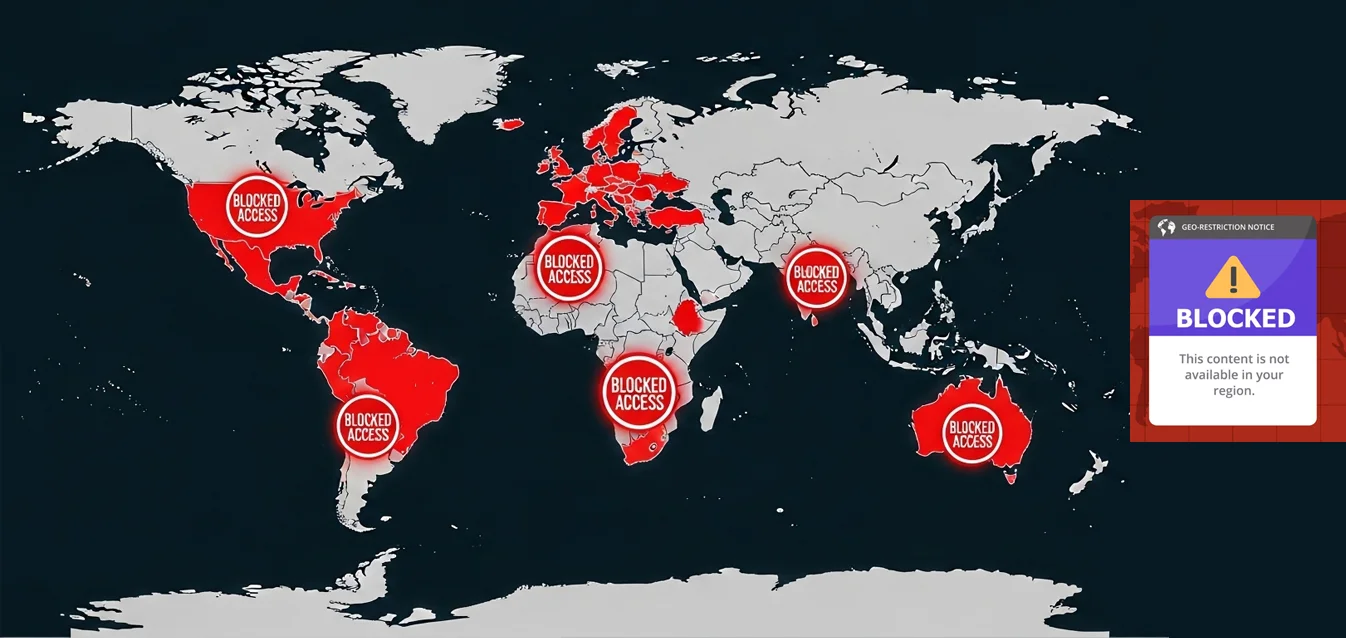
Whisk AI not available country map showing restricted regions including EU UK India and Indonesia excluded from the tool in 2026
Whisk AI Not Available in Your Country {#not-available}
Out of every Whisk AI problem people searched for, this was the most common one by a long stretch.The message was usually something like: “Whisk is not available in your country yet.” And the frustrating part was that it wasn’t a bug. It wasn’t something on your end that you could fix with a browser reset. It was a deliberate policy decision by Google — one with specific reasons behind it.
Why Google Blocked Certain Countries
When Whisk launched in the US in December 2024, it was always going to expand slowly. By February 2025, Google made the tool available in more than 100 countries. But that expansion had notable gaps.Whisk was not available in countries and regions like India, Indonesia, the EU, and the UK. The reasons split into two clear categories.The EU and UK situation came down to data privacy law. GDPR — the General Data Protection Regulation — and the incoming EU AI Act both place strict requirements on how AI tools handle personal data, including the images users upload. Rather than rebuild Whisk’s data infrastructure to meet those requirements for what was always meant to be a short-lived experimental project, Google simply kept those regions out. GDPR and the upcoming EU AI Act currently delay launch in the EU.India, Indonesia, Bangladesh, and other excluded markets were a different situation — more about rollout timing than legal requirements. Google gave no specific explanation for these exclusions, and no firm timeline for when they might be included.
Which Countries Had Full Access
The available list was genuinely large. As of February 2025, Whisk is available in over 100 countries including the US, Japan, Canada, and Australia. Pakistan, Malaysia, Philippines, Brazil, Mexico, Nigeria, Ghana, Kenya, Turkey, New Zealand, and dozens more across Latin America, Africa, and Asia-Pacific all had access.If your country was on that list and you were still seeing the restriction message, the problem was something else — most likely a VPN or proxy that was masking your real location and accidentally routing you through a restricted region. Turning off any active VPN and refreshing usually fixed it.If your country genuinely wasn’t on the list, the VPN section below has the method that worked for most people.
Whisk AI Not Working — 10 Fixes in Order {#not-working}
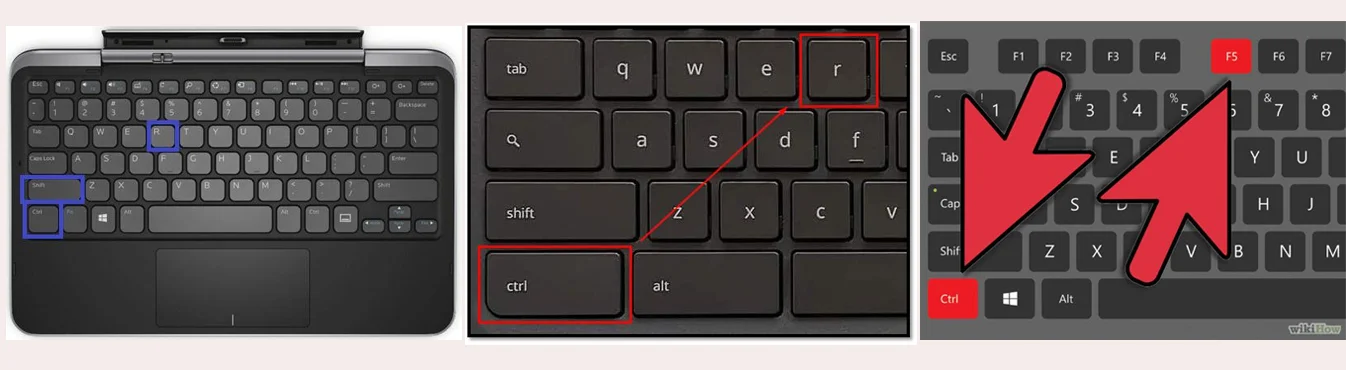
Work through these in order. Most people find the answer in the first three.One thing to check first, before anything else: visit Google’s status page and see if there’s a known Labs service issue. If Google’s own infrastructure was having problems, nothing on your end would help. That situation was uncommon but real — and knowing it saved a lot of wasted troubleshooting time.If the status page shows everything green, start here.Browser keyboard shortcut showing Ctrl Shift R hard refresh to fix Whisk AI not working or loading issues
Fix 1 — Hard Refresh, Not a Regular Refresh
Most people trying to fix a broken page hit F5 or click the refresh button. That does a soft reload — it often just reloads the same broken state from cache.What you actually want is a hard refresh that bypasses cached files completely:
Windows: Ctrl + Shift + R
Mac: Cmd + Shift + R
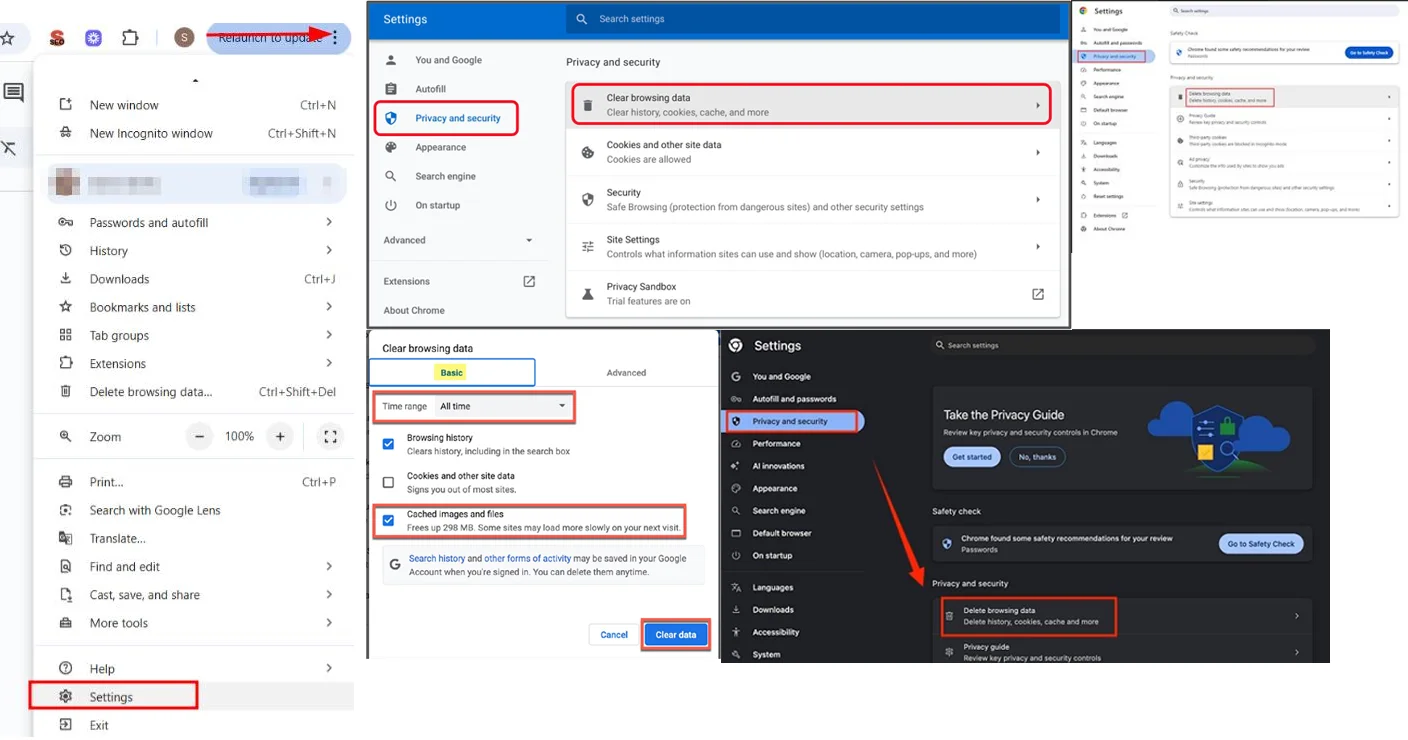
This pulls everything fresh from the server. A surprising number of “Whisk isn’t loading” situations were just stale cache — and this one step fixed them.Chrome browser clear browsing data settings showing how to fix Whisk AI not working by clearing cache and cookies
Fix 2 — Clear Your Browser Cache and Cookies
If the hard refresh didn’t do it, the cache clearing needs to go deeper.Chrome: Three dots menu → Settings → Privacy and Security → Clear Browsing Data → tick “Cached images and files” and “Cookies and other site data” → set time range to “All time” → Clear data.Firefox: Settings → Privacy & Security → Cookies and Site Data → Clear Data.Safari: Safari menu → Settings → Privacy → Manage Website Data → Remove All.After clearing, close the browser window fully — not just the tab — reopen it, go to labs.google/fx/tools/whisk, and sign back in. This resolved problems where an old session cookie from a previous Whisk visit was interfering with the current one.
Fix 3 — Switch to Google Chrome
Whisk was built by Google and tested most heavily in Chrome. That sounds obvious in hindsight, but a lot of people running Firefox, Brave, Edge, or Safari encountered problems that simply disappeared the moment they opened Chrome instead.This wasn’t about one browser being objectively better. It was about certain JavaScript features in Whisk’s interface behaving slightly differently across rendering engines — and the Whisk team not having the bandwidth to smooth out every edge case in every browser.If you’re already in Chrome, make sure it’s updated. An outdated version of Chrome caused its own set of loading problems. Check for updates at chrome://settings/help.Chrome extensions panel showing how to disable ad blockers causing Whisk AI not working errors with Incognito mode test
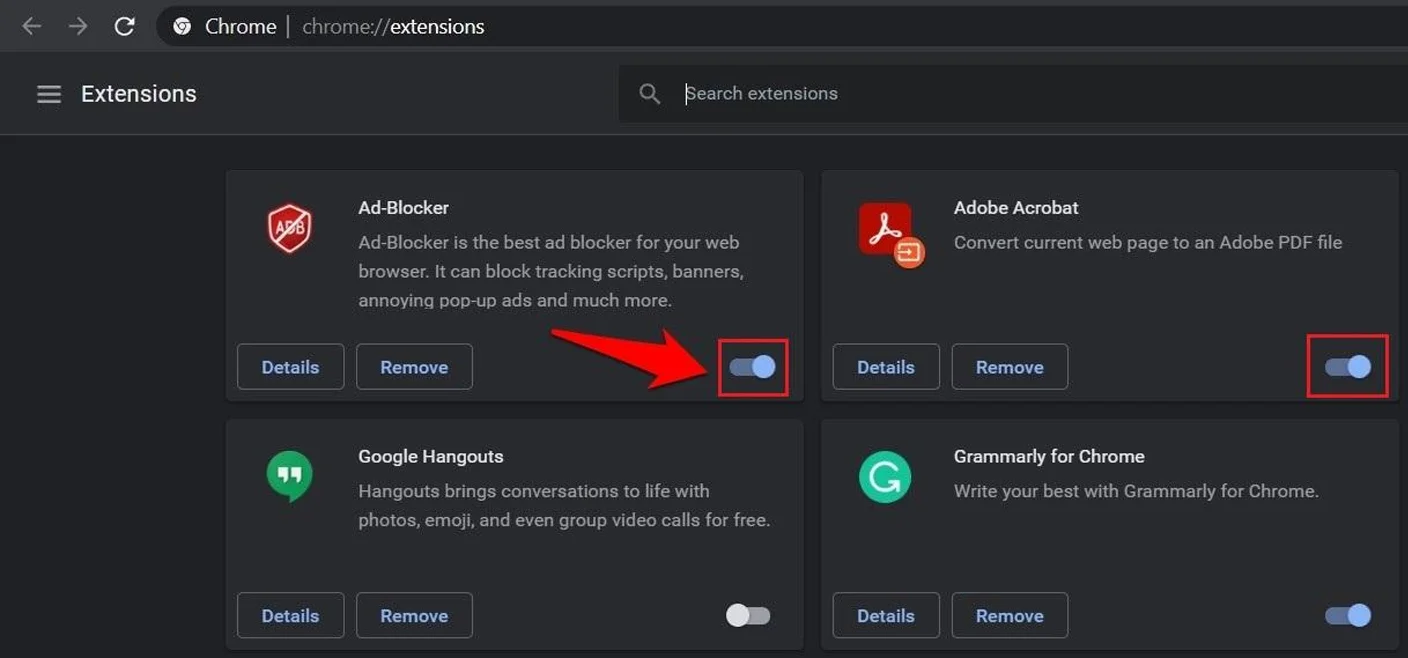
Fix 4 — Turn Off Browser Extensions
Ad blockers, privacy extensions, script managers, and even some VPN browser add-ons regularly broke Whisk’s interface. The tool made network requests that ad blockers would flag and silently block — which from your perspective just looked like the tool not loading or generation buttons doing nothing.The fastest test: open a new Incognito window (Ctrl+Shift+N in Chrome). Incognito disables most extensions by default. If Whisk works in Incognito but not in your regular browser, an extension is your problem.To find which one: go to your extensions list, disable them all at once, reload Whisk, then re-enable them one by one with a reload after each. The one that breaks it when re-enabled is your culprit. uBlock Origin and AdBlock Plus were the most commonly reported offenders.
Fix 5 — Sort Out Your Google Account
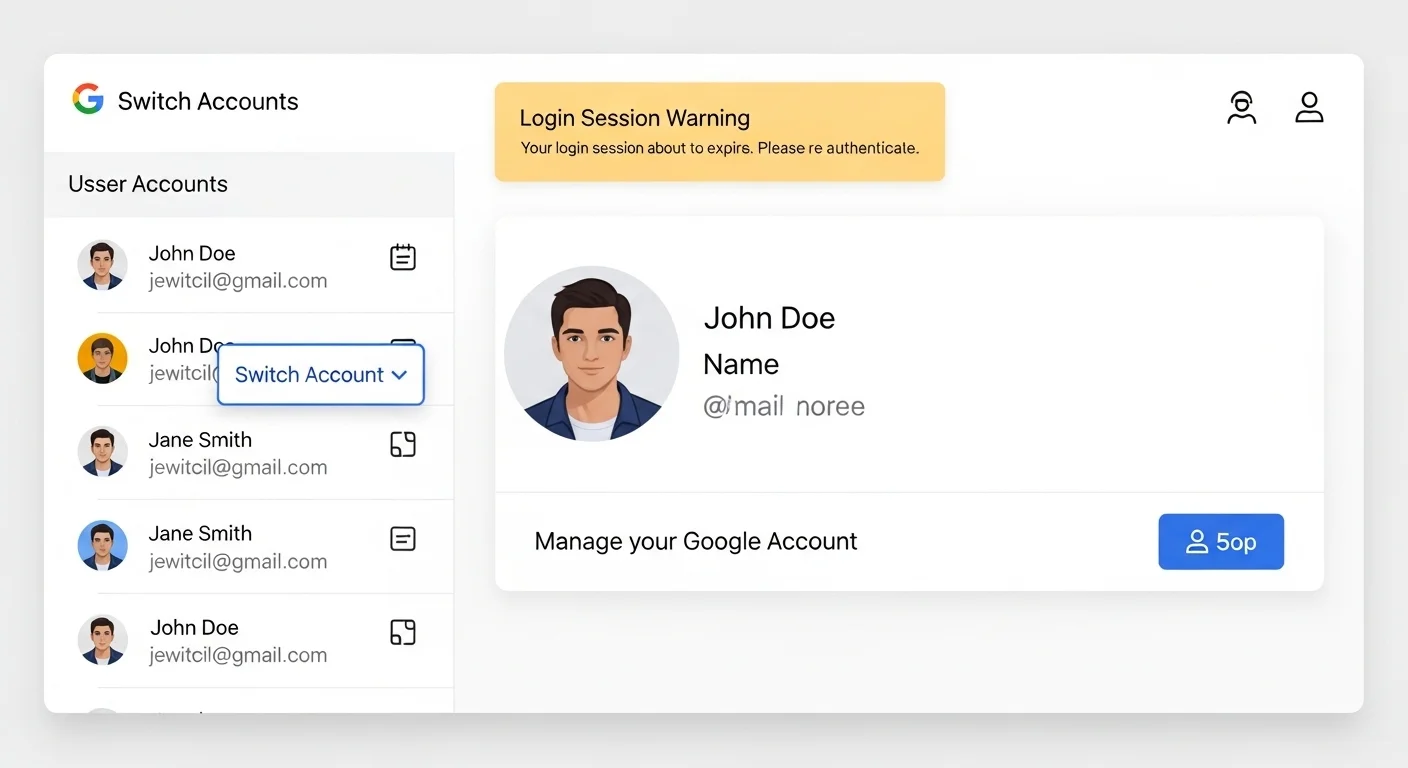
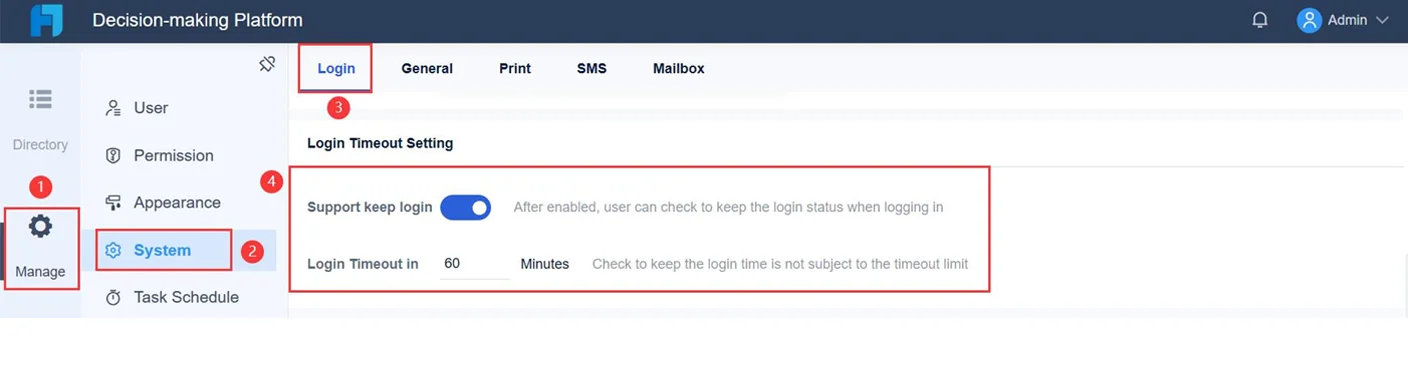
Whisk required a properly signed-in Google account. Several account situations created problems that looked like tool errors but weren’t:Multiple accounts in the same browser. If you were signed into two or three Google accounts simultaneously, Whisk sometimes loaded under the wrong one — one that hadn’t accepted Labs terms, or was registered in a restricted region. Sign out of all accounts through myaccount.google.com, then sign back in with only the account you want to use for Whisk.Expired session. Long periods of inactivity caused Google sessions to quietly expire while the page appeared to still be loaded. If the tool looked like it was there but nothing responded, signing out and back in refreshed the session.Age restriction. Whisk required users to be 18 or older. If your Google account had an incorrect birth date that made you appear under 18, access was blocked without a clear explanation. Check your date of birth under Personal Info at myaccount.google.com and make sure it’s correct.
Fix 6 — Check Your Internet Connection
Every part of Whisk ran on Google’s cloud. Your images went up to Google’s servers, Gemini read them, Imagen 3 generated the result, and the output came back to you. That whole round trip needed a stable connection.On a weak or intermittent connection:
The page would load but generation would silently time out
Images would appear to generate but never display
The Remix button would freeze without any error message
Test your speed at fast.com. Whisk ran comfortably on 10 Mbps or above. Anything slower — especially on shared WiFi or a weak mobile signal — could cause the generation to fail in ways that looked like software bugs. Switching to a wired connection or moving closer to your router fixed generation timeouts in more cases than you’d expect.
Fix 7 — Check Your Image File Sizes
Whisk had upload limits that weren’t prominently advertised. Very large image files — raw photos from a DSLR, high-resolution stock images, screenshots from a 4K display — sometimes caused uploads to fail silently. The image slot would appear to accept the file, but generation would just spin without completing.The sweet spot for input images was between 500kb and 2MB. If yours were larger, compress them first at Squoosh before uploading — it’s free and takes about ten seconds per image.Also check your file format. Whisk accepted JPG, PNG, and WebP without issues. HEIC files (the default format on iPhones), PDF files, and RAW camera formats all caused silent upload failures. Convert HEIC to JPG in your phone’s settings or using a free online converter before uploading.
Fix 8 — Full Refresh After Any Generation Error
When a generation failed — especially with an error message — Whisk sometimes got stuck in a broken state where every subsequent attempt would also fail, even with different images.The mistake most people made here was just hitting “try again” from the same broken state. That rarely worked.The fix: don’t retry from where you are. Do a full hard refresh (Ctrl+Shift+R), wait for the page to fully reload, sign back in if asked, re-upload your images fresh, and run a new generation. Starting clean almost always resolved the stuck error state.
Fix 9 — Try a Different Network
Some corporate networks, university networks, and certain ISPs blocked access to Google Labs domains at the network level. If Whisk wasn’t loading at all — completely blank page, connection refused, or permanent loading spinner — but worked fine when you switched to mobile data, the block was happening at your network rather than your device.You can confirm this quickly: turn on your phone’s mobile hotspot, connect your computer to it, and try Whisk. If it loads immediately on mobile data but not on your WiFi, the issue is your network. A VPN would bypass this, same as it bypasses regional restrictions.
Fix 10 — Wait It Out
This one feels like a non-answer but it genuinely mattered. Whisk ran on shared Google infrastructure. After major AI announcements, viral social media moments, or when the tool got featured somewhere widely read, large numbers of new users would hit it simultaneously — and performance would degrade noticeably.During those spikes, generation was slow, errors were common, and sometimes the tool was temporarily unavailable. The only real fix was waiting a few hours for traffic to normalise. Checking Twitter/X for “Whisk AI down” quickly confirmed whether an issue was widespread or just you.Google account settings showing fix for Whisk AI login issues caused by multiple accounts session timeout and age verification problems
Whisk AI Login Issues — What’s Actually Happening {#login}
Login problems in Whisk had distinct patterns. Here is what caused each one and what actually fixed it.
The Sign-In Button Opens Nothing
You click “Sign in with Google,” a popup flashes briefly and disappears, and you’re still on the login screen.This was your browser’s popup blocker intercepting the Google authentication window before it could complete.Fix: In Chrome, look for a small icon in the right side of the address bar — it appears when a popup has been blocked. Click it, select “Always allow popups from labs.google,” and try signing in again. In other browsers, check your popup settings and add labs.google as a permitted site.
Stuck in a Redirect Loop
You sign in successfully, get sent back to Whisk, and immediately get redirected to sign in again. Endlessly.This was almost always caused by corrupted authentication cookies from a previous session conflicting with the new sign-in attempt.Fix: In Chrome, go to Settings → Privacy → Cookies → See all cookies → search for “google” → delete all Google-related cookie entries. Close the browser completely. Reopen and try again. The loop stopped in nearly every case after this.Google account settings showing fix for Whisk AI login issues caused by multiple accounts session timeout and age verification problems
“This Account Isn’t Eligible”
This appeared when the account being used either hadn’t accepted Google Labs’ terms of service, or was flagged as belonging to someone under 18.Fix: Go directly to labs.google — not the Whisk URL specifically — and sign in at the main Labs homepage first. Accept the terms of service there. Then navigate to Whisk. For age-related blocks, update your birth date at myaccount.google.com/personal-info and allow a few minutes for the change to propagate.
Loading Under the Wrong Account
If you manage several Google accounts — personal, work, freelance — Whisk would occasionally load under one you didn’t intend.Fix: Click your profile picture in the top right corner of the Whisk page and switch to the correct account. If it doesn’t appear, sign out of everything and sign back in with only the intended account active.Whisk AI bad results comparison showing cluttered subject image producing muddy output versus clean subject image producing sharp result
Whisk AI Giving Bad or Slow Results {#quality}
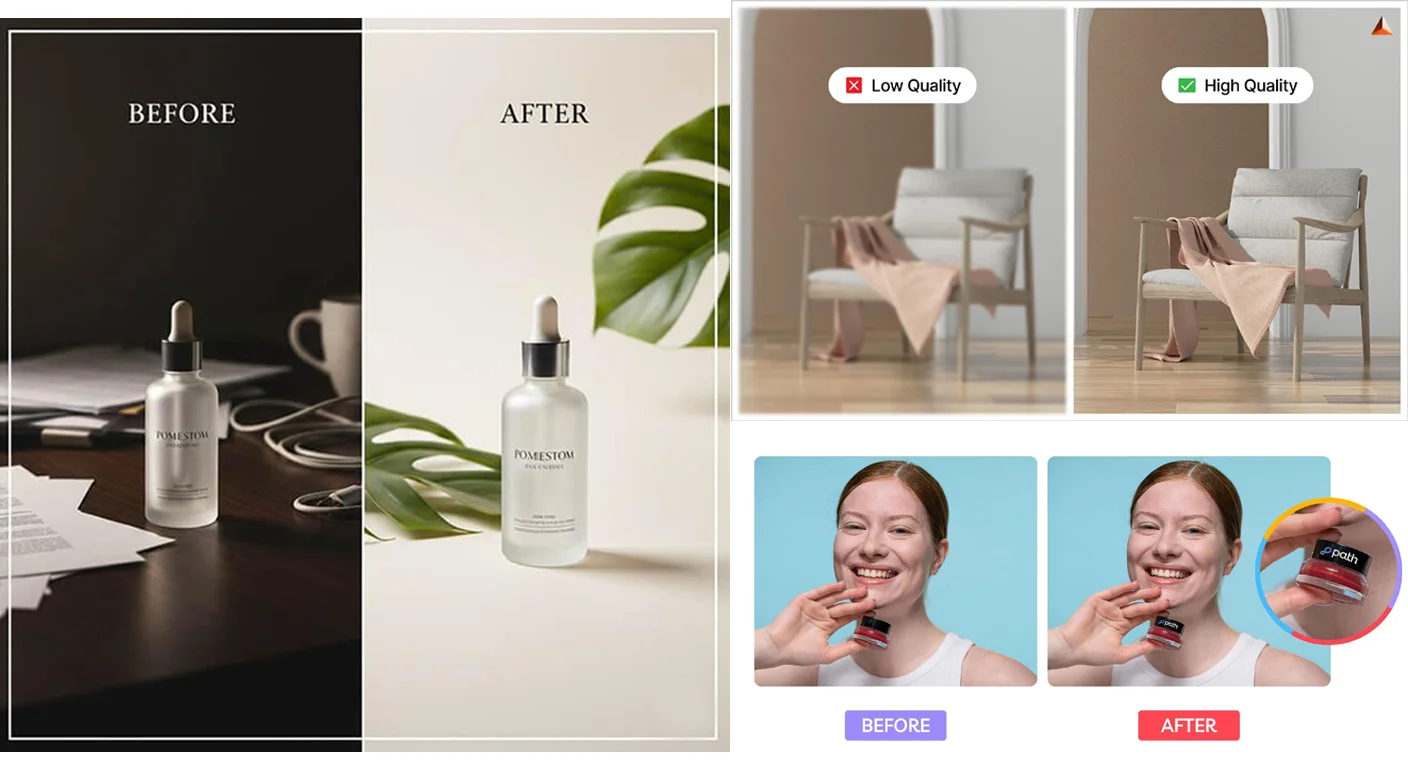
Sometimes everything worked technically — the tool loaded, generation completed, no errors — but the output was disappointing. The style didn’t come through, the subject barely resembled your input, the whole thing looked muddy.This wasn’t a bug. It had specific causes, and those causes had specific fixes.
Why Your Subject Looked Nothing Like Your Image
Whisk captured the essence of what you put in, not a precise copy. Google built it this way on purpose — it was a creative exploration tool, not a photo duplicator. Some variation was always expected.But there’s a gap between expected creative variation and genuinely bad results. The most common cause of the latter was input image quality.Cluttered or busy subject images gave Gemini too much to look at. If your subject image had a crowded background, multiple people, or lots of overlapping elements, Gemini struggled to decide what the actual subject was. The result was a blended mess rather than a clear character. Fix: crop tightly around your subject before uploading. A clean, clearly defined subject against a simple or plain background gave Gemini a clean read and produced noticeably sharper results.Dark or low-contrast images gave Gemini less visual information than it needed. The generation ended up based on guesswork. Fix: brighten your input image in any basic photo editor before uploading. You don’t need to do anything dramatic — just make the key elements clearly visible.Inconsistent style images produced inconsistent style application. If your style image mixed several different aesthetics or was visually complex, the style influence on the output became unpredictable. Fix: use style images with a single, strong, consistent visual language — one clear watercolor painting rather than a collage of styles.
Fixing Bad Results Without Uploading Different Images
The most effective quality fix that most people never discovered was the prompt editing layer.After any generation, click “Edit prompt” to see the text description Gemini automatically wrote from your three images. Read it carefully. It’s usually 40–80 words of detailed description — and it often contains small misreadings. It might describe your subject’s coat as grey when it was clearly brown, or read your style image as “photorealistic photography” when it was clearly a cartoon.Find those misreadings and correct them directly in the text. Then regenerate. Fixing specific misreadings in Gemini’s auto-generated description produced dramatically better results than uploading different images or changing the style preset.Our Whisk AI prompt guide and advanced prompts page go deep on this technique and the specific language that worked best with Imagen 3.
Why Generation Was Slow
Slow generation — anything over 30–45 seconds — usually came down to one of two things.Peak traffic hours. Whisk shared Google’s infrastructure with other Labs tools. During busy periods — typically US evenings and weekends — generation slowed for everyone. Trying during off-peak hours, particularly early morning US Eastern time, was consistently faster.Your upload speed. Getting your three input images to Google’s servers was part of the generation time. On a slow upload connection, large input files took longer to send, which extended the total time from clicking generate to seeing results. Compressing your input images to under 1MB at Squoosh shortened this noticeably on slower connections.VPN app connected to United States server showing step by step fix for Whisk AI not available in your country message
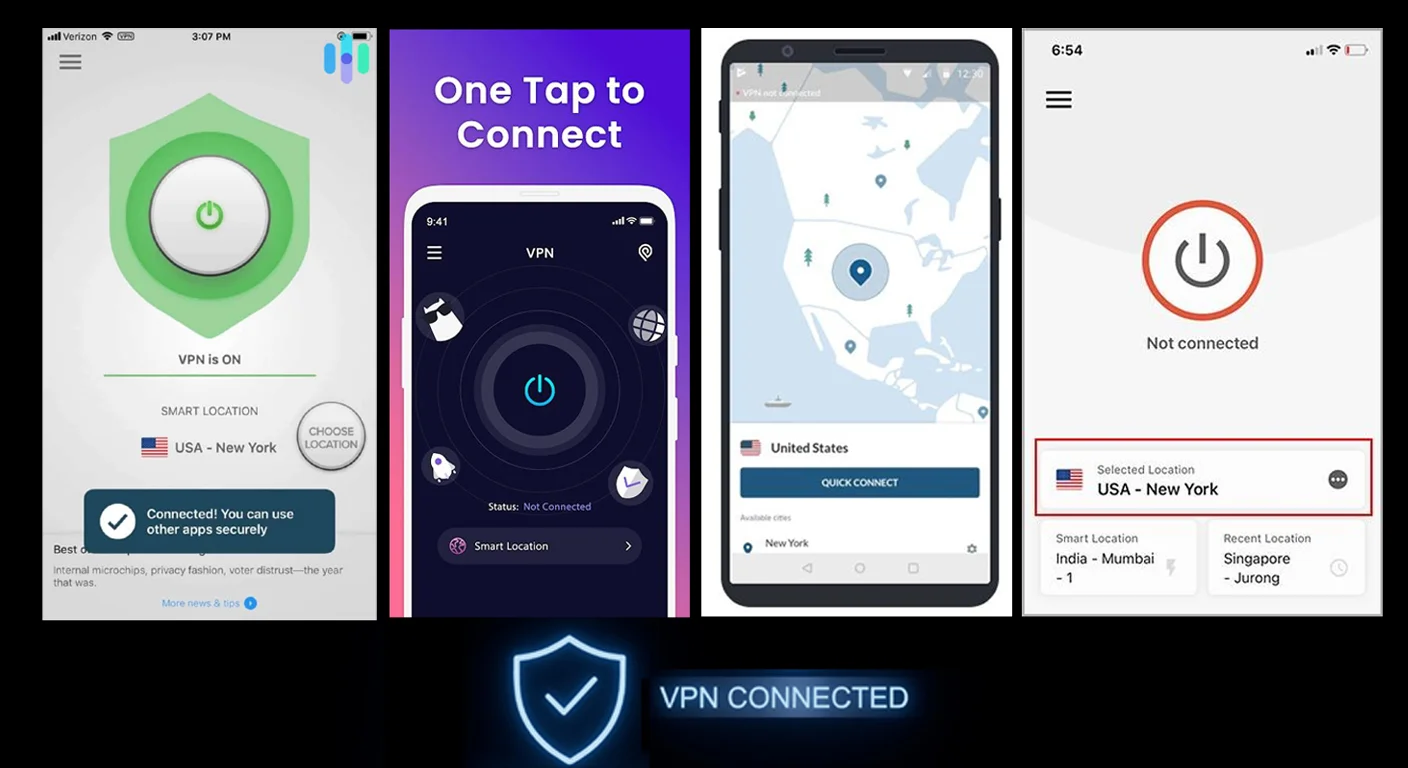
How to Use a VPN to Access Whisk From Any Country {#vpn}
If Whisk showed you the “not available in your country” message, a VPN set to a US server was the fix that worked most reliably across different regions and devices.Here is the exact method, step by step.Step 1 — Close your browser completely. Not just the Whisk tab. Not just minimise. Close every browser window. This clears location data the browser was caching from your real IP address. Skipping this step was why the VPN often didn’t work on the first attempt.Step 2 — Open your VPN app and connect to a United States server. Connect to a United States server — for example, Los Angeles. Wait until the VPN shows it is connected. Any US city works, but Los Angeles, New York, and Chicago were reported as the most consistently reliable.Step 3 — Open your browser and type the URL directly. Go to labs.google/fx/tools/whisk. Don’t use a cached bookmark from before you connected the VPN — type the address fresh.Step 4 — Sign in with your Google account. The country restriction message should be gone. Sign in, accept any prompts, and enter the tool normally.Step 5 — If it doesn’t work first time: Disconnect the VPN and connect it again. Switch to another United States server. Refresh the Whisk page after reconnecting. Switching to a different US city server fixed the connection in the majority of cases where the first attempt failed.
Which VPN to Use
Any VPN that has a United States server works. You don’t need an expensive premium subscription just for Whisk access. ProtonVPN and Windscribe both have free tiers that include US servers and worked fine for this purpose. For paid options, ExpressVPN and NordVPN were widely reported as reliable.One thing worth knowing: Google’s Labs terms of service discouraged location spoofing through VPNs. Whisk didn’t actively ban accounts for this during its run, but it’s fair to mention — using a VPN to bypass the regional restriction was done at the user’s own discretion.
Short Answers to the Questions We Get Most {#faq}
Whisk AI shows a completely blank white page. What do I do?A blank white page almost always meant a JavaScript loading failure — usually caused by a browser extension blocking a required script, or a stale cache creating a conflict. Try these in order: hard refresh (Ctrl+Shift+R), open in an Incognito window, try in Chrome if you’re using a different browser, then clear cache and cookies if none of those worked. If it’s still blank after all of that, check Google’s status page — it was occasionally a server-side issue.Why does Whisk keep generating something completely different from what I uploaded?This was intentional design. Whisk captured the essence of your inputs, not precise details. For more predictable results: use clean, well-lit images with simple backgrounds, and use the “Edit prompt” button to correct any misreadings in Gemini’s auto-generated description before regenerating. Our Whisk AI prompt guide has the specific techniques that reduced this unpredictability the most.The “Generate” button just spins and never produces anything. Why?Usually either a slow internet connection causing the upload or return transfer to time out, or an input image in an unsupported format or size. Compress your images to under 2MB at Squoosh, convert any HEIC files to JPG, and try again. If it still spins indefinitely on small, simple images — it was a server-side issue and trying again after an hour almost always fixed it.Whisk worked yesterday but today it does nothing. Nothing changed on my end.Check Google’s status page first. If it shows a Labs issue, waiting is genuinely the only fix. If the status page looks fine, try Incognito mode. If Incognito works, clearing your browser cache and cookies will fix the regular browser version.Can I use Whisk AI on my phone?Whisk ran on mobile browsers — Chrome for Android and Safari on iOS — but it was noticeably less stable than on desktop. The image upload interface had occasional problems on smaller screens, and generation errors were more common on mobile. For anything beyond casual testing, desktop Chrome was always the more reliable environment.Is there any way to use Whisk AI after the April 30, 2026 shutdown?No. The tool is fully closed. Any generated images that weren’t downloaded before the shutdown date are no longer accessible. For continuing similar creative work, Google ImageFX uses the same Imagen 3 model and is completely free. Our Whisk AI alternatives guide compares every meaningful option in detail so you can find the one that fits your workflow.My VPN is connected to a US server but I’m still seeing the country restriction. What now?Close your browser completely before connecting the VPN — not after. This is the step most people miss. Once the VPN shows as connected, open the browser fresh and type the Whisk URL directly rather than using a cached bookmark. If it still shows the restriction, try a different US city server. Los Angeles, New York, and Chicago were the most reliably unblocked locations based on consistent user reports.
One Last Thing
Most Whisk AI problems were solvable. The ones that weren’t — the April 30 shutdown, the regional blocks for EU and UK users, genuine Google server outages — were outside anyone’s control on the user side.If you found your fix here, that’s exactly what this guide was here for.If you’re now figuring out where to take your creative work after Whisk closes, our full alternatives comparison covers every real option with the same honest approach — no padding, no vague recommendations. And if you want to carry your prompting techniques into whatever tool you choose next, the Whisk AI prompts library and Google Labs tools overview have everything you need to keep going.
To provide the best experiences, we use technologies like cookies to store and/or access device information. Consenting to these technologies will allow us to process data such as browsing behavior or unique IDs on this site. Not consenting or withdrawing consent, may adversely affect certain features and functions.
Functional
Always active
The technical storage or access is strictly necessary for the legitimate purpose of enabling the use of a specific service explicitly requested by the subscriber or user, or for the sole purpose of carrying out the transmission of a communication over an electronic communications network.
Preferences
The technical storage or access is necessary for the legitimate purpose of storing preferences that are not requested by the subscriber or user.
Statistics
The technical storage or access that is used exclusively for statistical purposes.The technical storage or access that is used exclusively for anonymous statistical purposes. Without a subpoena, voluntary compliance on the part of your Internet Service Provider, or additional records from a third party, information stored or retrieved for this purpose alone cannot usually be used to identify you.
Marketing
The technical storage or access is required to create user profiles to send advertising, or to track the user on a website or across several websites for similar marketing purposes.

 Short Answers to the Questions We Get Most {#faq}
 Short Answers to the Questions We Get Most {#faq}