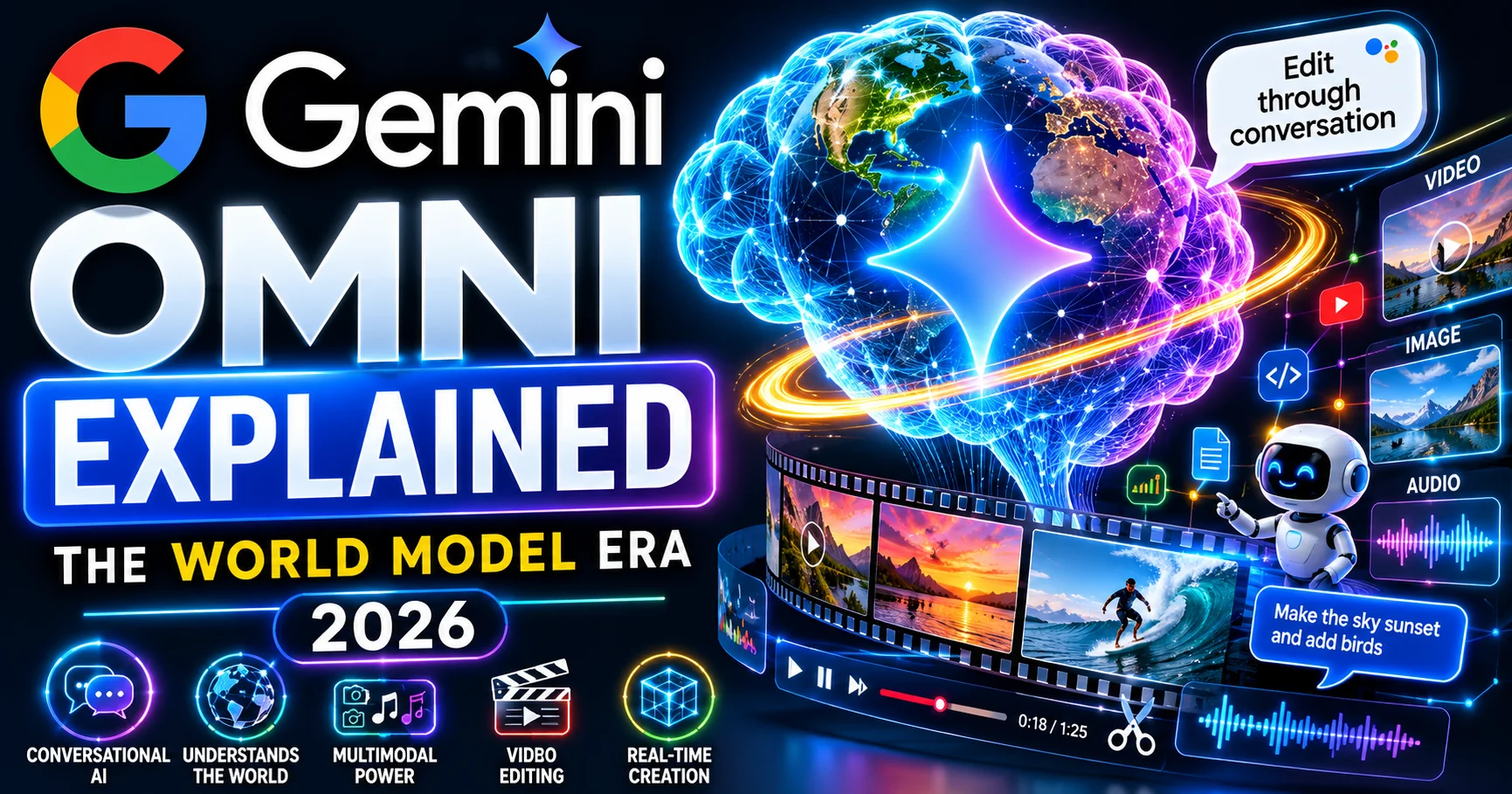
Gemini Omni Explained | Google’s New “World Model” That Edits Video Through Conversation 2026
There’s a moment in the Google I/O 2026 keynote that explains everything you need to know about why Gemini Omni matters.
Google DeepMind CEO Demis Hassabis stood on stage and generated a claymation explainer of protein folding — live, through conversation, refining it turn by turn. Not by writing a new prompt each time. By talking to it, the way you’d talk to a human editor sitting next to you.
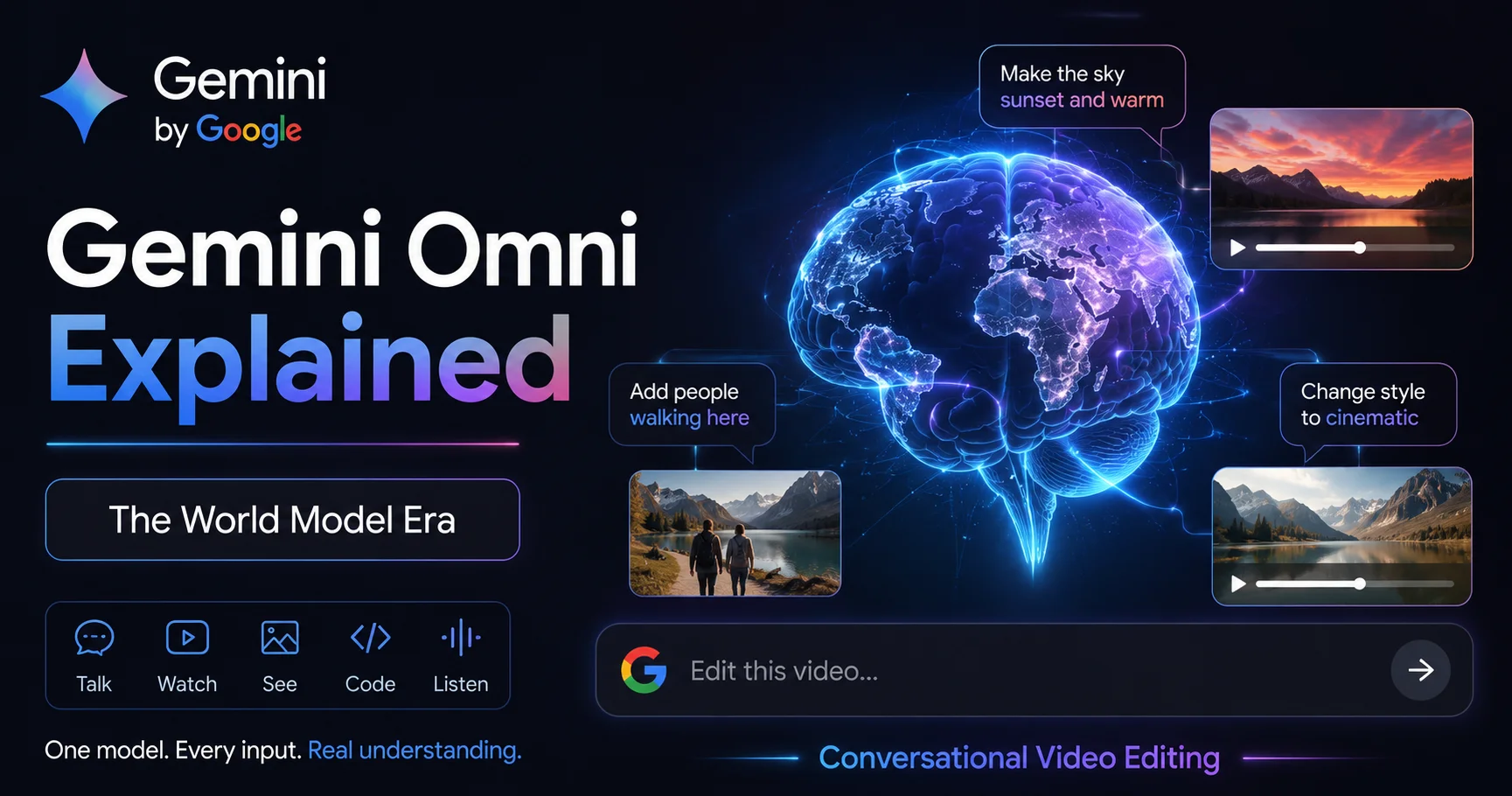
That’s the entire idea behind Gemini Omni. It’s not just another video generator added to Google’s lineup. It’s a fundamentally different way of working with AI video — one that understands the world it’s creating, remembers everything you’ve told it, and lets you refine your work through back-and-forth conversation instead of starting from scratch every time something isn’t quite right.
This guide explains exactly what Gemini Omni is, how it’s different from Veo 3.1, what it can actually do, how it fits inside Google Flow AI, and how you can start using it today.
What Is Gemini Omni?
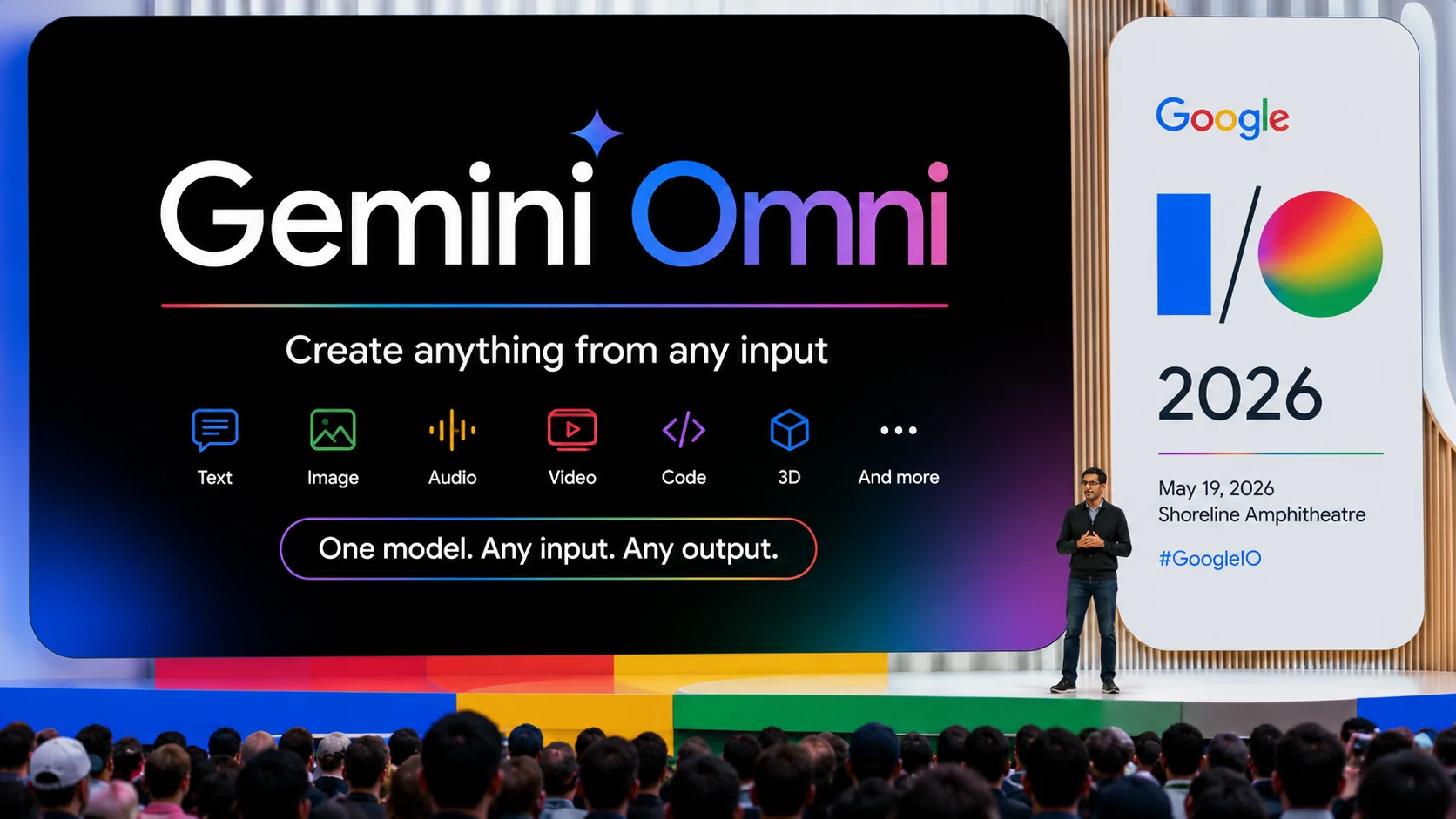
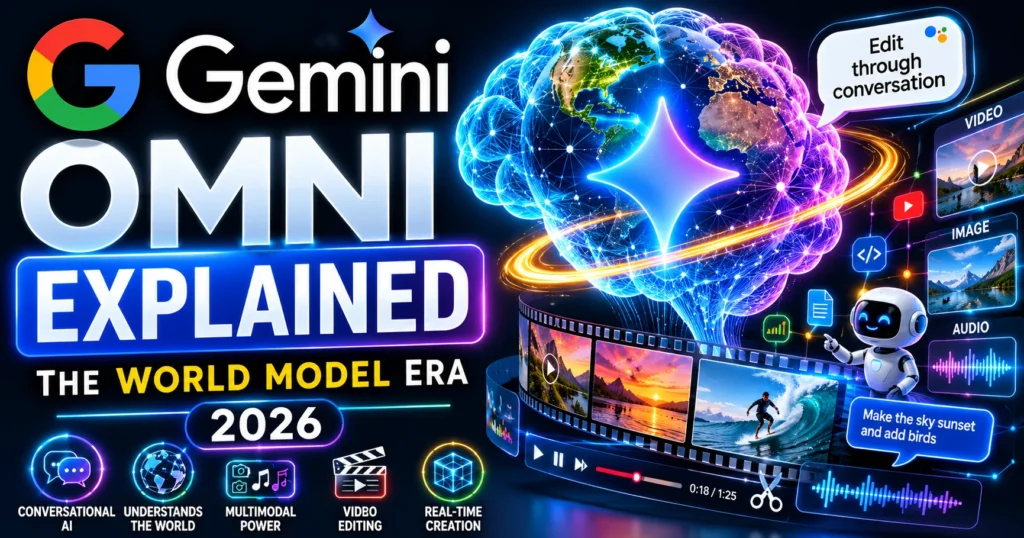
Gemini Omni is Google’s new “any-to-any” generative AI model family, announced at Google I/O 2026 on May 19. It accepts text, images, audio, and video as inputs and generates video output — with conversational, multi-turn editing that preserves character consistency and physics across edits.
Here’s the simplest way to understand what makes it different: most AI video tools — including Veo 3.1 — work in a “one prompt, one result” pattern. You write a prompt, you get a clip, and if you want a change, you write a new prompt and generate again, essentially starting over.
Gemini Omni works completely differently. Every edit instruction is understood in the context of everything that came before it. Change the camera angle in step three, and the model knows the characters, lighting, and scene context from steps one and two. There is no “start over.”
It also fully replaces Veo in the Gemini app going forward — meaning if you open the Gemini app to make a video today, you’re using Omni, not Veo directly.
The first model in this family is Gemini Omni Flash, and it is live today in the Gemini app, Google Flow, and free on YouTube Shorts and YouTube Create App.
Why Google Calls It a “World Model”
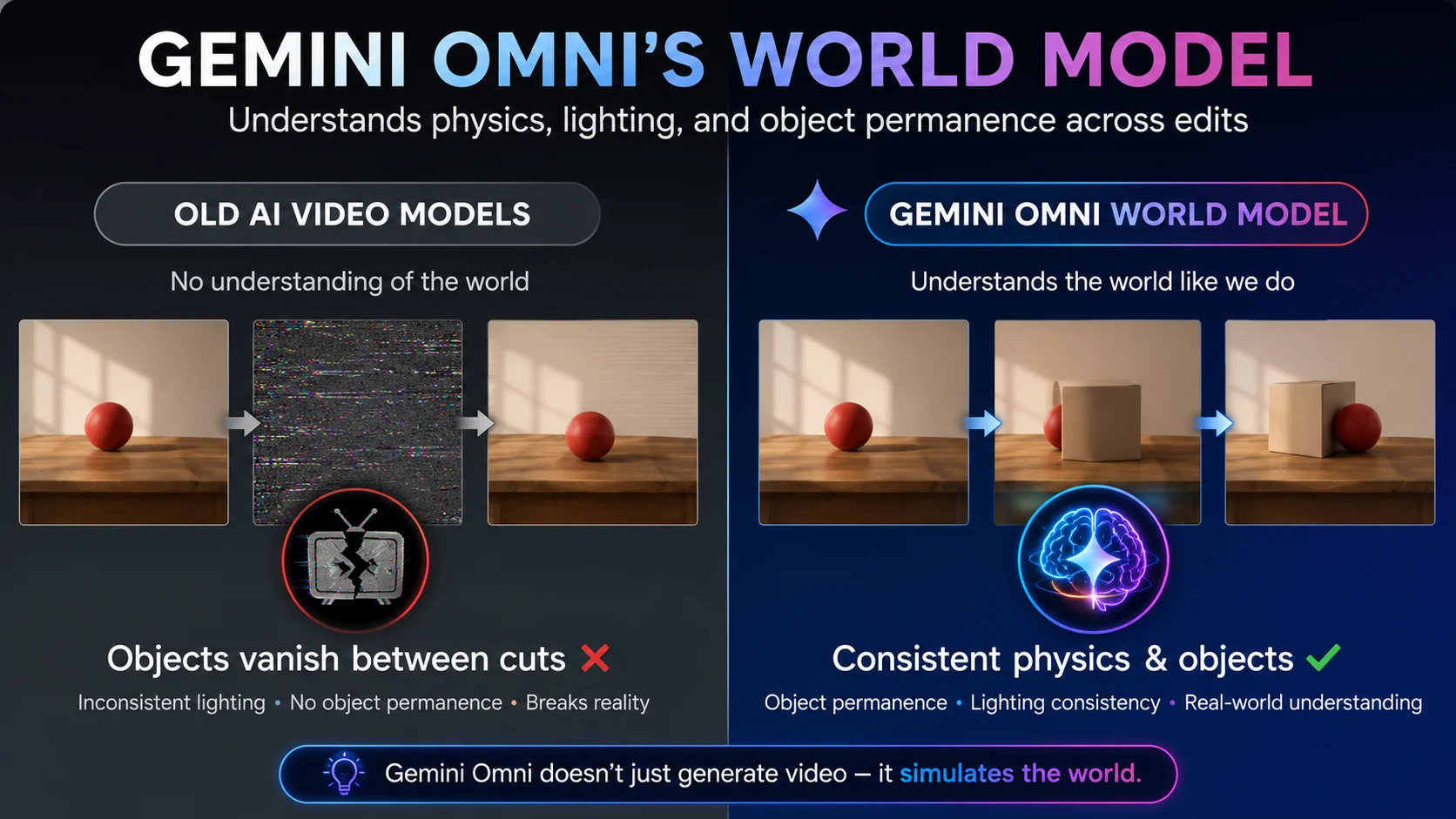
This is the part that genuinely distinguishes Gemini Omni from every prior video AI model, including Google’s own Veo line.
At Google I/O 2026, Google DeepMind CEO Demis Hassabis described Gemini Omni not as a video generator, but as a world model — a system that builds an internal understanding of reality and reasons about what should happen next inside any given scene.
Here’s why this distinction matters in practice. Most earlier video AI tools predicted the next frame by pattern-matching pixels at scale. They produced footage that looked real but didn’t behave consistently — characters morphed between cuts, shadows ignored light sources, and fluid moved like a texture rather than a substance.
The world-model layer means the model maintains an internal, coherent understanding of the physical world — object permanence, lighting direction, character identity — so cuts no longer “swap” things unexpectedly. A character’s face stays the same. A light source stays consistent. A glass of water stays where you put it.
The result is a model that does not just predict what pixels should appear next — it predicts what should happen given what it understands about the world, then renders accordingly. That is why the physics in Omni demos hold up where dedicated video models produce artifacts on close inspection.
The protein folding claymation demo from the keynote is the clearest proof point: it proved that the model moves past pixel-matching to understand actual scientific and spatial reality, rather than just generating something that superficially looks plausible.
What Gemini Omni Can Actually Do — 5 Core Editing Capabilities
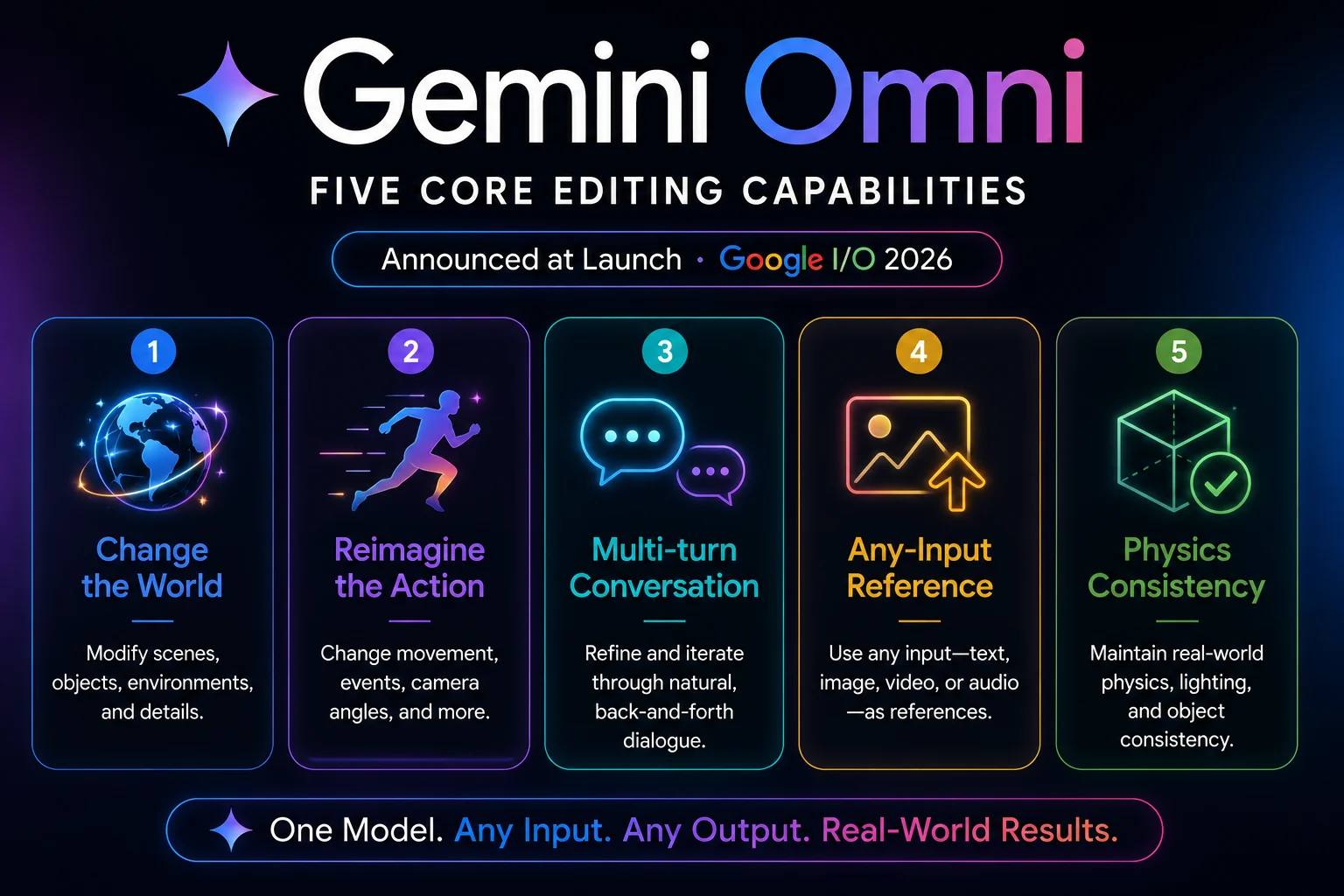
Google describes five specific editing capabilities that shipped at launch:
1. Change the World — Modify specific elements, change a background, transform the entire setting while keeping your subject and the action consistent.
2. Reimagine the Action — Change what’s happening within an existing scene without losing the established characters, lighting, or environment.
3. Conversational Multi-turn Editing — Users can modify video over multiple turns with natural language instead of stopping after one generation. This is the headline feature — you’re having an ongoing conversation with the model about your video, not submitting isolated prompts.
4. Any-to-Any Input — Multimodal input means text, images, video, audio, and more can be used as references. You can hand Omni a reference photo, a piece of audio, or a rough video clip and have it incorporate that material intelligently into what it generates. When you supply a reference photo alongside a text prompt, Omni reasons across both at once, preserving visual details that a text-conversion step would typically flatten.
5. World Understanding and Consistency — Consistency in physics, scenes, actions, narrative, and audiovisual output is maintained throughout an entire editing session, not just within a single generation.
Gemini Omni vs Veo 3.1 — What’s the Actual Difference?
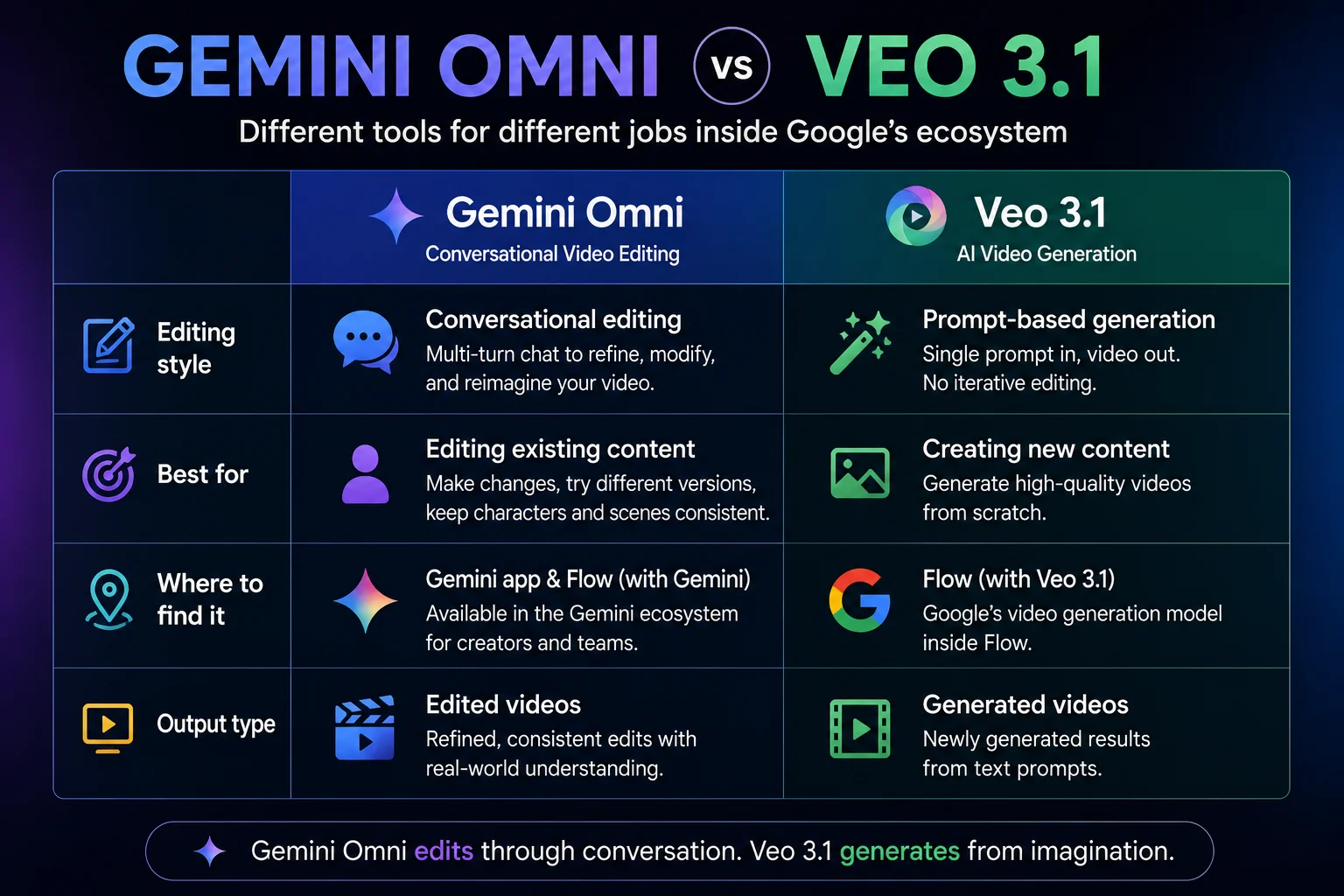
This is the question every Google Flow AI user is asking right now — and it’s an important one because the two models aren’t replacements for each other, they’re built for different jobs.
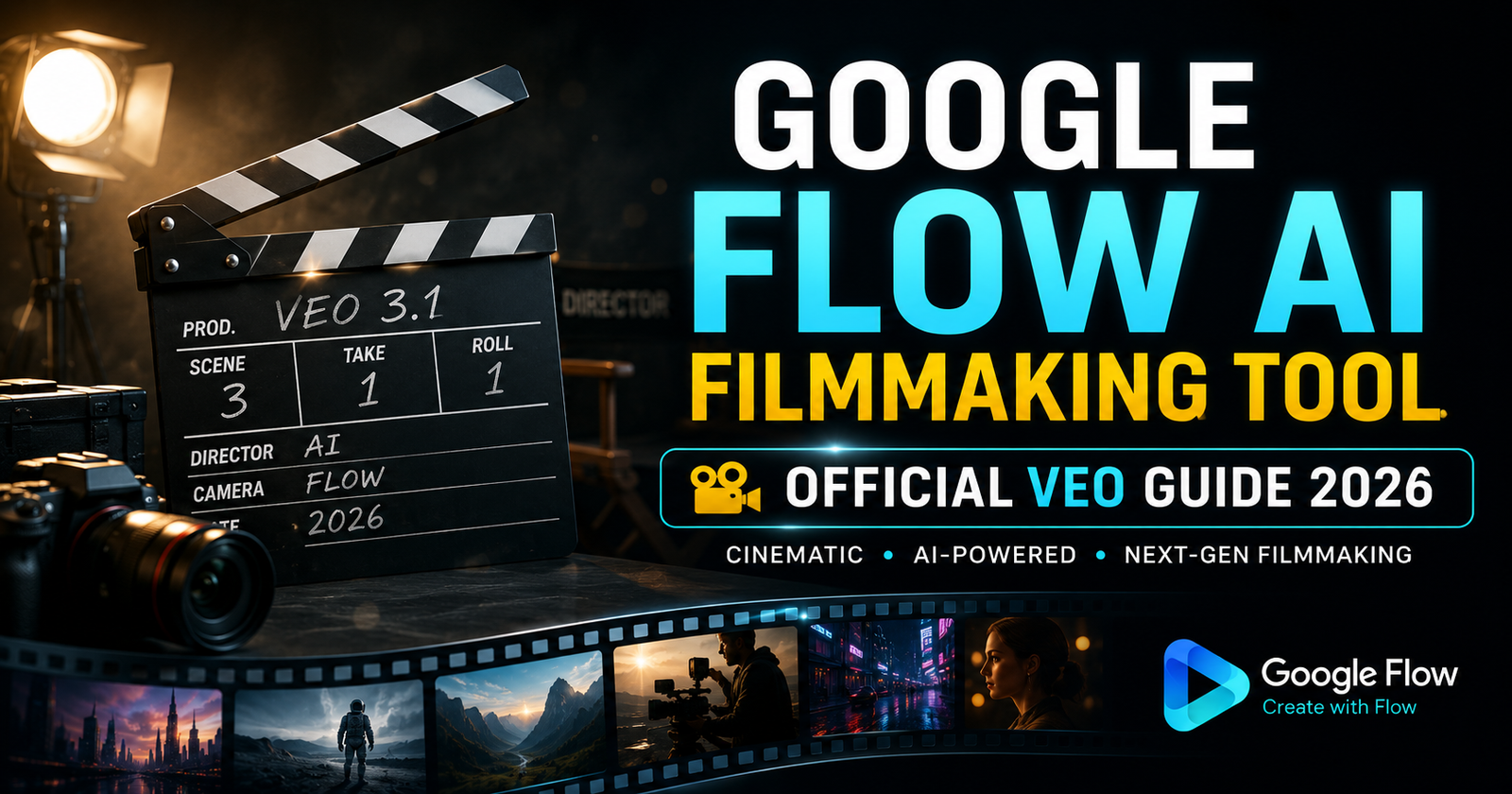
Veo 3.1 is a dedicated video generation model: you prompt it, it generates a clip, you re-prompt if you want changes. Gemini Omni fuses Gemini’s reasoning engine with Veo’s rendering capabilities plus DeepMind’s Genie world simulation and Nano Banana image editing layers.
This makes Omni a reasoning model that generates video rather than a video model — a subtle but important distinction.
| Gemini Omni | Veo 3.1 | |
|---|---|---|
| Editing style | Conversational, multi-turn, remembers context | Single prompt → single result |
| Best for | Iterative refinement, complex multi-step edits | High-quality single clip generation |
| Where it lives | Gemini app, Google Flow, YouTube Shorts | Google Flow AI (primary) |
| Input types | Text, image, audio, video — any combination | Primarily text and reference images |
| Physics consistency | Strong — world model architecture | Strong — but per-generation, not across edits |
| Native audio | Yes | Yes (since the Veo 3.1 update) |
Practical translation: If you want the absolute best single cinematic clip with one well-crafted prompt, Veo 3.1 inside Google Flow AI remains an excellent choice — it’s what powers Flow AI’s core video generation. If you want to build something iteratively — having a back-and-forth conversation to refine a scene exactly the way you want it — Gemini Omni is the better fit.
Importantly, Google isn’t retiring Veo. Both models coexist, with Omni acting as a more conversational, reasoning-driven layer that can call on Veo’s rendering capability underneath it.
How Gemini Omni Fits Inside Google Flow AI
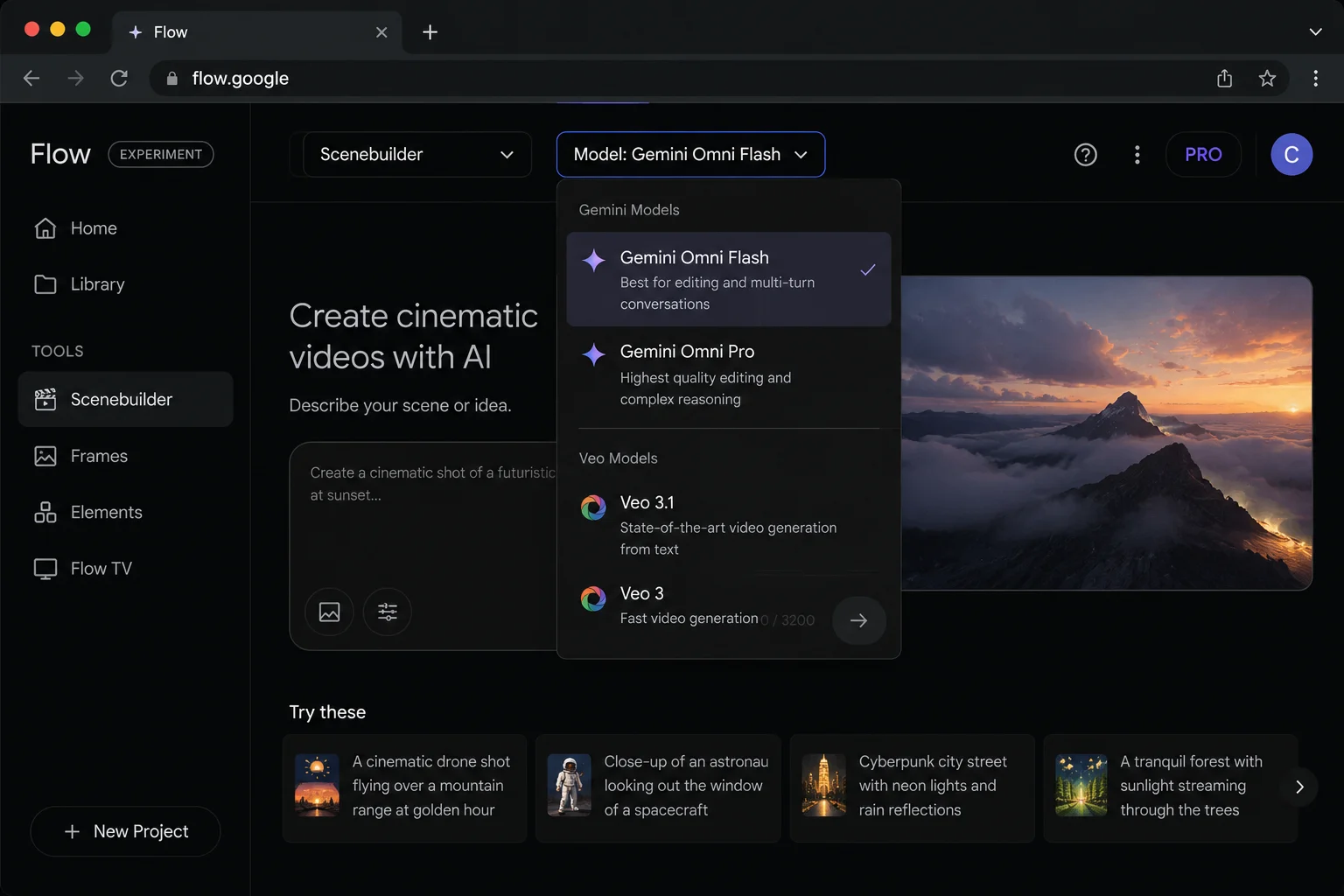
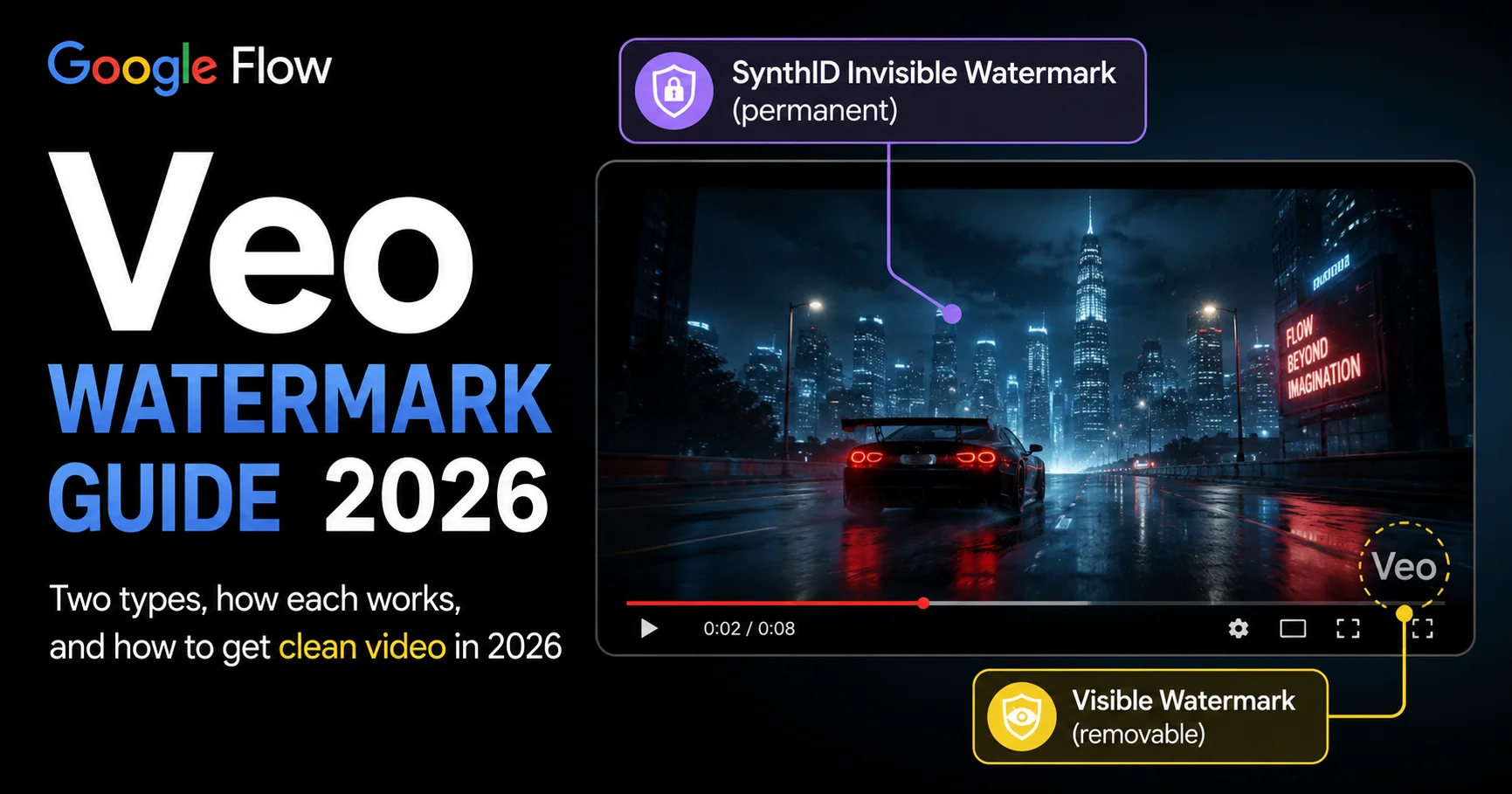
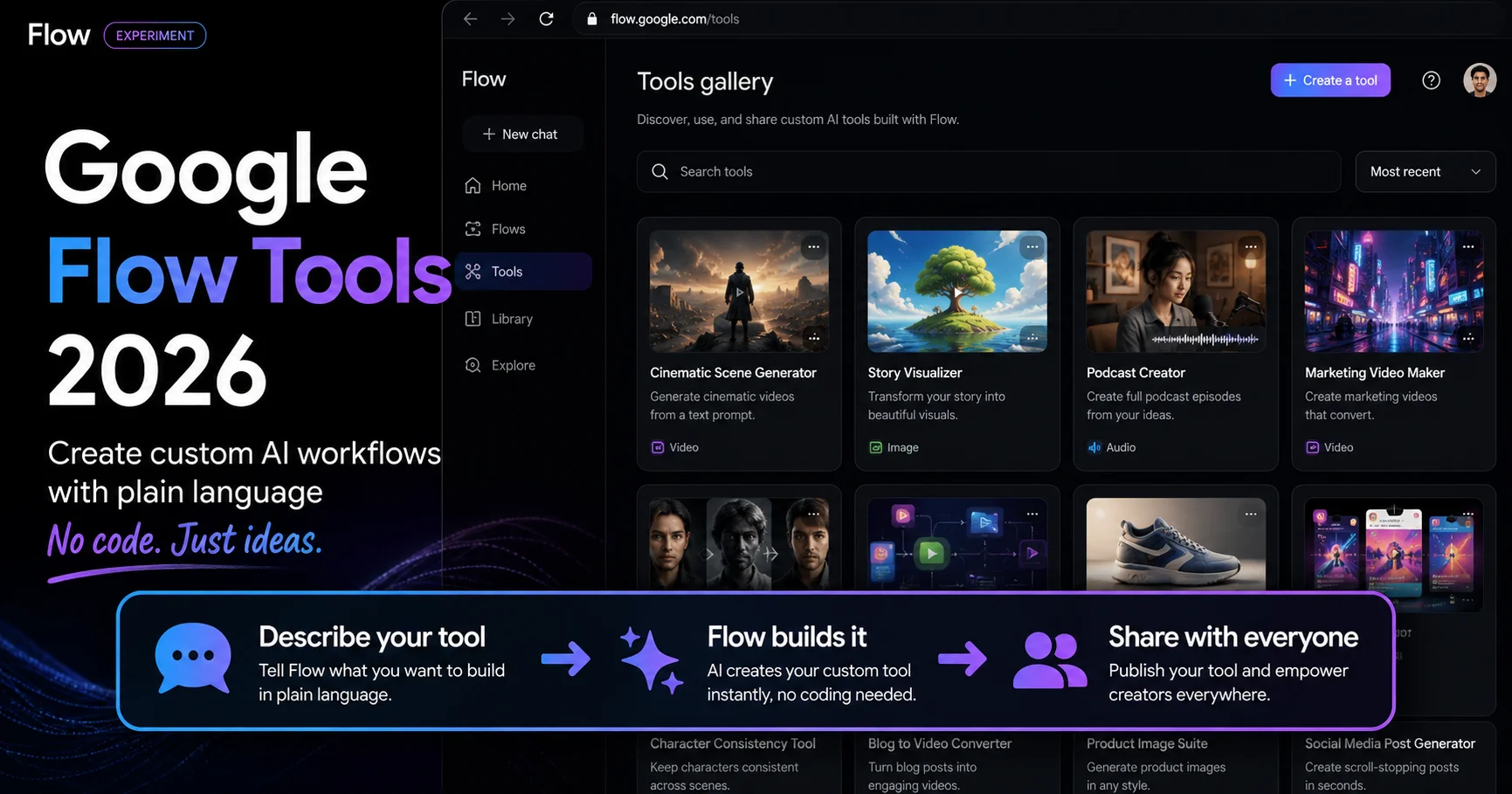
Google Flow and Google Flow Music are creative collaborators, now with even more upgrades following the Gemini Omni launch. Inside Google Flow AI, Gemini Omni Flash is available as a model option alongside Veo 3.1, giving you the choice between traditional single-prompt generation and conversational iterative editing depending on what your project needs.
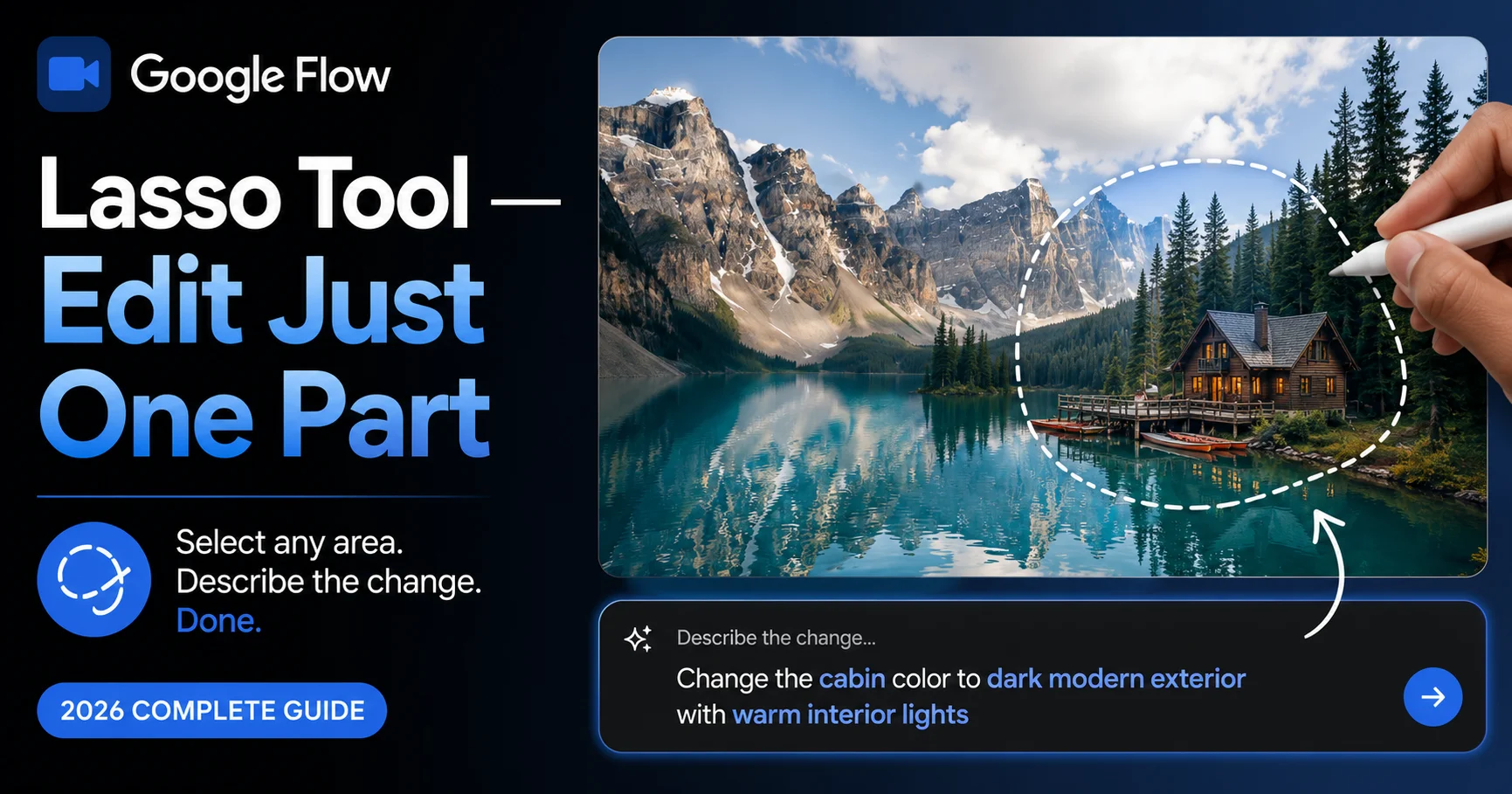
This pairs naturally with features Flow AI already had. The Lasso Tool — which lets you select a specific area of an image and describe a change in plain language — shares the same conversational philosophy that Gemini Omni brings to full video editing. Where the Lasso Tool handles spatial selection within a single frame, Gemini Omni extends that same “just tell it what you want” approach across multi-turn video editing sessions.
For Flow AI subscribers, here’s the access breakdown:
| Plan | Gemini Omni Access |
|---|---|
| Free | Limited — image-based features only |
| Google AI Plus | ✅ Gemini Omni Flash |
| Google AI Pro / Ultra | ✅ Full Gemini Omni Flash access with highest priority |
Gemini Omni (AI Plus, Pro and Ultra; global) — Gemini Omni is Google’s new model that can create anything from any input, starting with video.
For the complete walkthrough of using Flow AI’s models and features, see our Google Flow AI Tutorial.
Gemini Omni on YouTube Shorts — Free Access
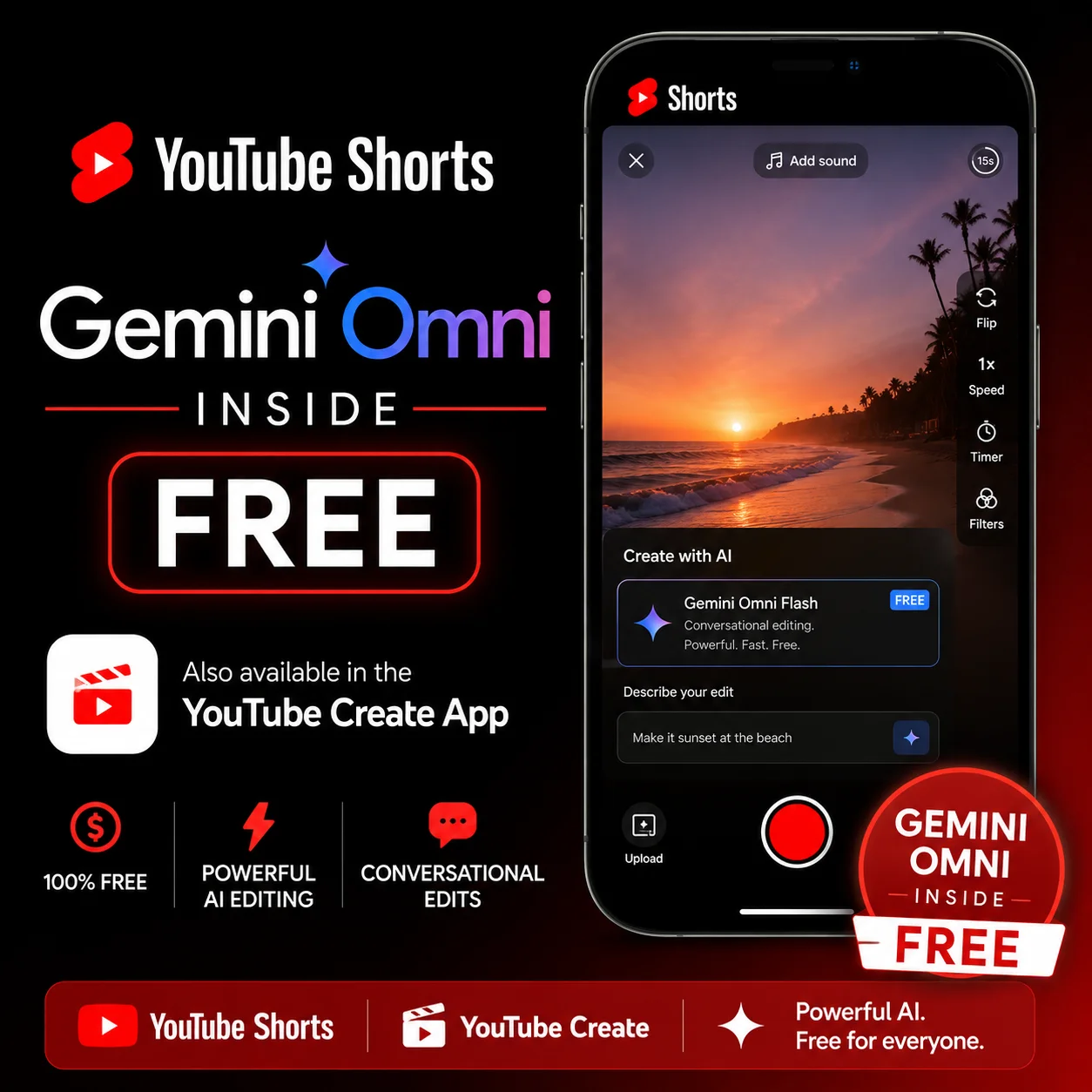
One detail that’s easy to miss but genuinely important: Gemini Omni Flash is free on YouTube Shorts and the YouTube Create App — no Google AI subscription required for that specific access point.
This means millions of YouTube Shorts creators already have access to conversational, world-model-powered video editing without paying anything extra, as long as they’re working within the YouTube app ecosystem. If you want the full standalone experience inside Google Flow AI with more creative control and higher output quality, that’s where the Google AI Plus subscription comes in.
How to Start Using Gemini Omni Today
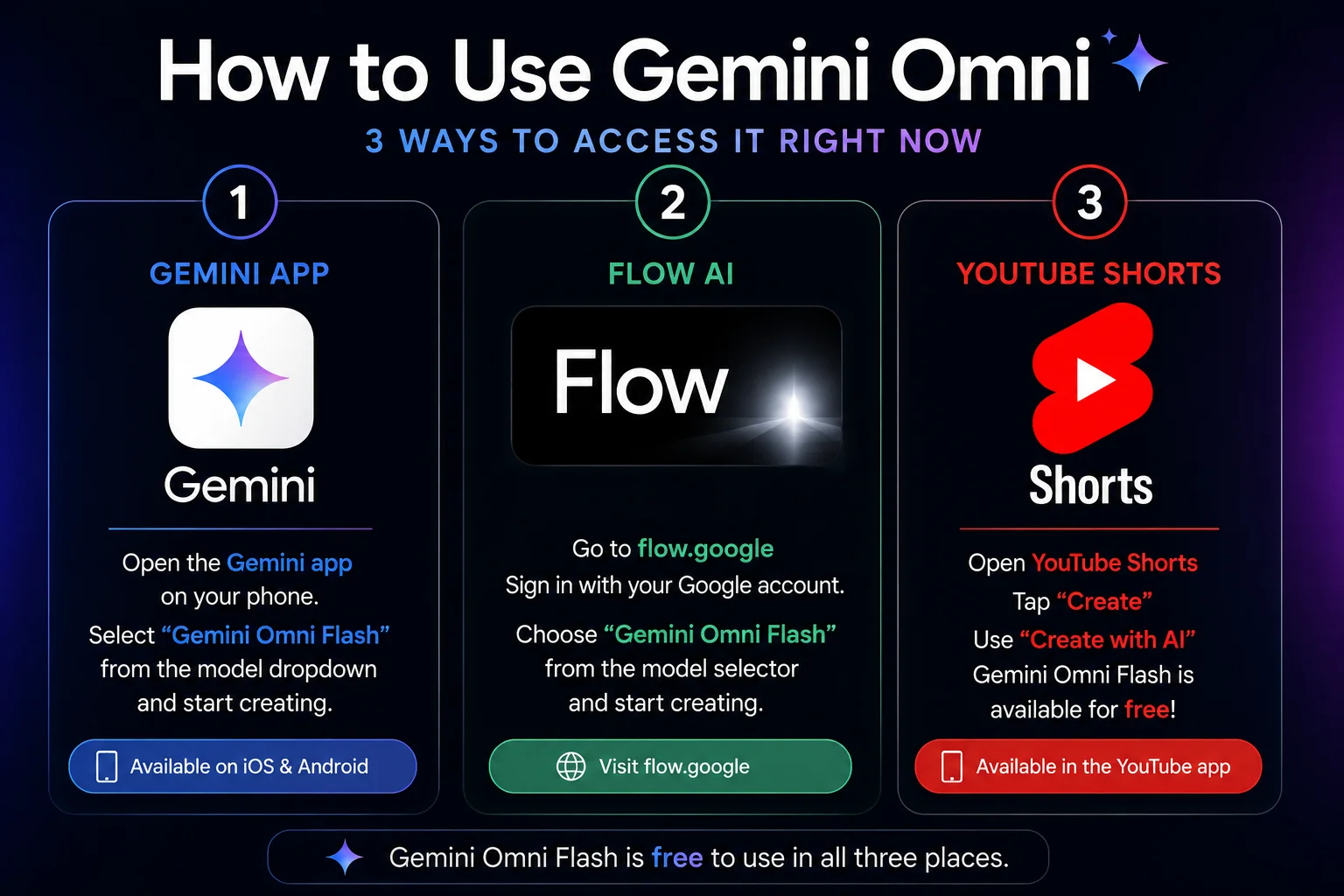
Option 1 — Gemini app (conversational chat interface) Open the Gemini app on your phone or at gemini.google.com. Start a new conversation and describe what video you want. Omni now powers video generation here by default. Refine your result by simply continuing the conversation — “make the lighting warmer,” “change the background to a forest,” “have the character turn toward the camera” — each instruction builds on what came before.
Option 2 — Google Flow AI (full creative studio) Go to flow.google, sign in with your personal Google account. If you’re on Google AI Plus or higher, look for Gemini Omni Flash in your model selector alongside Veo 3.1. This gives you Omni’s conversational editing inside Flow AI’s broader toolkit, including the Ingredients system and Gemini Avatar.
Option 3 — YouTube Shorts / YouTube Create App Open YouTube Create or the Shorts creation flow inside the YouTube app. Gemini Omni Flash is built directly into the creation tools here, free to use, optimized for short-form vertical content.
For Pakistan-specific access details and subscription pricing, see our Pakistan access guide.
What This Means for the Future of AI Video
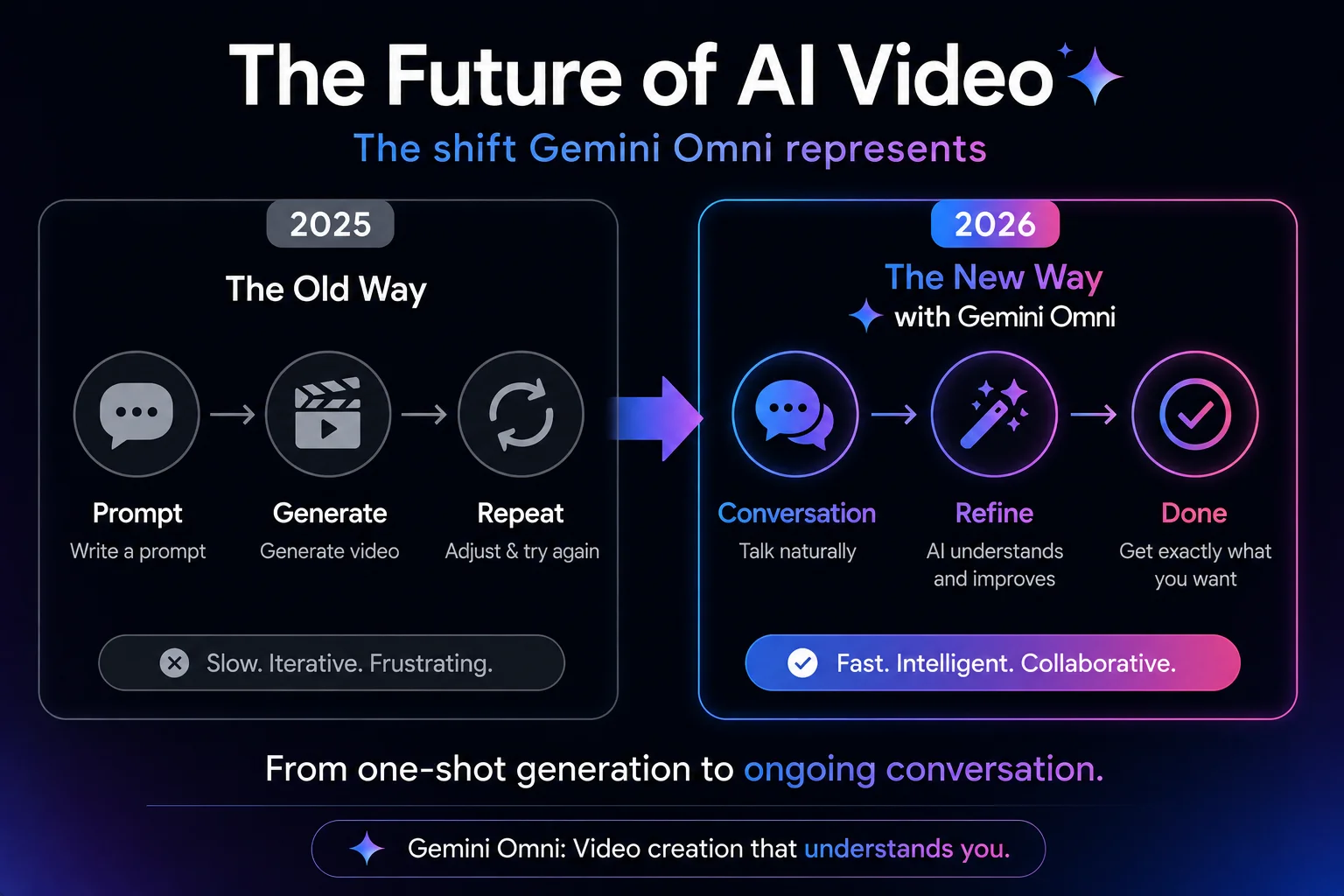
This means AI video tools are moving from “enter one prompt to generate a clip” toward “revise step by step as if talking to an editor.” For creators, the real value is not one-shot generation, but a controllable, traceable, and iterative editing process.
Gemini Omni is the most architecturally significant AI video announcement of 2026. Conversational multi-turn editing, any-to-any multimodal input, physics understanding, drawing-to-video, and YouTube Shorts integration make it a genuinely different kind of video model.
For Pakistani creators and anyone building a workflow around Google Flow AI, the practical takeaway is this: the tools are converging toward conversation-based creation rather than prompt-and-pray generation. Learning to “talk through” an edit — describing changes step by step, building on previous results — is becoming as important a skill as writing a strong initial prompt.
Frequently Asked Questions
Q: What is Gemini Omni?
Gemini Omni is Google’s new “any-to-any” generative AI model family, announced at Google I/O 2026 on May 19. It accepts text, images, audio, and video as input and generates video output, with conversational multi-turn editing that remembers context across an entire editing session.
Q: Is Gemini Omni the same as Veo 3.1?
No. Veo 3.1 is a dedicated video generation model — you write a prompt, it generates a clip. Gemini Omni is a reasoning model that generates video, built on top of Veo’s rendering capability plus Gemini’s reasoning engine, DeepMind’s Genie world simulation, and Nano Banana’s image editing layer. Omni focuses on conversational, iterative editing rather than single-shot generation.
Q: Is Gemini Omni free?
Gemini Omni Flash is free inside YouTube Shorts and the YouTube Create App. Inside the Gemini app and Google Flow AI, full access requires a Google AI Plus, Pro, or Ultra subscription.
Q: Can I use Gemini Omni inside Google Flow AI?
Yes. Gemini Omni Flash is available as a model option inside Google Flow AI for Google AI Plus subscribers and higher, alongside Veo 3.1. See our Google Flow AI Tutorial for the full platform walkthrough.
Q: What does “world model” mean?
A world model is an AI system that builds an internal understanding of physical reality — how objects behave, how light works, how characters maintain identity — rather than simply predicting the next likely pixels based on pattern matching. This is why Gemini Omni maintains consistency (the same character, the same lighting, objects that don’t randomly disappear) across multiple edits in a way that earlier video models struggled with.
Q: Does Gemini Omni replace Veo in the Gemini app?
Yes. Gemini Omni fully replaces Veo as the default video generation model inside the Gemini app going forward. Veo 3.1 remains the primary model inside Google Flow AI, with Omni available as an additional option for Plus subscribers and higher.
Q: When did Gemini Omni launch?
Gemini Omni was announced at Google I/O 2026 on May 19, 2026, alongside Gemini 3.5 Flash and updates to Google Antigravity. The first model in the family, Gemini Omni Flash, launched live the same day.
Q: How is Gemini Omni different from regular AI video editing?
Traditional AI video editing requires you to write a complete new prompt for every change, often losing consistency with your previous result. Gemini Omni lets you have an ongoing conversation — “change the camera angle,” “make it nighttime instead” — where each instruction builds on everything established before it, without needing to restate the full scene each time.
Final Thoughts — A Genuinely Different Way to Make Video
Most AI announcements in 2026 have been incremental — faster models, slightly better quality, a new feature bolted onto an existing tool. Gemini Omni is different. It represents Google rethinking what “editing a video with AI” should actually feel like.
The shift from one-shot prompting to ongoing conversation isn’t just a UX nicety. It changes how creative work happens — you no longer have to get everything perfect in a single instruction. You can start somewhere reasonable and refine your way to exactly what you want, the same way you’d work with a human collaborator.
For Google Flow AI users, this means more flexibility in how you approach a project. Use Veo 3.1 when you know exactly what you want and need the best possible single clip. Use Gemini Omni when you’re exploring, iterating, or building something complex that needs to evolve through several rounds of feedback.
For everything else happening in the Google Flow AI ecosystem — from Veo 3.1’s audio capabilities to the Ingredients to Video system to the Lasso Tool — visit WhiskAILabs for the complete, continuously updated guide library.
Related Articles on WhiskAILabs:
- Home — WhiskAILabs.net
- Gemini Omni Flash in Flow AI — Complete Guide
- Google Flow AI I/O 2026 Update
- Veo 3.1 Update 2026 — All New Features
- Google Flow AI Lasso Tool Guide
- Gemini Avatar in Google Flow AI
- What Is Google Flow AI?
- Google Flow AI Tutorial — Step by Step
- Ingredients to Video with Audio Guide
- Google Flow AI Pricing 2026
- Google Flow Beta Download Guide
- Pakistan Access Guide for Google AI
- News & Updates — WhiskAILabs
Official External Sources: