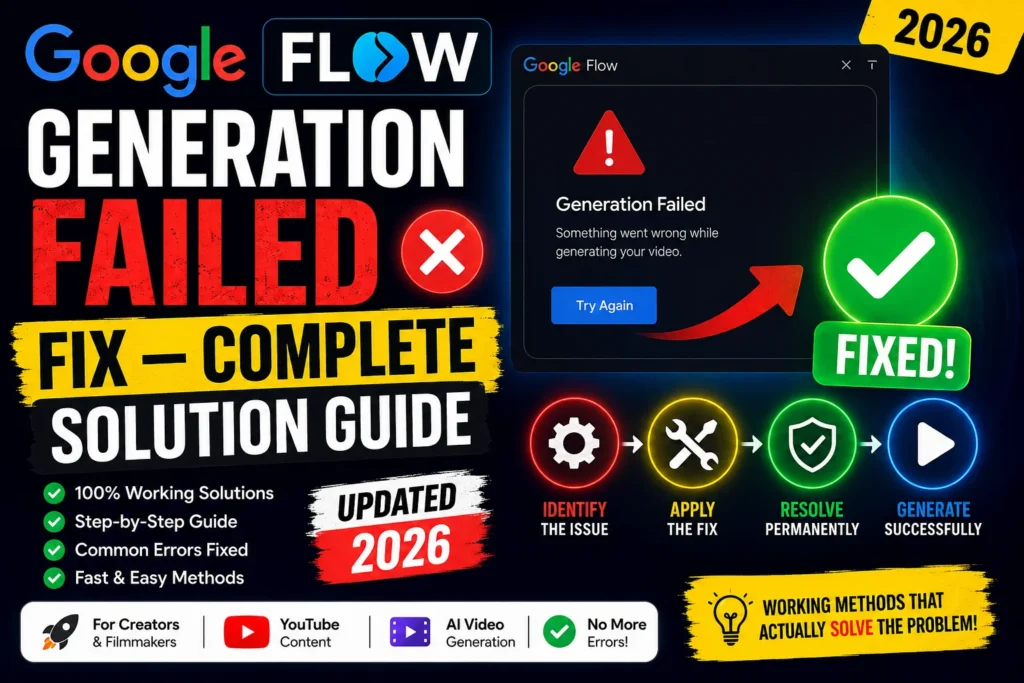
Google Flow Generation Failed Fix — Complete Solution Guide (2026)
Google Flow Generation Failed Fix — You Are Closer to the Answer Than You Think
You pressed generate. You waited. And then instead of a video or image — you got a failure message. Maybe it said “Generation failed.” Maybe it said “Something went wrong.” Maybe it just stopped dead with no explanation at all.
Whatever the exact wording, the result is the same: your generation did not complete, and you have no idea why.
The Google Flow generation failed fix is what this guide is built around. And here is the most important thing to know before you spend another hour guessing:
The Google Flow generation failed error is almost never one single thing. It belongs to one of several very different buckets — and the right fix depends entirely on which bucket your failure falls into. Treating it like one generic bug is exactly why most people end up going in circles, retrying the same prompt over and over and getting the same failed result.
This guide shows you how to identify which bucket your failure belongs to, and then gives you the exact Google Flow generation failed fix for each one — in plain language, step by step, from the fastest fixes to the deeper ones.
Let’s get your generation working.
From Whiskailabs: We research Google Flow problems against real user reports and Google’s official documentation. Everything in this Google Flow generation failed fix guide is verified as of May 20, 2026. More guides at Whiskailabs.
The First Thing to Do Before Any Google Flow Generation Failed Fix
Before working through any specific fix, do one thing first — check your Library tab.
Sometimes what looks like a Google Flow generation failed is actually a ghost generation. The server finished the job and saved your video or image — but the browser never received the final confirmation signal. The interface shows a failure message while your completed output is already sitting in your Library waiting for you.
How to check:
- Do NOT hit retry immediately
- Press Ctrl + Shift + R (Windows) or Cmd + Shift + R (Mac) to hard refresh
- Click on Library or History in Flow’s navigation
- Look for your output — it will often be there, fully complete
If it is there — great. Your generation did not actually fail. Download it and carry on.
If it is genuinely not there, the generation did fail. Work through the fixes below.
Also check your credits before anything else:
If your credit balance dropped after the failure but the video is not in your Library, wait 15 to 30 minutes. Google states that credits from failed generations are re-credited, though they may take time to reappear. A temporarily low balance right after a failed job does not mean the credits are permanently gone.
What Causes the Google Flow Generation Failed Error — Every Real Reason
Based on Google’s official documentation and verified reports from the Google AI Developers Forum and Gemini Help Community, here are every confirmed cause — ranked by how often they actually occur:
Cause 1 — No credits remaining or wrong plan: You have exhausted your monthly AI credits, or you are attempting a feature that requires a higher subscription tier than you currently have.
Cause 2 — Content safety policy block: Your prompt contains a word, phrase, or concept that triggered Flow’s content safety filters — even without any intentionally harmful content. Sometimes a single specific word is enough.
Cause 3 — Unsupported feature and model combination: You are using a Flow feature that is not compatible with the model you have selected. For example, Ingredients to Video requires Veo 2 — it does not work with Veo 3.1.
Cause 4 — Region or language issue: Flow is only available in supported countries, and prompts must be written in US English. Prompts in other languages consistently fail.
Cause 5 — Experimental audio failure: The audio generation pipeline failed — and rather than deliver a silent video, Flow returned a full generation failure instead.
Cause 6 — Too many concurrent generations: Running more than five generations simultaneously causes the excess jobs to fail immediately.
Cause 7 — Overly complex or contradictory prompt: The prompt was too long, too contradictory, or asked for too many competing elements for the model to process.
Cause 8 — Server-side outage or peak load: Google’s infrastructure experienced a temporary issue — either a confirmed outage or a high-traffic throttling event.
Cause 9 — Age detection filter triggered: Flow’s age-detection filter flagged content related to minors — even without a minor being explicitly requested or obviously depicted.
Cause 10 — Wrong subscription tier for the feature: Certain features — particularly Veo 3 and Veo 3.1 video generation — require the Ultra plan. Attempting them on Pro may result in a failed generation rather than a clear “upgrade required” message.
Now let us go through every Google Flow generation failed fix, one by one.
Google Flow Generation Failed Fix 1 — Check Your Credits and Plan First
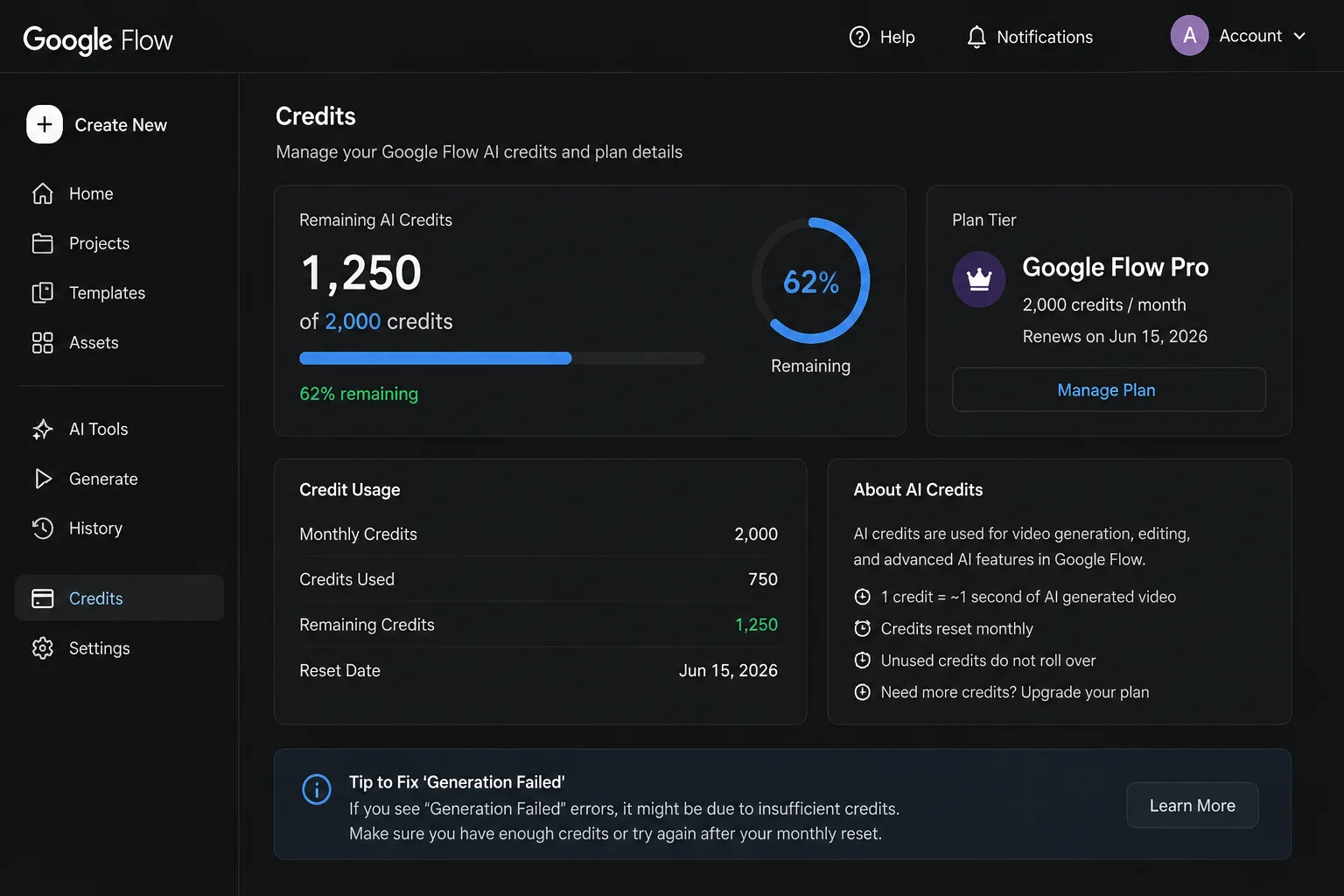
The fastest Google Flow generation failed fix to rule out is credit exhaustion. Before spending time on anything else, check how many credits you have left.
How to check:
- Go to flow.google.com
- Click your profile picture or the settings icon
- Find the Credits or Usage section
- Check your current balance against what your generation costs
Credit costs per generation as of May 2026:
| Generation Type | Veo 3.1 Fast | Veo 3.1 Quality |
|---|---|---|
| Video (no audio) | 20 credits (Pro) / 10 (Ultra) | 100 credits |
| Video (with audio) | Higher | Higher |
| Image (Nano Banana Pro) | Varies by resolution | Varies |
If your balance is at zero or below the cost of your requested generation — that is your Google Flow generation failed fix. Either wait for your monthly credit cycle to reset, or upgrade your plan at one.google.com.
Also check your plan tier:
Certain features in Flow — particularly Veo 3 and Veo 3.1 — require the Ultra plan. If you are on the Pro plan and attempting Ultra-only features, the generation will fail. Some users discovered this after spending significant time troubleshooting their prompts — when the actual fix was simply upgrading to the correct plan tier.
Google Flow Generation Failed Fix 2 — Check Region and Prompt Language
This is one of the most common causes of the Google Flow generation failed error that people never think to check — because it is not always obvious from the error message.
Region check:
Google Flow is available in 149+ countries but not in all of them. The EU and UK are currently excluded due to GDPR and EU AI Act compliance requirements. If you are in a restricted region, your generations will fail — often without a clear “not available in your country” message. They may simply return a generic generation failed error.
How to test if region is your issue:
Go to flow.google.com and look for any message mentioning access or availability. If you see “Flow is not available in your region” — the Google Flow generation failed fix is to use a VPN connected to a US server (Los Angeles, New York, or Chicago work most reliably).
For a detailed step-by-step VPN setup guide, see the Whiskailabs Google Flow access guide.
Prompt language check:
Google Flow currently supports prompts in US English only. Prompts written in any other language — Urdu, Hindi, Arabic, French, Spanish, or any other — will consistently fail or produce unexpected results.
The fix:
Rewrite your prompt entirely in English. Even if your target output is in another language — for example, a video with Urdu dialogue — write the prompt itself in English and specify the dialogue language within the English prompt. For example:
“A man speaks directly to the camera in Urdu, addressing his audience warmly. Audio: the man says in Urdu: ‘Aaj hum aik nai shuruat kartay hain.'”
The prompt is in English. The language instruction is in English. The requested output audio is in Urdu. This approach works. Writing the entire prompt in Urdu and expecting Flow to understand it does not.
Google Flow Generation Failed Fix 3 — Identify and Fix a Content Safety Block
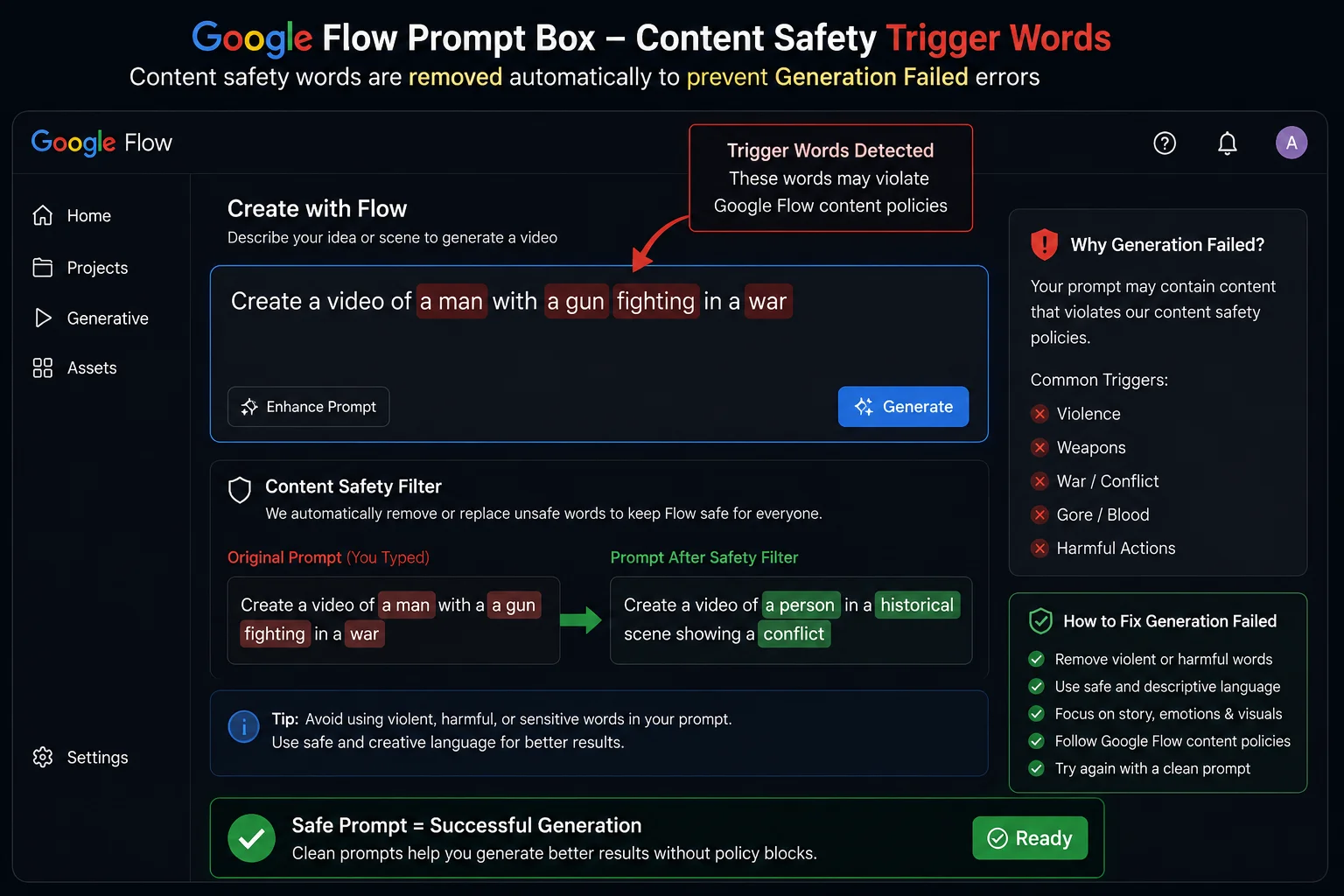
This is the number one cause of repeated Google Flow generation failed errors — and it is the most frustrating because Flow does not always tell you clearly that a safety filter triggered. It just fails.
Flow’s content safety filters work on two layers. The first layer checks your prompt text for words, phrases, or concepts that match policy restrictions. The second layer checks the generated output itself. Either one can cause a generation failed error.
The tricky part is that you do not have to be intentionally generating harmful content for a safety filter to trigger. A single specific word in an otherwise completely normal prompt can cause the whole thing to fail. One creator shared their experience: they were generating standard cinematic content and kept hitting failures all day long — until they traced the problem to specific descriptor words in their prompts that were triggering the safety filter even in innocent contexts.
How to identify if a safety block is your Google Flow generation failed fix:
Step 1: Test with the simplest possible neutral prompt — something like: “a red apple on a wooden table in soft morning light.”
If this simple prompt generates successfully, your original prompt contains something triggering the safety filter — not a platform issue.
Step 2: Go back to your original prompt and remove elements one at a time. After each removal, try generating again. The moment the generation succeeds, the last element you removed was the trigger.
Common trigger patterns to watch for:
- Words describing conflict, even mild ones — “confrontation,” “fight,” “attack,” “violent,” “explosive”
- References to weapons, even in clearly fictional or historical contexts
- Any mention of minors in combination with physical descriptions
- Public figures, celebrities, or real named individuals
- Copyrighted characters or brand names
- Certain medical or pharmaceutical terms
- Language that could be interpreted as incitement, even abstractly
The reframing fix:
Often the Google Flow generation failed fix here is simply reframing — not removing the concept, but changing the specific words. For example:
- “A violent confrontation” → “A tense, heated argument between two people”
- “An explosion destroys the building” → “The structure collapses suddenly amid smoke and debris”
- “A soldier fires his weapon” → “A soldier in battle takes a defensive position”
The visual outcome can be almost identical. The language difference is enough to pass the safety filter.
Google Flow Generation Failed Fix 4 — Fix Unsupported Feature and Model Combinations
This is a very specific but extremely common cause of the Google Flow generation failed error — and it has a clean, simple fix once you know what to look for.
Certain Flow features only work with specific models. If you try to use a feature with the wrong model, the generation fails — and Flow does not always give you a clear error explaining the mismatch.
The current confirmed model requirements as of May 2026:
| Feature | Required Model |
|---|---|
| Standard Text-to-Video | Veo 3.1 Fast or Quality |
| Audio generation | Veo 3.1 only (not Veo 2) |
| Ingredients to Video | Veo 2 only |
| Extend | Veo 2 (Veo 3.1 support coming) |
| First and Last Frame | Veo 2 |
| Frames to Video | Veo 3.1 (with January 2026 update) |
The most common mismatch causing the Google Flow generation failed error right now is using Ingredients to Video with Veo 3.1 selected. Ingredients to Video requires Veo 2 — attempting it on Veo 3.1 causes an immediate generation failure.
The fix:
- Check which feature you are using in Flow
- Cross-reference with the table above
- Switch to the correct model in the model picker
- Retry the generation
Google notes: if you select a feature not yet supported by Veo 3.1, Flow should notify you and suggest switching to the corresponding model. But this notification does not always appear — so checking manually is the safer approach.
Google Flow Generation Failed Fix 5 — Reduce Concurrent Generations
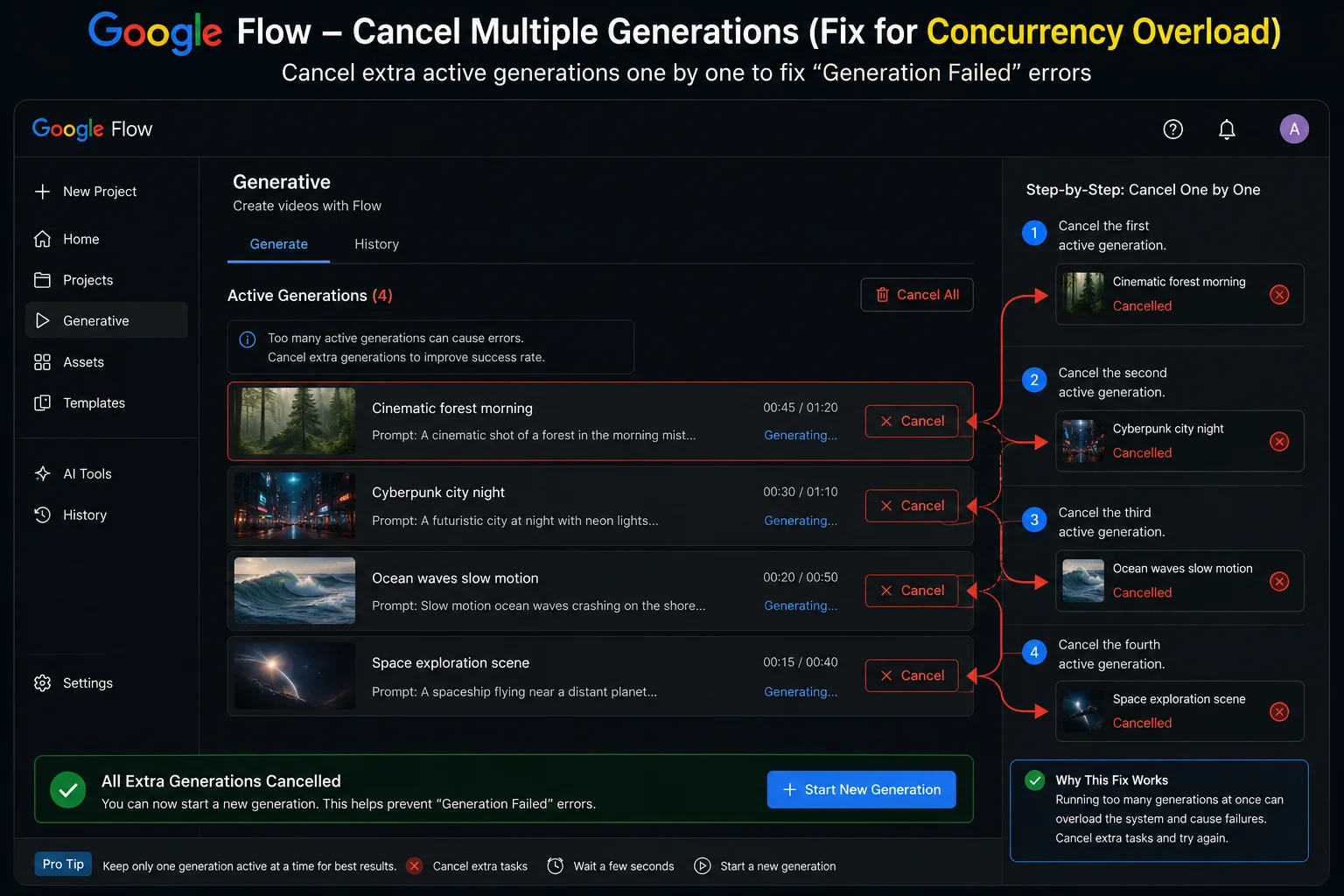
This Google Flow generation failed fix catches a lot of power users by surprise — especially those testing multiple prompt variations simultaneously.
Google Flow allows up to five concurrent generations running at the same time. When you exceed this limit, the excess generations fail immediately. And during high server load periods, even having four or five running at once increases the failure rate of each individual job.
How to check how many are running:
Look at the active generations visible in your Flow workspace. Count how many show “Generating” or “In progress” status simultaneously.
The fix:
- Cancel all currently running generations
- Wait until your workspace shows no active jobs
- Run a single generation with your target prompt
- Only add concurrent generations back once you have confirmed individual stability
Running one generation at a time is the most reliable approach when debugging a repeated Google Flow generation failed error. The speed you gain from running multiple jobs simultaneously is not worth the failure rate increase when you are already experiencing problems.
Google Flow Generation Failed Fix 6 — Simplify Your Prompt
This is one of the most effective Google Flow generation failed fixes — and one of the hardest for creative users to accept, because it feels like a step backwards.
There is a real sweet spot in how you write prompts for Flow. Being specific — describing times of day, colours, lighting, and camera movement — produces better results than vague prompts. But being over-specific or writing extremely long, complex prompts with many competing elements confuses the model and increases failure rate significantly.
Signs your prompt may be too complex:
- More than 100 words in the prompt
- Multiple characters doing different things simultaneously
- Competing style references (“cinematic but also animated but also photorealistic”)
- Very specific camera movement combined with complex action and dialogue simultaneously
- Multiple scene changes within a single prompt
The Google Flow generation failed fix for prompt complexity:
Break the prompt down. Generate the visual first — no audio, no camera movement, just the core scene. Once that succeeds, add one element at a time: camera movement, then audio, then dialogue. This way you identify exactly which element is causing the failure rather than rewriting everything blindly.
Practical prompt simplification example:
Instead of:
“A cinematic slow-motion close-up shot tracking left of a young woman walking through a crowded neon-lit Tokyo street at 2am in the rain while looking at her phone and saying ‘I don’t know where I’m going anymore’ with ambient city sounds, jazz music, and rain hitting her umbrella, in a Wong Kar-wai visual style with warm orange light.”
Start with:
“A young woman walks slowly through a neon-lit Tokyo street at night in the rain, looking at her phone. Cinematic, warm orange light, Wong Kar-wai style.”
If that generates successfully, add the camera movement. Then add the audio line. Then add the dialogue. Build complexity only after confirming each layer works.
Google Flow Generation Failed Fix 7 — Fix the Audio Branch Specifically
If your generation only fails when you include audio or dialogue in your prompt — but succeeds when you remove those elements — the failure is in the audio pipeline, not the video generation itself.
This is a specific sub-type of the Google Flow generation failed error, and it has its own specific fix path.
How to confirm audio is the problem:
- Take your exact prompt
- Remove every audio-related instruction completely
- Generate the silent version
- If the silent version succeeds — the audio branch was causing your Google Flow generation failed error
Common audio-specific failure causes:
- Dialogue that is too short (single words or very brief phrases)
- Scenes involving younger-looking characters (speech is automatically muted on minors)
- Requests for copyrighted music, specific artists, or real song titles
- Very complex layered audio with multiple simultaneous voices and sound effects
- Audio descriptions mixed into the visual description instead of separated clearly
The Google Flow generation failed fix for audio failures:
Add your audio back as a separate, clearly structured sentence at the very end of your prompt. Keep it simple on the first retry — just ambient sound, no dialogue. Once that generates successfully with audio, add dialogue back using a longer, more specific transcript.
For a full guide on writing audio prompts that work reliably, see the Whiskailabs Google Flow no sound guide.
Google Flow Generation Failed Fix 8 — Check for a Platform-Wide Outage
Before spending more time troubleshooting your device, prompt, or account — spend 30 seconds checking whether the Google Flow generation failed problem is happening at Google’s end.
Confirmed platform-wide outages have caused widespread generation failures for large numbers of users simultaneously — entirely independent of anything the users were doing. During these events, no amount of prompt editing, cache clearing, or account switching will fix the Google Flow generation failed error, because the problem is on Google’s servers.
Where to check:
Google Workspace Status Dashboard — shows real-time service status for Google’s products including Flow and Labs tools.
Google AI Developers Forum — search for “generation failed” and filter by recent posts. If many users posted the same problem in the last few hours, it is a server-side event.
What to do during an outage:
Wait. Google typically resolves generation failures from platform-wide incidents within a few hours to a couple of days for larger events. There is nothing to do on your end during a confirmed outage.
Check the Whiskailabs blog for coverage of active Flow platform issues as they are confirmed — we update as new information comes in.
Google Flow Generation Failed Fix 9 — Try During Off-Peak Hours
This is one of the simplest Google Flow generation failed fixes available — and it works often enough to always be worth trying before more complex troubleshooting.
During US evening hours and weekends — when Flow’s global traffic is highest — generation failure rates increase noticeably. Server resources are more constrained, rate limiting is applied more aggressively, and the generation pipeline is under more strain at every step.
Best generation times to avoid failures (Pakistan Standard Time):
- Early morning PST (4 AM to 9 AM) — late night or very early morning US time, lowest global traffic
- Weekday mornings PST (Monday to Friday) — before US business hours, moderate traffic
- Avoid Saturday and Sunday evenings PST — this overlaps directly with US prime time and highest global usage
If your generation is consistently failing only during specific times of day, peak traffic is likely the cause of your Google Flow generation failed error. Simply trying again a few hours later — at an off-peak time — is often the complete solution.
Google Flow Generation Failed Fix 10 — Clear Cache and Switch Browser
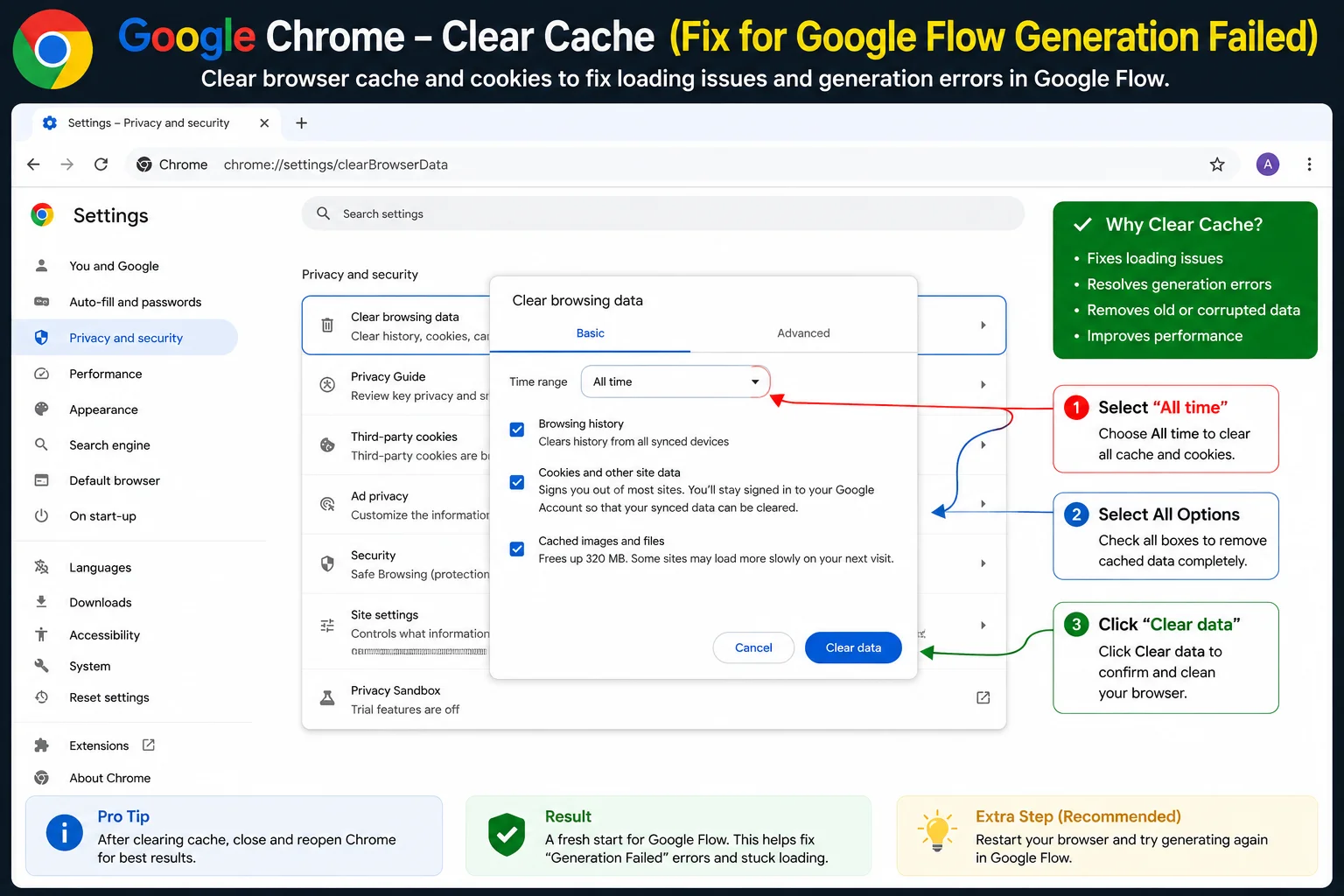
If you have worked through all the above fixes and the Google Flow generation failed error continues, browser-level issues are worth addressing before moving to reporting.
A corrupt browser cache — especially after a Flow update — can interfere with how generation requests are sent and how responses are received. This can cause generation failures that have nothing to do with your prompt, your credits, or your account.
Full cache clear in Chrome:
- Press
Ctrl + Shift + Delete - Set time range to All time
- Tick Cached images and files and Cookies and other site data
- Click Clear data
- Close Chrome completely — all windows
- Reopen and go directly to flow.google.com
Switch to Chrome if you are not already using it:
Flow is built and tested on Chrome first. Users on Firefox, Brave, or Safari have reported generation failures that resolved immediately after switching to Chrome. If you are on any non-Chrome browser, download it from google.com/chrome and test Flow there.
Google Flow Generation Failed Fix 11 — Report to Google for Manual Investigation
If you have gone through every fix above and the Google Flow generation failed error is still happening consistently — it is time to report it directly to Google.
Where to report:
Option 1 — Google Flow Help Center: Go to support.google.com/flow and submit a support request. Select the category that matches your situation — credits, generation error, or account access.
Option 2 — Google AI Developers Forum: Go to discuss.ai.google.dev and post a new topic. Google’s team actively monitors this forum and has responded to generation failed reports with direct solutions and manual fixes.
What to include in your report:
“I am experiencing consistent generation failed errors in Google Flow. I have confirmed:
- My subscription tier is [Pro / Ultra]
- My credit balance shows [X credits remaining]
- My prompt is written in US English
- I am in [your country] — a supported region
- I am using Veo 3.1 [Fast / Quality] with the correct model for my feature
- I have tested in Incognito mode with extensions disabled
- I have cleared my browser cache and tested on Chrome
- The simple test prompt ‘a red apple on a wooden table’ [does / does not] succeed
- The generation fails [consistently / intermittently]
I am requesting investigation of a possible platform-side issue or account-level flag.”
Including that level of detail shows Google’s team that you have done the basic troubleshooting — which gets you a faster, more specific response.
Quick Diagnosis Guide — Which Fix Do You Need?
Use this table to identify your Google Flow generation failed fix quickly:
| What You See | Most Likely Cause | Go To Fix |
|---|---|---|
| Fails before generating anything | No credits or region block | Fix 1 or Fix 2 |
| Fails only with specific words in prompt | Safety filter triggered | Fix 3 |
| Fails only with certain Flow feature | Wrong model for that feature | Fix 4 |
| Fails after several attempts in a row | Too many concurrent jobs | Fix 5 |
| Succeeds with simple prompts, fails with long ones | Prompt too complex | Fix 6 |
| Fails only when audio or dialogue added | Audio pipeline failure | Fix 7 |
| Everyone seems to be reporting failures today | Platform outage | Fix 8 |
| Fails more in evenings or weekends | Peak server load | Fix 9 |
| Fails across different prompts with no pattern | Browser cache issue | Fix 10 |
| None of the above applies | Report to Google | Fix 11 |
Full Fix Checklist — Google Flow Generation Failed Fix at a Glance
| Step | Fix | Time | Best For |
|---|---|---|---|
| 0 | Check Library for ghost generation | 1 minute | Delivery failure not generation failure |
| 1 | Check credit balance and plan tier | 2 minutes | Zero credits or wrong plan |
| 2 | Check region and rewrite prompt in English | 3 minutes | Region block or language issue |
| 3 | Remove triggering words from prompt | 5 minutes | Safety filter block |
| 4 | Switch to correct model for your feature | 1 minute | Unsupported model-feature combo |
| 5 | Cancel all jobs and run one at a time | 1 minute | Concurrency overload |
| 6 | Simplify prompt, build complexity back up | 5 minutes | Prompt too long or complex |
| 7 | Remove audio, test silent, add audio back | 5 minutes | Audio pipeline failure |
| 8 | Check Google server status dashboard | 30 seconds | Platform-wide outage |
| 9 | Try at an off-peak time | N/A | Peak traffic throttling |
| 10 | Clear cache and switch to Chrome | 5 minutes | Browser-level interference |
| 11 | Report to Google with full details | 10 minutes | Persistent unexplained failure |
Frequently Asked Questions — Google Flow Generation Failed Fix
Why does Google Flow keep saying generation failed?
The Google Flow generation failed error has several different causes — credit exhaustion, safety filter triggers, wrong model for the selected feature, region restrictions, audio pipeline failures, too many concurrent jobs, or a server-side issue. The fastest Google Flow generation failed fix is to diagnose which category your failure belongs to rather than retrying the same prompt repeatedly.
How do I know if a safety filter is causing my generation to fail?
Test with the simplest possible neutral prompt — “a red apple on a wooden table in soft morning light.” If this generates successfully, your original prompt contains a word or phrase triggering the safety filter. Remove elements from your original prompt one at a time, testing after each removal, until it generates. The last element you removed is the trigger.
Did I lose my credits when the generation failed?
Most likely no. Google states that credits from failed generations are re-credited automatically, though they may take 15 to 30 minutes to reappear. Check your balance again after waiting. If credits were deducted and have not returned after an hour, contact Google One support at one.google.com.
Why does Ingredients to Video keep failing in Google Flow?
Ingredients to Video requires Veo 2 specifically — it does not work with Veo 3.1. If you have Veo 3.1 selected in the model picker and try to use Ingredients to Video, the generation will fail. Switch to Veo 2 in the model picker and retry.
My prompt worked before but now fails. What changed?
The most common causes are: a Flow update changed what the safety filters flag, your credit balance dropped, or a platform-side change affected how certain content is processed. Try the simple test prompt first to confirm it is not a platform-wide issue. Then work through your original prompt word by word to find what changed in how it is being filtered.
Does writing prompts in Urdu or Hindi cause generation failed errors?
Yes. Google Flow currently only supports prompts in US English. Prompts written in Urdu, Hindi, Arabic, or any other language will consistently fail or produce unexpected results. Write your prompt in English and specify the desired output language within the English prompt — for example, “the character speaks in Urdu” written as part of an English sentence.
How many generations can I run at the same time in Flow?
Google Flow allows up to five concurrent generations. Attempting more than five simultaneously causes the excess jobs to fail immediately. During high-load periods, even running four or five at once increases the individual failure rate. Run one generation at a time when debugging a repeated generation failed error.
How long should I wait before retrying a failed generation?
If the failure is a one-off experimental failure, retrying immediately is fine — and often the second attempt succeeds without any changes. If you are getting consistent repeated failures on the same prompt, stop retrying and work through the diagnostic checklist to identify the actual cause before trying again.
Final Words — Your Google Flow Generation Failed Fix Is in This Guide
The Google Flow generation failed error is one of those problems that feels overwhelming when you first hit it — especially when Flow gives you no real explanation of what went wrong.
But the reality is that almost every generation failure has a specific, identifiable cause — and each cause has a specific fix. You just need to know which bucket your failure belongs to.
Start with the Library check — confirm the generation did not actually succeed and just fail to display. Then check your credits. Then check your prompt language and region. Then test for a safety filter trigger using the simple neutral prompt. Those four steps resolve the Google Flow generation failed error for the large majority of users.
For the latest on Google Flow issues, fixes, and platform updates as they happen in 2026, the team at Whiskailabs keeps a close eye on everything.