Google Flow No Sound No Audio Problem Solution — Let’s Fix This Right Now
You just watched your Google Flow video play back — and it was completely silent. No background music. No ambient sound. No dialogue. Nothing. Just a perfectly rendered video playing like a muted film with no subtitles.
If that is what you are dealing with right now, you are in exactly the right place. The Google Flow no sound no audio problem solution is what this entire guide is built around — and this problem is far more common than most people expect.
Here is something worth knowing before anything else: audio in Google Flow is genuinely one of the most technically complex parts of the platform. Unlike image generation or even basic video generation, audio in Flow runs through a completely separate experimental pipeline inside Veo 3.1 — and that pipeline has its own rules, its own failure points, and its own quirks that are completely different from everything else in Flow.
One Reddit user summed it up bluntly after testing the tool extensively: out of around 30 videos generated that should have had sound, 13 failed altogether and 17 had no sound at all. That is not a user error story — that is a platform behaviour story. And understanding it is the key to actually fixing it.
This guide covers every single cause of the Google Flow no sound no audio problem, with a working solution for each one. Whether you are a first-time Flow user or a paying Ultra subscriber who has been generating silent videos for days, the answer is here.
Let’s go through it.
From the Whiskailabs team: We track Google Flow issues reported by real users and verify every fix before publishing. Everything in this Google Flow no sound no audio problem solution guide is checked against Google’s official documentation and real user reports as of May 20, 2026. More guides at Whiskailabs.
Why the Google Flow No Sound No Audio Problem Happens — The Real Explanation
Before getting into the fixes, it helps to understand what is actually going on under the hood when your Flow video comes out silent.
Audio generation in Google Flow is an experimental feature — and Google says so directly in their official documentation. It is only available on Veo 3 and Veo 3.1. Earlier models do not generate audio at all. And even on Veo 3.1, Google explicitly states that your generated videos might not always have sound.
The audio pipeline inside Flow works completely separately from the video rendering pipeline. When you submit a prompt, Veo 3.1 first generates the video frames — and then the audio generation runs as a second process on top of that. If anything goes wrong in the audio process — a low-quality audio output, a policy flag on the requested sound, a complex prompt that overloads the model, or a simple experimental-stage failure — the audio layer simply does not attach to the video.
The result: a perfectly rendered video with no sound whatsoever.
This is also why the Google Flow no sound no audio problem solution is rarely about your internet connection or your browser. Almost every cause is either about which model you selected, how you wrote your audio prompt, which generation mode you used, or an experimental-stage audio failure on Google’s end.
Let us fix each one.
Every Cause Behind the Google Flow No Sound No Audio Problem
Based on Google’s official documentation and verified user reports as of May 2026, here are all confirmed causes:
Cause 1 — Wrong model selected: You are using Veo 2 or an earlier model. Audio only works on Veo 3 and Veo 3.1.
Cause 2 — No audio instruction in the prompt: If you did not describe any sound in your prompt, Flow sometimes generates a silent video by default.
Cause 3 — Wrong generation mode: First-frame video generation and certain other modes consistently fail to include audio. Text-to-video mode is required for reliable audio.
Cause 4 — Upscaling strips the audio: Upscaling a video from 720p to 1080p was confirmed to strip away existing audio entirely — though Google has since issued a fix for this in newer builds.
Cause 5 — Audio prompt too complex: Requesting specific copyrighted songs, multiple simultaneous voices, or intricate sound design can overwhelm the audio model and produce silence.
Cause 6 — Dialogue involving minors: Google explicitly states that speech is muted on minors. Any scene involving younger-looking characters will have dialogue suppressed automatically.
Cause 7 — Short dialogue transcript: Google’s documentation confirms that speech generation performs better with slightly longer transcripts. Very short dialogue often gets dropped.
Cause 8 — Copyrighted or identifiable music requested: Asking for a specific real-world song, artist, or soundtrack triggers an audio policy failure and produces silent output.
Cause 9 — Experimental audio failure: Sometimes the audio pipeline simply fails to produce acceptable quality. When this happens the video will not be generated and credits will be refunded — but sometimes a silent video is delivered instead.
Cause 10 — Beta Audio setting not enabled: The audio mode in Flow has been renamed from “Experimental Audio” to “Beta Audio” — some users have not enabled it, or it was reset after a Flow update.
Now let us go through every Google Flow no sound no audio problem solution, step by step.
Google Flow No Sound No Audio Problem Solution 1 — Check Your Model Setting First
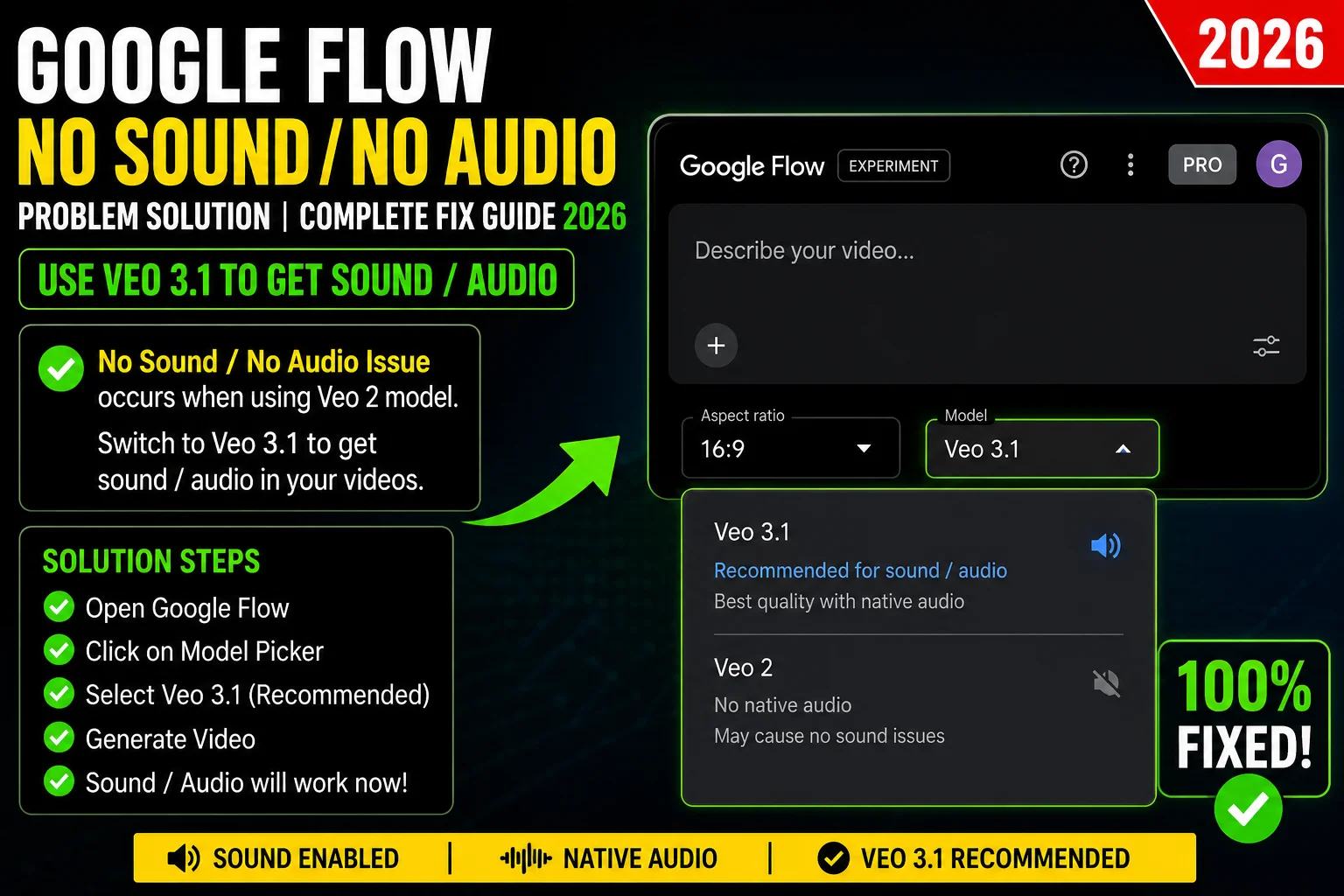
This is the number one cause of silent videos in Google Flow — and the fix takes about ten seconds.
Audio generation in Flow is only available on Veo 3 and Veo 3.1. Veo 2 does not generate audio at all. By default, depending on which feature you are using, Flow may automatically switch you to Veo 2 — especially for features like Ingredients to Video, Extend, or First and Last Frame that are not yet fully supported on Veo 3.1.
If Flow switched you to Veo 2 without you noticing — or if you manually selected Veo 2 — your video will always be silent.
How to check and fix this:
- Look at the model name shown in the prompt box at the bottom of Flow’s interface
- If it says Veo 2 — that is your Google Flow no sound no audio problem right there
- Click the model name to open the model picker
- Select Veo 3.1 Quality or Veo 3.1 Fast
- Regenerate your video
Important note from Google’s official changelog:
The model previously called “Veo 3 — Highest Quality” is now called “Veo 3 — Quality” and the audio setting previously called “Experimental Audio” is now called “Beta Audio.” These are the same underlying models — just renamed. If you are looking for the audio option and cannot find “Experimental Audio” anymore, look for “Beta Audio” instead.
Google Flow No Sound No Audio Problem Solution 2 — Add an Explicit Audio Line to Your Prompt
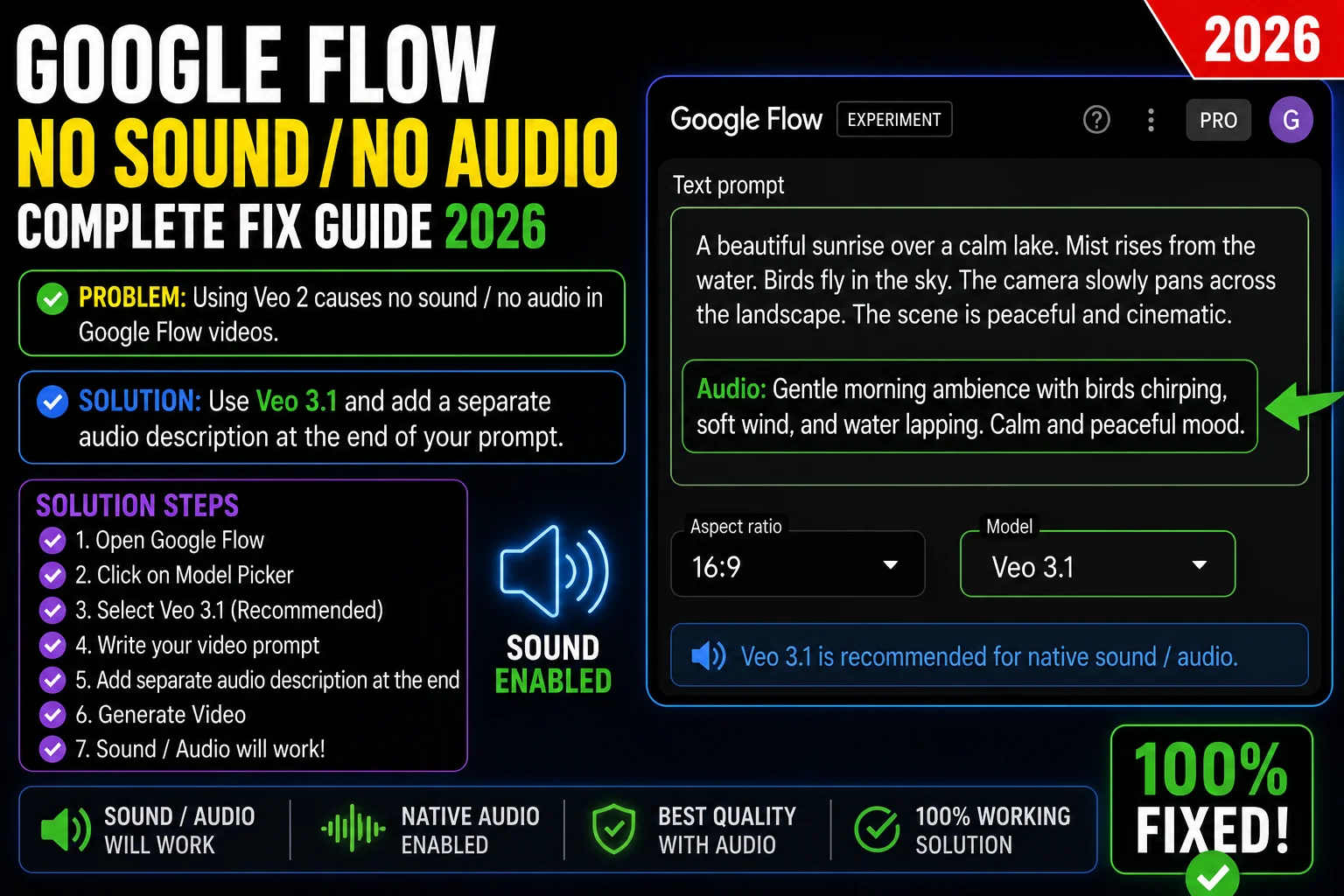
This is the most powerful and most overlooked Google Flow no sound no audio problem solution. Even with Veo 3.1 selected, if your prompt contains no audio direction whatsoever, the model sometimes generates a completely silent video by default.
Flow does not automatically invent sound for your scene. You have to tell it what to hear — explicitly and clearly.
The wrong way (often produces silence):
“A man walks through a busy street market at golden hour, looking at the stalls, smiling.”
The right way:
“A man walks through a busy street market at golden hour, looking at the stalls, smiling. Audio: loud market chatter, vendors calling out prices, distant sizzling street food, upbeat ambient energy.”
How to write your audio line for best results:
Keep your audio instruction as a separate sentence at the end of your prompt — do not weave it into the visual description. This gives Veo 3.1 a clean, unambiguous instruction for the audio pipeline.
Use natural descriptive language:
- “Audio: rain hitting a tin roof, distant thunder, wind through leaves”
- “The character says quietly: ‘I did not think you would come back.'”
- “Ambient sound: busy coffee shop, espresso machine, soft jazz in the background”
Never request specific real artists or song titles — those always trigger a content policy block on the audio layer and produce silence.
Google Flow No Sound No Audio Problem Solution 3 — Switch to Text-to-Video Mode
This is a Google Flow no sound no audio problem solution that many users never think to check — because the generation mode is not always obviously visible in the interface.
Audio generation is inconsistent across different generation modes. Text-to-video mode produces sound much more reliably, while first-frame video generation consistently fails to include audio for many users.
When you use first-frame mode — where you provide an image as the starting frame and Flow generates the rest — audio generation is significantly less reliable than in standard text-to-video mode.
The fix:
For the most reliable audio, use Text-to-Video mode — no reference image, just your text prompt — with Veo 3.1 selected and a clear audio line at the end of your prompt.
If you specifically need first-frame mode, be aware that audio may not generate consistently in this mode. Google is actively working on bringing audio support to all modes — but as of May 2026, text-to-video remains the most reliable path for the Google Flow no sound no audio problem solution.
Google Flow No Sound No Audio Problem Solution 4 — Do NOT Upscale Before Confirming Audio
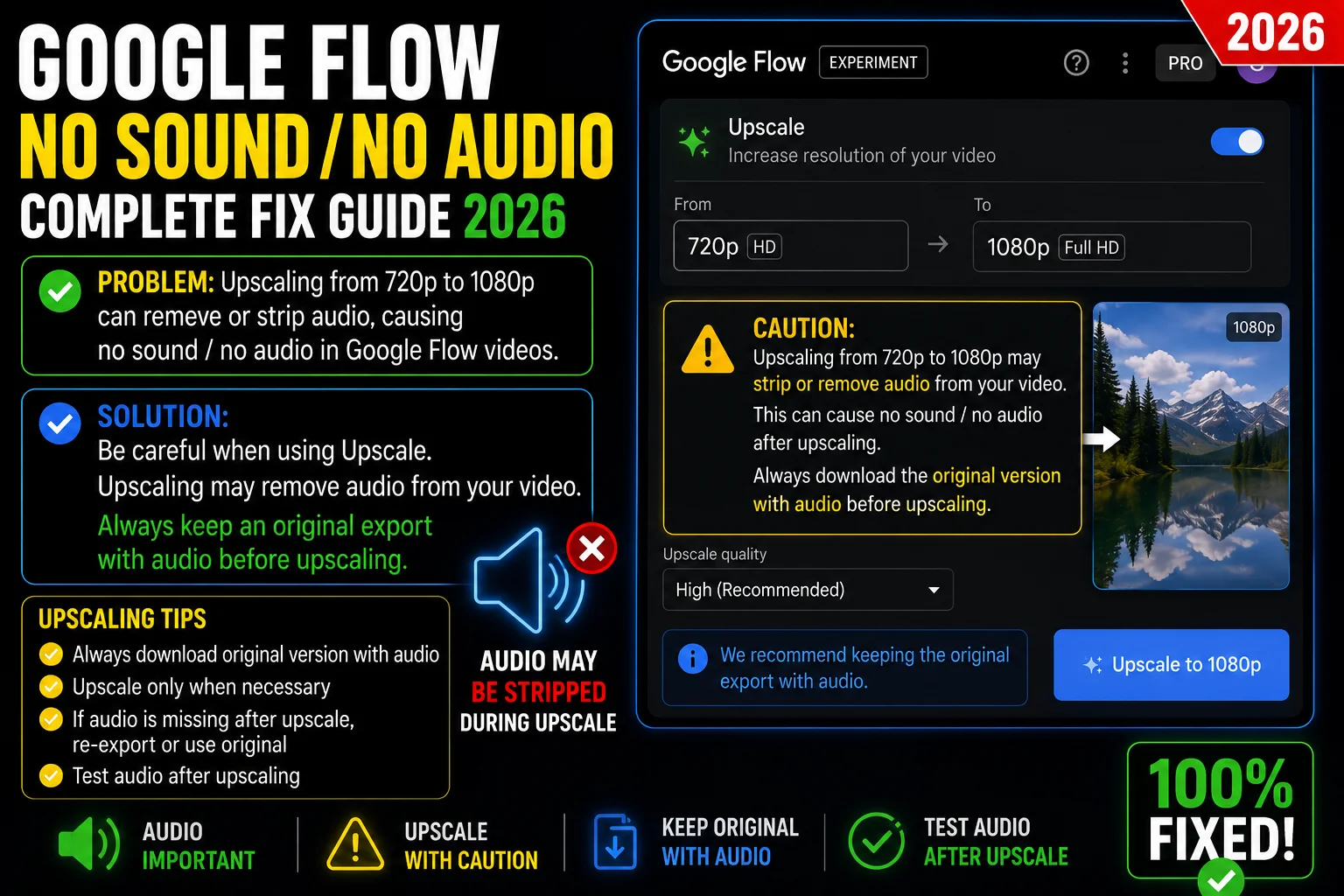
This Google Flow no sound no audio problem solution is for users who generated a video that had audio — but noticed the sound disappeared after upscaling.
Multiple users confirmed that upscaling videos from 720p to 1080p was stripping away existing audio entirely. Google has issued a fix for this bug in newer builds of Flow — but users on cached older versions of the interface may still be affected.
The fix:
- Regenerate your video fresh without upscaling
- Play it back at the original resolution to confirm audio is present
- Only then upscale to 1080p
- After upscaling, play the 1080p version to verify audio was retained
If upscaling is still stripping your audio, clear your browser cache fully — press Ctrl+Shift+Delete in Chrome, set to All Time — and reload Flow. The bug fix is in a newer version of Flow’s interface that your cached version may not have loaded yet.
Google Flow No Sound No Audio Problem Solution 5 — Make Dialogue Longer and More Specific
If your Flow video generates fine but speech specifically is not coming through — characters move their mouths but no words are heard — this has its own specific cause.
Google’s official documentation states clearly: speech generation performs better with slightly longer transcripts in your prompt. Very short dialogue — a single word, a one-word exclamation, a very brief phrase — often gets dropped entirely by the speech pipeline.
Dialogue that often fails (too short):
- “The woman says: ‘Hello.'”
- “He shouts: ‘Stop!'”
Dialogue that works much better:
- “The woman turns and says: ‘I have been waiting for this moment for a very long time. Tonight, everything changes.'”
- “He leans forward and speaks quietly: ‘They told me you had left the city. I did not believe them. And here you are.'”
Give the speech model at least one complete, natural-sounding sentence to work with.
Also remember: speech is automatically muted on scenes involving minors. This is a hard restriction in Flow regardless of your subscription level. If your scene includes a child or younger-looking character, any dialogue will be suppressed automatically — this is not a bug but a deliberate platform safety measure.
Google Flow No Sound No Audio Problem Solution 6 — Remove Copyrighted Music Requests
If your audio prompt includes a specific song title, artist name, or real-world soundtrack reference, the audio policy layer will block that request and your video will come out silent.
Requests that always fail:
- “Play a Coldplay song in the background”
- “Add a hip-hop beat by Drake”
- “Include the Game of Thrones theme”
Requests that work:
- “Background music: upbeat electronic, energetic, modern feel”
- “Soft orchestral music, cinematic and emotional”
- “Lo-fi hip-hop beat, relaxed tempo, study music atmosphere”
- “Jazz piano, late night bar, warm and smoky”
Describe the genre, mood, and tempo — never the specific artist or song. Generic descriptors pass the audio policy check every time.
Google Flow No Sound No Audio Problem Solution 7 — Enable Beta Audio in Flow Settings
Sometimes the Google Flow no sound no audio problem is simply because the Beta Audio setting is not enabled — either it was never turned on, or a Flow update reset it without warning.
This setting was previously called “Experimental Audio” and has been renamed “Beta Audio.” Users who set it up months ago may not realise it was renamed, or that it needs to be re-confirmed after certain updates.
How to enable Beta Audio:
- Go to flow.google.com and open the prompt area
- Click on the Settings icon or the model name in the prompt box
- Look for the Beta Audio toggle
- Make sure it is turned ON
- Generate your video again with a clear audio line in your prompt
If you cannot find the Beta Audio option, check that you have Veo 3.1 selected — Beta Audio only appears when a Veo 3-series model is active. On Veo 2, this option will not show because Veo 2 does not support audio at all.
Google Flow No Sound No Audio Problem Solution 8 — Simplify Your Audio Prompt
Overly complex audio directions — requesting specific background music alongside multiple simultaneous voices and detailed environmental sound design — can overwhelm the audio model and cause it to produce nothing at all.
How to simplify your way to a Google Flow no sound no audio problem solution:
- Remove ALL audio instructions from your current prompt
- Generate the video silently — confirm the video itself works fine
- Add ONE simple audio element back: just ambient sound first
- Generate again — confirm that single element appears
- Gradually add more audio complexity one element at a time
Audio complexity from easiest to hardest:
- Simple ambient environment sound — most reliable
- Background music (genre-described only)
- Single character speech with longer dialogue
- Multiple layered sound effects
- Multiple characters speaking simultaneously — hardest, most likely to drop
Build up from step 1. If audio disappears at any step, that element is the cause of your Google Flow no sound no audio problem.
Google Flow No Sound No Audio Problem Solution 9 — Switch to Veo 3.1 Quality Instead of Fast
For audio generation specifically, Google’s documentation recommends using Quality models rather than Fast for best results.
The Fast model is optimised for speed and uses fewer server resources. But audio is a resource-intensive secondary process — on the Fast model, audio is more likely to be dropped when server resources are constrained.
Credit costs as of May 2026:
- Veo 3.1 Fast: 20 AI credits per generation on Pro, 10 on Ultra
- Veo 3.1 Quality: 100 AI credits per generation on Pro
The fix:
If you are consistently getting silent videos on Veo 3.1 Fast — switch to Veo 3.1 Quality and try the same prompt. The higher resource allocation significantly improves audio success rate.
Google Flow No Sound No Audio Problem Solution 10 — Retry or Report to Google
Sometimes the Google Flow no sound no audio problem is a straightforward experimental-stage failure. Google’s documentation covers this scenario directly:
“Sometimes Veo can produce low-quality audio, in which case your video will not be generated. Instead, your credits will be refunded. If you get this error, you can try again or try another prompt.”
In some cases, users received a silent video instead of an outright failure with a credit refund. A simple retry often produces audio on the second or third attempt without any prompt changes.
What to do:
- Try the exact same prompt again without any changes — a retry often succeeds after an experimental failure
- If three retries all produce silent video, work through the other fixes in this guide
- If credits were deducted for a silent video, wait 15 to 30 minutes — they are re-credited automatically
When to report:
If you have confirmed Veo 3.1 is selected, Beta Audio is enabled, your prompt has a clear audio line, your dialogue is long enough, and you are in text-to-video mode — and the video is still consistently silent — report it at support.google.com/flow.
Also post in the Google AI Developers Forum — Google’s team actively monitors threads there and has provided detailed action plans for the audio issue in past threads.
For more on reporting Google Flow issues effectively, the Whiskailabs blog covers this in detail.
What the Veo 3.1 Audio Update Means for You (January 2026)
In January 2026, Google announced a major audio expansion alongside the Veo 3.1 update. For the first time, audio was brought to Flow capabilities that previously had no sound support — including Ingredients to Video, Frames to Video, and Extend.
The update also brought richer audio overall, more narrative control, and enhanced realism to Veo 3.1’s audio pipeline.
What this means practically:
If you were using Flow before January 2026 and assumed certain modes were always silent — check again. Those modes now support audio with Veo 3.1 selected and Beta Audio enabled.
If you are using Extend to add frames to an existing clip — audio is now supported, but the extended audio may not perfectly match the original clip’s audio. Generate the complete scene in one shot where possible for the most consistent results.
Correct Way to Write Audio Prompts in Google Flow — Quick Reference
Structure:
[Visual description — 2 to 4 sentences.] [Camera or style note if needed.] Audio: [Sound environment. Dialogue on its own line if included.]
Working examples:
Scene with environment only:
“A fisherman sits alone on a wooden dock at dawn, casting his line into a still lake. The sky is pale orange and soft mist rises from the water. Audio: gentle water lapping against the dock, distant bird calls, a slight breeze through pine trees.”
Scene with dialogue:
“Two old friends sit at a small kitchen table, cups of tea between them. Audio: quiet kitchen ambience, rain outside. One says: ‘I have been thinking about what you told me last summer. I think you were right, and I should have listened.'”
Action scene:
“A motorcyclist speeds through a rain-soaked city at night, weaving between cars, neon signs reflecting on the wet road. Audio: roaring engine, tyres splashing through puddles, distant car horns, rain against the visor.”
Full Fix Checklist — Google Flow No Sound No Audio Problem Solution
| Step | Fix | Time | Best For |
|---|---|---|---|
| 1 | Switch to Veo 3.1 — not Veo 2 | 30 seconds | Wrong model selected |
| 2 | Add explicit audio line to your prompt | 2 minutes | No audio instruction in prompt |
| 3 | Switch to Text-to-Video mode | 1 minute | First-frame mode audio failure |
| 4 | Confirm audio before upscaling | 2 minutes | Upscaling stripping audio |
| 5 | Make dialogue longer and more specific | 3 minutes | Short dialogue being dropped |
| 6 | Remove copyrighted music requests | 2 minutes | Audio policy failure |
| 7 | Enable Beta Audio in Flow settings | 1 minute | Beta Audio toggle off |
| 8 | Simplify audio prompt step by step | 5 minutes | Complex audio overloading model |
| 9 | Switch Veo 3.1 Fast to Quality | 30 seconds | Fast model dropping audio |
| 10 | Retry same prompt or report to Google | 5 minutes | Experimental audio failure |
Frequently Asked Questions — Google Flow No Sound No Audio Problem Solution
Why is my Google Flow video completely silent?
The most common causes of the Google Flow no sound no audio problem are using Veo 2 instead of Veo 3.1, not including any audio description in your prompt, or having the Beta Audio setting disabled. Check your model first — if it shows Veo 2, switch to Veo 3.1 and regenerate. Then add a clear audio sentence at the end of your prompt.
Does Google Flow always generate audio automatically?
No. Audio generation in Flow is experimental and only available on Veo 3 and Veo 3.1. Even with the correct model selected, if your prompt contains no audio instruction, Flow may generate a silent video. Always add an explicit audio line at the end of your prompt describing what you want to hear.
What is the difference between Experimental Audio and Beta Audio in Flow?
They are the same thing. Google renamed “Experimental Audio” to “Beta Audio” in a late 2025 update. The underlying model and capabilities are identical — only the label changed. If you cannot find “Experimental Audio” anymore, look for “Beta Audio” in your model settings.
Why does my video have no sound after upscaling?
Upscaling from 720p to 1080p was a confirmed bug that stripped audio from videos. Google has issued a fix in newer builds of Flow. Clear your browser cache fully and reload Flow to get the updated version. Always confirm audio is present at the original resolution before upscaling.
Can I add a specific song to my Google Flow video?
No — requesting specific real-world songs, artists, or soundtracks triggers an audio policy failure and produces silent output every time. Use genre and mood descriptions instead — “upbeat electronic music” or “soft cinematic orchestral background” — rather than naming a specific track or artist.
Why is dialogue not generating even though I am using Veo 3.1?
The most common causes are dialogue that is too short, or scenes involving minors. Google confirms speech performs better with longer text transcripts. Write at least one complete, natural sentence of dialogue. Also confirm your scene does not involve younger-looking characters — speech is automatically muted on minors regardless of your subscription level.
My videos had audio before but now every generation is silent. What changed?
Check whether a Flow update reset your Beta Audio setting — this has happened to some users after platform updates. Go to your model settings and confirm Beta Audio is still enabled. Also check your model is still Veo 3.1 — some updates have reset model preferences back to Veo 2 for certain generation modes.
Does audio work in Ingredients to Video and Extend modes?
Yes — as of the January 2026 Veo 3.1 update, audio is now supported in Ingredients to Video, Frames to Video, and Extend for the first time. Make sure you have Veo 3.1 selected and Beta Audio enabled when using these modes.
Final Words
The Google Flow no sound no audio problem is frustrating — especially when your video looks beautiful but plays in complete silence.
But here is what matters: almost every case of silent video in Google Flow has a clear, fixable cause. Start with the model — make sure you are on Veo 3.1, not Veo 2. Then check your prompt — add an explicit audio line if you did not have one. Then check the Beta Audio setting. Those three steps alone resolve the Google Flow no sound no audio problem solution for the majority of users.
If you are getting dialogue failures, make the dialogue longer. If you are getting silence after upscaling, clear your cache. If you are requesting a specific song or artist, replace it with a genre description.
For the latest updates on Google Flow audio improvements, new fixes as they emerge, and troubleshooting for other Flow issues, the team at Whiskailabs covers this space in detail.