Google Flow AI Not Working? Every Real Fix for Access Errors, Failed Generations and Login Problems 2026
Google Flow AI not working is one of the most searched phrases right now — and that makes complete sense.
The tool launched to massive interest, absorbed Whisk AI and ImageFX into one workspace, and then immediately ran into the reality that millions of people trying to use the same thing at the same time will always surface problems. Blank screens. Failed generations stuck at 99%. The “you don’t have access” wall. Login loops that go nowhere. Video clips that generate but play in complete silence.
Every one of those problems has a specific cause. And specific causes have specific fixes.
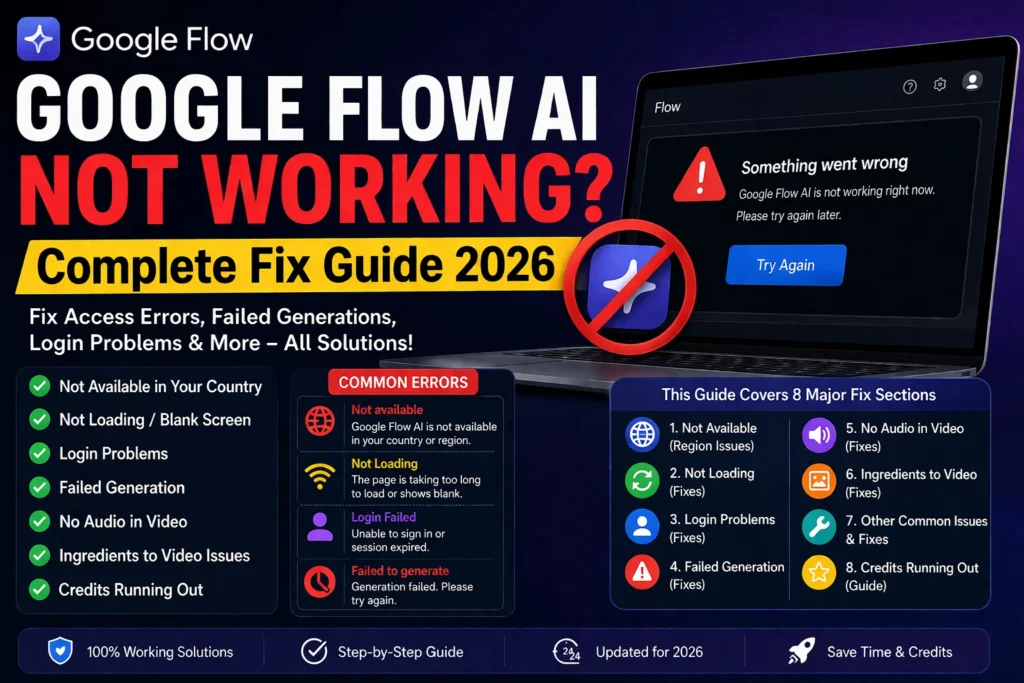
This guide covers every Google Flow AI not working situation we have found — organised so you can jump straight to the one that matches what you are seeing right now, fix it, and get back to creating.
Google Flow AI Not Available in Your Country {#not-available}
This is the first thing to confirm before anything else — because if Flow is not available where you are, no browser fix or account change will solve it.
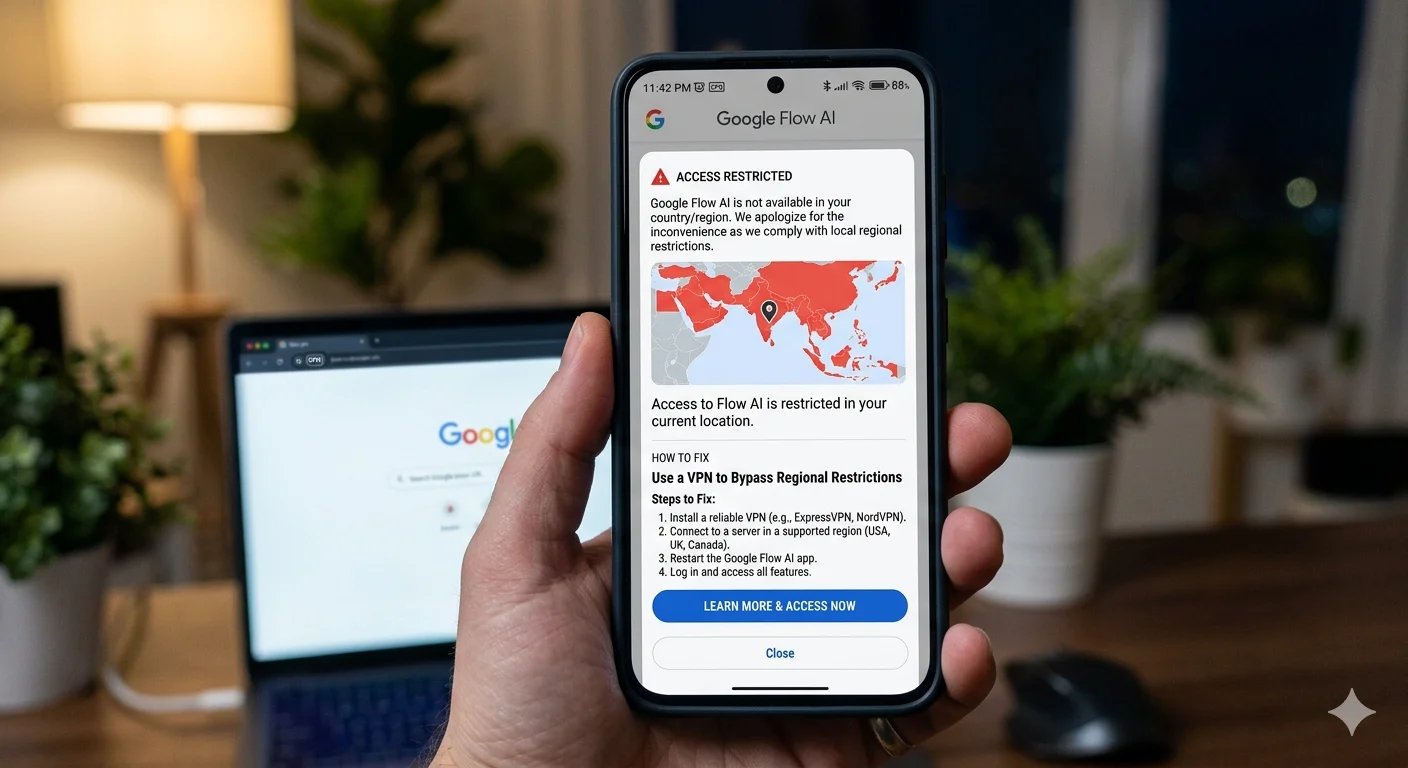
When you visit labs.google/flow and see the message “It looks like you don’t have access to Flow” or “Flow is not available in your region” — that is a geographic restriction, not a technical error.
Why This Happens
Google Flow AI is available in 149+ countries — but not everywhere. The excluded regions include most of the European Union, the United Kingdom, and certain markets in Asia. The EU and UK situation comes down to GDPR and the EU AI Act, which impose strict data handling requirements on AI tools. Rather than build a separate compliant version for a tool that was originally an experiment, Google simply excluded those regions.
Prompts to Flow are currently supported in US English only — which means even if you gain access through a VPN, prompting in other languages may produce unreliable results.
The Fix — VPN Method Step by Step
Step 1: Close your browser completely. Not just the tab — every window. This clears cached location data.
Step 2: Open your VPN and connect to a United States server. Los Angeles, New York, and Chicago work most consistently. Wait until the connection confirms — not just “connecting.”
Step 3: Open Chrome fresh and go directly to labs.google/flow. Do not use a cached bookmark.
Step 4: Sign in with your Google account. The restriction message should be gone.
Step 5: If it still shows the restriction — disconnect, connect to a different US city server, close and reopen the browser, and try again.
ProtonVPN and Windscribe both have free tiers with US servers that work for Flow access. For paid options, ExpressVPN and NordVPN are widely reported as reliable.
One important note: Google’s terms of service for Labs tools discourage location spoofing through VPNs. This workaround is used at your own discretion.
For the full detailed method including what to do if VPN doesn’t work on first try, our Whisk AI not available fix guide covers the exact same access method that applies to Flow.
Google Flow AI Not Loading or Blank Screen {#not-loading}
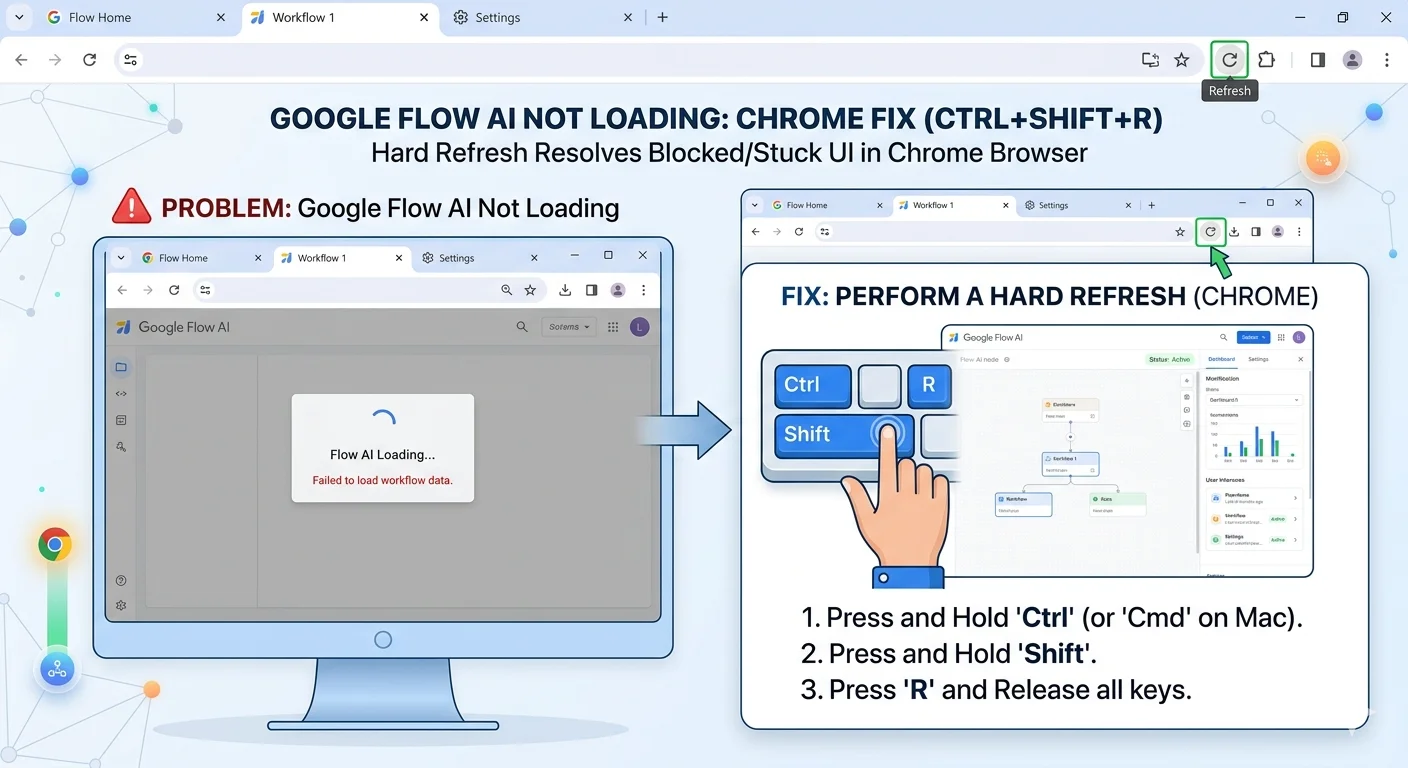
You open Flow and get a blank white page, a forever-loading spinner, or an interface that appears but does nothing when you click.
This is almost always a browser-side issue, not a Flow server problem. Work through these in order.
Fix 1 — Hard Refresh First
Do not do a regular refresh (F5). Do a hard refresh that bypasses cached files:
- Windows: Ctrl + Shift + R
- Mac: Cmd + Shift + R
This pulls everything fresh from the server. It fixes the blank screen situation roughly 40% of the time on its own.
Fix 2 — Clear Browser Cache and Cookies
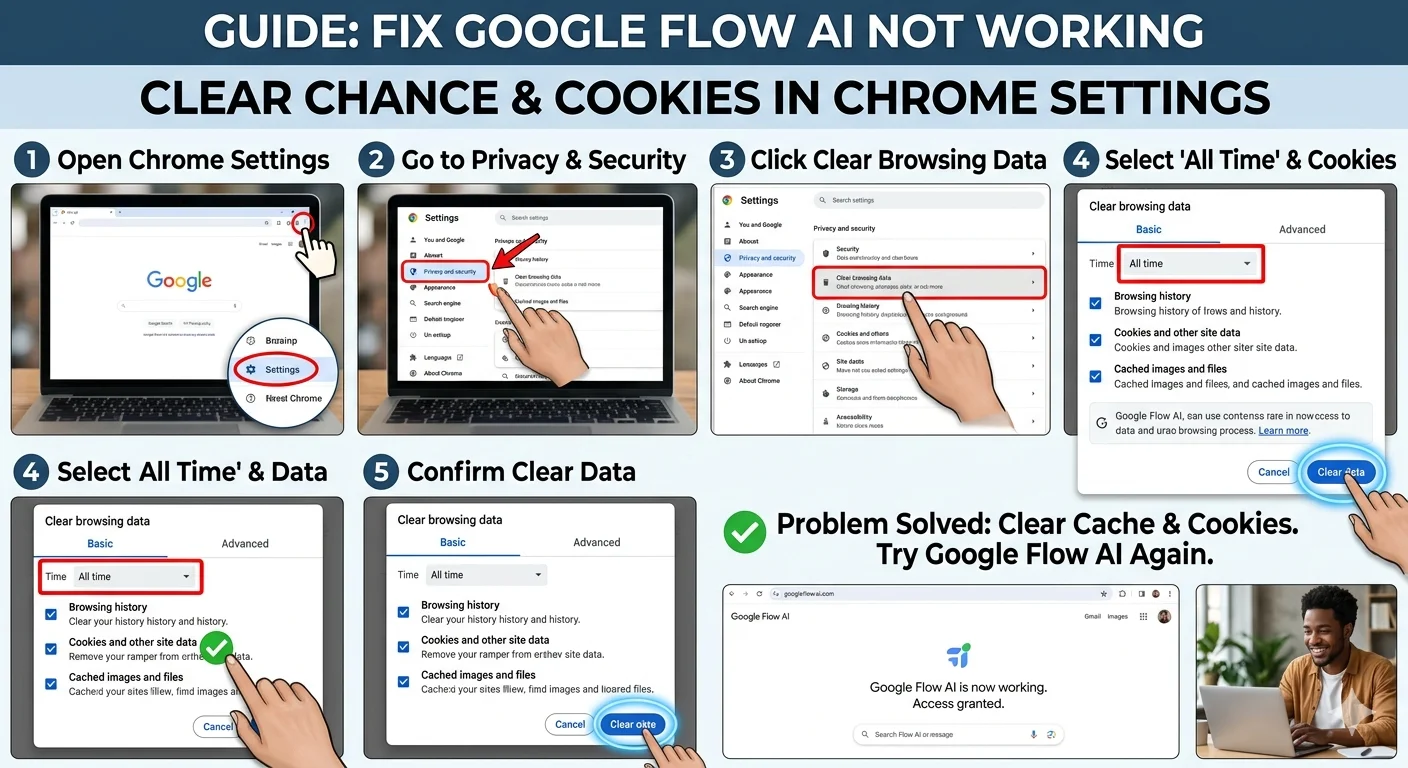
If hard refresh does not work, go deeper.
In Chrome: Three dots → Settings → Privacy and Security → Clear Browsing Data → select Cached images and files + Cookies → set time range to All Time → Clear Data.
Close the browser fully after clearing. Reopen, go to labs.google/flow, and sign back in fresh.
Fix 3 — Switch to Google Chrome
Flow is built and tested primarily in Chrome. If you are using Firefox, Brave, Edge, or Safari and experiencing loading problems — switch to Chrome before trying anything else. The number of issues that disappear when you make this one change is significant.
If you are already in Chrome, check that it is updated. Visit chrome://settings/help to check for pending updates.
Fix 4 — Open an Incognito Window
Press Ctrl+Shift+N in Chrome to open an Incognito window. This disables most browser extensions by default.
If Flow loads correctly in Incognito but not in your regular browser — a browser extension is blocking something. Ad blockers are the most common culprit. uBlock Origin and AdBlock Plus regularly interfere with Flow’s interface loading. Disable them one at a time in your regular browser until you find which one causes the problem.
Fix 5 — Check Google’s Status Page
Before spending more time troubleshooting on your end, check Google’s Workspace Status Dashboard. If Flow’s servers are having a problem, nothing you do locally will fix it. Checking this first saves a lot of wasted effort.
Google Flow AI Login Problems {#login}
Sign-In Button Does Nothing
You click “Sign in with Google,” a popup flashes and disappears, and you are still on the login screen.
Cause: Your browser’s popup blocker intercepted the Google authentication window.
Fix: In Chrome, look for a small blocked popup icon on the right side of the address bar. Click it, select “Always allow popups from labs.google,” and try signing in again. In other browsers, find your popup settings and whitelist labs.google.
Stuck in a Login Loop
You sign in, get redirected back to Flow, and immediately get sent to sign in again. Endlessly.
Fix: In Chrome, go to Settings → Privacy → Cookies → See all cookies → search “google” → delete all Google-related entries. Close the browser completely, reopen, and try signing in fresh. This resolves the loop in almost every case.
“This Account Isn’t Eligible” Message
Fix: Go to labs.google directly first — not the Flow URL. Sign in there and accept Google Labs terms of service at the main Labs page. Then navigate to Flow. For age-related blocks, check your birth date in Google Account Personal Info and make sure it shows you as 18 or older.
Wrong Google Account Loading
If you manage multiple Google accounts — personal, work, school — Flow sometimes loads under the wrong one.
Fix: Click your profile picture in the top right corner of the Flow page. Switch to the correct account. If the correct account does not appear, sign out of all accounts at myaccount.google.com and sign back in with only the one you want to use for Flow.
“You Need a Subscription” Error
Flow’s more advanced video features require a Google AI subscription. If you are hitting this wall on features that should be free — make sure you are signed into the exact Google account that holds your subscription. It is a surprisingly common mistake to be signed in with a secondary account that does not have the subscription.
Failed Generation — Stuck or Error Message {#failed-generation}
This is the most common Flow problem for active users. You click generate, wait, and either get an error message or watch it spin endlessly without completing.
Step 1 — Check Access and Language First
Before anything else, confirm two things. First, that Flow is available in your region. Second, according to Google’s own help documentation, prompts to Flow are currently supported in US English only. If your prompt was written in another language, switch it to English and try again. This single change resolves a surprising number of failed generations.
Step 2 — Check Your Credits
Free accounts get 50 daily credits for Veo video generation. If you have run through your daily allowance, generations will fail silently — no error message, just a spinner that never completes. Check your remaining credits in the top right corner of the interface. Credits reset at midnight.
Step 3 — Switch Between Models
Not all models handle all prompts equally. Here is when to use each inside Flow:
Veo 3.1 Fast — Best for simple scenes, quick iterations, text-to-video. Lowest failure rate. Start here when something keeps failing.
Veo 3.1 Quality — Best for complex scenes with multiple subjects and detailed environments. Higher quality but slightly more likely to fail on unusual prompts.
Image-to-video — More reliable than text-to-video because the AI has a visual anchor to work from. If text-to-video keeps failing, try image-to-video with the same scene.
If a batch keeps failing on Veo 3.1 Quality, switch to Veo 3.1 Fast. You can always re-run on the higher-quality model later once you have confirmed the prompt works.
Step 4 — Make One Change at a Time
When a generation fails, the instinct is to change everything and try again. That is the wrong approach. If you change three things and it works, you have no idea which of the three fixed it. If you change three things and it still fails, you have no idea which of the three made it worse.
Make one specific change. Then resend the same request. This is the fastest path to a working generation.
Step 5 — Check for Safety Filter Triggers
Flow’s content safety filters block certain subjects, actions, and descriptions. The filter does not always give you a clear error message — sometimes it just silently fails the generation.
If a prompt keeps failing without explanation, try removing one potentially triggering element at a time. Often just removing or softening one specific word resolves it. For example, “a violent confrontation” may fail while “a tense argument between two people” generates fine.
Step 6 — Wait and Retry
Some failures are random — server load, temporary infrastructure issues, or shared capacity spikes. Google explicitly states that failed video generations should not permanently consume credits, and that credits from failed generations are re-credited, though they may take time to reappear.
If you have worked through the steps above and generation still fails — wait 20–30 minutes and try again. Peak traffic hours (US evenings, weekends) are when random failures spike most.
The 99% Stuck Problem
Getting stuck at 99% during video generation is a known pattern that appears in Google’s own developer forums. It happens most often when:
- Your internet connection dropped briefly during the generation
- The server timed out on the final transfer of the completed video
- The video generated successfully but failed to return to your interface
Fix: Hard refresh the page (Ctrl+Shift+R). Check your Library — the video may actually be there even though it appeared to fail. If it is not in the Library, the generation did not complete. Check your remaining credits — if they were deducted, wait for them to re-credit and try again.
Google Flow AI No Audio in Videos {#no-audio}
You generated a video and it plays in complete silence. No ambient sound, no dialogue, nothing.
This is one of the most commonly reported Flow issues, and it has several distinct causes.
Cause 1 — Wrong Model Selected
Audio generation in Flow requires Veo 3. Check the model picker in Flow’s prompt box. If it is set to an earlier model version, audio will not generate.
Fix: Click the model name in the prompt box. Select Veo 3 or Veo 3.1. Regenerate the same prompt.
Cause 2 — Audio Not Mentioned in Prompt
Veo 3.1 generates audio more reliably when you explicitly describe it. If your prompt contains no audio direction, the model sometimes generates silent video.
Fix: Add a dedicated audio sentence at the end of your video prompt. Keep it separate from the visual description. Examples: “Ambient sound: rain, distant traffic, no music.” Or: “Audio: quiet coffee shop background, espresso machine in distance.” Or: “The character says quietly: ‘I wasn’t expecting this.'”
Cause 3 — Low Quality Audio Request
Google’s documentation specifically states that low-quality audio prompts can cause the video not to generate at all, or to generate silently. Vague audio requests like “nice background music” are less reliable than specific ones.
Fix: Be specific. Instead of “add music,” try “gentle acoustic guitar, slow tempo, no lyrics, warm mood.” The more specific the audio direction, the more reliably it generates.
Cause 4 — Dialogue That Doesn’t Fit the Clip Length
Speech is less likely to be generated if the requested dialogue doesn’t fit in the 8-second clip, or if it involves minors.
Fix: Keep dialogue short — one or two sentences maximum for an 8-second clip. Longer speeches need longer clips, which require chaining multiple generations using Extend.
Ingredients to Video Not Working {#ingredients}
The Ingredients system — where you upload reference images for characters and objects to maintain visual consistency — fails more often than other Flow features. Here is why and what fixes it.
Fix 1 — Use Plain Background Images
For the best results, provide subject or product references on a plain or segmented background. A busy or complex background in your ingredient image confuses the model about what the actual subject is.
Fix: Before uploading an ingredient image, remove or blur the background. Use a photo of your subject against a plain wall, white background, or simple solid colour. This single change produces the biggest quality improvement in Ingredients output.
Fix 2 — Check the Model — Ingredients Needs Veo 2
Ingredients to Video only works with Veo 2. Google is working to bring this capability to Veo 3, but as of April 2026 it is not yet available on the newer models.
Fix: In Flow’s model picker, select Veo 2 specifically when using Ingredients to Video. Do not use Veo 3 or Veo 3.1 for this feature — they will not process the ingredients correctly.
Fix 3 — Reference Ingredients Explicitly in Your Prompt
Uploading an ingredient image is not enough on its own. Your text prompt must reference the ingredient directly, describing how it should appear in the scene.
Fix: If you uploaded an ingredient of a woman named “Sarah,” your prompt should say: “Sarah walks through the market, stopping at a flower stall.” Not just “a woman walks through a market.” The more explicitly your prompt references the uploaded ingredient, the more reliably Flow incorporates it.
You can also use the @ symbol in the prompt box to tag specific uploaded assets by name — type @ and Flow shows your library of available ingredients.
Fix 4 — Maximum Three Ingredients Per Prompt
Flow currently supports up to three ingredients per prompt. Attempting to reference more than three in a single generation causes failures.
Fix: Keep each prompt to a maximum of three ingredient references. For scenes requiring more elements, split them across multiple generations and chain the clips.
Google Flow AI Slow Generation {#slow}
Video generation taking longer than 60–90 seconds, or image generation taking more than 20–30 seconds, usually comes down to one of these.
Peak Traffic Hours
Flow shares Google’s infrastructure with millions of other users. During peak traffic periods — typically US evenings from 6pm–10pm Eastern, and US weekend afternoons — generation queues build up and everything slows down. This is not a problem with your account or your prompt.
Fix: Generate during off-peak hours. US morning time (7am–11am Eastern) consistently produces faster generation times than evenings or weekends.
Your Upload Speed
Getting your ingredient images or reference photos to Google’s servers is part of the generation time. On a slow upload connection, large input files extend the total generation time noticeably.
Fix: Compress ingredient images to under 1MB before uploading using Squoosh. Check your upload speed at fast.com. If upload is consistently below 10 Mbps, a wired ethernet connection instead of WiFi will make a measurable difference.
Prompt Complexity
Extremely complex prompts — especially those requesting multiple subjects, complex interactions, specific camera movements, and detailed audio all at once — take longer to generate than simple ones.
Fix: If speed matters for a particular project, start with Veo 3.1 Fast rather than Veo 3.1 Quality. Fast produces results significantly quicker with only a modest quality difference for simple scenes.
Credits Running Out Too Fast {#credits}
Free accounts get 50 daily credits for video generation (180 in some countries). They do not roll over. If you burn through them before you have made anything you are happy with, here is how to stop that from happening.
Plan Before You Generate
The biggest credit waste is generating the same vague prompt fifteen times hoping something good comes back. Each failed generation still costs a credit.
Fix: Write your prompt carefully before generating. Read it back and check for the four elements — subject, setting, light, camera. Only generate when you are satisfied with the description. Run three variations maximum before changing the prompt.
Use Image Generation First
Image generation has separate credit limits from video generation, and image credits are more generous on the free tier. When exploring a creative direction, use image generation to test whether the visual concept works before committing video credits to it.
Fix: Generate the scene as an image first. If you like the composition and style, use that image as the starting frame for your video generation using Image-to-Video. This is both more credit-efficient and produces more reliable video results because the AI has a visual anchor.
Failed Generations Re-Credit
Google states that failed video generation credits are re-credited, though they may take time to reappear in your balance. Do not panic if your count drops after a failure — check back in 15–30 minutes.
Upgrade Path
If 50 daily credits genuinely is not enough for your workflow, Google AI Pro at $19.99 per month provides substantially higher generation limits across Flow, plus access to Gemini Advanced and NotebookLM Plus under the same subscription. For the full pricing breakdown, our Google Flow AI complete guide covers every tier in detail.
Quick Answers {#faq}
Google Flow AI says “failed generation” but gives no reason. What do I do?
Start with access and language — confirm Flow is available in your region and your prompt is in English. Then check your credit balance. Then switch to Veo 3.1 Fast and try the same prompt. If it still fails, remove one element at a time to identify whether a safety filter is triggering. Most “no reason” failures resolve when you work through that order.
My video generated but there is no sound at all. The model is set to Veo 3.
Add an explicit audio sentence to your prompt — separate from the visual description. Something like: “Ambient sound: soft rain, distant traffic.” Veo 3 generates audio significantly more reliably when you describe it rather than leaving it implicit.
Flow keeps loading my old account instead of the right one.
Sign out of all Google accounts at myaccount.google.com, close the browser, reopen, and sign in with only the account you want to use. If you manage multiple accounts regularly, using a separate Chrome profile for your Flow account prevents this from recurring.
I used all my credits and they have not come back.
Free credits reset at midnight in your local time zone. If midnight has passed and your credits have not reset, try a hard refresh of the Flow page (Ctrl+Shift+R) or sign out and back in — the display sometimes needs a refresh to show the updated balance.
Ingredients to Video keeps producing results that ignore my reference images.
Three things to check in order: are you using Veo 2 (not Veo 3) for this feature, are your ingredient images on plain backgrounds, and does your text prompt explicitly reference each ingredient by name or description? All three need to be true for reliable results.
Flow worked yesterday but today it is completely broken. Nothing changed on my end.
Check Google’s status page first. If it shows a Labs issue, waiting is the only fix. If the status page looks normal, try opening Flow in an Incognito window. If it works there, clearing your browser cache and cookies will fix the regular browser version.
Why does generation fail only when I include dialogue?
Because audio generation in Flow — including dialogue — is still experimental on Veo 3.1. Google’s own documentation notes that speech is less likely to generate if the dialogue doesn’t fit within 8 seconds or if it involves minors. Keep dialogue to one or two short sentences, use clear quotation marks around the spoken lines, and specify the speaker’s voice tone separately from the dialogue itself.
Before You Go
Most Google Flow AI not working problems come down to one of five things: regional access, browser cache issues, credit exhaustion, wrong model selection, or a missing prompt element.
Work through the section that matches your problem, make one change at a time, and you will resolve it faster than trying to fix everything at once.
If you are new to Flow and want to understand the full system before troubleshooting becomes necessary, our Google Flow AI tutorial for beginners walks through the whole workflow from access to first generation. And for the prompt techniques that give Flow the clearest possible direction — reducing failed generations before they happen — the Google Flow AI prompts guide covers the full method.