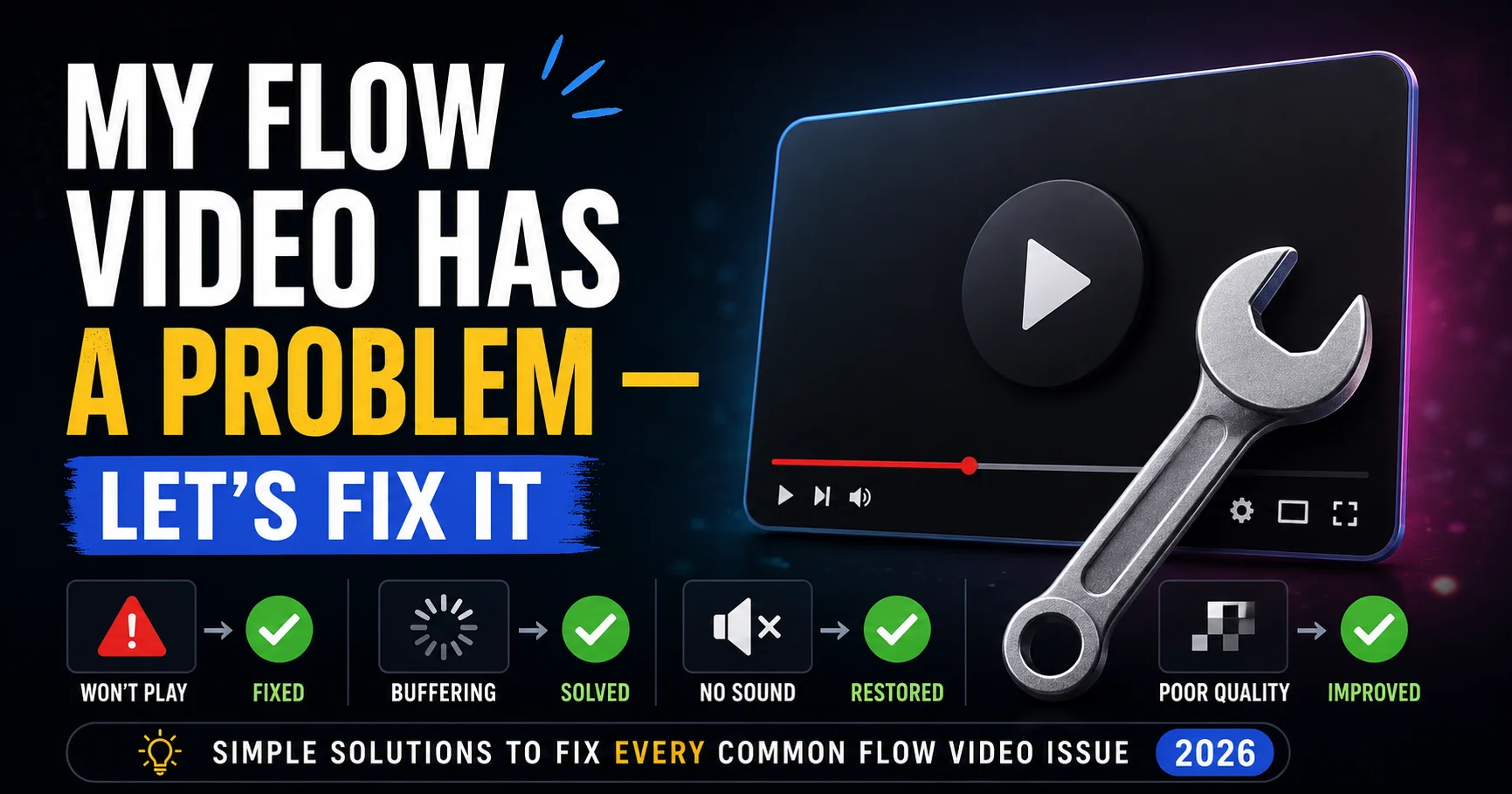
I Have a Flow Video, How Can I Fix It? Complete Troubleshooting Guide for 2026
You generated a video in Google Flow AI. It came back — but something is wrong.
Maybe it’s completely silent. Maybe the scene looks nothing like what you described. Maybe it’s blurry. Maybe it generated correctly but now won’t upscale. Maybe the character looks completely different from your reference photo.
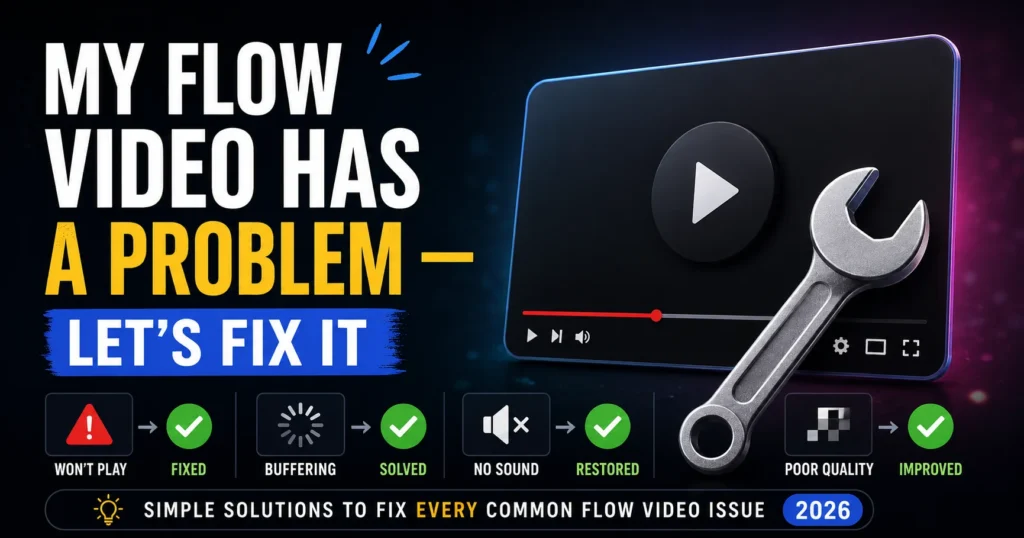
This guide is a master fix hub — every common Flow AI video problem in one place, with the exact solution for each. Find your specific problem below, follow the fix, and you’ll have your video sorted.
How to Use This Guide
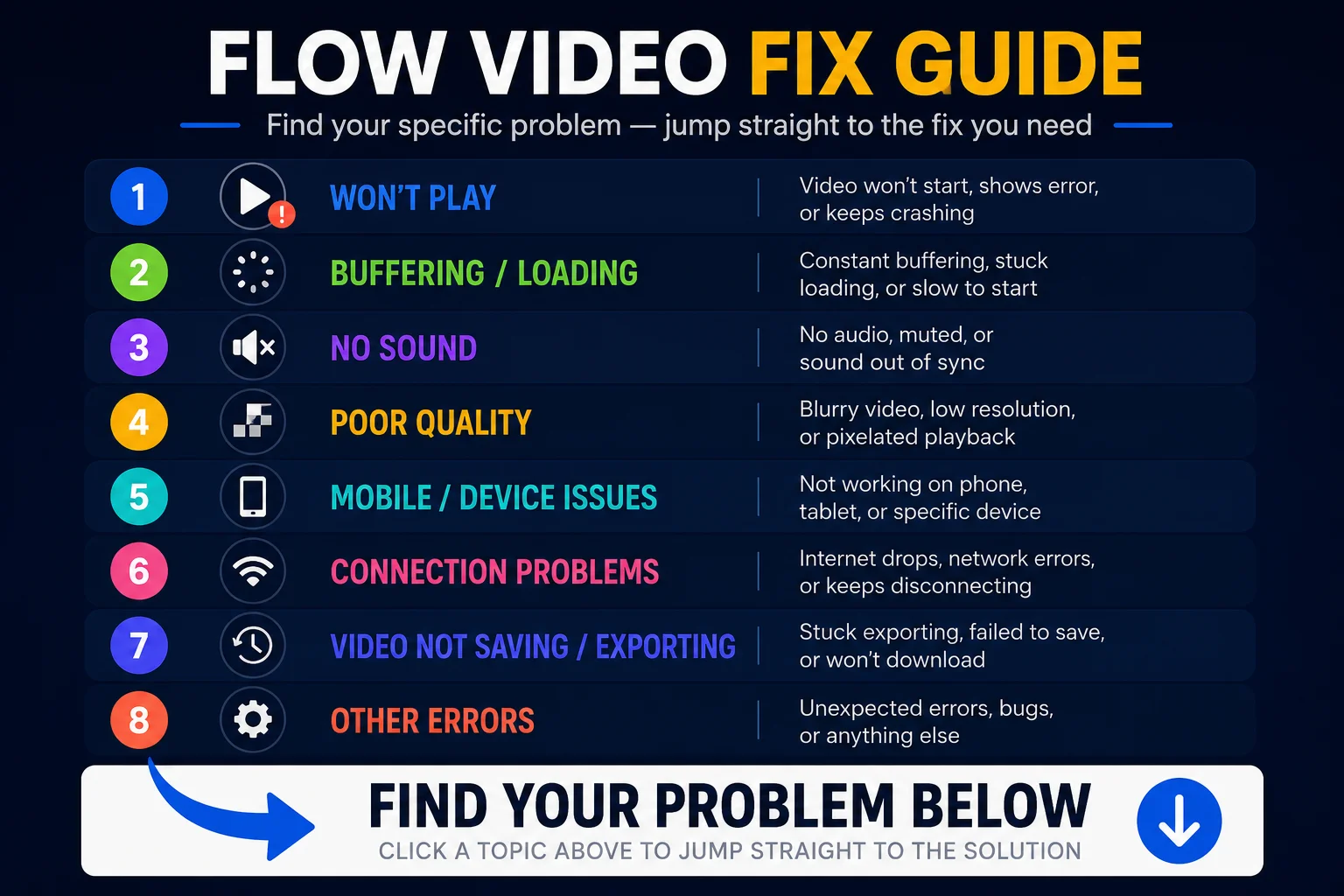
Jump straight to your problem:
- My video is completely silent → Fix 1
- My video looks nothing like my prompt → Fix 2
- My video is blurry or low quality → Fix 3
- The character looks wrong / different from my reference → Fix 4
- My video is stuck / never finished → Fix 5
- My video generated but upscaling failed → Fix 6
- The video is too short → Fix 7
- The scene is right but one part is wrong → Fix 8
Fix 1 — My Flow Video Is Completely Silent {#fix1}
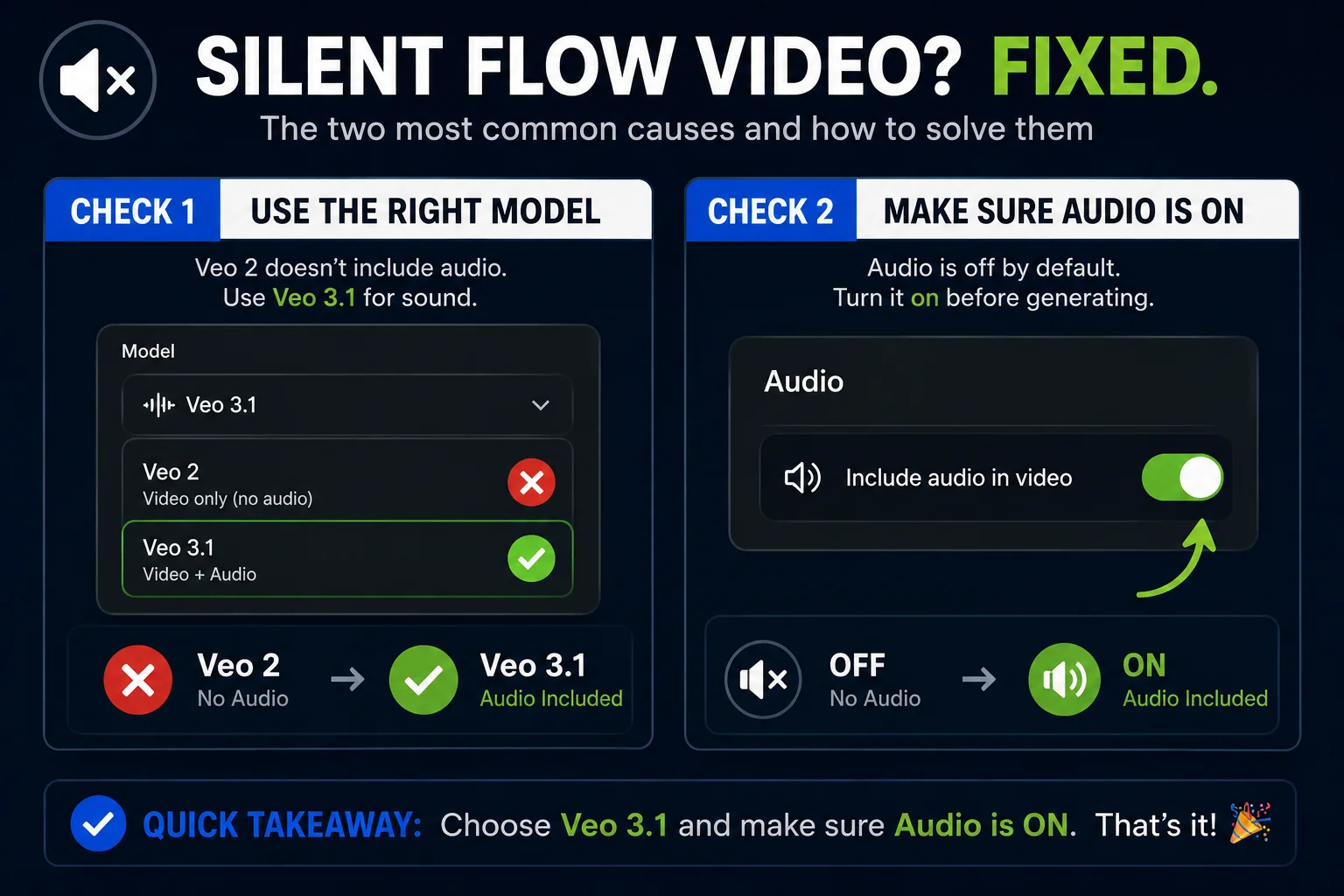
You have a video but it plays in complete silence — no ambient sounds, no dialogue, nothing.
Why this happens: Audio generation in Google Flow AI is exclusive to Veo 3.1. If you accidentally selected Veo 2 as your model, the video generates without any audio capability — it’s simply not part of that model’s output.
Fix — Check 1: Model selection Go back to your generation settings and confirm Veo 3.1 is selected in the model picker, not Veo 2 or any other option. Regenerate your video with Veo 3.1 selected.
Fix — Check 2: Audio toggle Even with Veo 3.1, audio has a toggle in the generation settings. Confirm it’s switched ON before generating. It’s on by default but can be accidentally turned off, especially if you’ve been adjusting settings.
Fix — Check 3: Ingredients to Video mode If you’re using the Ingredients to Video workflow — uploading Subject, Scene, and Style photos — make sure you’re in Video mode (not Image mode) and that Veo 3.1 is selected. Ingredients-based image generation produces no audio because it’s an image, not a video.
For a complete breakdown of how Veo 3.1’s audio system works across all generation modes, see our Veo 3.1 update guide.
Already existing article: For the dedicated audio fix guide, see our Google Flow AI No Sound / No Audio Fix.
Fix 2 — My Video Looks Nothing Like My Prompt {#fix2}
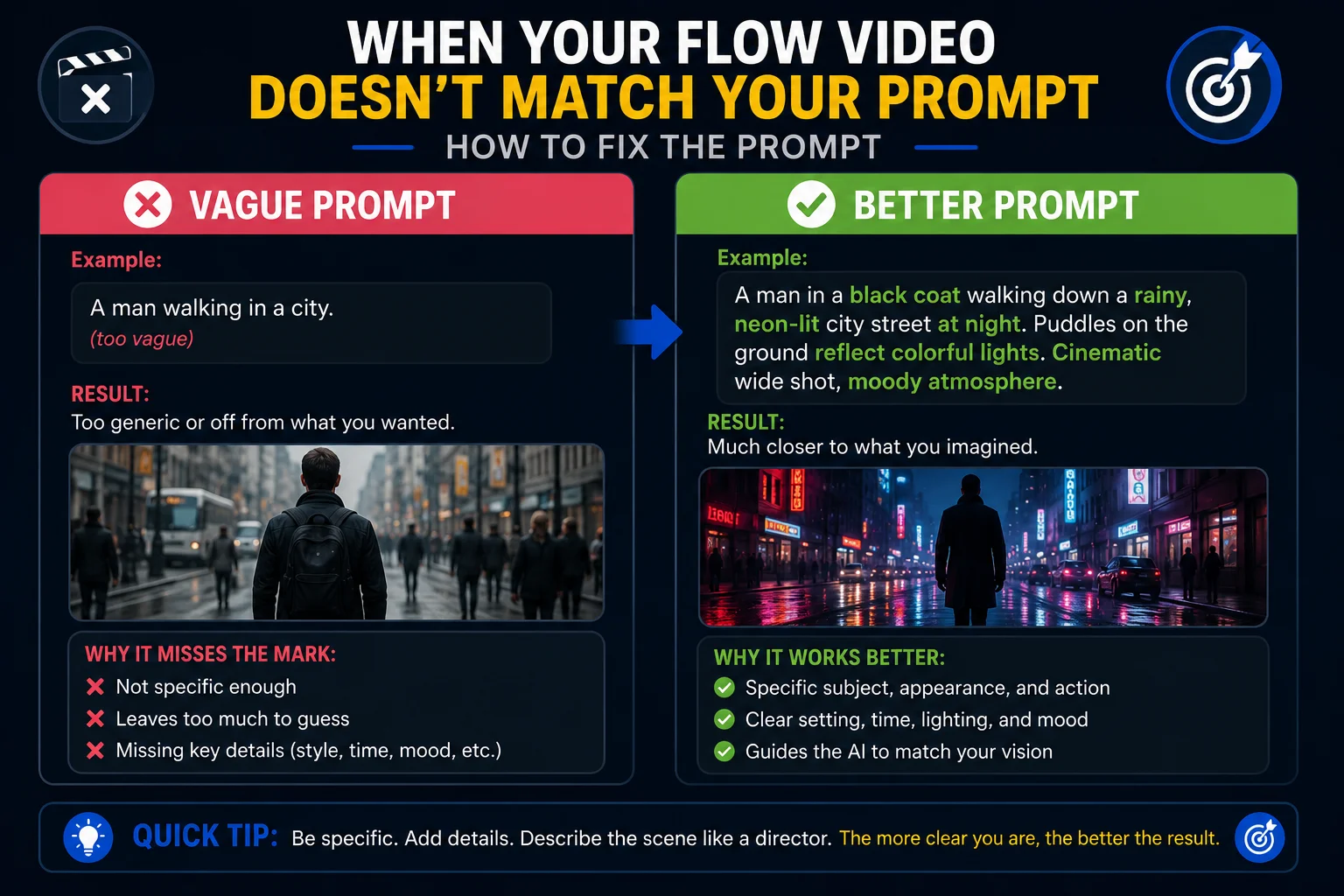
You asked for a sunset beach scene and got a generic landscape with no connection to what you described. Or your character is in completely the wrong setting. Or the style is nothing like what you expected.
Why this happens: Almost always, this is a prompt clarity problem — not a model failure. Veo 3.1 follows instructions accurately, but it can only work with what you give it. Vague prompts produce vague results.
Fix — Add the four elements: Every strong Flow AI video prompt needs: Subject (who/what), Setting (where/when), Lighting (how it looks), and Camera (how it’s filmed). If any of these are missing, the model fills in the gaps with whatever it thinks is most likely — which may not match your vision.
❌ Weak prompt: “A woman walking outside” ✅ Strong prompt: “A 30-year-old woman in a white linen dress walking slowly through an old European cobblestone street at golden hour, warm side lighting, camera following from behind at medium distance, with ambient street sounds and distant church bells”
Fix — Be explicit about what you DON’T want: You can include negative instructions — “no people in background,” “no dramatic music,” “no fast camera movement” — to steer the model away from defaults you don’t want.
Fix — Break complex scenes into multiple clips: If your prompt describes multiple things happening (character does A, then B, then C), Flow AI may struggle to include everything. Split it into separate clips, each with one clear action. Chain them together in the timeline afterward.
For 100+ tested prompts that consistently produce results matching the brief, see our Best Google Flow AI Prompts guide.
Fix 3 — My Video Is Blurry or Low Quality {#fix3}
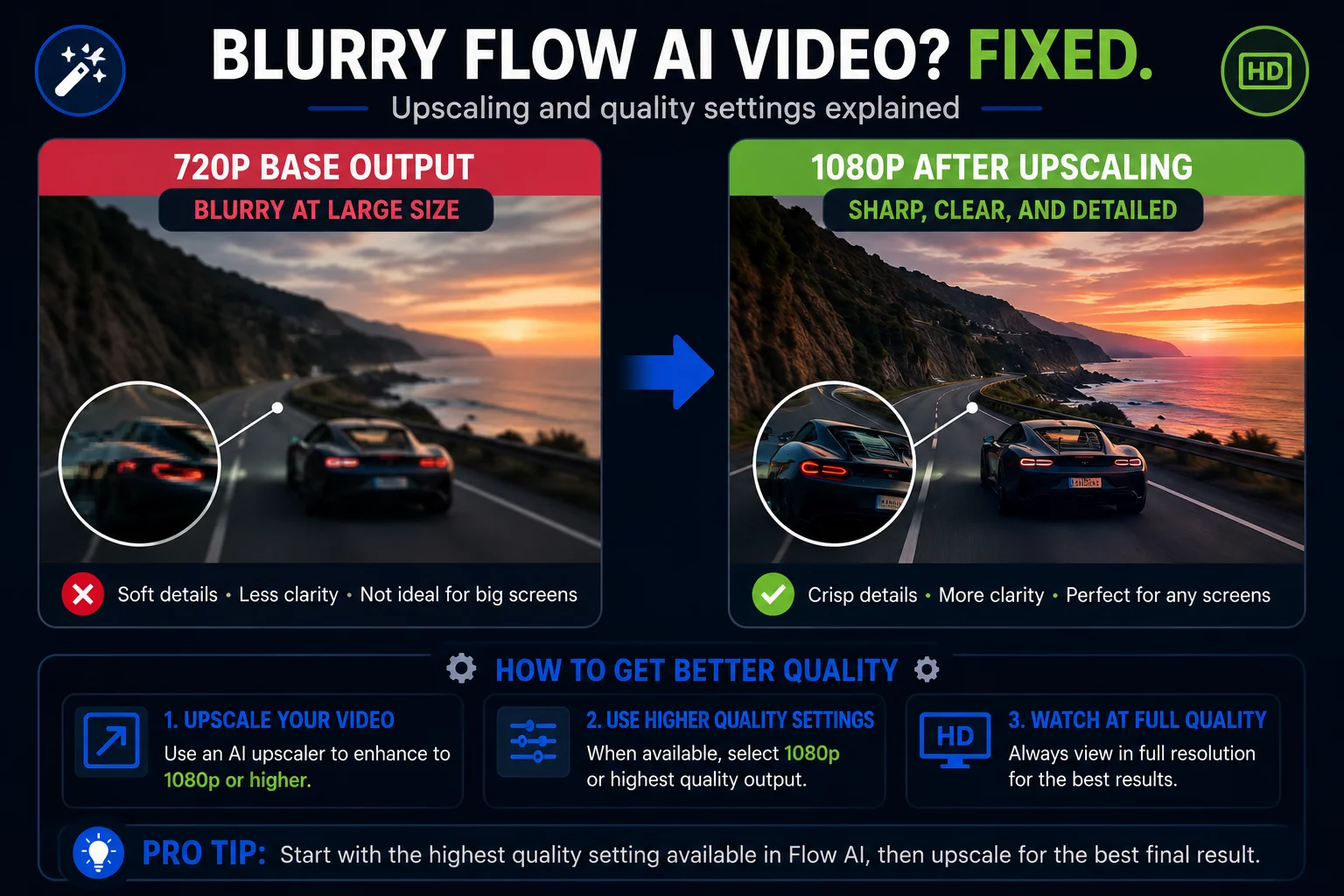
Your video plays fine but looks soft, blurry, or pixelated — especially on a larger screen or when you zoom in.
Why this happens: Flow AI’s raw generation output is 720p by default. This looks fine on a phone screen but may appear soft on larger displays. The higher-resolution version is produced through a separate upscaling step.
Fix — Upscale your video: After generation, look for the Upscale button in your clip’s options panel. Click it to process your video at 1080p (AI Plus) or 4K (AI Ultra). This takes an extra few minutes but dramatically improves sharpness.
If upscaling fails: This is a separate, documented issue. See our Google Flow upscaling failed fix guide for every solution.
Fix — Use Veo 3.1 Full (not Lite): If you’re using Veo 3.1 Lite (the zero-credit option), it generates at lower quality than standard Veo 3.1. Switch to Veo 3.1 Fast or Full for better base output quality.
Fix — Improve your lighting description: Vague lighting in your prompt produces flat, underexposed video. Add specific lighting: “golden hour side light,” “soft diffused overcast light,” “dramatic rembrandt side lighting.” Lighting quality has a huge impact on how sharp and professional the output looks.
Fix 4 — Character Looks Wrong / Different From My Reference {#fix4}
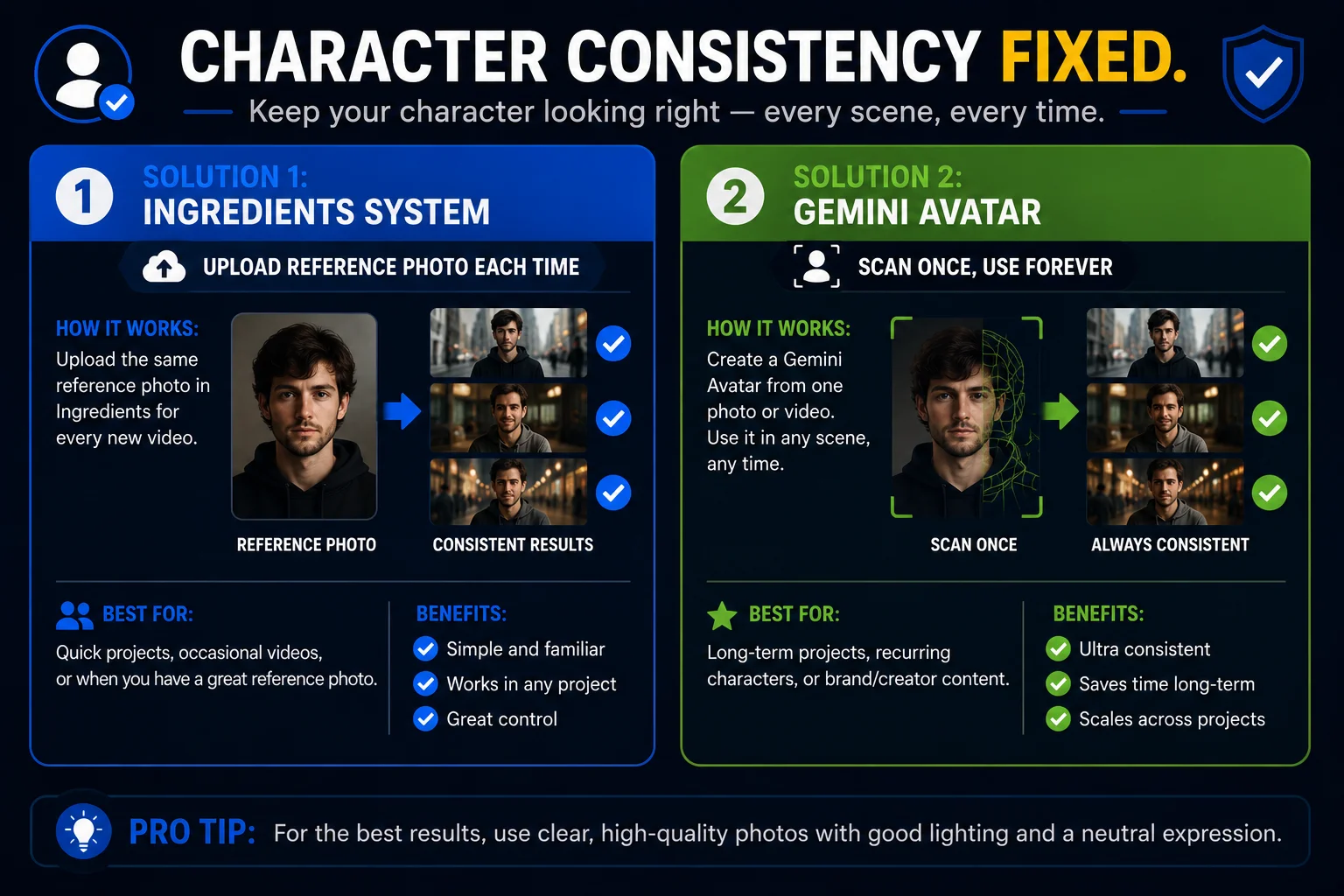
You uploaded a reference photo of a character but the generated video looks like a completely different person. Or the character’s appearance changes between scenes — different hair, different face, different clothing.
Why this happens: Standard text-to-video generation doesn’t lock onto a specific person’s appearance — it generates someone who loosely matches your description. Character drift between clips is one of the most documented limitations of AI video generation in general.
Fix — Use the Ingredients system consistently: Every time you want your character to appear, use the Ingredients to Video workflow and upload the same reference photo as your Subject ingredient. Using the exact same image each time gives the model the strongest possible signal about your character’s appearance.
Fix — Set up Gemini Avatar: If the character is you, Gemini Avatar solves the problem permanently. Scan your face and voice once in the Gemini app, save it as an @me asset, and reference it in every subsequent generation. Your appearance stays consistent across all clips automatically.
Fix — Add detailed appearance description to your prompt: Even with a reference image, reinforce your character’s appearance in text: “a woman with long dark hair, brown eyes, wearing a red kurta, same character as reference.” The more specific the description, the less the model drifts.
Fix 5 — My Video Is Stuck / Never Finished Generating {#fix5}
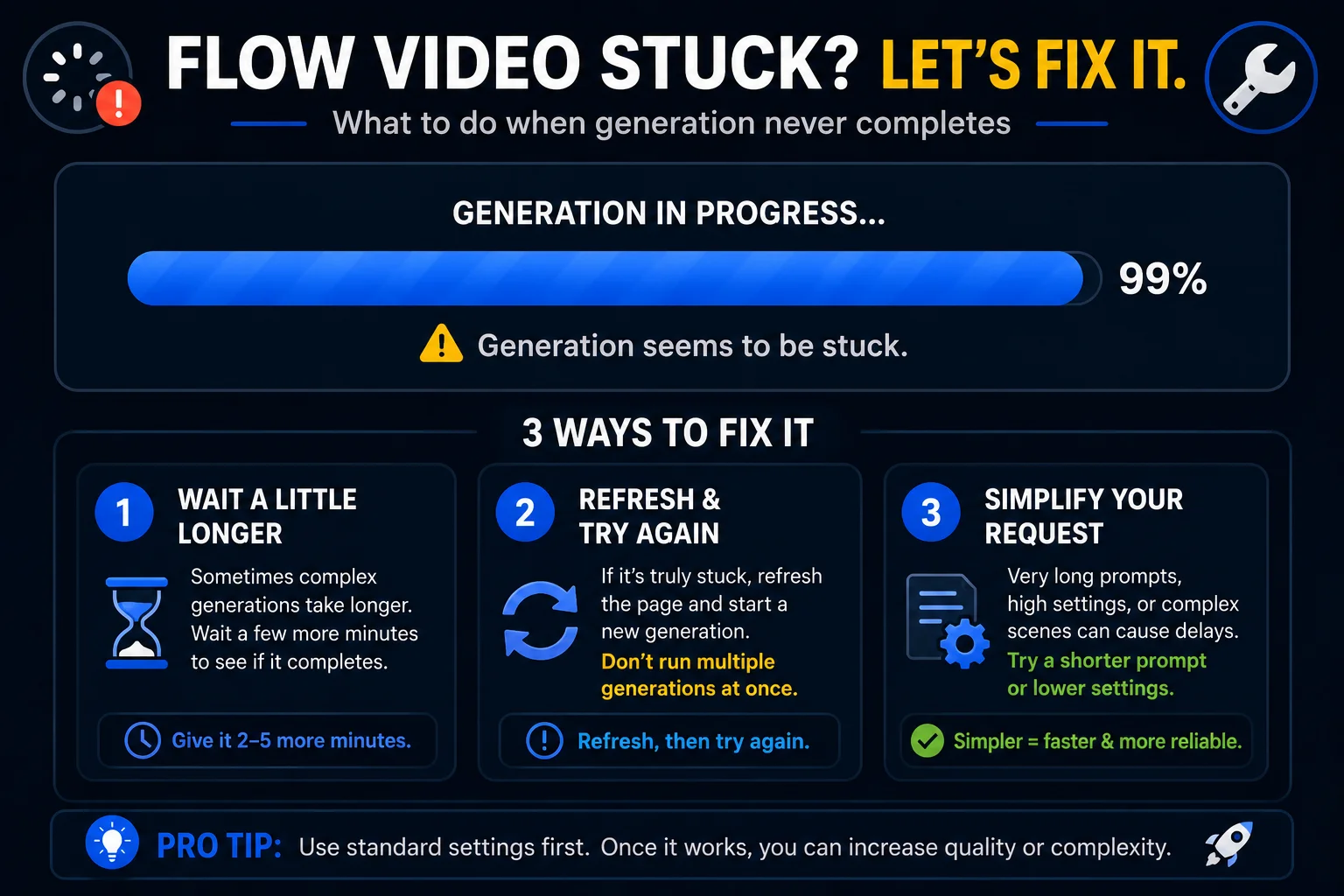
Your generation started, the progress indicator appeared — and then it stopped. Or it’s been running for 10+ minutes with no result.
Why this happens: Two common causes — server load (Google’s video generation queue is overloaded during peak hours) or a network interruption that broke the connection between your browser and Flow AI’s servers mid-generation.
Fix — Check your Library first: Before assuming the generation failed, go to your Flow AI Library. Sometimes the generation completed successfully on the server but the result failed to display in your browser window. If it’s in your Library — it worked, just refresh.
Fix — Wait and retry: If the Library is empty, wait 15-30 minutes and try again. Peak hours (evenings in the US — which is 1:00-5:00 AM Pakistan time) produce more stuck generations due to queue congestion. Try early morning Pakistan time for more reliable results.
Fix — Switch to Veo 3.1 Lite: During high server load periods, the zero-credit Lite queue is sometimes less congested than the standard queue. Switching to Lite temporarily can help if standard generation keeps getting stuck.
Fix — Sign out and back in: A session that’s been open for a long time can get into a bad state. Sign out of your Google account, clear your browser cache (Ctrl+Shift+Delete), and sign back in before retrying.
Fix 6 — My Video Generated But Upscaling Failed {#fix6}
Your video played fine at base resolution but when you tried to upscale it to 1080p or 4K, you got a failure message.
Quick fix checklist:
- Confirm your subscription tier includes upscaling (AI Plus for 1080p, Ultra for 4K)
- Check your credit balance — upscaling uses credits, and zero balance causes immediate failure
- Check your clip duration — clips longer than ~8 seconds may hit upscaling length limits
- Try during off-peak hours if server load is the likely cause
This topic has its own dedicated guide with every documented cause and fix: see our Google Flow upscaling failed fix guide.
Fix 7 — My Video Is Too Short {#fix7}
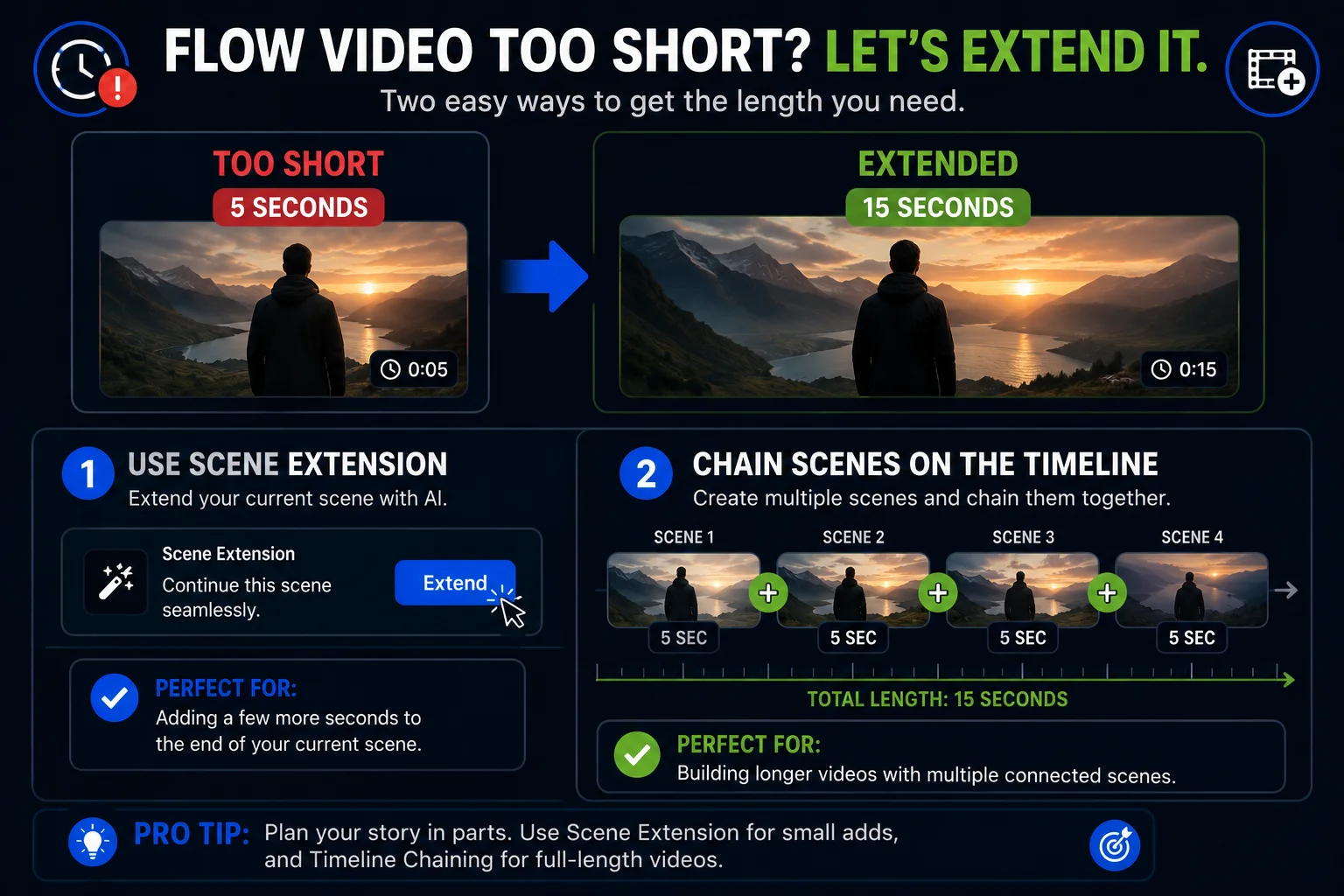
Your generated clip is only 5-8 seconds and you need something longer.
Fix — Use Scene Extension: With your clip open in Flow AI, find the Extend or Scene Extension option in the editing tools. This continues the existing scene beyond its current endpoint — maintaining the same characters, setting, and mood, with audio continuing naturally.
Fix — Chain multiple clips in the timeline: Generate several separate clips and arrange them in Flow AI’s timeline editor, one after another. This is how professional creators build longer videos — each clip is its own generation, chained together to form a complete sequence. Use the same setting and lighting descriptions across all clips to maintain visual consistency.
Fix — Use First and Last Frame: Define what your video looks like at the very beginning and at the very end. Flow AI fills in all the motion between your two defined frames. This gives you a longer, more controlled clip because you’re anchoring both endpoints.
Fix 8 — The Scene Is Right But One Part Is Wrong {#fix8}
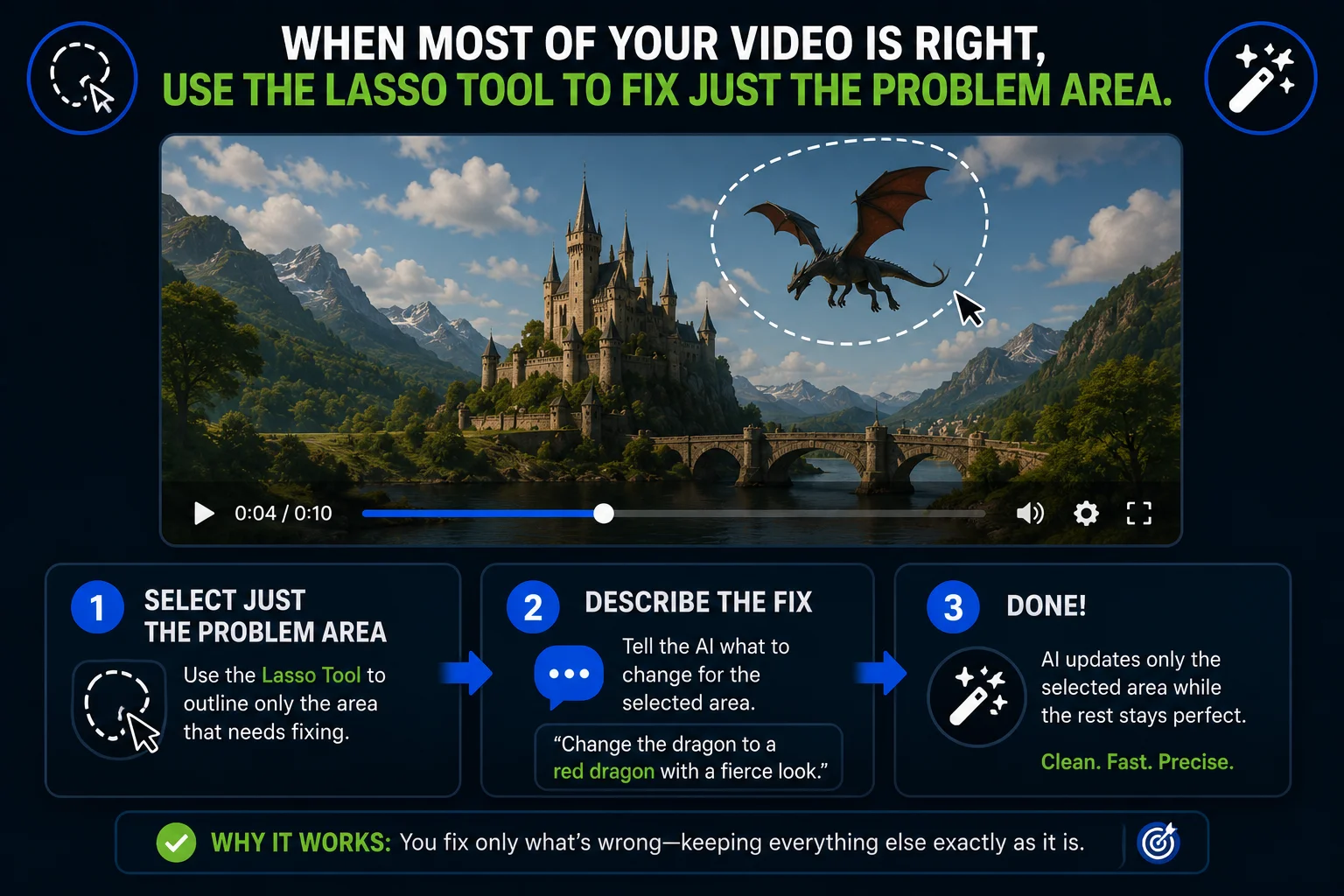
Your video is 90% exactly what you wanted — but there’s one specific element that’s wrong. A background object that shouldn’t be there. The wrong color on a specific item. A lighting inconsistency in one corner of the frame.
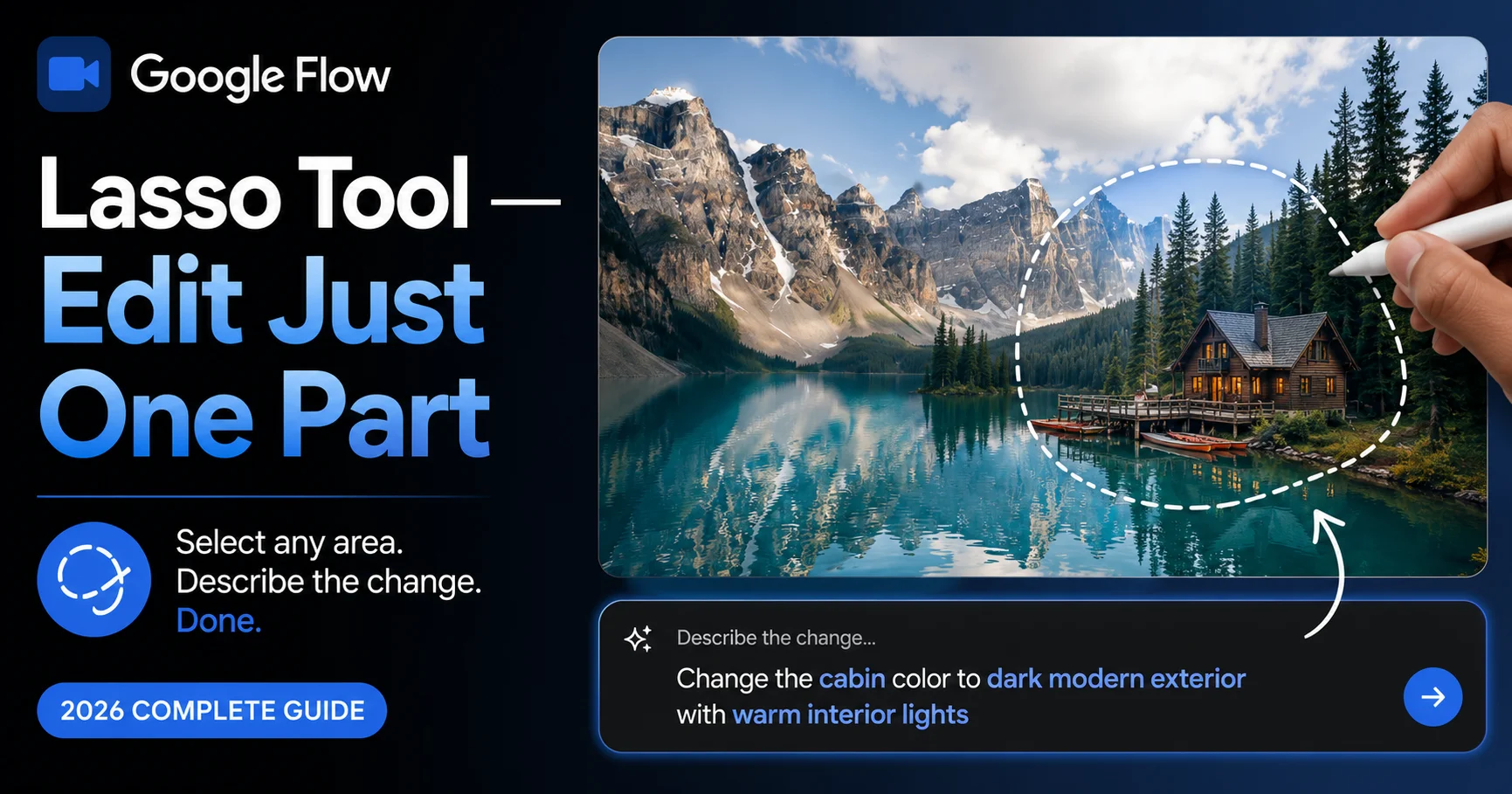
Fix — Use the Lasso Tool: The Lasso Tool is specifically designed for this situation. Draw a freehand selection around the problem area, then describe exactly what you want changed in plain language — “remove the street lamp,” “make this jacket blue instead of red,” “add warm light to this shadow area.”
Flow AI updates only the selected region, leaving everything else exactly as it was. This is far more efficient than regenerating the whole clip and hoping the rest stays the same.
Fix — Use Insert or Remove Object: For whole objects you want to add or eliminate cleanly, Insert and Remove Object handle these more directly than the Lasso Tool. Use Lasso for partial/region-based changes, and Insert/Remove for clearly defined whole-object changes.
Still Not Fixed? — More Dedicated Fix Guides
If your specific problem isn’t fully covered above, we have dedicated deep-dive guides for the most common Flow AI issues:
| Problem | Guide |
|---|---|
| Generation never starts / fails immediately | Google Flow Generation Failed Fix |
| Blank white screen, can’t access Flow AI | Google Flow Blank Screen Fix |
| “Not available in your country” | Google Flow Not Available Fix |
| Upscaling specifically failing | Google Flow Upscaling Failed Fix |
| No sound / audio issues | Google Flow No Sound Fix |
| Video stuck at 99% | Google Flow Stuck at 99% Fix |
| Error code 253 | Error Code 253 Fix |
Frequently Asked Questions
Q: My Flow video came back completely wrong — do I lose my credits?
If the generation completed but the result doesn’t match your prompt, credits were used — the model ran successfully from Flow AI’s perspective. Credits are typically only refunded for confirmed platform-side failures, not for results that don’t match expectations.
Q: How many times should I regenerate before changing my prompt?
If your video misses the mark two times in a row with the same prompt, the prompt itself is the issue. Change the prompt rather than regenerating again with identical text.
Q: Can I fix a video without regenerating it from scratch?
Yes — this is exactly what the Lasso Tool, Insert, Remove, and Scene Extension are for. See Fix 8 above for the specific tools that let you make targeted fixes rather than full regenerations. Full guide at our Lasso Tool article.
Q: My video has the right visuals but the audio doesn’t match the scene.
Add explicit audio direction to your prompt. Instead of letting Flow AI guess, describe the sound: “with the sound of rain on glass and quiet indoor ambience,” “with dramatic orchestral music building,” “completely silent except for distant traffic.” The more specific your audio cue, the better it matches. See our Veo 3.1 update guide for full audio control.
Q: My video was fine but it disappeared from my Library.
Check your Google account is still signed in correctly — Library content is account-specific and won’t appear if you’re signed into a different account. If the content is genuinely gone, unfortunately Flow AI does not offer recovery for deleted Library content.
Q: I fixed one problem but now there’s a different problem.
This is normal during the learning curve. Bookmark this page — it covers every documented video problem in one place, so you can jump to whichever fix you need next without searching again.
Final Thoughts — Every Flow Video Problem Has a Fix
Most Google Flow AI video problems fall into one of eight categories covered in this guide. Audio issues are almost always a model or toggle setting. Visual quality issues are almost always a prompt or upscaling issue. Character consistency issues are solved by the Ingredients system or Gemini Avatar. Stuck generations are almost always a server load or session state issue.
The key mindset shift: don’t just regenerate blindly. Identify which specific category your problem belongs to, apply the targeted fix, and you’ll solve it far faster than retrying the same prompt over and over.
For everything else about getting the most from Google Flow AI — from writing better prompts to understanding every Veo 3.1 feature — visit WhiskAILabs for the complete guide library.
Related Articles on WhiskAILabs:
- Home — WhiskAILabs.net
- Google Flow Generation Failed Fix
- Google Flow Upscaling Failed Fix
- Google Flow AI No Sound Fix
- Google Flow Not Available In Your Country Fix
- Google Flow AI Blank Screen Fix
- Google Flow Error Code 253 Fix
- Google Flow Stuck at 99% Fix
- Google Flow AI Lasso Tool Guide
- Veo 3.1 Update 2026 — Audio Features
- Ingredients to Video with Audio Guide
- Gemini Avatar in Google Flow AI
- Best Google Flow AI Prompts 2026
- Google Flow Video Tutorial 2026
- Pakistan Access Guide for Google AI
- News & Updates — WhiskAILabs
Official External Sources: