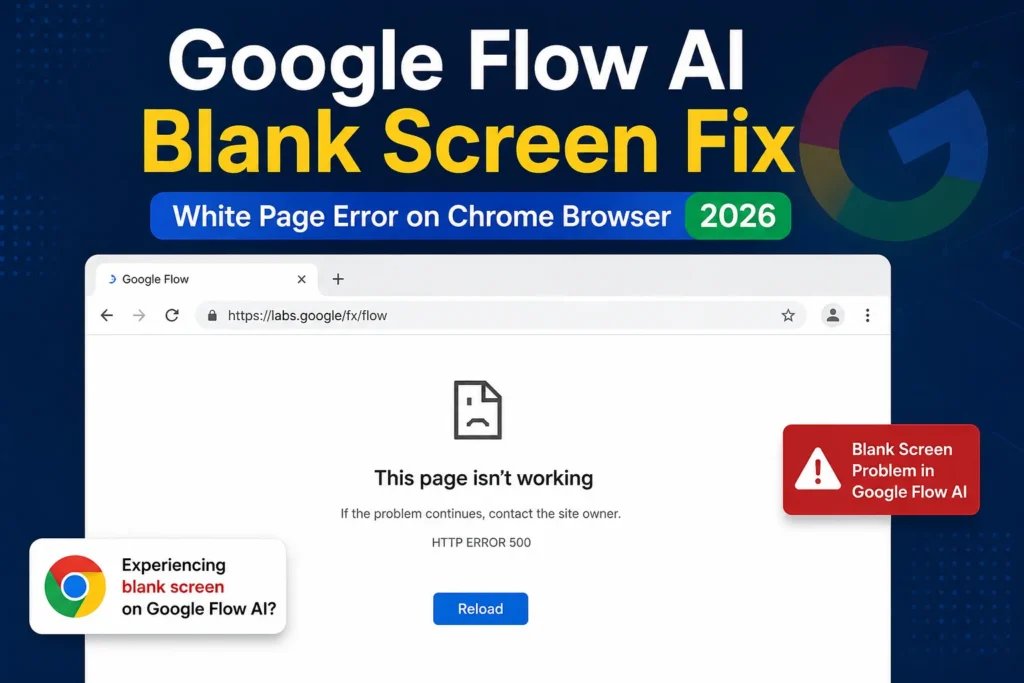
Google Flow AI Blank Screen Fix — 7 Confirmed Solutions 2026
You opened flow.google.com and got nothing. White page. Spinning circle that refuses to stop. Or maybe the interface half-loaded and then just sat there like a frozen lake — looking like something but doing absolutely nothing.
If that is happening to you right now, this guide is specifically for you.
The Google Flow AI blank screen fix is not complicated once you know what is causing it. And in most cases, the cause is something your browser is doing — not something broken with your internet, your device, or your Google account. This guide walks you through 7 confirmed solutions in plain language, ranked from the fastest to try down to the more involved ones.
Try them in order. Most people fix the Google Flow AI blank screen problem within the first three steps.
Note from Whiskailabs: We track Google Flow issues reported by real users every week and test every fix before publishing it. Everything in this guide works as of June 2026. If something changes, we update the guide. You can always find the latest at whiskailabs.net.
Before You Start — Quick Check
Before jumping into fixes, spend 30 seconds answering these:
Does the blank screen happen in ALL browsers or just one? If it works in another browser, skip to Fix 4.
Does the blank screen happen on mobile data but not WiFi (or vice versa)? If yes, skip to Fix 6.
Did it work fine yesterday and suddenly stopped today? Could be a Google server issue — check Fix 7 first.
If you answered “I have no idea, it just will not load” — start from Fix 1 and work down.
Fix 1 — Hard Refresh (Takes 3 Seconds, Solves It 40% of the Time)
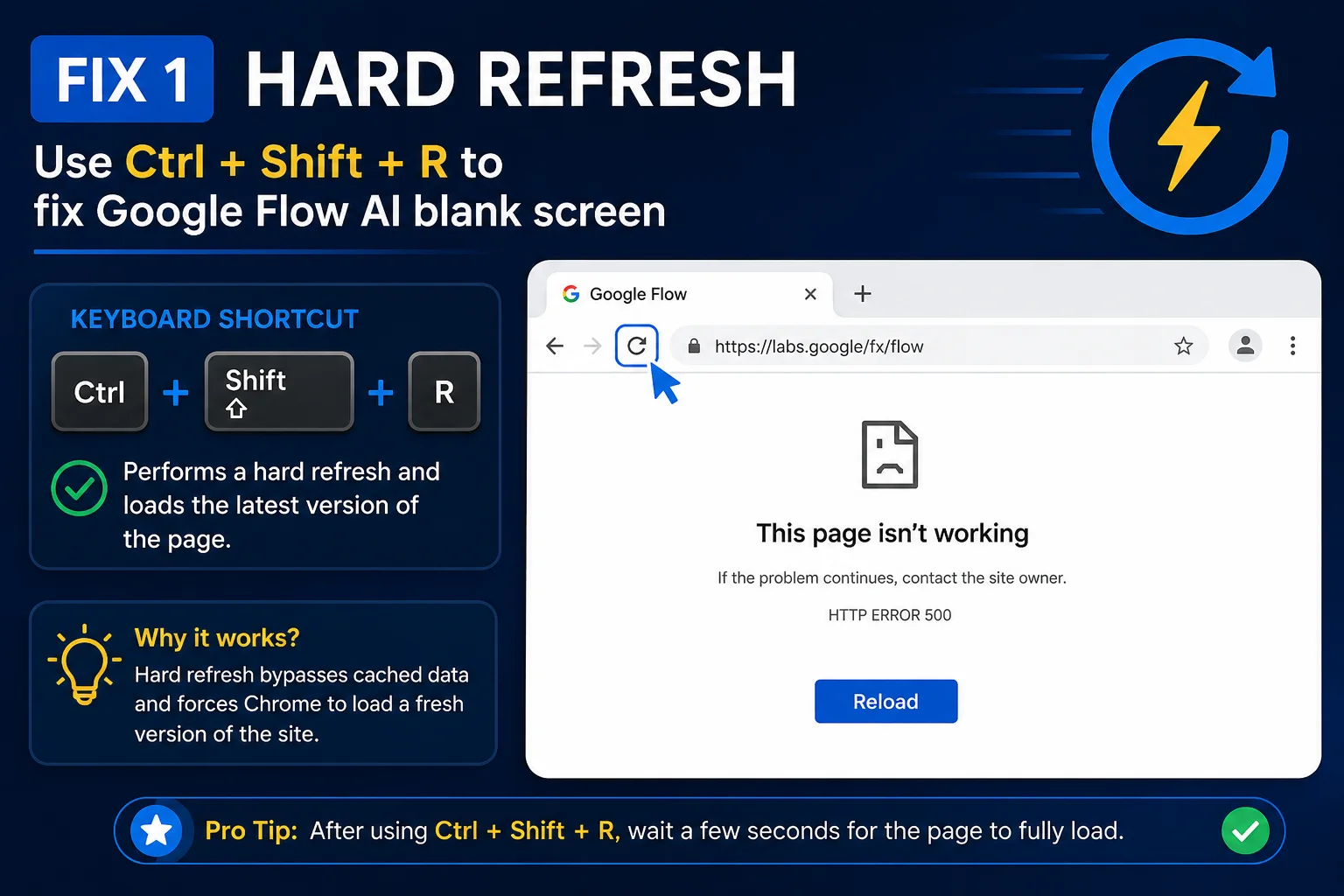
This is always the first thing to try. Not because it always works — but because when it does work, it takes three seconds and saves you everything else.
A normal page refresh (F5 or the reload button) just reloads the same saved files your browser cached last time. If those files got corrupted or became outdated after a Google Flow update, you reload the broken version over and over.
A hard refresh bypasses that entirely. It tells your browser: ignore everything you saved — go get fresh copies from Google’s servers right now.
How to do it:
- Windows / Linux: Press
Ctrl + Shift + R - Mac: Press
Cmd + Shift + R - In Chrome specifically: Hold
Shiftand click the reload button at the same time
Do this once. Wait 10–15 seconds for Flow to fully reload. If the interface appears and works — great, you are done. If you are still staring at a blank page, move to Fix 2.
Fix 2 — Clear Browser Cache and Cookies (The Most Reliable Fix)
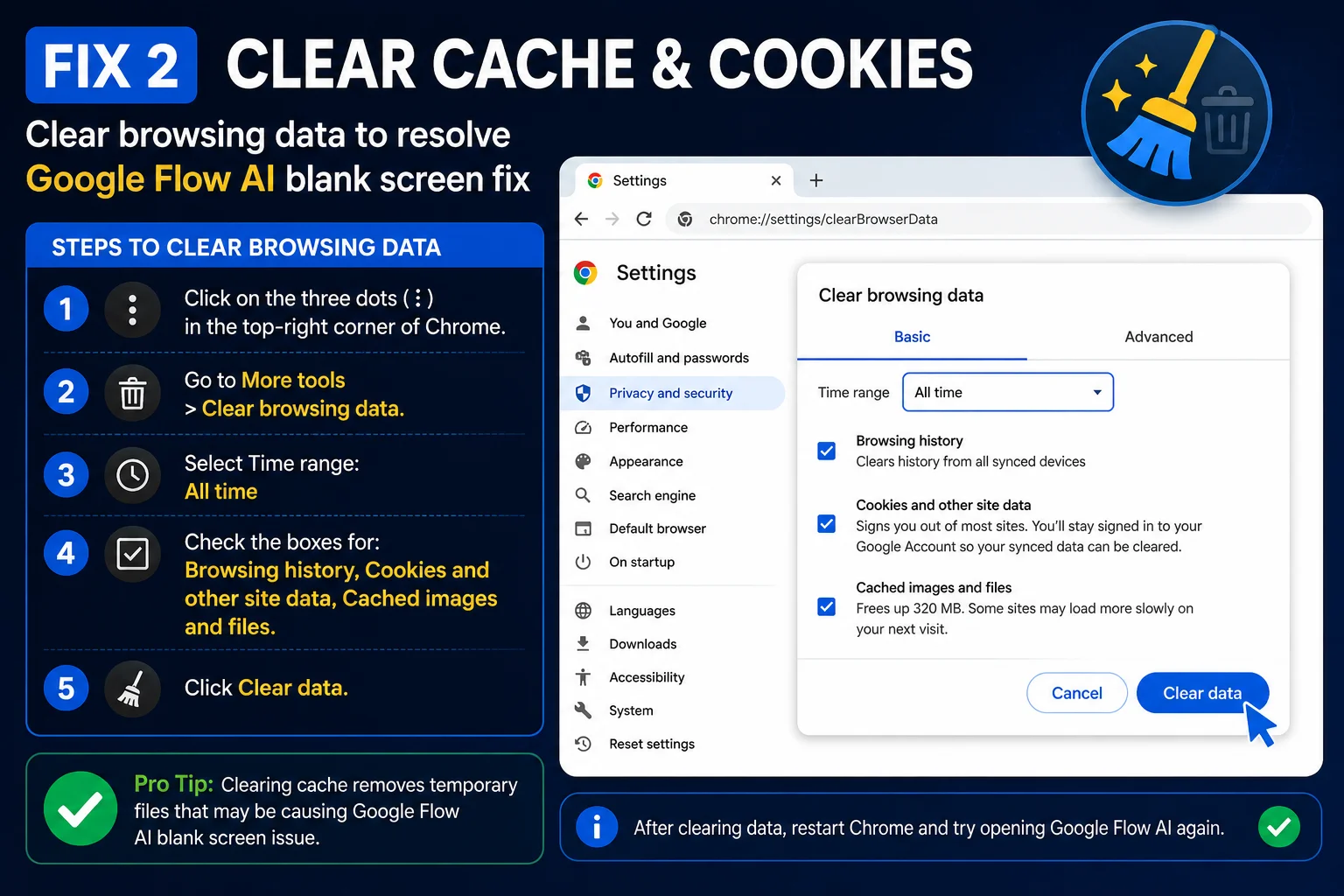
If the hard refresh did not sort it, the next step is clearing your browser cache properly. This is the Google Flow AI blank screen fix that works for the majority of people because it removes outdated saved files that are actively stopping Flow from loading correctly.
Think of it this way — Google Flow updates frequently. Your browser saves copies of old page files to speed things up. When Flow’s code changes but your browser keeps serving the old saved version, you get a conflict. The page tries to run, gets confused, and shows you nothing.
Clearing the cache removes those old files and lets everything load fresh.
In Google Chrome:
- Click the three-dot menu (⋮) in the top-right corner
- Go to Settings → Privacy and Security → Clear Browsing Data
- Set the time range to All time — not just “last hour” or “last 24 hours”
- Tick Cached images and files AND Cookies and other site data
- Click Clear data
- Close Chrome completely — not just the tab, every Chrome window
- Reopen Chrome and go directly to flow.google.com
- Type the URL fresh — do not click an old bookmark
In Firefox:
Go to Settings → Privacy & Security → Cookies and Site Data → Clear Data, tick both options, and clear.
In Safari (Mac):
Go to Safari → Settings → Privacy → Manage Website Data → Remove All.
After clearing, sign back into your Google account when Flow prompts you. Your projects and generated content are stored in your Google account — they are not affected by clearing the browser cache.
Fix 3 — Open Google Flow in Incognito Mode
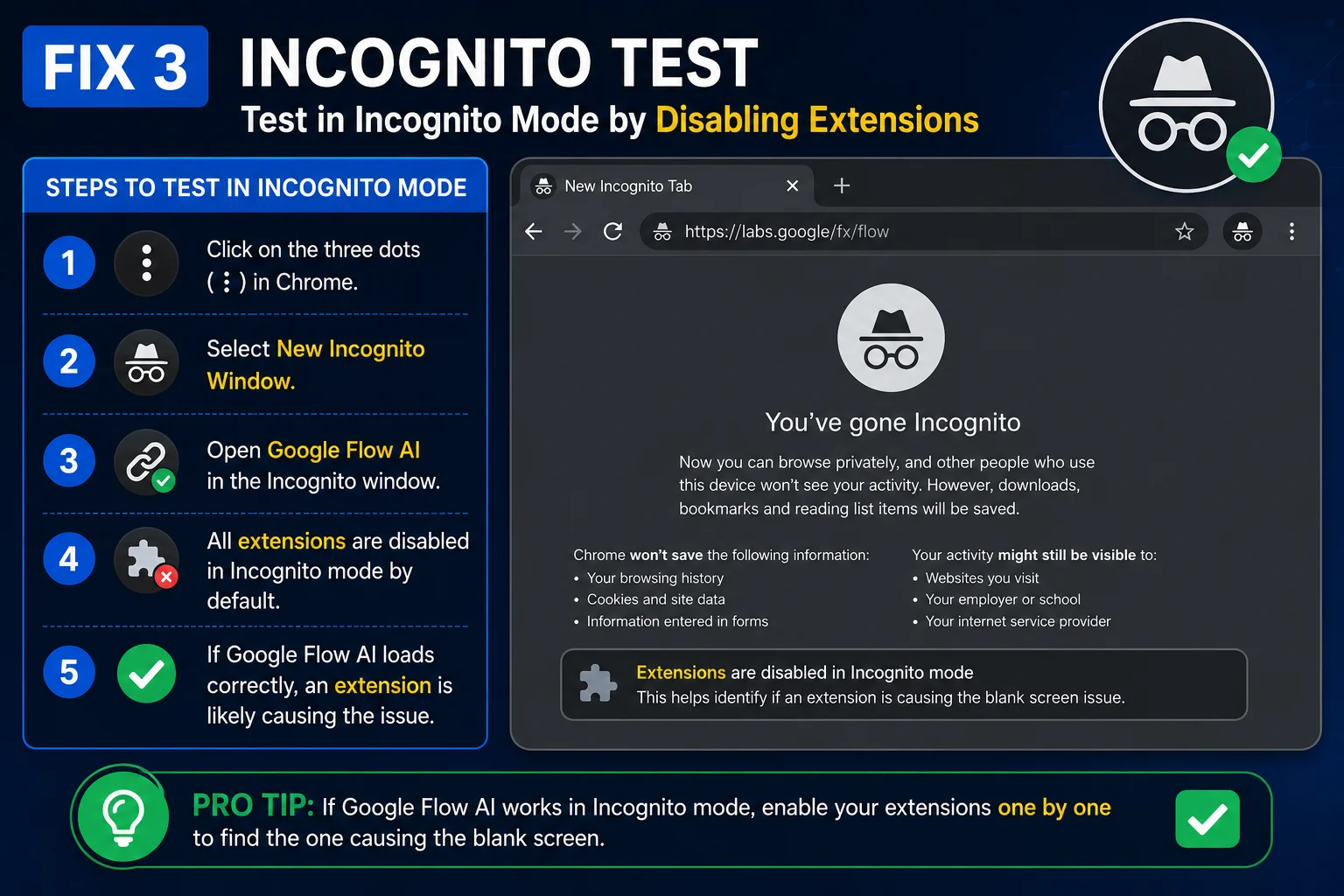
This step does two things at once — it tests whether a browser extension is causing your blank screen, and it gives you a way to use Flow immediately while you figure out the root cause.
How to open Incognito:
Press Ctrl + Shift + N on Windows (or Cmd + Shift + N on Mac) to open a new Incognito window. Then go to flow.google.com and sign in.
What the result tells you:
- Flow loads fine in Incognito → a browser extension is causing your blank screen. Move to Fix 4 to identify which one.
- Flow still blank in Incognito → the extension is not the issue. Continue to Fix 5.
Incognito mode automatically disables most browser extensions because those extensions only run in your regular browsing session. That is why Flow suddenly works there — the extension that was blocking Flow’s scripts is not running.
Fix 4 — Disable Browser Extensions (Especially Ad Blockers)
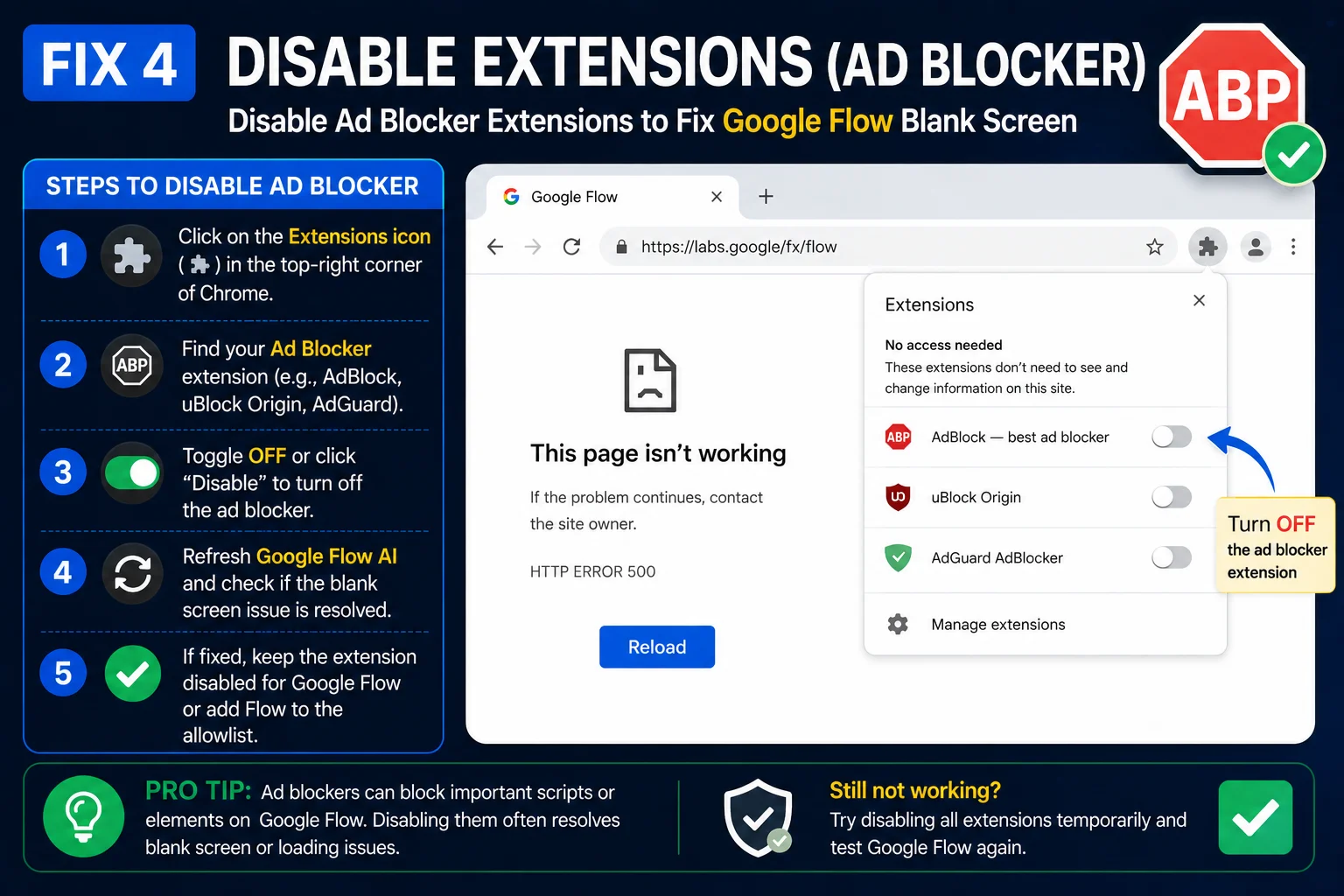
If Fix 3 confirmed that an extension is causing the Google Flow AI blank screen, here is how to find and deal with it.
The most common extensions that break Google Flow:
- uBlock Origin
- AdBlock Plus
- AdGuard
- Privacy Badger
- Ghostery
- Any script blocker or tracker blocker extension
These tools work by stopping certain scripts from running in your browser — which is useful for blocking ads, but they sometimes accidentally block the scripts that Google Flow needs to build its interface. The result is a blank page.
How to find the specific extension causing the problem:
- Go to your extensions list — in Chrome, click the puzzle-piece icon or go to
chrome://extensions - Disable your ad blocker first — it is the most common culprit
- Reload flow.google.com in your normal browser (not Incognito)
- If Flow loads — that extension was the problem. You found it.
- If Flow is still blank — re-enable that extension and disable the next one on the list
- Keep going one at a time until Flow loads
Once you find the problematic extension:
You have two options. You can keep it disabled whenever you use Google Flow. Or — the better solution — go into that extension’s settings and add flow.google.com to its whitelist. That tells the extension “leave this site alone,” so both the extension and Flow work normally at the same time.
For detailed guidance on how Flow handles browser compatibility, the Whiskailabs Google Flow tutorial covers the recommended browser setup step by step.
Fix 5 — Check You Are Signed Into the Right Google Account
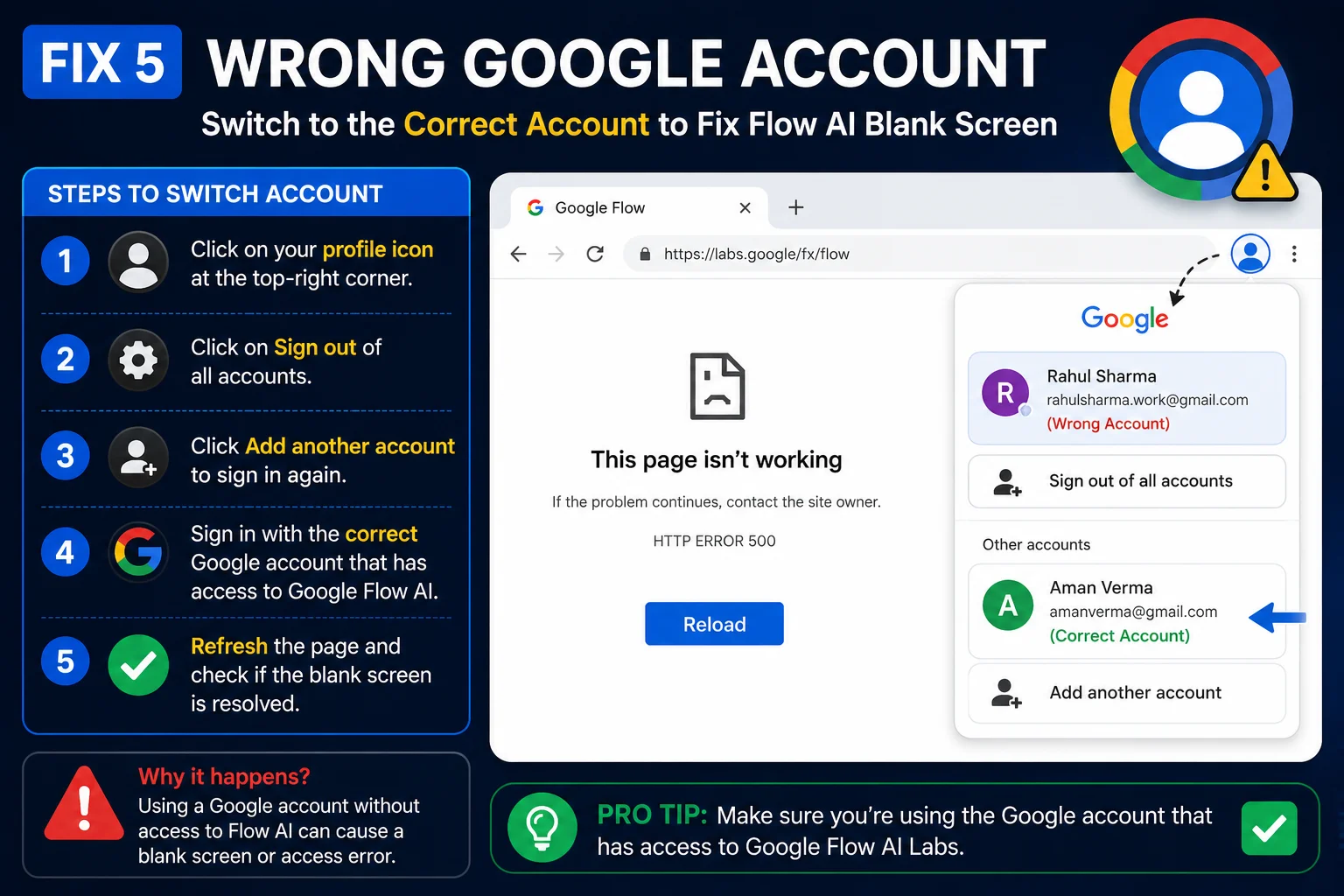
This is the Google Flow AI blank screen fix that surprises people the most — because it is so obvious once you see it, but it is genuinely easy to miss.
Google Flow’s features and subscription are tied to a specific Google account. If you have multiple Google accounts signed in (a personal one, a work one, a school one), Flow sometimes loads under the wrong account. When that happens, it may show a blank screen or a restricted interface because that account does not have the right access.
How to check:
- If Flow does load anything at all, look for your profile picture or initial in the top-right corner of the page
- Click it and check which account is shown as active
- If it is not the right one — click Switch account and choose the correct one
If you cannot even see a profile picture because the screen is blank:
- Go to myaccount.google.com
- Sign out of all Google accounts completely
- Close the browser
- Reopen Chrome and go to flow.google.com
- Sign in with only the account you use for Google Flow
If you have a Google AI Plus or Pro subscription, also confirm that the subscription is active and linked to that account at one.google.com. A lapsed payment can silently remove access in a way that looks like a blank screen.
Fix 6 — VPN Issues (Either Turn It On or Turn It Off)
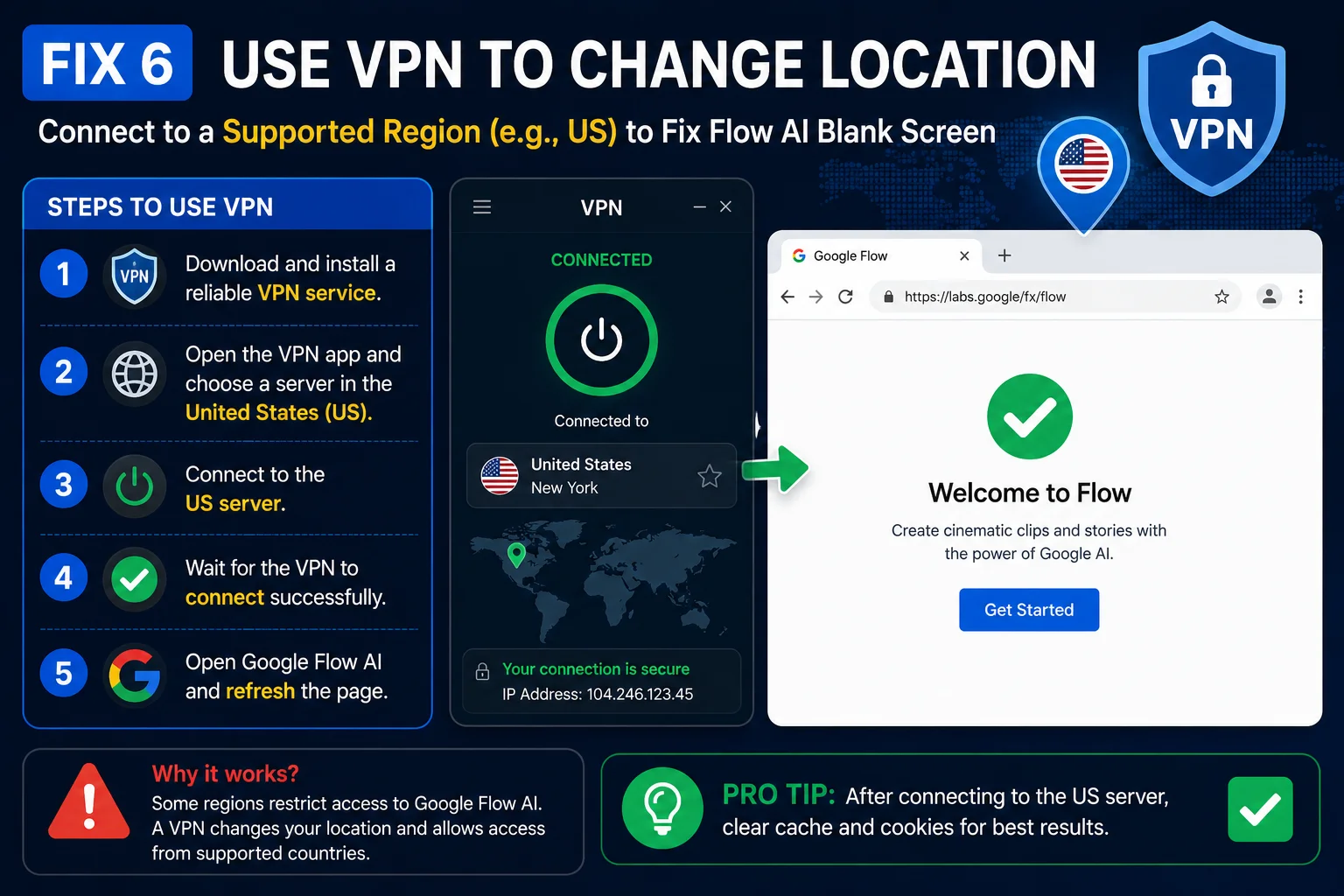
VPNs cause the Google Flow AI blank screen in two completely opposite situations — and which one applies to you depends on where you are.
Situation A — Your VPN Is ON and It Should Be OFF
If you are in a country where Google Flow is available (like Pakistan, USA, India, Australia, etc.) but your VPN is routing your connection through a restricted region — such as Germany, France, the UK, or another EU country — Flow will show you a blank screen or a block message.
Google Flow checks your apparent location to determine access. If your VPN makes you look like you are in a restricted region, Flow blocks you even though you are physically in a supported country.
Fix: Disable your VPN completely. Reload flow.google.com. Problem solved.
If you need the VPN for other reasons, set up split tunneling in your VPN app to exclude flow.google.com from the VPN tunnel. This lets you use the VPN and Flow at the same time without conflict.
Situation B — Your VPN Is OFF and It Should Be ON
Google Flow is available in 149+ countries — but the EU, UK, and a few other regions are currently restricted due to GDPR and AI regulation compliance requirements.
If you are in one of those restricted regions, you need a VPN connected to a US server to access Flow.
How to do it:
- Close your browser completely — all windows
- Connect your VPN to a United States server — Los Angeles, New York, or Chicago work most reliably
- Wait until the connection fully confirms — not just “connecting”
- Open Chrome fresh and go to flow.google.com
- Sign in with your Google account
Free VPN options with US servers that work: ProtonVPN (free tier) and Windscribe (free tier).
For the complete step-by-step VPN method, including what to do when the first attempt does not work, our Whisk AI not available fix guide covers this in full detail.
One note: Google’s terms of service for Labs tools discourage location spoofing. Use this at your own discretion.
Fix 7 — Check Google’s Server Status (When Nothing Else Works)
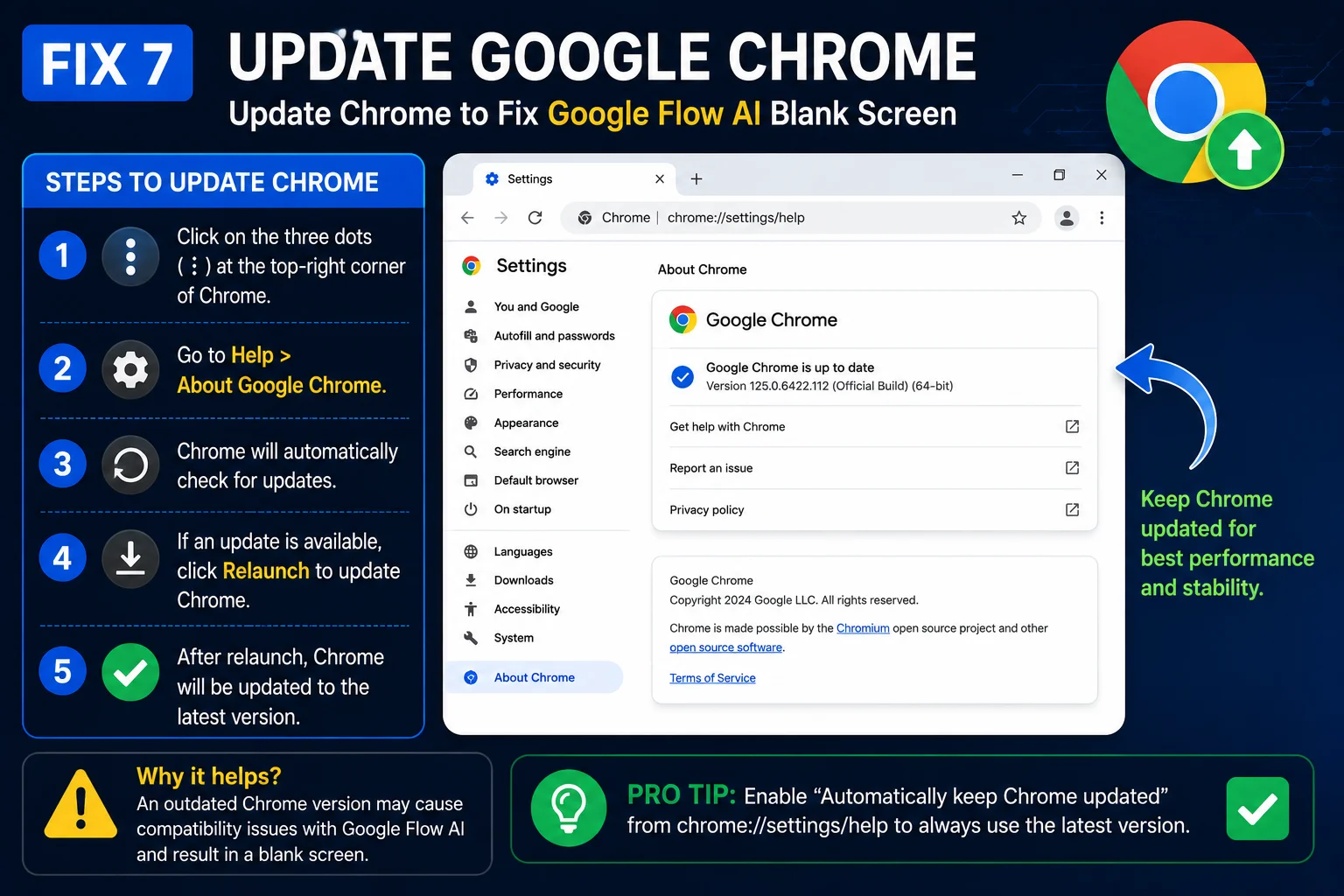
If you have tried every fix above and the Google Flow AI blank screen problem persists across different browsers, different networks, and without any VPN — the issue might be on Google’s side, not yours.
Google occasionally has server-side disruptions that affect Flow. These are usually brief (30 minutes to a few hours), but during those windows, nothing you do locally will fix the blank screen because the problem is not local.
Where to check:
Go to the Google Workspace Status Dashboard — this shows real-time status for Google’s services. Look for anything flagged under Google Flow or Google Labs.
You can also search “Google Flow down” on Downdetector to see if other users are reporting the same issue at the same time. When there is a server-side issue, dozens of reports will show up within minutes of it starting.
If there is an active outage: Close the browser and come back in an hour. Trying to force it while Google’s servers have a problem will not work, and it is not worth the frustration.
If the status page shows everything is normal: The issue is specific to your device or account. Go back through the fixes above more carefully, paying particular attention to Fix 4 (extensions) and Fix 5 (account).
For a full breakdown of how Google Flow outages affect users and what the typical recovery timeline looks like, our Google Flow outage guide covers the patterns we have tracked since Flow launched.
The Quick Version — All 7 Fixes in One Place
| # | Fix | Time | Solves It When… |
|---|---|---|---|
| 1 | Hard refresh (Ctrl+Shift+R) | 3 seconds | Cached files are slightly outdated |
| 2 | Clear full browser cache and cookies | 2 minutes | Old cached files conflict with Flow’s latest code |
| 3 | Open in Incognito mode | 1 minute | You want to confirm whether an extension is the cause |
| 4 | Disable ad blocker / extension | 2 minutes | An extension is blocking Flow’s interface scripts |
| 5 | Switch to correct Google account | 1 minute | The wrong account is active in your browser |
| 6 | Fix VPN (turn off or switch to US server) | 3 minutes | VPN routing is wrong for your location |
| 7 | Check Google server status | 30 seconds | Nothing else works — issue is on Google’s side |
Why Google Flow Shows a Blank Screen — The Plain-Language Explanation
Google Flow is what developers call a “single-page application.” When you visit flow.google.com, one HTML page loads and then a large amount of JavaScript code runs inside your browser to build the entire interface — the canvas, the generate button, the sidebar, everything.
If any part of that JavaScript fails to load or run correctly, your browser has no instructions to build the interface. It has nothing to display. So it shows you nothing — a blank white page.
That is exactly why clearing the cache and disabling extensions fixes the blank screen most of the time. Cached conflicts and extension interference are the two most common reasons JavaScript fails to load in the browser.
It is also why the problem often disappears in Incognito mode — Incognito starts completely clean, with no extensions active and no cached files, so Flow’s JavaScript gets a clear path to run without anything blocking it.
Understanding this also explains why the blank screen is not usually your internet connection’s fault. The page is loading — it is just failing to build itself once it gets there.
What If You Are on Mobile?
The same logic applies on mobile — but the steps look slightly different.
If you are using the Google Flow mobile app:
- Force-close the app fully (swipe it away from recent apps)
- Go to your phone’s Settings → Apps → Google Flow → Storage → Clear Cache
- Check for app updates in the Play Store or App Store
- Open the app again
If you are using Google Flow in a mobile browser:
- Open your mobile browser settings and clear the cache and cookies
- Disable any mobile browser extensions if you have them
- Try switching between WiFi and mobile data to rule out a network block
- Confirm you are signed into the right Google account in the browser
Also, check that you are not running a VPN app in the background on your phone — mobile VPN apps are a common cause of the Google Flow AI blank screen on mobile that most people overlook.
Frequently Asked Questions
Does clearing the cache delete my Flow projects?
No. All your Google Flow projects, generated images, and videos are saved to your Google account in the cloud — not in your browser. Clearing cache only removes temporary local files. Your work is completely safe.
Why does Flow work in Incognito but not in normal mode?
Incognito mode disables browser extensions and uses no cached files. When Flow works in Incognito but not normally, it means an extension or corrupted cache file is causing the blank screen in your regular browser session. Fix 4 covers how to identify which extension.
I cleared the cache and it still shows a blank screen. What now?
Work through the full list in order. The most likely remaining causes are a browser extension (Fix 4), the wrong Google account being active (Fix 5), or a VPN conflict (Fix 6).
Can a school or work WiFi network cause the Google Flow AI blank screen?
Yes. Some corporate and educational networks use content filtering that blocks Google Labs domains. To test this, turn on your phone’s mobile hotspot and connect your laptop to it. If Flow loads on mobile data but not on your WiFi, the network is blocking it. Use mobile data, a VPN, or ask your network admin to whitelist flow.google.com.
How long do Google Flow server outages usually last?
Most resolve within 30 minutes to a couple of hours. Check the Google Workspace Status Dashboard to confirm whether a server issue is active.
Is the blank screen different from the “Flow is not available in your country” message?
They are different problems but can look similar. A genuine regional block usually shows a specific text message. A blank screen is a technical loading failure. However, in some restricted regions, the block does appear as a blank page instead of a clear message — which is why Fix 6 is worth trying if you suspect a geographic restriction.
Related Guides on Whiskailabs
If you are dealing with other Google Flow problems or want to get more out of the platform, these guides will help:
- Google Flow AI Not Working — Full Fix Guide — covers every Flow problem including failed generations, login loops, and no-audio videos
- Google Flow AI Tutorial for Beginners — step-by-step walkthrough from first access to first generation
- Google Flow AI Prompts Guide — 50 tested prompts for images, videos, and cinematic scenes
- Google Flow Outage Guide — what to do when the problem is on Google’s side
- What Is Google Flow AI? — complete overview of features and pricing for 2026
Official External Resources
- Google Flow Official Site
- Google Flow Help Center
- Google Workspace Status Dashboard — real-time server status
- Google One Plans — subscription management
- Google Account Manager — account and sign-in settings
- Download Google Chrome