Introduction — Google Flow AI Now Has a Mobile App
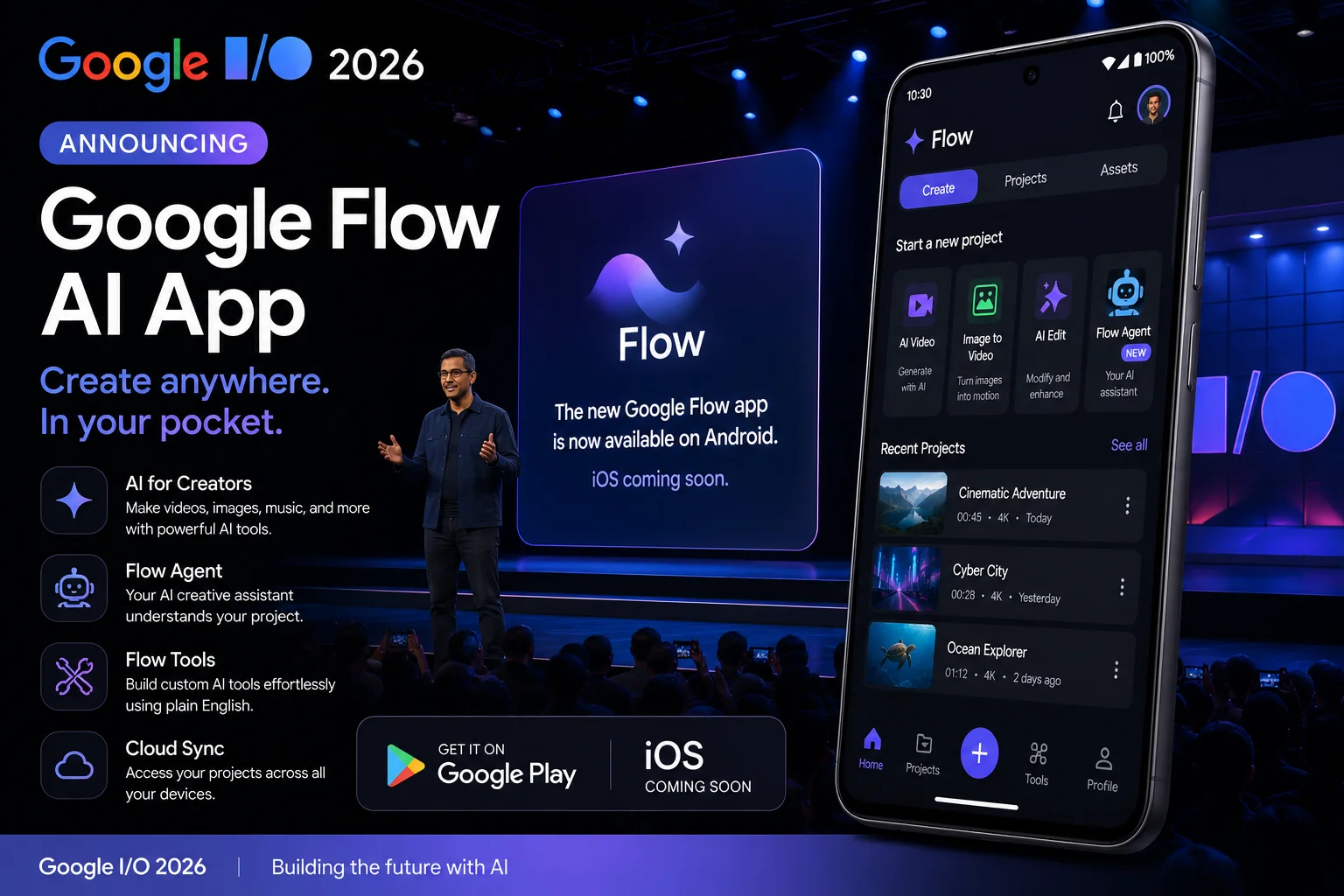
Google Flow AI — the most powerful free AI creative studio available in 2026 — has finally launched its dedicated mobile application. Announced at Google I/O 2026 on May 19, the Google Flow app brings the full creative power of Google Flow AI to your smartphone for the first time.
Previously, the only way to use Google Flow AI on a mobile device was through a web browser, which worked but was not optimized for the mobile experience. The new dedicated app changes everything, offering a smooth, mobile-first interface designed specifically for on-the-go creation.
This guide covers everything you need to know about the Google Flow AI mobile app — how to download it, what features are available, what the difference is between the Android and iOS versions, and how to get the most out of creating on your phone.
Google Flow AI Mobile App — What Was Announced at Google I/O 2026
At Google I/O 2026, Google made the following announcements about the Flow mobile app:
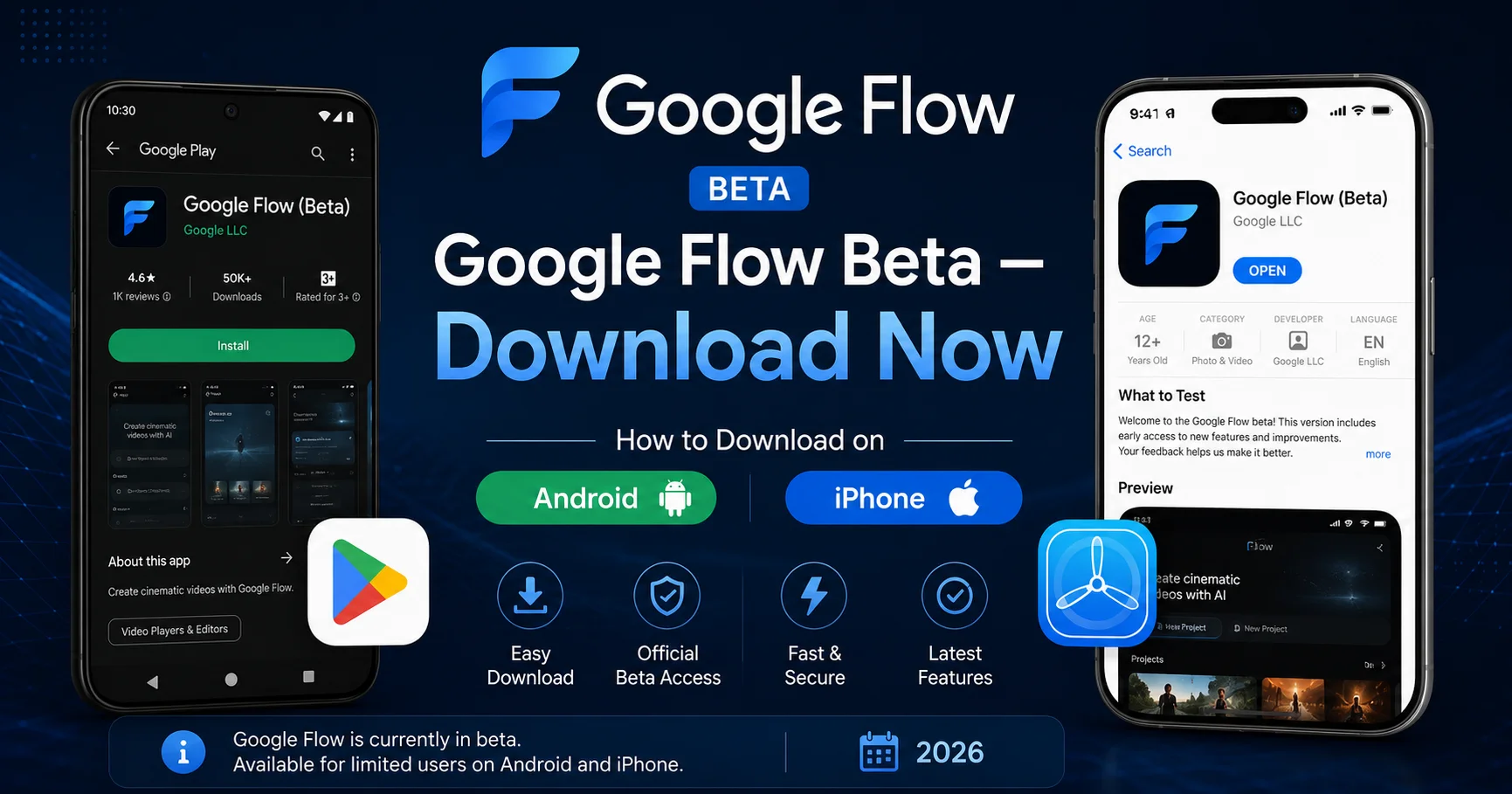
- Google Flow app is available now on Android in beta for users aged 18 and above
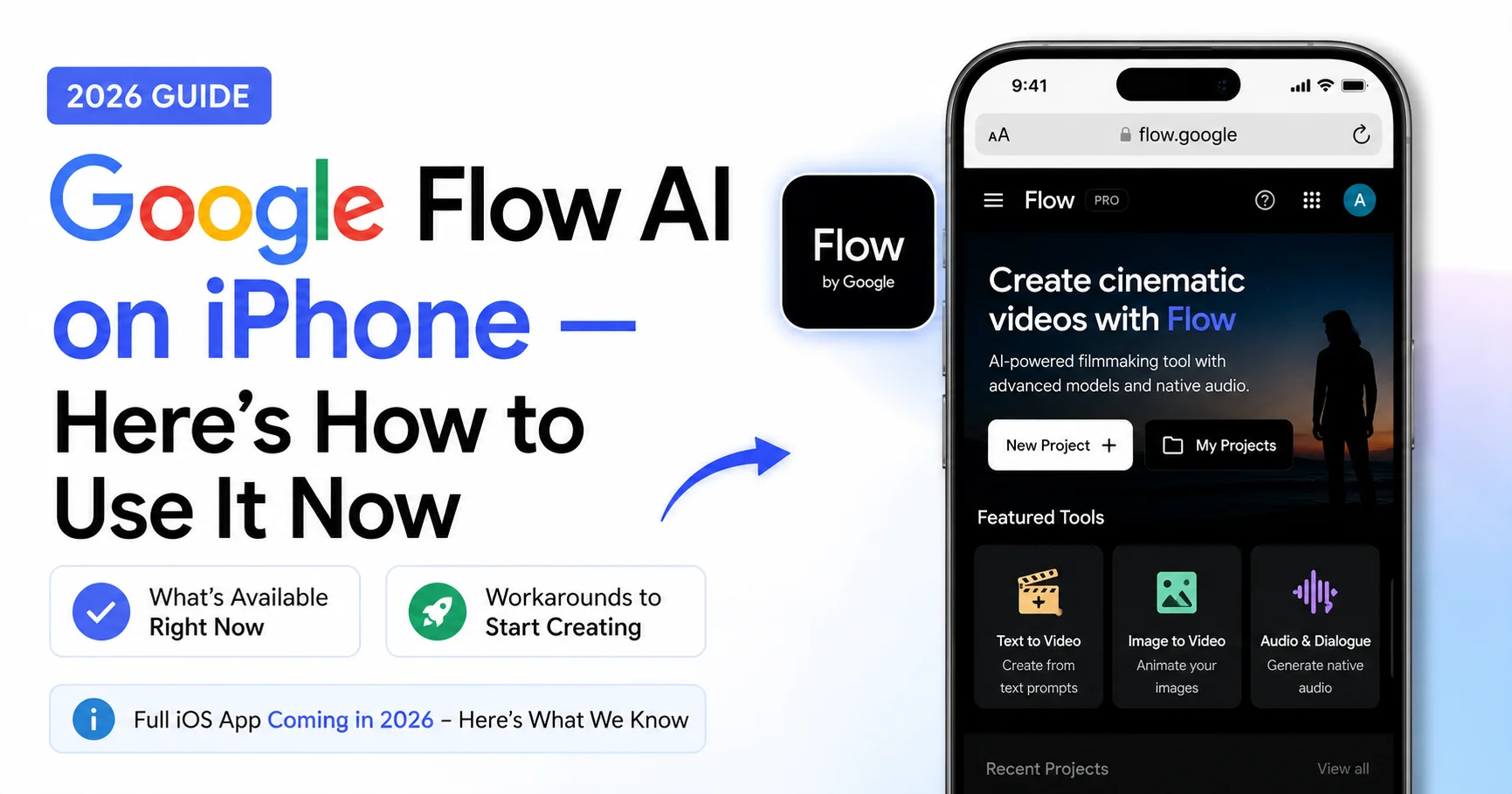
- iOS version is coming soon — no specific date announced but confirmed to be in development
- Google Flow Music app is available now on iOS — Android version coming soon
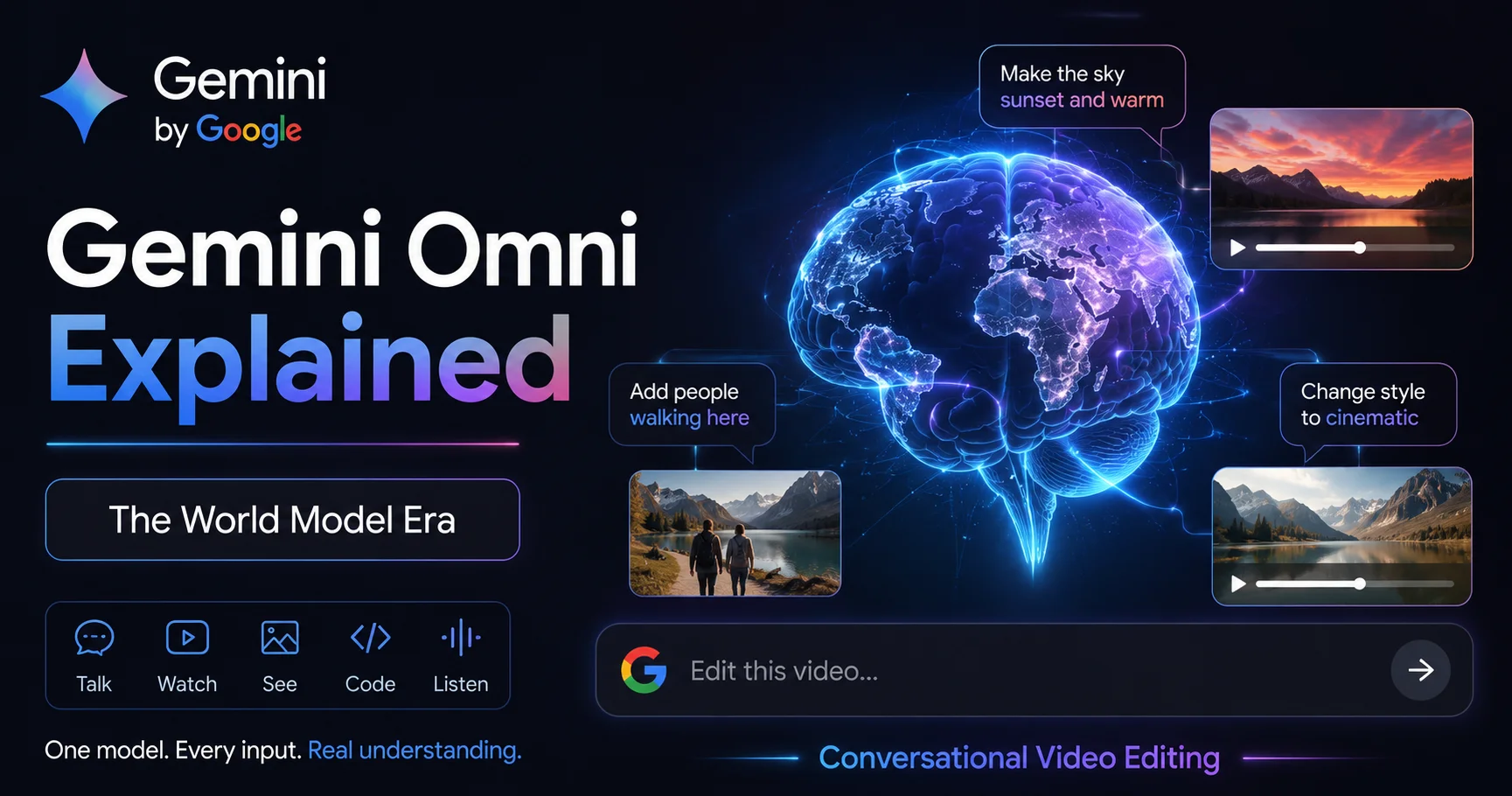
- The mobile app includes access to Gemini Omni Flash for AI Plus, Pro, and Ultra subscribers
- The app supports the same creative workflows available on the desktop web version
This is a significant milestone for the platform. Google Flow AI launched as a web-only tool and has now expanded to mobile, making AI creative tools accessible anywhere, anytime.
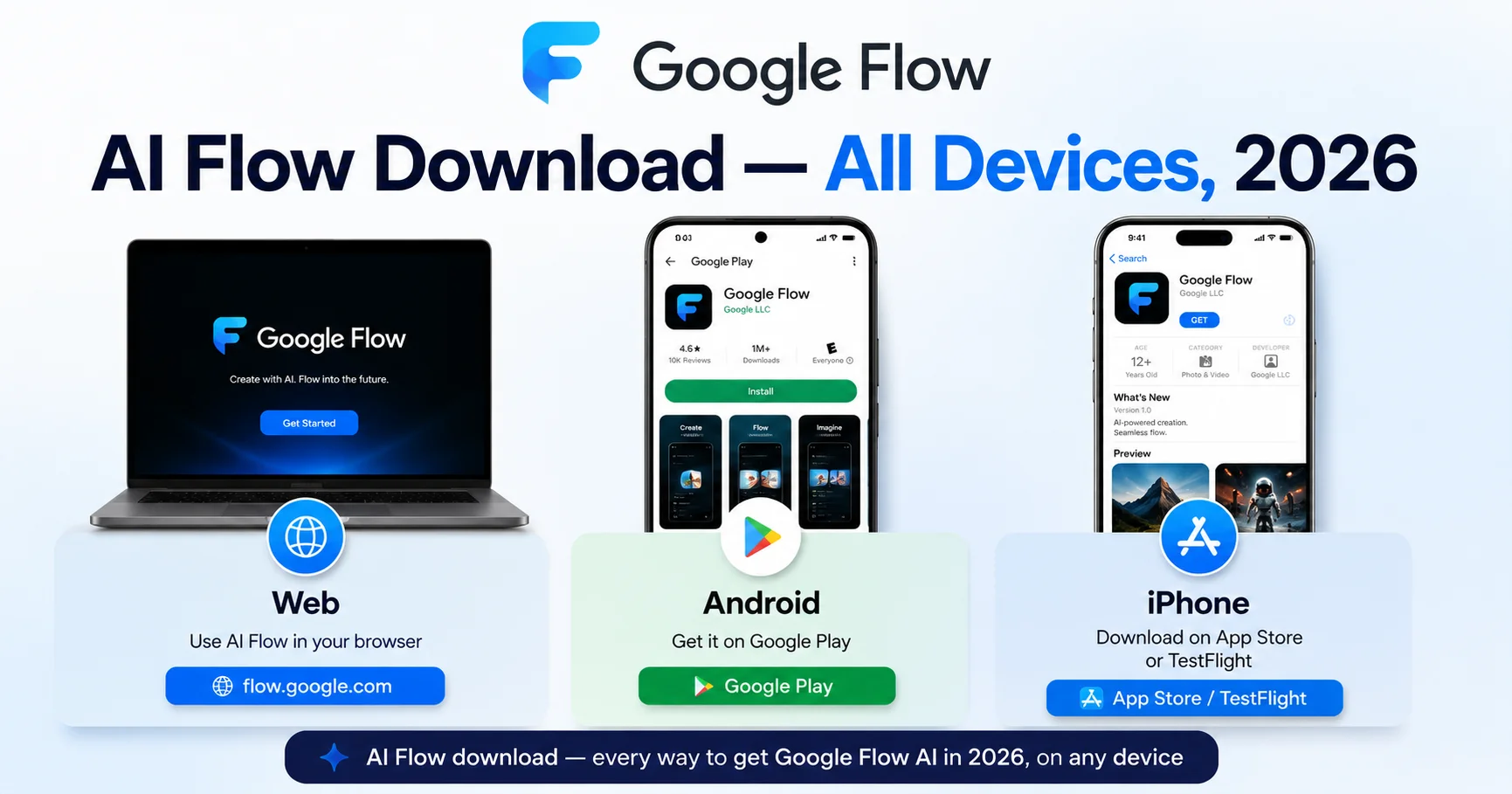
How to Download Google Flow AI App on Android
Requirements
Before downloading, make sure your Android device meets these requirements:
- Android version 9.0 or higher (Android 12+ recommended for best performance)
- Google Play Store installed and updated
- Personal Gmail account (Google Workspace accounts may have limited access)
- Age 18 or above (required for beta access)
- Stable internet connection (Wi-Fi recommended for video generation)
Step-by-Step Download Instructions
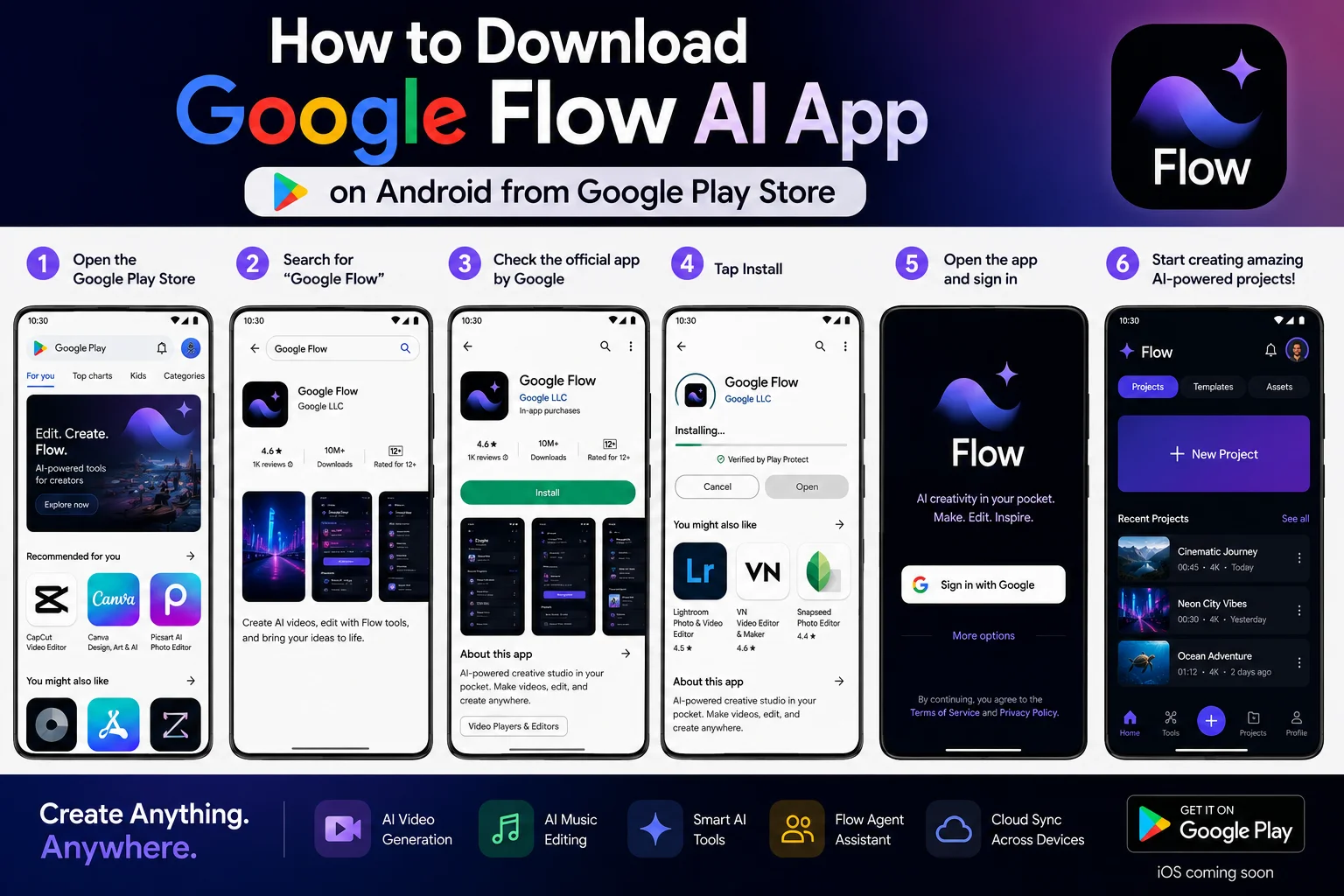
Step 1 — Open Google Play Store On your Android phone or tablet, open the Google Play Store app.
Step 2 — Search for Google Flow In the search bar at the top, type “Google Flow” and press search.
Step 3 — Find the Official App Look for the official Google Flow app published by Google LLC. Make sure the developer is listed as Google LLC to avoid unofficial or fake apps.
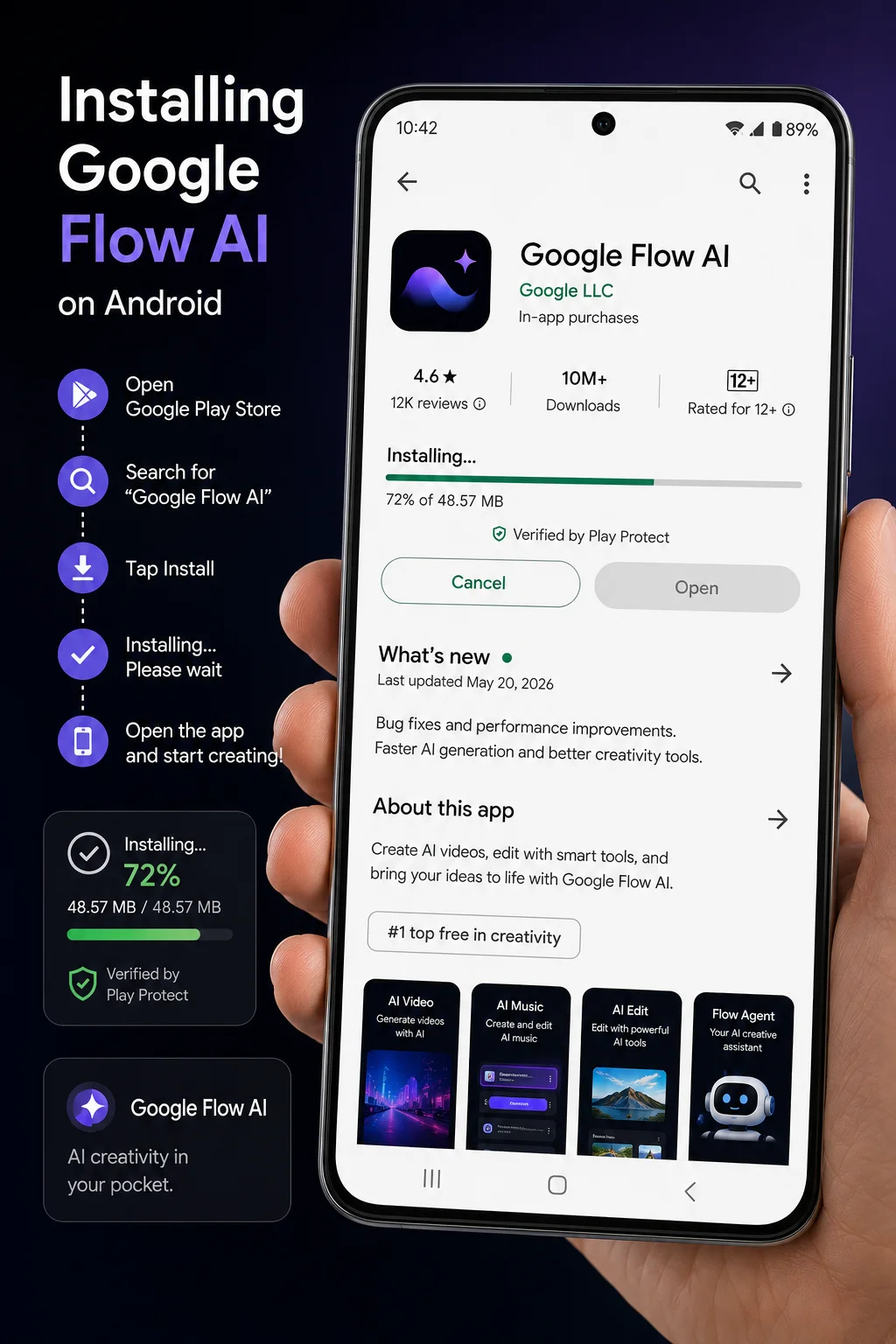
Step 4 — Tap Install Tap the Install button. The app will download and install automatically. The app size is approximately 80-150 MB depending on your device.
Step 5 — Open the App Once installed, tap Open or find the Google Flow icon on your home screen or app drawer.
Step 6 — Sign In Sign in with your personal Gmail account. If you have multiple accounts on your phone, make sure to select the personal Gmail you use for Google Flow AI — not a Workspace or school account.
Step 7 — Start Creating The app will load your Google Flow AI workspace. You can immediately start generating images, creating videos, and accessing your existing projects.
How to Download Google Flow Music App on iOS
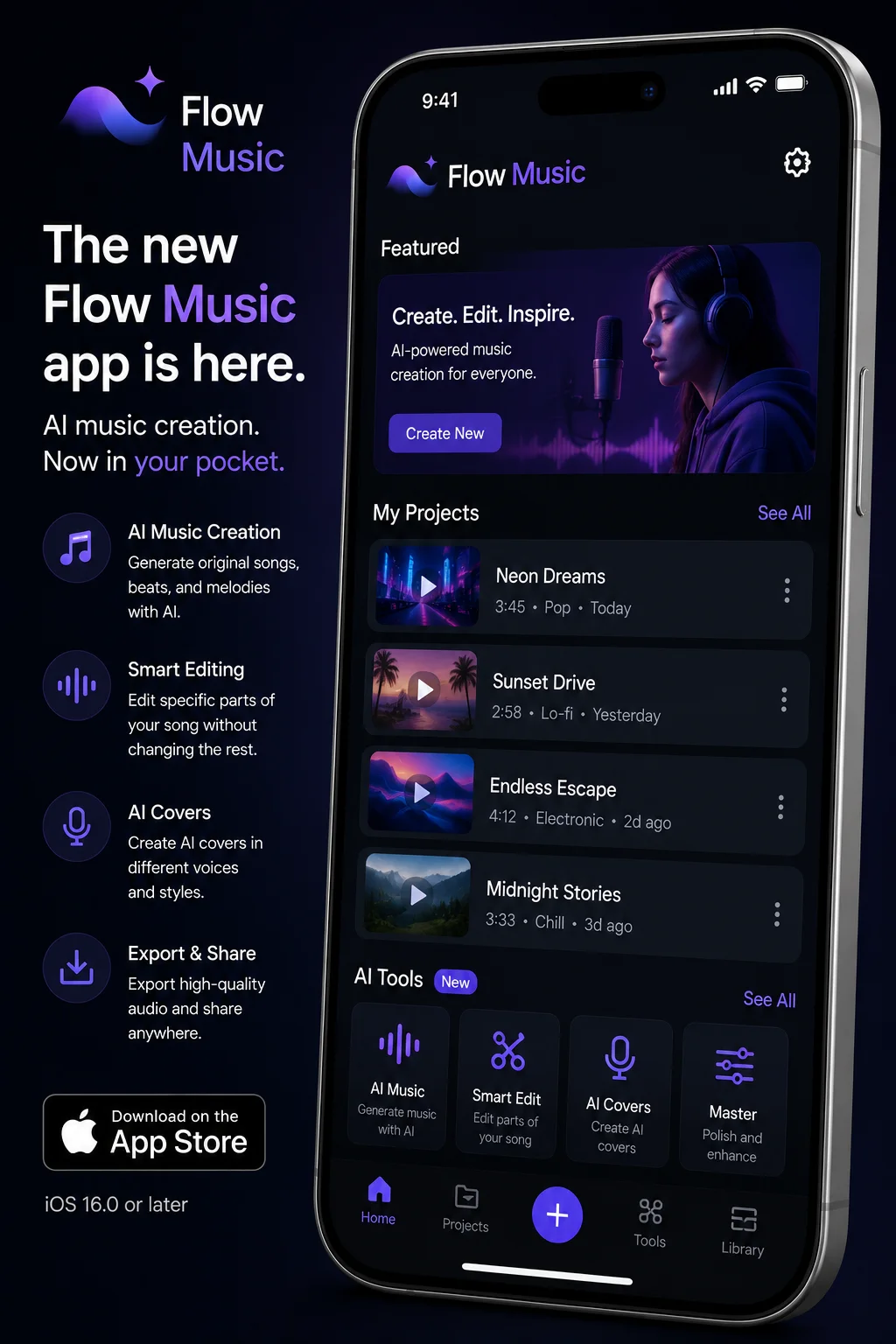
The Google Flow Music app — the AI music creation companion — is currently available on iOS while the main Flow app is Android-only at the moment.
Step 1 — Open the App Store On your iPhone or iPad, open the App Store.
Step 2 — Search for Google Flow Music Type “Google Flow Music” in the search bar.
Step 3 — Find the Official App Look for the app published by Google LLC.
Step 4 — Tap Get Tap the Get button to download and install the app.
Step 5 — Sign In Open the app and sign in with your personal Gmail account.
What Features Are Available on the Google Flow AI Mobile App?
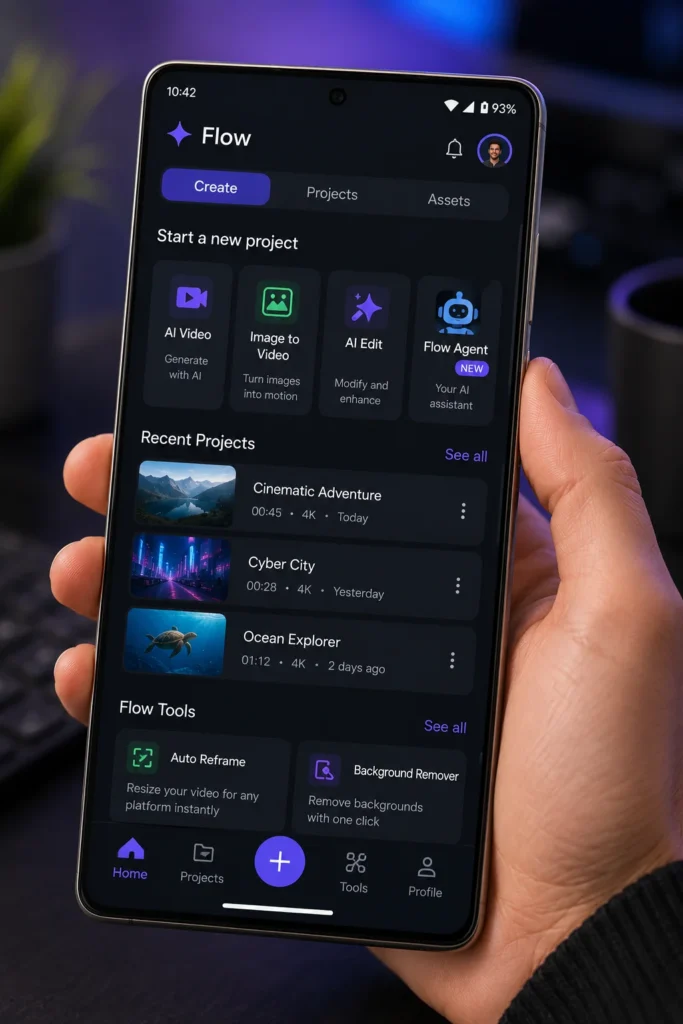
The Google Flow AI mobile app includes access to the core creative features of the platform:
Available on Mobile
- AI Image Generation — Generate images using Imagen 3 from text prompts directly on your phone
- Flow Agent — The new AI creative assistant is available on mobile, helping you plan and organize creative projects
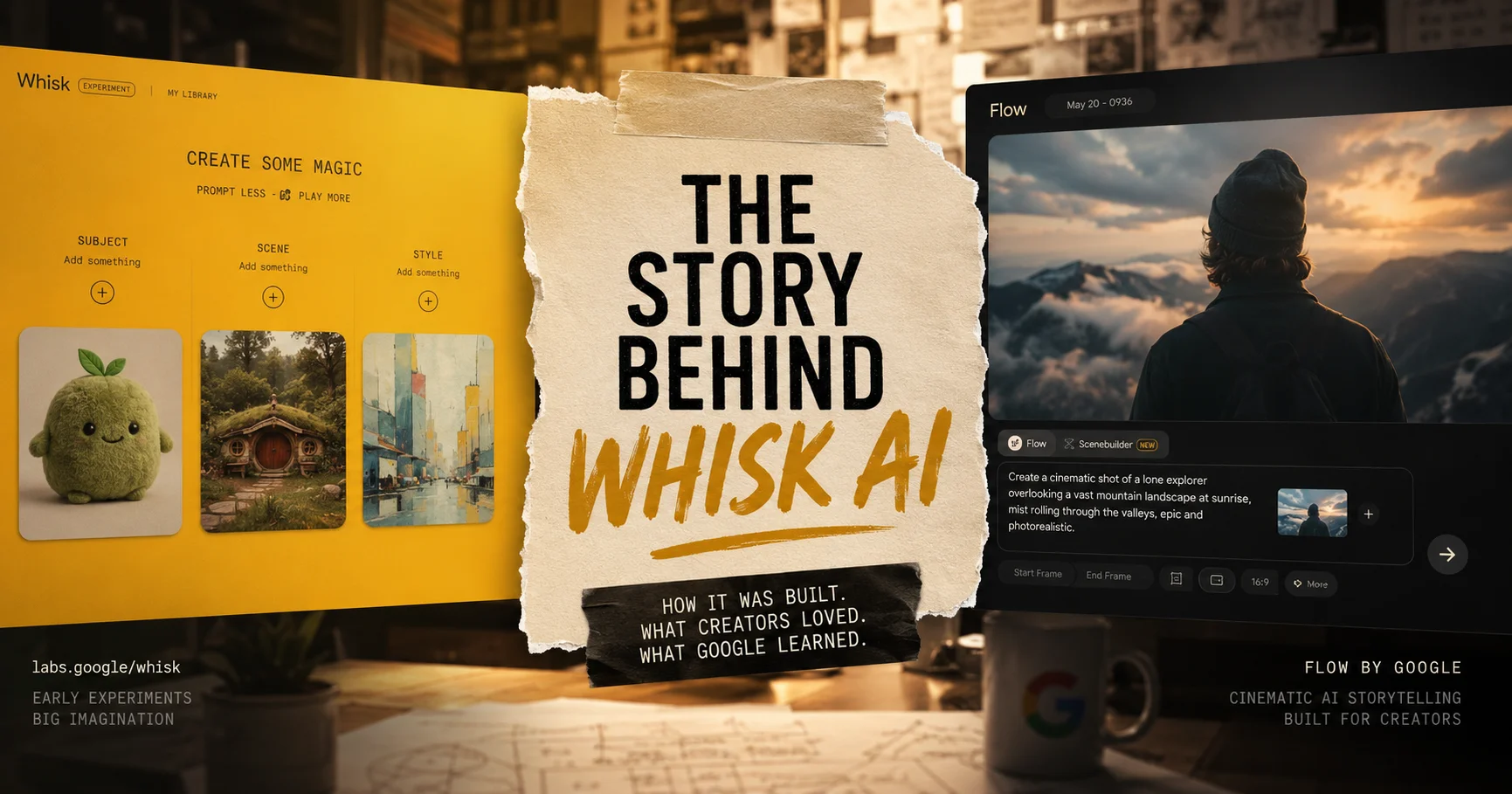
- Ingredients Panel — The Subject + Scene + Style blending system (formerly Google Whisk AI) works on mobile
- Project Management — Access, organize, and manage all your existing Flow AI projects
- Download and Share — Download generated images and videos directly to your phone’s gallery and share to social media
- Gemini AI Assistant — The built-in Gemini assistant for prompt help is available on mobile
Available for Google AI Subscribers on Mobile
- Gemini Omni Flash — Advanced video generation and editing with character consistency
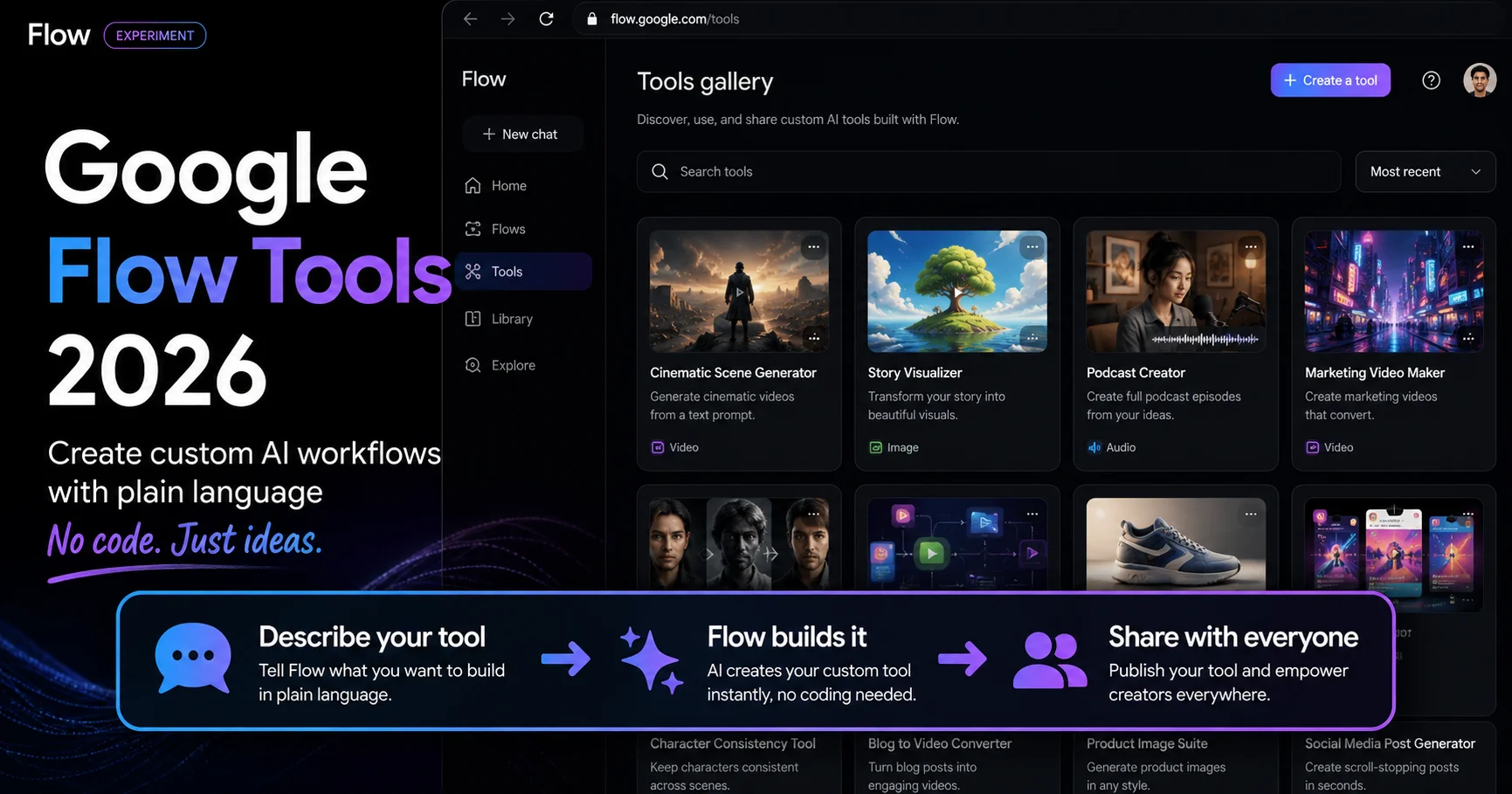
- Flow Tools — Create and use custom creative workflows
- Priority Generation — Faster processing speeds for image and video generation
Features Currently Web-Only
Some advanced features may still be limited to the desktop web version during the initial beta period:
- Full timeline editor for complex video projects
- Advanced Veo video controls
- Some Flow Tools creation features
As the mobile app moves from beta to full release, these features are expected to be added.
Using Google Flow AI Mobile App — Tips for Best Results
Tip 1 — Use Wi-Fi for Video Generation
Video generation requires significant data transfer. Always connect to Wi-Fi when generating Veo AI videos on your phone to avoid mobile data charges and ensure the fastest possible generation speeds.
Tip 2 — Use Voice Input for Prompts
On mobile, typing long creative prompts can be slow. Use your phone’s voice-to-text feature to speak your prompts naturally and let the keyboard convert them to text. This is often faster and more natural than typing on a small screen.
Tip 3 — Capture Real-World Inspiration Immediately
One of the biggest advantages of the mobile app is the ability to photograph real-world subjects, scenes, or styles and immediately use them as Ingredients inputs. See an interesting texture, person, or environment? Photograph it and use it as a Style or Scene reference in Google Flow AI instantly.
Tip 4 — Manage Projects on Mobile, Create on Desktop
For complex projects with multiple scenes and a timeline, the desktop web version offers more screen space and control. Use the mobile app to manage projects, review generated content, and make quick generations. Use the desktop for detailed editing and timeline work.
Tip 5 — Share Directly to Social Media
The mobile app makes it easy to generate an image and share it directly to Instagram, Facebook, or WhatsApp without downloading and re-uploading. Use the share button after generation to post content immediately.
Google Flow AI Mobile App vs Browser — Which Is Better?
| Feature | Mobile App | Browser (Mobile) |
|---|---|---|
| Interface | Optimized for mobile | Adapted from desktop |
| Image Generation | ✅ Full access | ✅ Full access |
| Video Generation | ✅ Available | ✅ Available |
| Speed | Faster (native app) | Slower (web overhead) |
| Offline Access | ❌ Requires internet | ❌ Requires internet |
| Notifications | ✅ Push notifications | ❌ No notifications |
| Camera Integration | ✅ Direct camera access | Limited |
| Share to Social | ✅ Native share sheet | Manual download needed |
The dedicated mobile app is clearly the better choice for mobile users in almost every way.
Google Flow AI Mobile App — Troubleshooting
Problem: App Not Available in My Country
Google Flow AI is available in 140+ countries. If the app does not appear in your Play Store:
- Make sure your Play Store account is set to the correct country
- Check that your device is running Android 9.0 or higher
- Try searching for “Flow” by Google LLC instead of “Google Flow”
- Check that you are signed into the Play Store with a personal Gmail account
Problem: App Crashes on Launch
If the app crashes when opening:
- Force close the app and reopen
- Clear the app cache: Settings → Apps → Google Flow → Storage → Clear Cache
- Make sure your Android system is updated to the latest version
- Uninstall and reinstall the app from the Play Store
Problem: Cannot Sign In
- Make sure you are using a personal Gmail account, not a Google Workspace or school account
- Check that you are 18 years of age or older (required for beta)
- Try signing out of all Google accounts on your device and signing in fresh with only your personal Gmail
Problem: Generation Is Slow on Mobile
- Switch from mobile data to Wi-Fi
- Close other apps running in the background to free up memory
- Try during off-peak hours when servers are less busy
- For consistently fast speeds, consider upgrading to Google AI Plus for priority processing
Pakistan-Specific Information
Is Google Flow AI App Available in Pakistan?
Yes — the Google Flow AI app is available in Pakistan. The app can be downloaded from the Google Play Store using a Pakistani Google account. No VPN is required.
Data Usage in Pakistan
Video generation on the Google Flow AI mobile app can use significant mobile data:
- Image generation: approximately 2-5 MB per generation
- Video generation: approximately 20-50 MB per video clip
Using Wi-Fi is strongly recommended for video generation to avoid high data costs on Pakistani mobile networks.
Google AI Plus in Pakistan on Mobile
The Google AI Plus subscription (Rs. 1,400/month in Pakistan) works with the mobile app, unlocking Gemini Omni Flash and priority generation on your Android device.
What Is Coming Next — Future Mobile App Features
Google has confirmed that additional features are planned for the mobile app beyond the current beta:
- iOS version of the main Google Flow app — confirmed to be coming soon
- Android version of Google Flow Music — coming soon
- Additional mobile-optimized creative tools — expected throughout 2026
- Offline generation capabilities — not confirmed but highly requested by the community
Frequently Asked Questions
Is the Google Flow AI mobile app free?
Yes. The Google Flow app is free to download and use with a personal Gmail account. Gemini Omni Flash and custom Flow Tools creation require a Google AI Plus, Pro, or Ultra subscription.
Is the Google Flow app available on iPhone?
The main Google Flow app is currently Android-only (beta). An iOS version is confirmed to be coming soon. Google Flow Music is currently available on iOS.
What Android version do I need for the Google Flow app?
Android 9.0 or higher is required. Android 12 or higher is recommended for the best performance.
Can I use the same account on mobile and desktop?
Yes. Your Google Flow AI account, projects, and generated content sync automatically between the mobile app and the desktop web version at flow.google.
Is the mobile app different from using the website on my phone?
Yes — the dedicated app offers a mobile-optimized interface, direct camera integration, native sharing, push notifications, and faster performance compared to using the website in a mobile browser.
Conclusion — Download Google Flow AI App Now
The launch of the Google Flow AI mobile app at Google I/O 2026 is a major milestone for AI creative tools. For the first time, the full power of Google’s AI creative studio — image generation, video creation, Flow Agent, and Gemini AI assistance — is available in a dedicated mobile application.
Android users can download the Google Flow app right now from the Google Play Store. iOS users can access Google Flow Music immediately and watch for the upcoming iOS Flow app release.
This is just the beginning of Google Flow AI on mobile. As the beta evolves into a full release throughout 2026, expect more features, better performance, and deeper integration with your mobile creative workflow.
Download the Google Flow app today — and take your AI creative studio wherever you go.