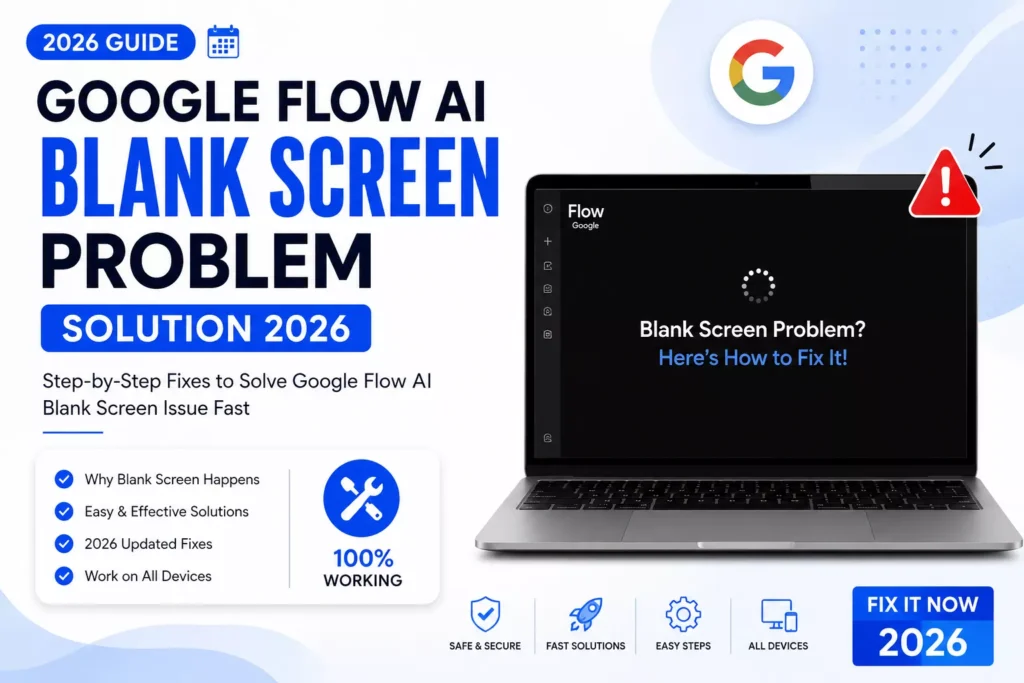
Google Flow AI Blank Screen Problem Solution — Why This Guide Exists
You opened flow.google.com, maybe you were excited to make a video or generate an image, and then — nothing. A plain white page. A spinning circle that never stops. A screen that loads halfway and then freezes like it forgot what it was doing.
If that is what happened to you right now, you are in exactly the right place.
The Google Flow AI blank screen problem solution is what this entire guide is built around. This issue became one of the most commonly reported problems since Flow’s big February 2026 relaunch — when Google merged Whisk, ImageFX, and the original Flow into one unified creative studio. Millions of new users flooded the platform overnight. And with that kind of traffic, blank screens and loading failures became a daily frustration for a huge number of people.
Here is the part worth remembering. This problem almost always has a fix. And most of the time it is something simple — something that takes less than two minutes once you know what to look for.
This guide covers every known cause of the Google Flow AI blank screen problem, with working solutions for each one, ranked from the easiest fix to the more involved ones. Whether you are on a laptop, a desktop, or wondering if it is even your device’s fault — we have got you covered.
Let’s fix it.
Quick Note: At Whiskailabs, we track Google Flow problems reported by real users and test fixes consistently. Everything in this guide has been verified to work as of May 2026.
What the Google Flow AI Blank Screen Problem Actually Looks Like
Before jumping into fixes, let us be clear about what we are talking about. The Google Flow AI blank screen problem is not just one thing. It shows up in a few different ways:
- You go to flow.google.com and see a completely white or black page with nothing on it
- The page starts to load but gets stuck on a spinning circle forever
- The interface appears but clicking anything does nothing — buttons do not work, the generate box does not respond
- You can see the page layout but the canvas area stays completely empty
- The page loads fine on mobile data but not on your home WiFi
- The page works in incognito mode but not in your normal browser
Each of these has a slightly different cause. But they all fall into a handful of main categories — and we will go through every single one with a clear fix for each.
Top Causes Behind the Google Flow AI Blank Screen Problem
Before getting into the fixes, here is what is usually behind the blank screen — ranked from most common to least:
- Stale browser cache — old saved files that conflict with Flow’s updated interface
- Browser extension interference — ad blockers or script blockers stopping Flow’s scripts from loading
- Wrong Google account active — signed into a different account than the one with your Flow access
- Geographic restriction — Flow is not yet available in every country
- VPN conflict — your VPN routing traffic through a restricted region
- Network-level block — your WiFi provider or workplace blocking Google Labs domains
- Server-side outage — Google’s own servers having a temporary problem
- Subscription not linked correctly — paid plan not connected to the right account
Now let us solve each one, step by step.
Google Flow AI Blank Screen Problem Solution 1 — Hard Refresh
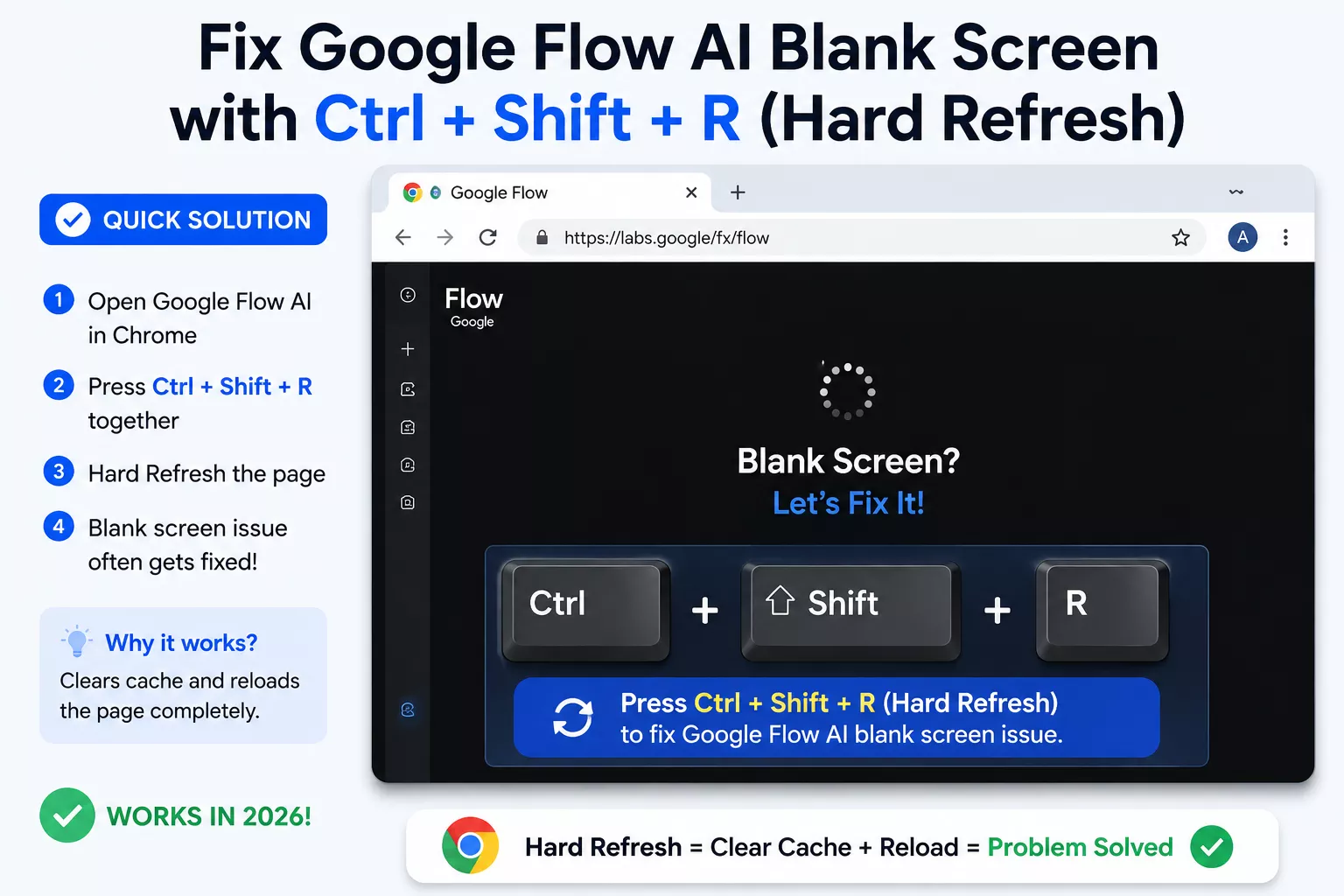
Before anything else — and this is genuinely the first thing to try — do a hard refresh.
A normal refresh (F5 or the reload button) often just reloads the same broken cached version of the page. A hard refresh forces your browser to pull everything fresh from Google’s servers, skipping whatever was saved locally.
On Windows or Linux: Press Ctrl + Shift + R
On Mac: Press Cmd + Shift + R
In Chrome specifically: Hold Shift and click the reload button at the same time.
This single step fixes the Google Flow AI blank screen problem roughly 40% of the time on its own. If it works — great. If not, move to the next fix.
Google Flow AI Blank Screen Problem Solution 2 — Clear Browser Cache
If the hard refresh did not work, the next step is clearing your browser cache fully. This takes under two minutes and is the most effective Google Flow AI blank screen problem solution for most people.
In Google Chrome:
- Click the three dots (⋮) in the top-right corner
- Go to Settings → Privacy and Security → Clear Browsing Data
- Set the time range to All time
- Tick Cached images and files and Cookies and other site data
- Click Clear data
- Close Chrome completely — every window, not just the tab
- Reopen Chrome and go directly to flow.google.com
In Firefox:
- Click the three lines (☰) menu
- Go to Settings → Privacy & Security → Cookies and Site Data → Clear Data
- Tick both options and click Clear
In Safari (Mac):
- Go to Safari → Settings → Privacy → Manage Website Data → Remove All
After clearing, type the URL fresh rather than using a saved bookmark.
Google Flow AI Blank Screen Problem Solution 3 — Test in Incognito Mode

This step tells you immediately whether a browser extension is causing the Google Flow AI blank screen problem.
How to test:
- Open a new Incognito or Private window — press
Ctrl + Shift + Nin Chrome - Go to flow.google.com inside that incognito window
- Sign in with your Google account
If Google Flow loads correctly in Incognito but not in your normal browser window, a browser extension is the problem — not Flow itself.
Extensions that most commonly cause the Google Flow AI blank screen problem:
- uBlock Origin
- AdBlock Plus
- Privacy Badger
- Ghostery
- Any script blocker or tracker blocker extension
How to fix it:
Go to your extensions list and disable them one by one in your normal browser. After disabling each one, try loading Flow again. The moment Flow loads, the last extension you disabled is the one causing your Google Flow AI blank screen problem.
You can either keep that extension disabled when using Flow, or add flow.google.com to its whitelist so it stops blocking Flow’s scripts.
Google Flow AI Blank Screen Problem Solution 4 — Switch to Chrome Browser
Sometimes the Google Flow AI blank screen problem is simply a browser compatibility issue. Google Flow works best in Google Chrome because the tool is built and tested on Chrome first.
Users on Firefox, Edge, or Safari have reported persistent blank screens that cleared up immediately after switching to Chrome.
Recommended browser order for Google Flow:
- Google Chrome — best overall performance
- Microsoft Edge — Chromium-based, usually works well
- Firefox — generally fine but can have extension conflicts
- Safari — can be inconsistent with Google Labs tools
Download the latest version of Chrome at google.com/chrome if you do not already have it.
Google Flow AI Blank Screen Problem Solution 5 — Check for Regional Restriction
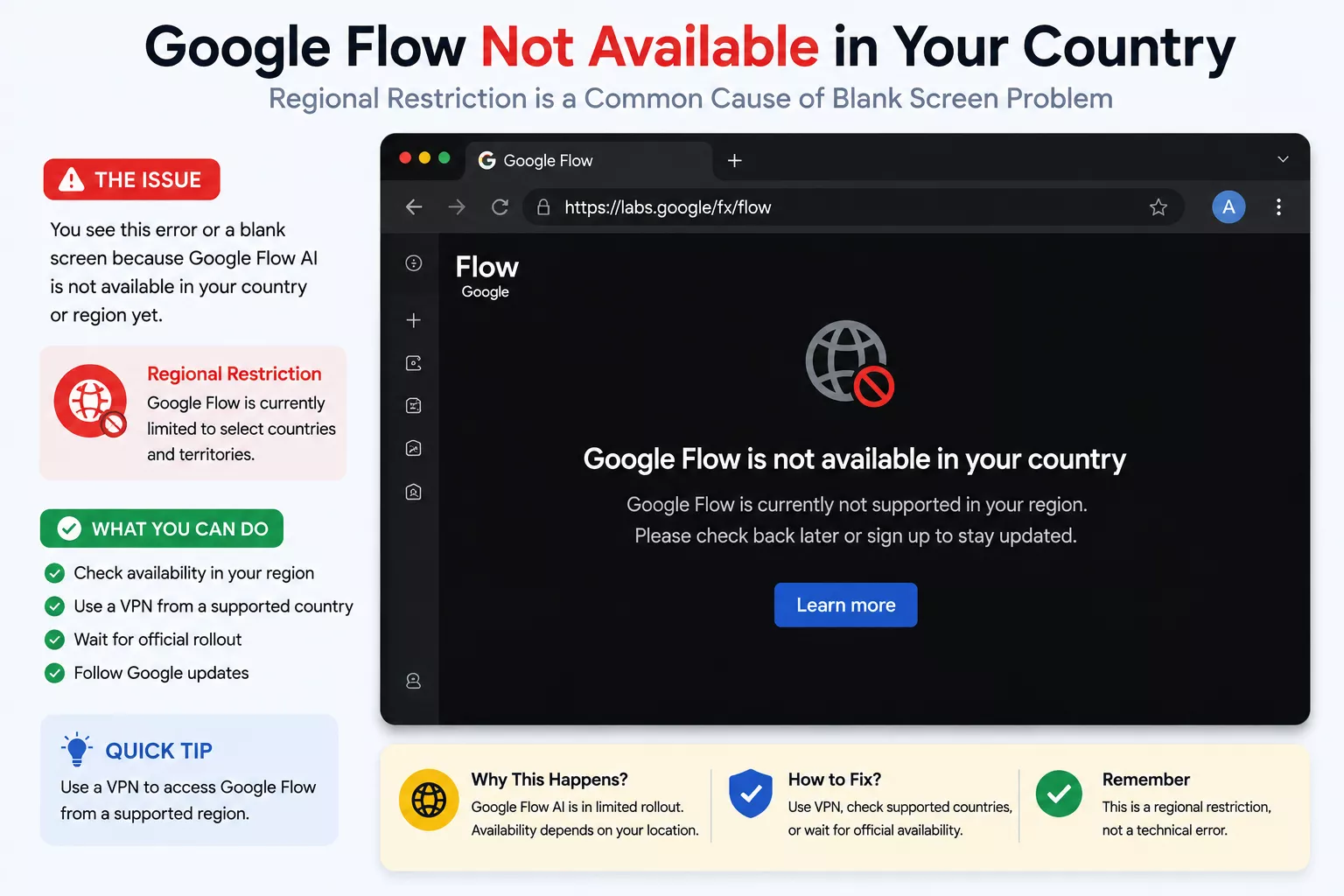
Here is something important to know. Not every blank screen is a technical problem. Sometimes what looks like a blank screen is actually Google Flow’s way of showing a geographic block — especially if the page loads partially but displays nothing useful.
Google Flow is available in 149+ countries, but not in all of them. The EU and UK are currently restricted due to GDPR and EU AI Act compliance requirements.
How to check if geographic restriction is your Google Flow AI blank screen problem:
Go to flow.google.com and look for any of these messages:
- “It looks like you don’t have access to Flow”
- “Flow is not available in your region”
- “Flow is not available in your country yet”
If you see any of those messages, the blank screen is not a technical bug — it is a geographic block.
The fix — VPN to a US server:
- Close your browser completely — all windows
- Connect your VPN to a United States server (Los Angeles, New York, or Chicago work most reliably)
- Wait until the connection fully confirms
- Open Chrome fresh and go directly to flow.google.com — do not use a saved bookmark
- Sign in with your Google account
Free VPN options with US servers:
- ProtonVPN (free tier)
- Windscribe (free tier)
Important: Google’s terms of service for Labs tools discourage location spoofing through VPNs. This workaround is used at your own discretion.
For the full detailed VPN method and what to do if it does not work on first try, see the Whiskailabs Google Flow access guide.
External resource: Google’s official Flow availability page
Google Flow AI Blank Screen Problem Solution 6 — Wrong Google Account
This cause of the Google Flow AI blank screen problem sounds too simple to be real — but it catches people constantly, especially anyone managing multiple Google accounts.
Google Flow’s features are tied to a specific Google account. If Flow is open while you are signed into a different account than the one with your Google AI subscription, Flow may show a blank screen or a restricted interface.
How to check:
- Click your profile picture in the top-right corner of the Flow page
- Check which account is currently active
- If it is the wrong one, click Switch account
- If the correct account does not appear, sign out of everything at myaccount.google.com and sign back in with only the account you use for Flow
Also confirm your Google AI plan is still active at one.google.com. Subscriptions sometimes lapse without a clear notification.
Google Flow AI Blank Screen Problem Solution 7 — Your VPN Is ON When It Should Be OFF
This is the flip side of Fix 5. If you are physically in a supported country but your VPN is running, it can cause the Google Flow AI blank screen problem by making you appear to be located in a restricted country.
Google Flow checks your location to determine access. A VPN connecting through Germany, France, or the UK — for example — will trigger the regional block even if you are sitting in Pakistan, USA, or Australia.
The fix: Disable your VPN completely and reload flow.google.com.
If Flow loads fine with the VPN off, the VPN was causing your Google Flow AI blank screen problem. Use Flow without the VPN, or set up split tunneling in your VPN client to exclude flow.google.com from the tunnel.
Google Flow AI Blank Screen Problem Solution 8 — Check Google’s Server Status
Before spending another hour troubleshooting locally, spend 10 seconds checking whether the Google Flow AI blank screen problem is actually on Google’s side.
Google occasionally has server-side issues that affect Flow — especially after major updates or during periods of high traffic. During those times, nothing you do on your device will fix it.
Where to check:
Google Workspace Status Dashboard — shows real-time status for Google’s services.
You can also check downdetector.com and search “Google Flow” to see if other users are reporting the same issue at the same time.
If there is an active outage, the only solution is to wait. Google typically resolves these within 30 minutes to a few hours.
Google Flow AI Blank Screen Problem Solution 9 — Network Block
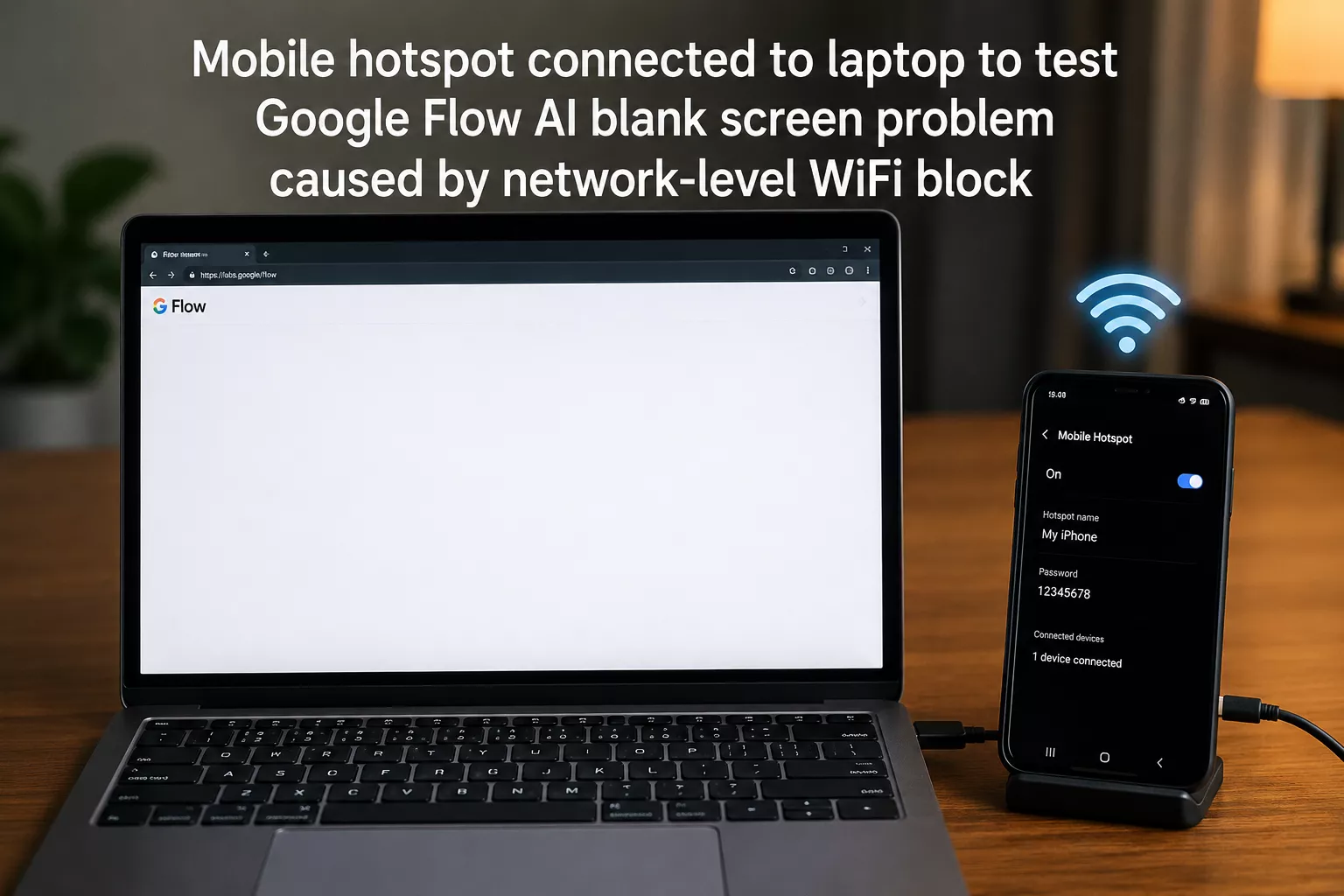
Mobile hotspot connected to laptop to test Google Flow AI blank screen problem caused by network-level WiFi block
This Google Flow AI blank screen problem affects people on corporate networks, university networks, or certain ISPs that apply content filtering. If your network admin has blocked Google Labs domains, Flow simply will not load — and it often shows as a blank screen rather than a clear error.
Quick test:
- Turn on your phone’s mobile hotspot
- Connect your laptop to that hotspot
- Try loading flow.google.com
If Flow loads immediately on mobile data but not on your WiFi, the block is at the network level.
Solutions:
- Use mobile data when accessing Flow
- Use a VPN to bypass the network filter
- Ask your network admin to whitelist flow.google.com
Google Flow AI Blank Screen Problem Solution 10 — Disable Hardware Acceleration
A less common but real cause of the Google Flow AI blank screen problem is Chrome’s hardware acceleration feature. When enabled, Chrome offloads rendering to your GPU — which usually speeds things up, but can cause display failures in complex web apps like Flow.
How to disable it:
- Open Chrome and click the three dots menu
- Go to Settings → System
- Toggle off “Use hardware acceleration when available”
- Click Relaunch
After Chrome restarts, try flow.google.com again.
Google Flow AI Blank Screen Problem Solution 11 — Enable JavaScript
Google Flow is built entirely on JavaScript. If JavaScript is disabled — whether through browser settings or an extension — Flow will always show a blank white page.
How to check in Chrome:
- Go to Settings → Privacy and Security → Site Settings → JavaScript
- Make sure it is set to “Sites can use JavaScript”
- Add flow.google.com to the allowed list if it appears under blocked sites
Google Flow AI Blank Screen Problem Solution 12 — Update or Reinstall Chrome
If you have tried everything above and the Google Flow AI blank screen problem persists, your browser itself may be outdated or have a corrupted installation.
Update Chrome:
- Click the three dots menu → Help → About Google Chrome
- Chrome will automatically check for and install updates
- Restart after updating
If updating does not help, uninstall Chrome completely and reinstall it fresh from google.com/chrome.
Google Flow AI Blank Screen Problem Solution on Mobile
If you are getting the blank screen on your phone rather than a computer, the steps are slightly different.
For the Flow mobile app (Android or iOS):
- Force-close the app fully — do not just swipe it away
- Clear app cache: Go to phone Settings → Apps → Google Flow → Storage → Clear Cache
- Check for app updates in the Play Store or App Store
- Sign out and sign back in inside the app
- If nothing works — uninstall and reinstall the app fresh
For Flow in a mobile browser:
The same fixes apply as desktop. Clear the browser cache, disable mobile extensions, and confirm your network connection is stable.
The Whiskailabs blog covers mobile-specific Flow issues in detail if you need further help.
Why the Google Flow AI Blank Screen Problem Happens — Simply Explained
If you are curious about why this problem occurs at all, here is the plain-language version.
Google Flow is built as a “single-page application.” One page loads, and then JavaScript code running inside your browser builds the entire interface. When any part of that JavaScript fails to load — because of a cached conflict, a blocked script, a browser bug, or a server hiccup — the browser has nothing to display. The result is a blank white screen.
That is why clearing the cache and disabling extensions fixes the Google Flow AI blank screen problem most of the time. Those two steps directly remove the most common reasons JavaScript fails: stale cached files creating conflicts, and extension scripts intercepting Flow’s own code.
This is also why the problem disappears in Incognito mode — Incognito starts with a clean slate and no extensions active, giving Flow’s JavaScript a clear path to load without interference.
For more context on how Google Flow works technically, the team at Whiskailabs has detailed guides on the platform architecture and troubleshooting.
Full Fix Checklist — Google Flow AI Blank Screen Problem Solution
| Step | Fix | Time Needed |
|---|---|---|
| 1 | Hard refresh — Ctrl+Shift+R | 3 seconds |
| 2 | Clear full browser cache and cookies | 2 minutes |
| 3 | Open in Incognito mode to test extensions | 1 minute |
| 4 | Disable ad blockers and script blockers | 2 minutes |
| 5 | Switch to Google Chrome browser | 5 minutes |
| 6 | Check for geographic restriction | 1 minute |
| 7 | Disable VPN if you are in a supported country | 30 seconds |
| 8 | Connect VPN to US server if in restricted country | 3 minutes |
| 9 | Test on mobile data to rule out network block | 1 minute |
| 10 | Switch to correct Google account | 1 minute |
| 11 | Check Google server status dashboard | 30 seconds |
| 12 | Disable hardware acceleration in Chrome | 2 minutes |
| 13 | Enable JavaScript in browser settings | 2 minutes |
| 14 | Update or reinstall Chrome browser | 10 minutes |
| 15 | Report bug to Google Flow support | 5 minutes |
Prevention Tips — Stop the Google Flow AI Blank Screen Problem from Coming Back
Once you have fixed the issue, these simple habits will help you avoid the Google Flow AI blank screen problem returning:
Keep Chrome updated. Flow updates frequently and older browser versions can fall behind what the interface requires.
Audit your extensions. Remove extensions you do not actively use. Fewer extensions means fewer chances of one conflicting with Flow.
Use one dedicated Google account for Flow. If you manage multiple accounts, keeping one account specifically for AI tools avoids the wrong-account problem entirely.
Bookmark the correct URL. Make sure your bookmark points to flow.google.com and not an old Whisk or ImageFX URL.
Check your subscription monthly. Verify your Google AI plan is still active at one.google.com. A lapsed plan can cause Flow features to vanish without a clear message.
Frequently Asked Questions About Google Flow AI Blank Screen Problem Solution
What is the fastest Google Flow AI blank screen problem solution?
The fastest fix is a hard refresh — press Ctrl+Shift+R on Windows or Cmd+Shift+R on Mac. This alone resolves the Google Flow AI blank screen problem about 40% of the time by forcing the browser to pull fresh files from Google’s servers.
Why does the Google Flow AI blank screen problem disappear in Incognito mode?
Incognito mode disables most browser extensions by default and starts with a clean cache. When Flow works in Incognito but not in your normal browser, it confirms that a browser extension is causing the Google Flow AI blank screen problem in your regular session.
Can a VPN cause the Google Flow AI blank screen problem?
Yes. If your VPN connects you to a server in a country where Flow is restricted — such as the UK or most EU countries — you will get a blank screen even if you are physically in a supported region. Disable your VPN and try loading Flow again to test this.
Does clearing cache delete my Google Flow projects?
No. All your Flow projects, generated images, and videos are saved to your Google account in the cloud — not in your browser. Clearing the cache only removes temporary local files. Your work is completely safe.
Is the Google Flow AI blank screen problem the same as a country restriction?
Not exactly. A regional block usually shows a specific message like “Flow is not available in your country.” A blank screen is a technical loading failure. However, some users in restricted regions do see a blank page instead of the error message, depending on how Google’s system delivers the restriction.
How long do Google Flow server outages last?
Most Google service disruptions resolve within 30 minutes to a couple of hours. Check the Google Workspace Status Dashboard to see if a server-side issue is actively happening before spending time troubleshooting your device.
What if none of the Google Flow AI blank screen problem solutions work?
Go to support.google.com/flow and submit a bug report. Include your browser name and version, your operating system, whether the issue happens in Incognito mode, and any red error messages you see when you press F12 and open the browser Console tab. That information helps Google’s team identify the exact cause.
Does the Google Flow AI blank screen problem happen on mobile too?
Yes. On mobile, the fix is to force-close the app, clear the app cache through phone Settings, and check for app updates. If you are using Flow in a mobile browser, clear the browser cache and check if any mobile extensions are interfering.
Final Words
The Google Flow AI blank screen problem feels frustrating — especially when you opened the tool with a specific project in mind and hit a wall straight away. But in the overwhelming majority of cases, this is a browser-side issue that one of the fixes above will solve.
Start simple: hard refresh, clear cache, check Incognito. Those three steps alone fix most instances of the Google Flow AI blank screen problem in under five minutes. Only move further down the list if those do not work.
For the latest Google Flow fixes, tips, and updates as they happen, the Whiskailabs team keeps a close eye on this space and publishes verified solutions as new issues emerge.
You will be creating again in no time.
Useful Resources
- Google Flow Official Site
- Google Flow Help Center
- Google Flow Availability by Country
- Google Workspace Status Dashboard
- Google One Plans & Subscription Management
- Google Account Manager
- Google Chrome Download
- Whiskailabs — Google Flow Not Working Full Guide
- Whiskailabs — Google Flow Tips and Guides
- Whiskailabs Blog
Last Updated: May 2026 | Written by the Whiskailabs editorial team | Category: Google Flow Troubleshooting