Google Flow AI 2026 — Complete Guide | Features, How to Use, Pricing & Honest Verdict
Quick Answer: Google Flow AI is Google’s all-in-one AI creative studio for images and cinematic videos using Veo 3.1 and Imagen 4. It replaced Google Whisk AI on April 30, 2026. A free tier exists, but video generation requires a paid Google AI subscription.
Table of Contents
- What Is Google Flow AI?
- How Flow AI Was Built — The History
- How It Is Different From Everything Else
- Full Feature Breakdown
- How to Use Google Flow AI — Step by Step
- Pricing — Honest Breakdown
- What YouTube Tutorials Miss
- Google Flow AI vs Competitors
- Common Problems and Fixes
- Is It Worth It? — Honest Verdict
- FAQ
1. What Is Google Flow AI? {#what-is}
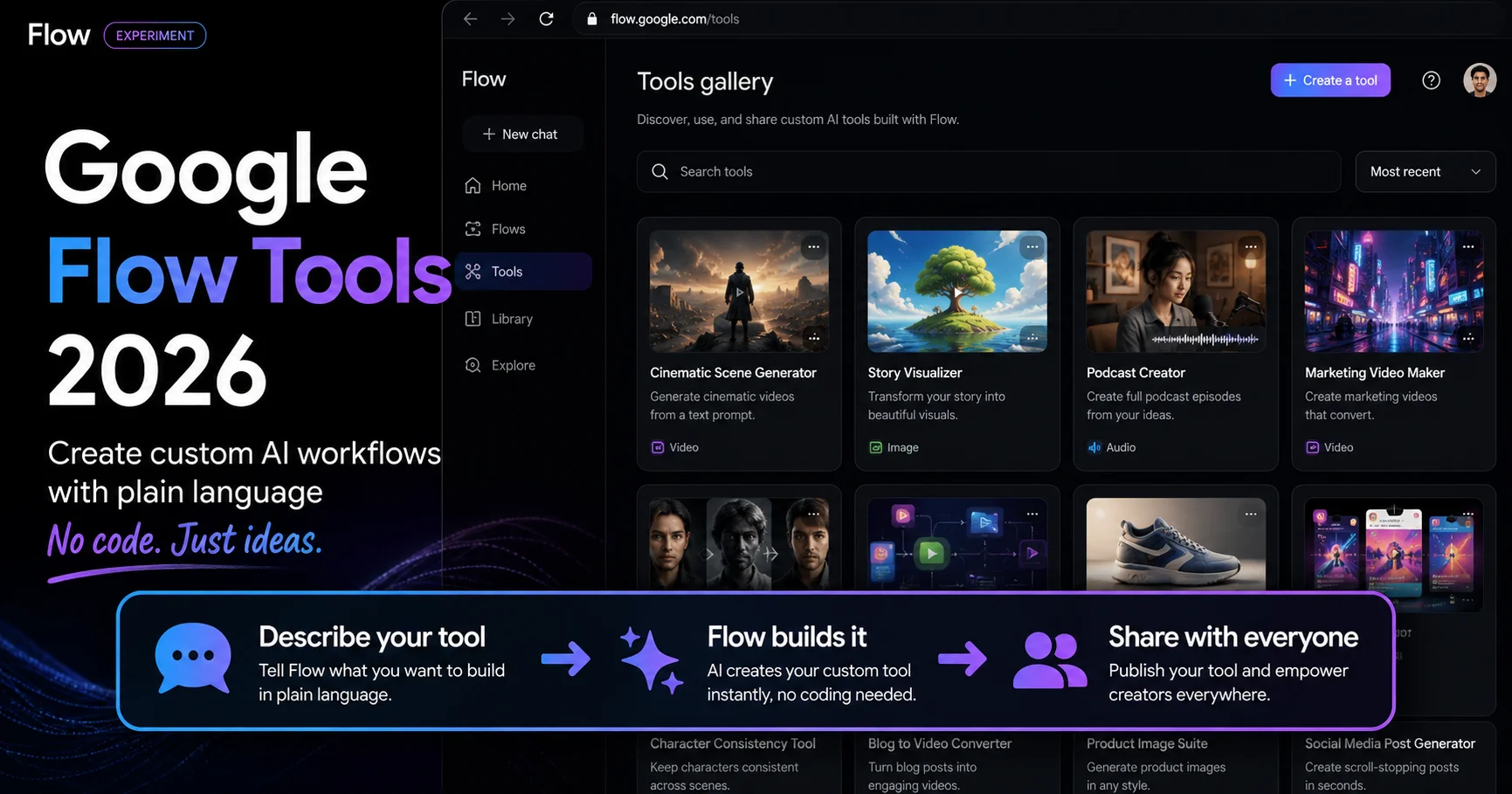
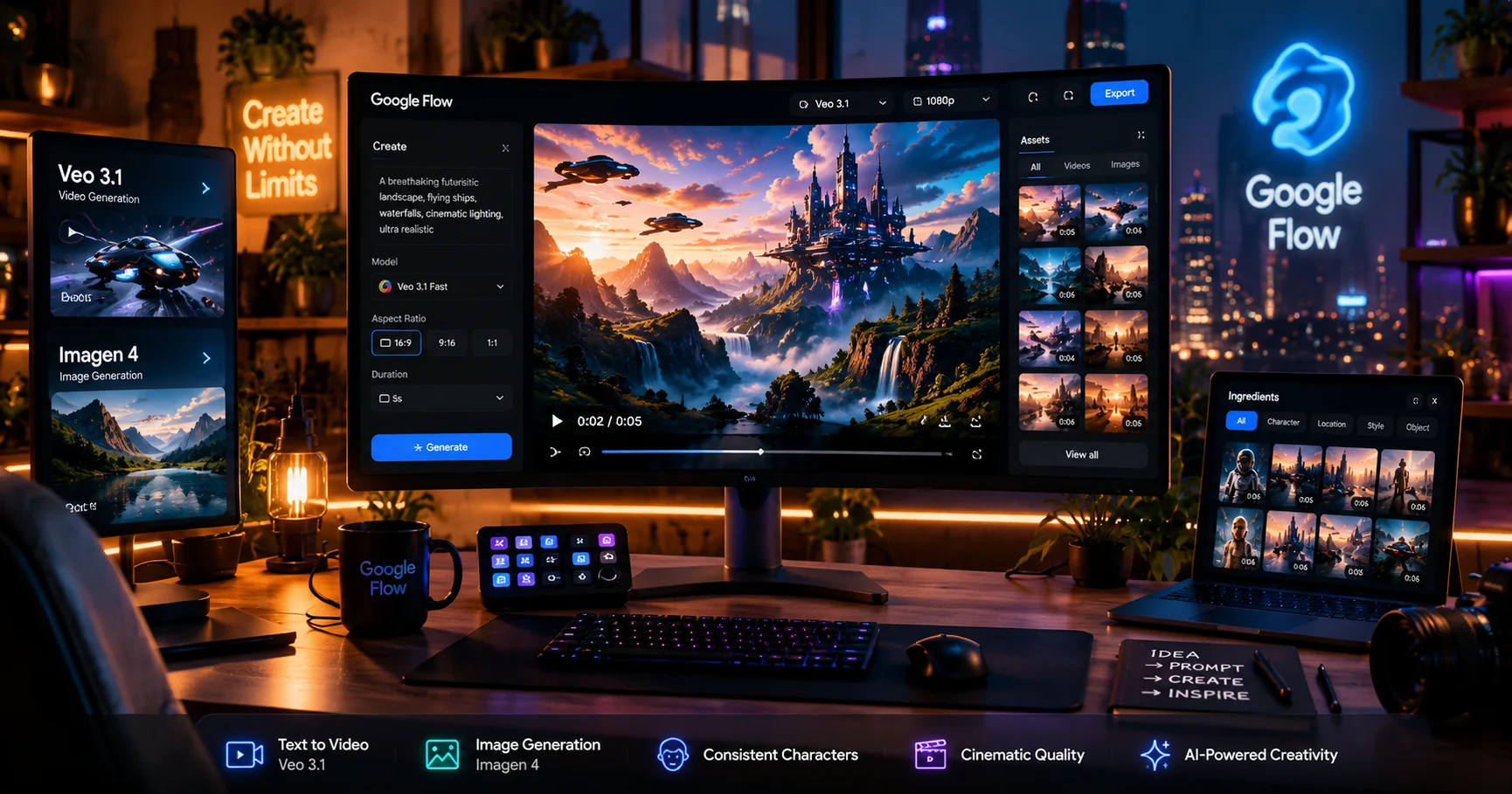
Google Flow AI is Google’s unified AI creative studio for generating images, videos, and complete visual stories. It launched in its current unified form on February 25, 2026, when Google merged three separate tools — Whisk AI, ImageFX, and the original Flow video tool — into one workspace.
If you used Google Whisk AI, Flow is what replaced it. Everything Whisk could do lives inside Flow now — plus a large amount of new capability that Whisk never had.
The core idea is simple: you describe or show what you want, and Flow generates it — still images, short video clips, animated scenes, even full story sequences with synchronized audio. It runs at flow.google and is part of Google Labs.
Three AI models work together inside Flow:
| Model | What It Does |
|---|---|
| Veo 3.1 | Generates and edits video with native synchronized audio |
| Imagen 4 (Nano Banana) | Generates high-quality still images |
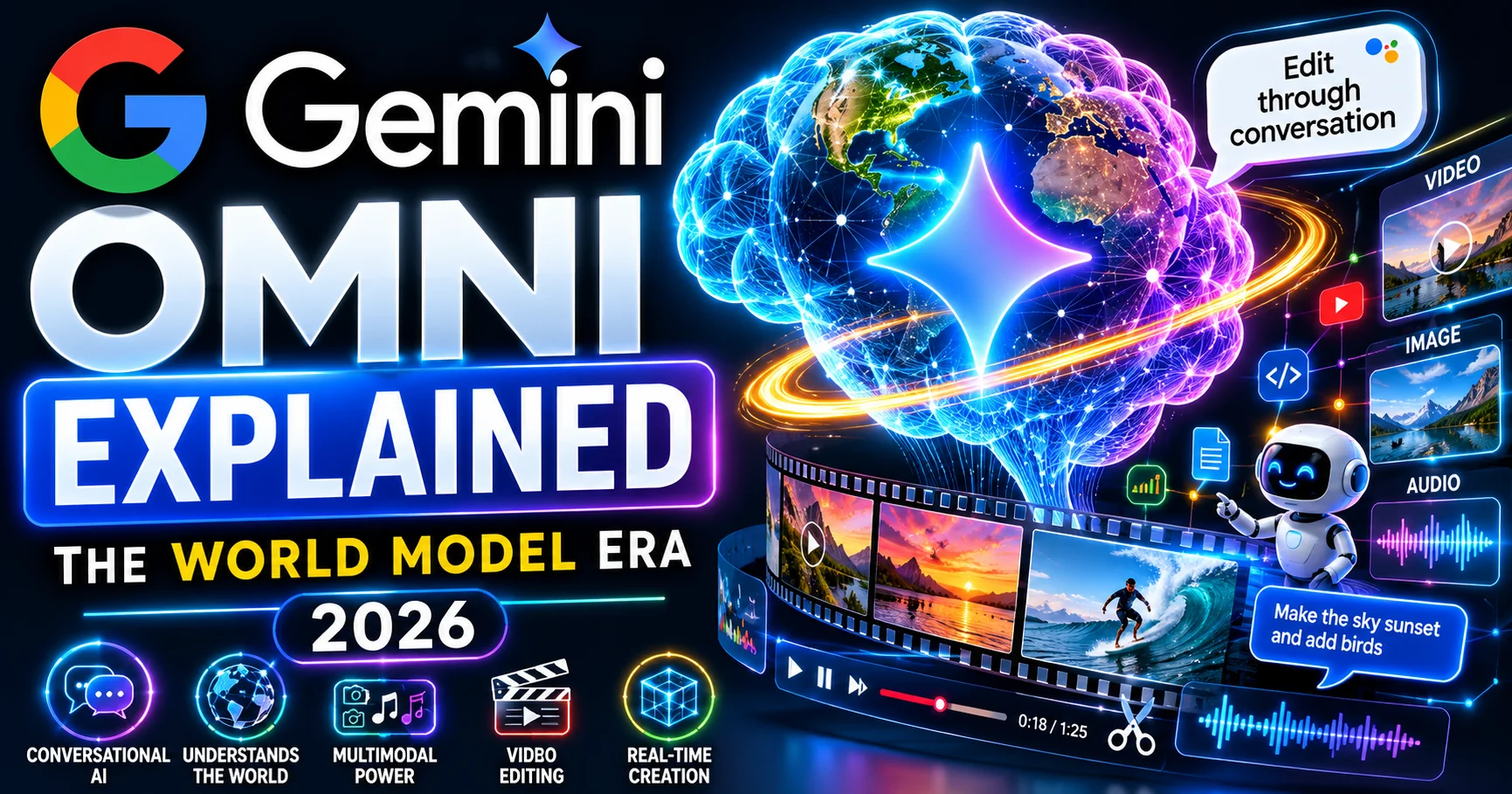
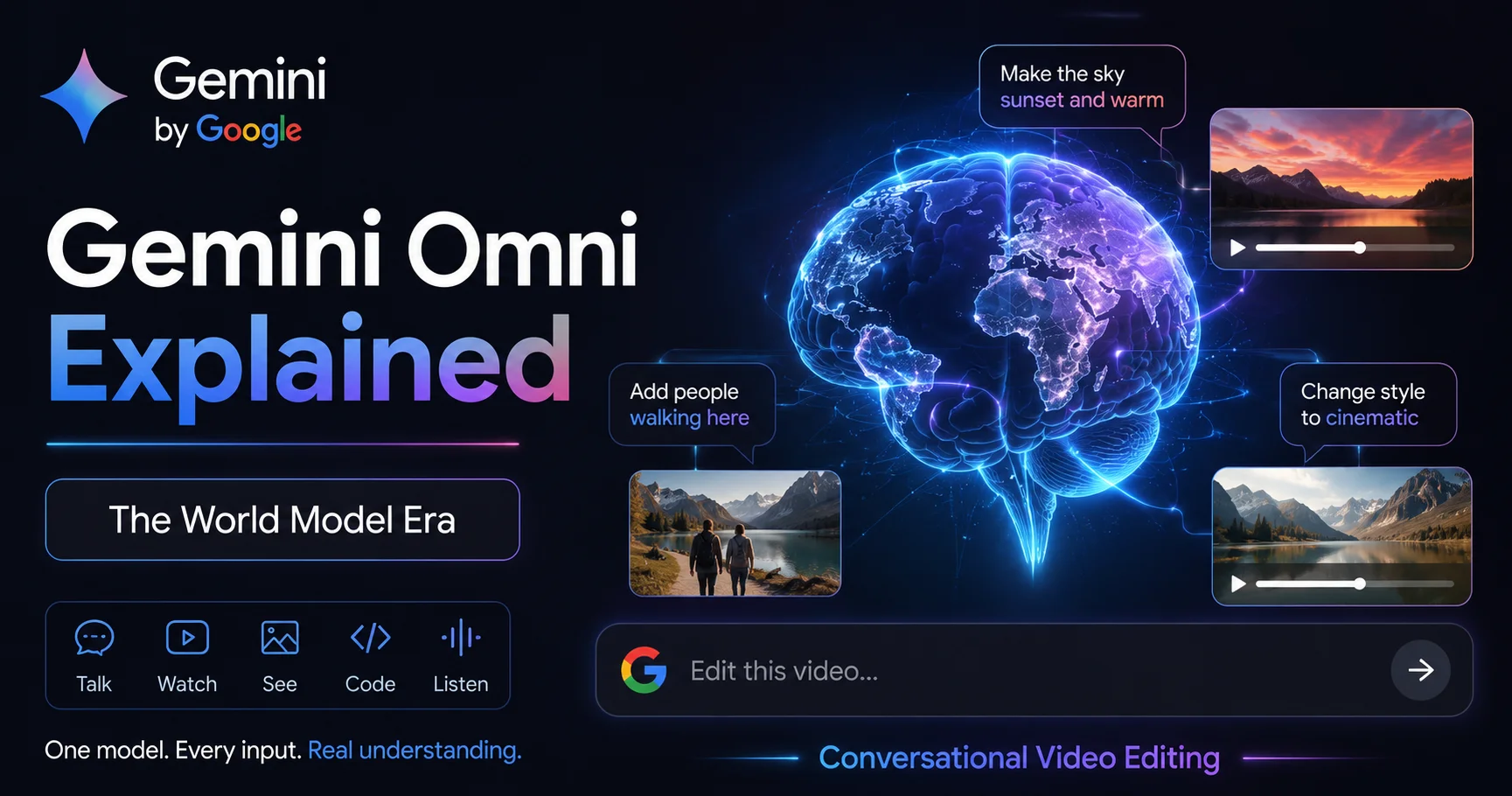
| Gemini Omni Flash | Understands your natural language and coordinates everything |
2. How Flow AI Was Built — The History {#history}
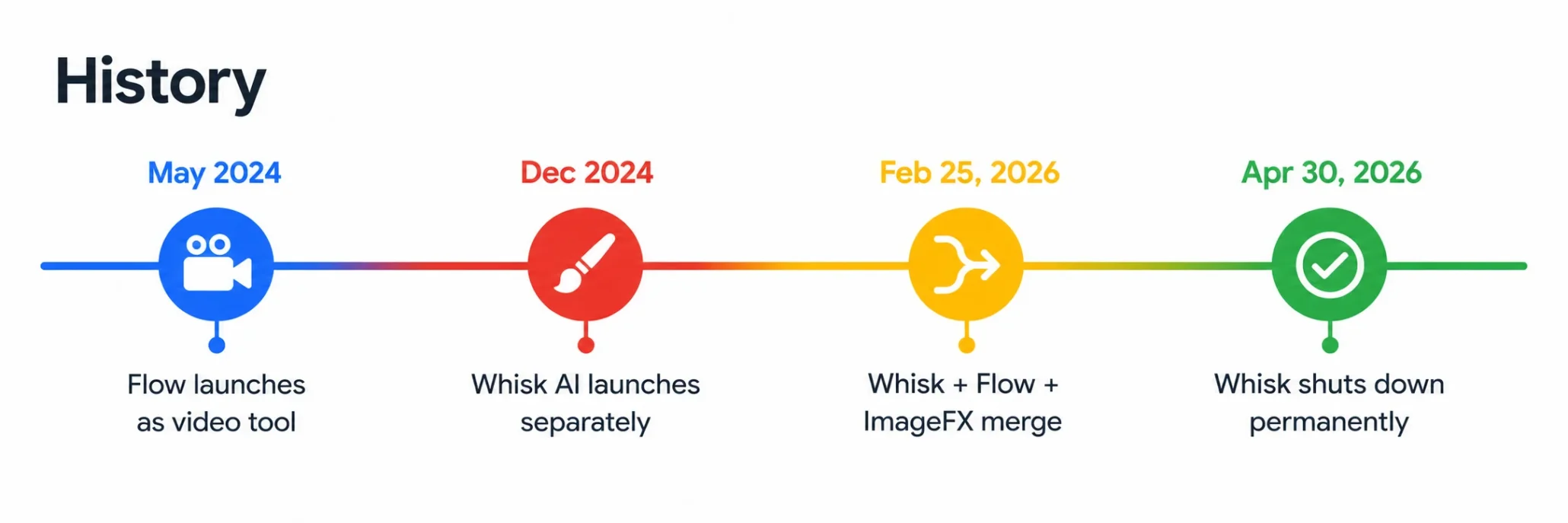
Understanding where Google Flow AI came from explains a lot about what it is today.
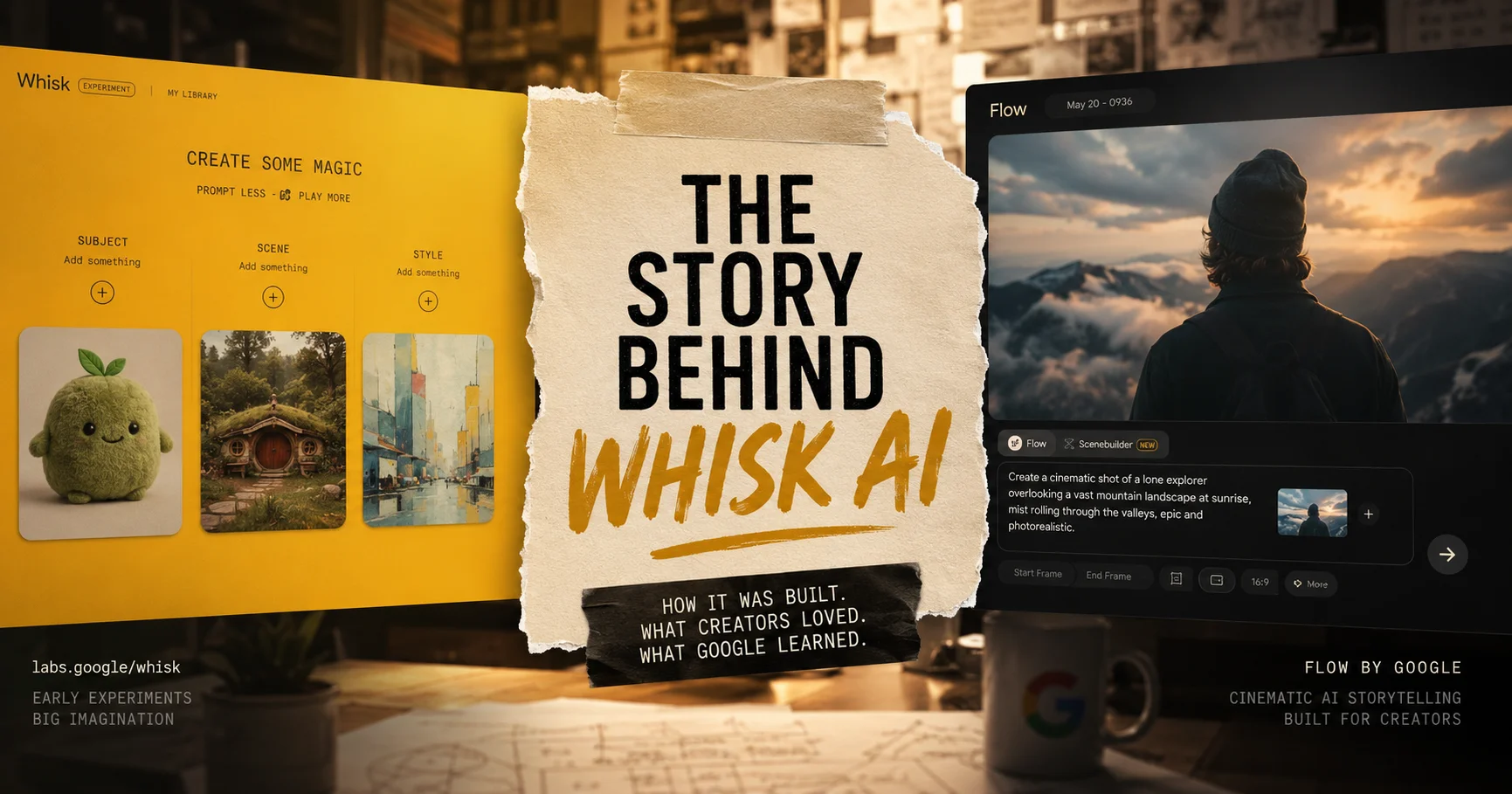
- May 2024 — The original Flow launches at Google I/O as an AI filmmaking tool powered by Veo for text-to-video generation.
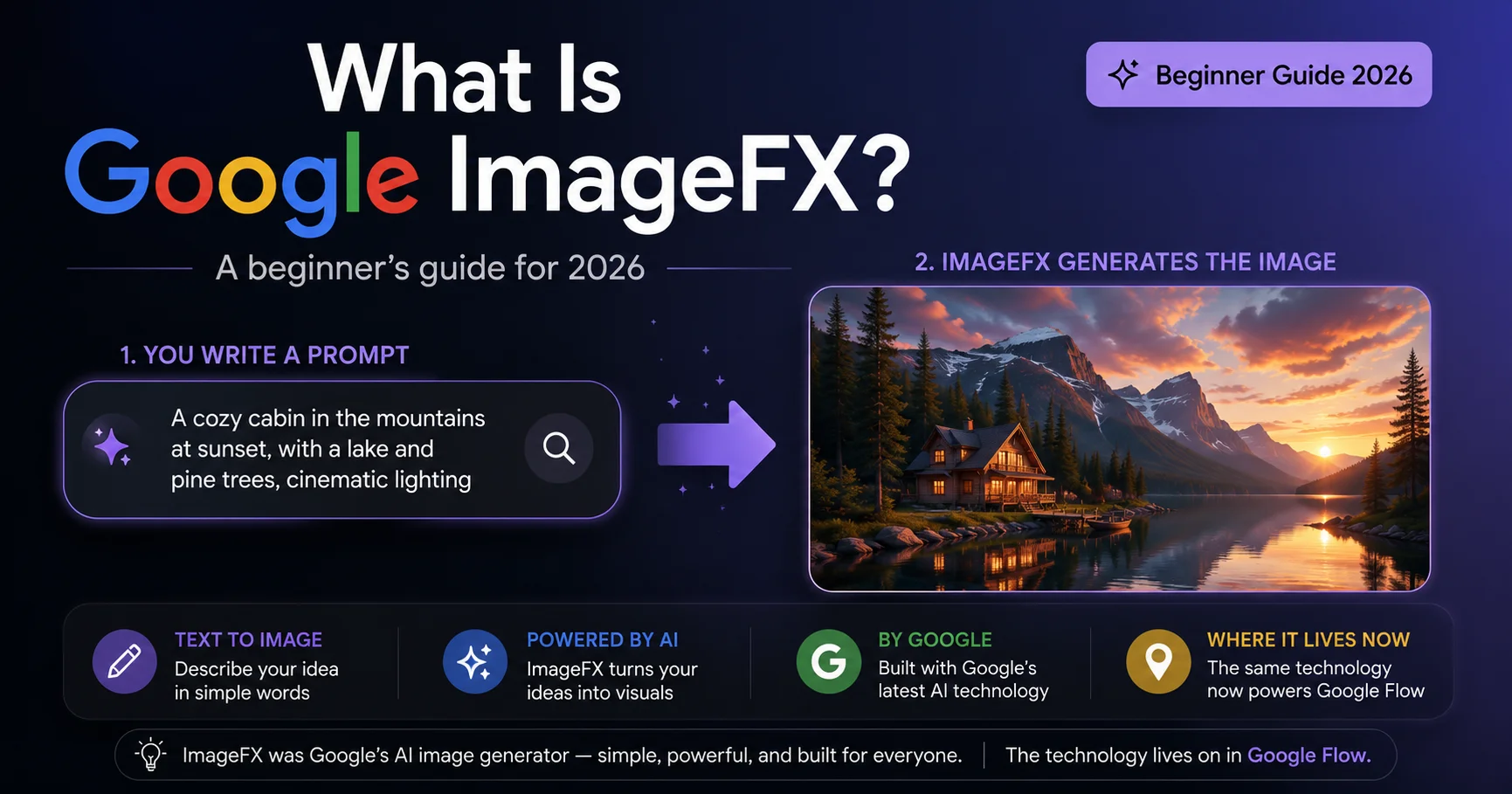
- December 2024 — Whisk AI launches as a separate Google Labs experiment. It becomes one of the most popular Labs tools ever, with over 1.5 billion creations.
- February 25, 2026 — Google merges Flow, Whisk, and ImageFX into a single interface. Image generation, video generation, and editing all live in one workspace.
- April 30, 2026 — Whisk shuts down permanently. All Whisk features, credits, and saved projects move to Flow.
If you want the full story of what happened to Whisk, read our Whisk AI shutdown guide.
3. How Google Flow AI Is Different From Everything Else {#different}
There are dozens of AI image and video tools in 2026. Here is what makes Flow specifically different — not in a marketing sense, but in a practical one.
Native Audio in Video Generation
Every other AI video tool generates silent clips. You add music or sound effects separately afterward.
Veo 3.1 generates audio as part of the video — rain sounds, character dialogue, ambient noise — all matched to what is on screen. A scene with a thunderstorm comes with thunder. A character speaking comes with synchronized lip movement and voice. This is not a post-process filter. It is generated alongside the visuals.
Full Image-to-Video Pipeline in One Tool
Generate an image → animate it into a video → extend the clip → add to timeline → export. No switching between apps. No file management between steps. Everything happens in one workspace.
Character Consistency Across Generations
This was the biggest weakness of Whisk AI. You could generate a great character once, but regenerating the same character in a different scene produced someone different every time.
Flow’s Ingredients system saves a character as a reusable reference asset. Every generation using that reference produces the same character, consistently, across different scenes and styles. For anyone building a series or a story, this changes everything.
SceneBuilder for Narrative Sequences
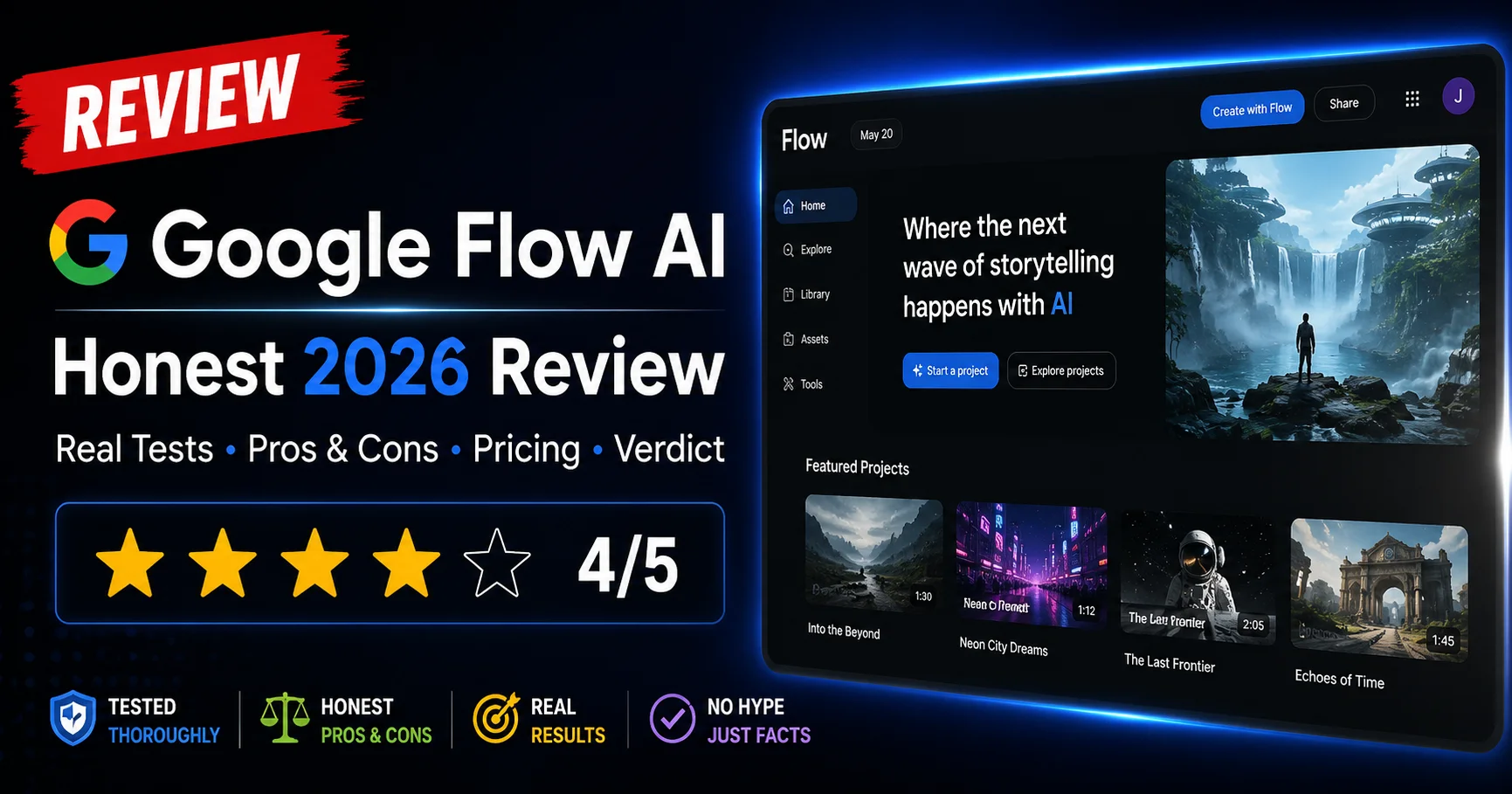
Flow includes a visual timeline editor — SceneBuilder — where you arrange clips and images into a complete project. It is not Adobe Premiere, but it is enough to build a coherent 60-second piece with multiple scenes, transitions, and audio — without leaving Flow.
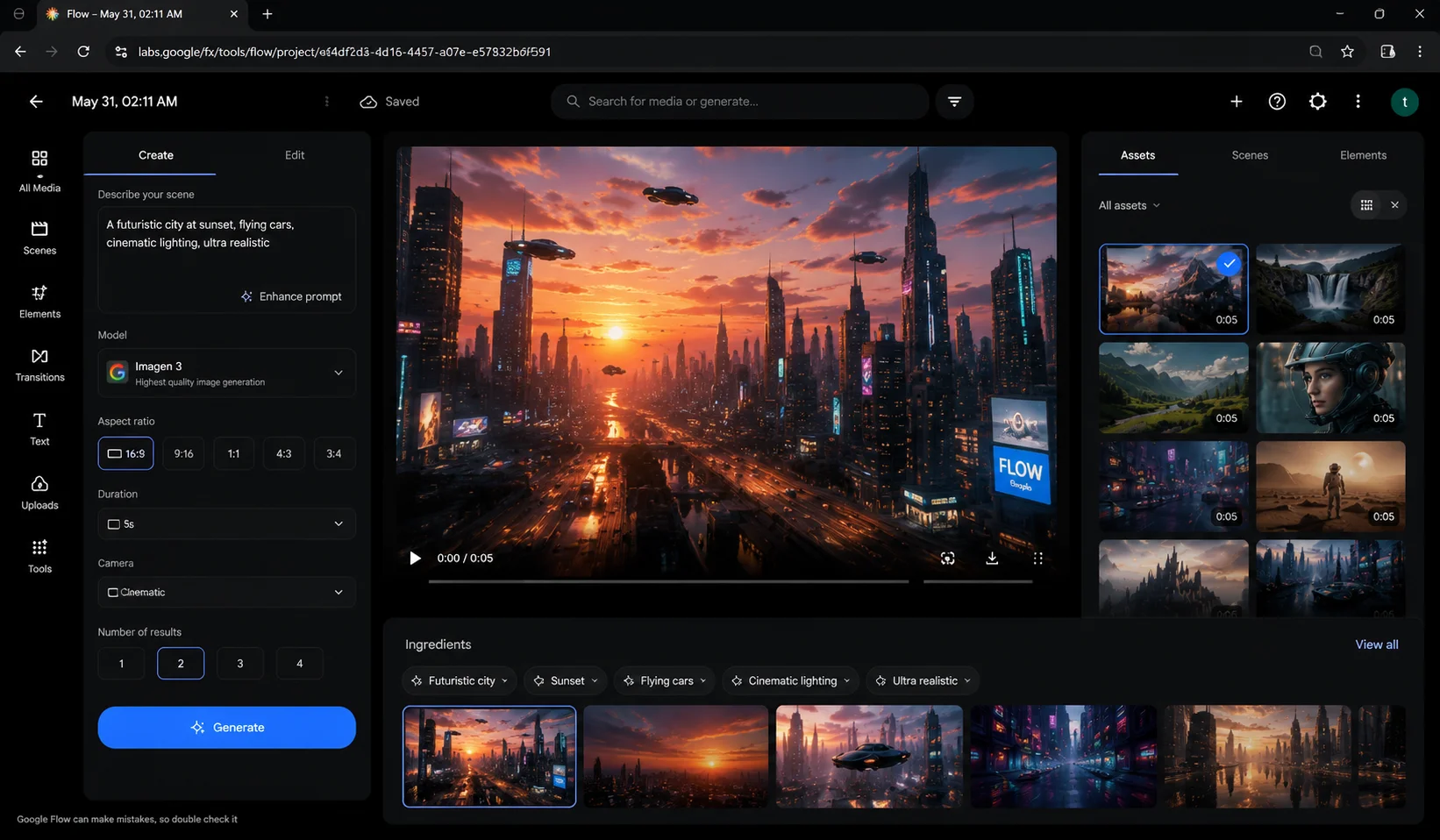
Image Generation
Flow generates still images from text using Imagen 4 (also called Nano Banana internally). You describe what you want in plain language — no special syntax, no weighting symbols, no technical keywords needed.
What improved over Whisk AI’s Imagen 3:
- Better text rendering inside images (signs, labels, typography)
- More accurate hands and facial anatomy
- Improved subject consistency when generating variations
- Sharper fine detail in complex scenes
Aspect ratios available: Square (1:1), Landscape (16:9), Portrait (9:16), Widescreen (21:9)
Video Generation with Veo 3.1
| Model | Speed | Quality | Who Gets It |
|---|---|---|---|
| Veo 3.1 Lite | Slowest | Basic | Free tier only |
| Veo 3.1 Fast | Medium | Good | All paid plans |
| Veo 3.1 Quality | Slow | Best | All paid plans |
| Gemini Omni Flash | Fast | Best narrative | Pro/Ultra only |
- Clips up to 8 seconds per generation
- Native synchronized audio — environmental sounds, dialogue, lip sync, music
- Extend — chain clips into 60+ second sequences
- Up to 1080p standard, 4K on Ultra tier
Editing Tools
Insert — Add an object or character into an existing image or video. Lighting, shadow, and perspective are auto-matched.
Remove — Remove an element from a scene. Flow fills the background convincingly.
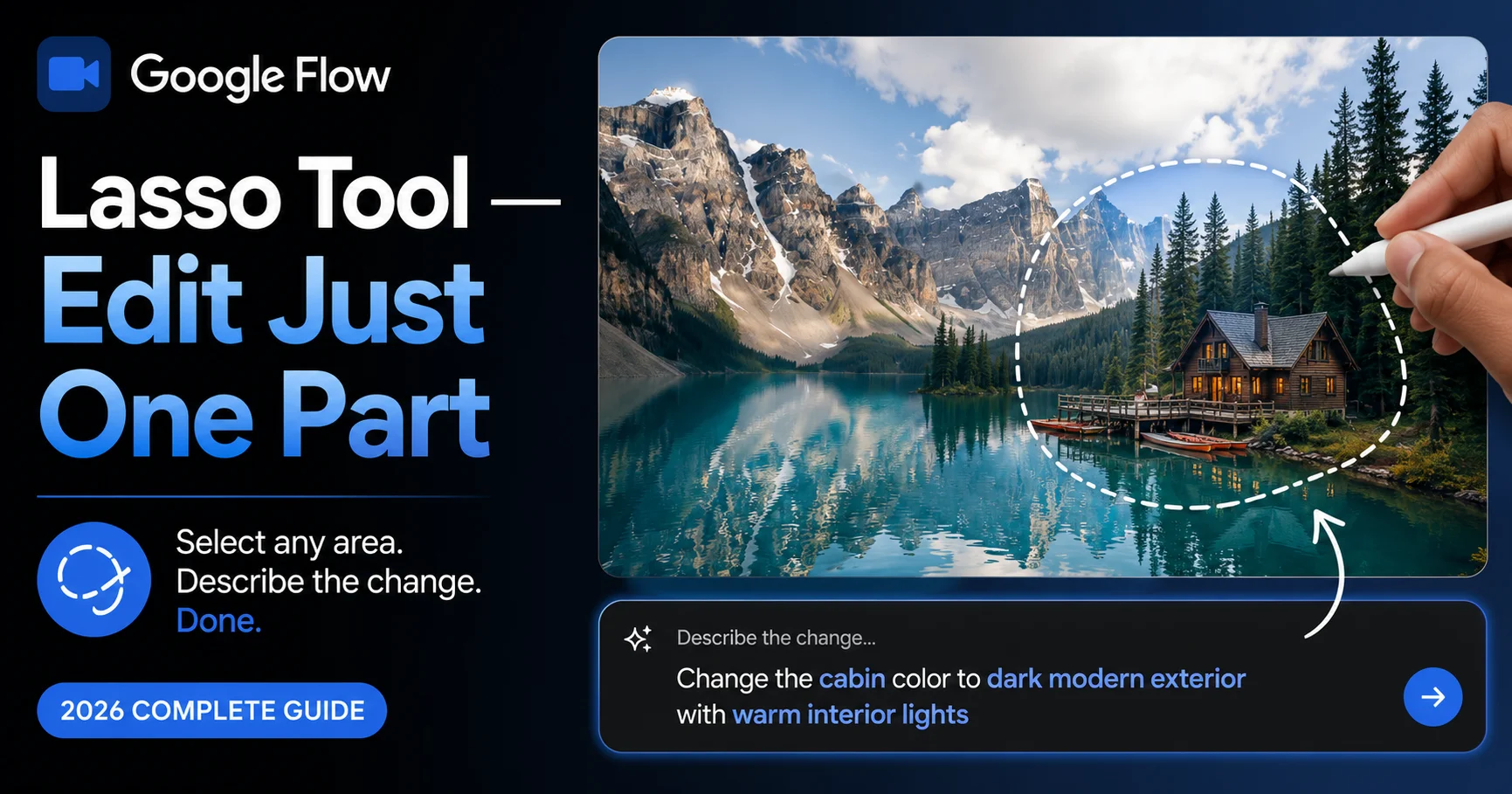
Lasso Tool — Draw a freehand selection around any area of an image, then type what you want changed in plain language.
Extend — Continue a video clip beyond 8 seconds with full visual continuity.
Frames to Video — Provide a start frame and end frame. Flow generates the video transition between them.
Ingredients to Video — Upload reference images for characters, objects, and style. Flow generates a video incorporating all of them with consistency.
Ingredients System
The Ingredients panel saves reusable reference assets:
- Subject — A character or main object (your reference photo)
- Scene — An environment or setting
- Style — A visual style reference
With Ingredients set, every generation pulls from those references rather than inventing something new each time. This is how you build a series with a consistent character across many scenes.
Key tip: The quality of your reference photo directly affects character consistency. A sharp, well-lit photo produces consistent results. A blurry or low-resolution photo produces inconsistent characters every time.
SceneBuilder Timeline
SceneBuilder is Flow’s built-in visual timeline for sequencing content:
- Drag clips and images into order
- Adjust timing and clip length
- Add transitions between scenes
- Preview the full sequence
- Export as a single video file
No other free AI tool has this built in.
5. How to Use Google Flow AI — Step by Step {#how-to-use}
Step 1: Access Flow
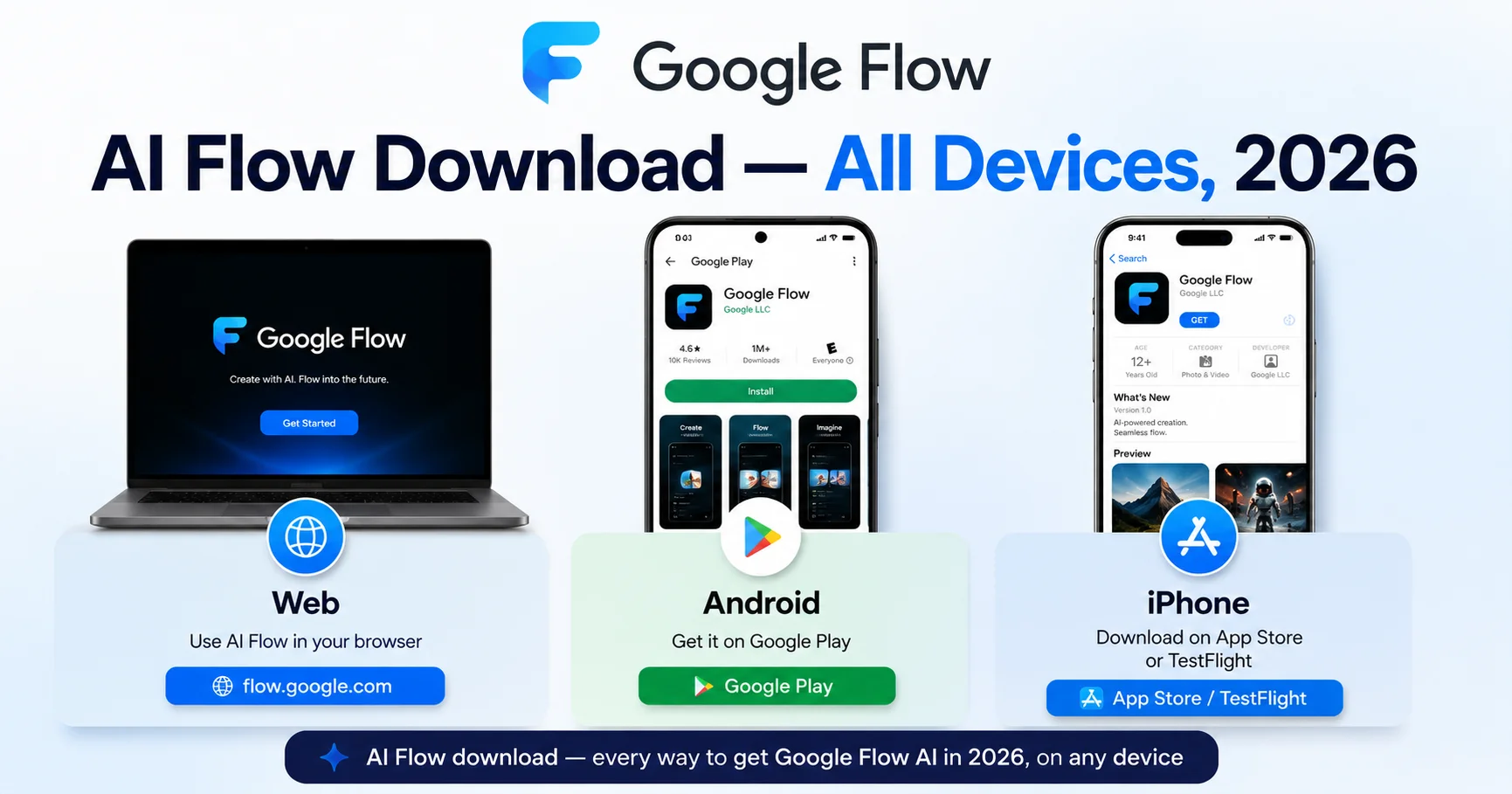
Go to flow.google in Chrome. Sign in with a personal Gmail account.
- Age requirement: 18 or older
- Country: Available in 149+ countries. EU and UK may have restrictions.
- Note: Company or school (Workspace) email accounts have restricted access to some features. Use a personal Gmail.
If you see “not available in your region” — read our Flow AI not available fix guide.
Step 2: Choose Your Mode
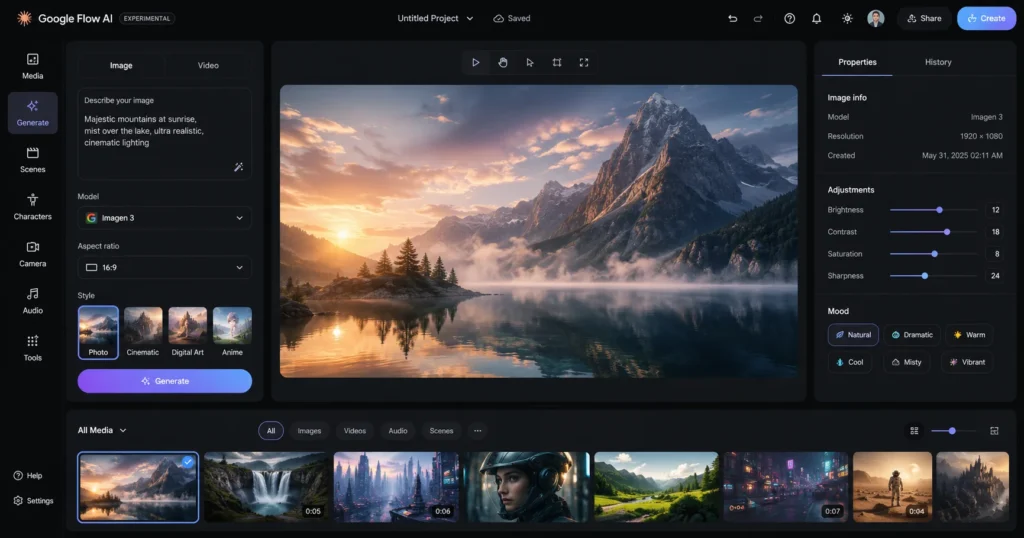
Two main modes at the top of the creation panel:
- Image → Uses Imagen 4 / Nano Banana
- Video → Uses Veo 3.1
Select the mode that matches your goal before you start typing.
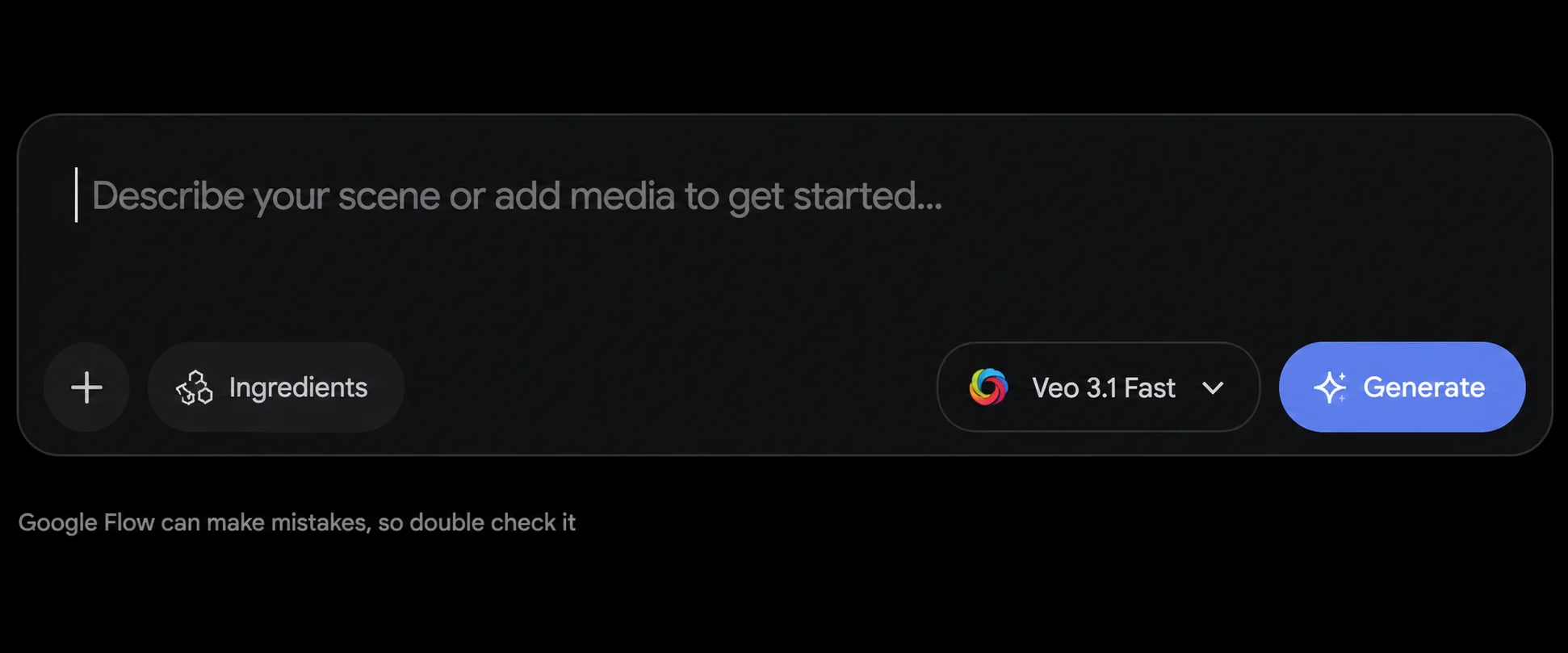
Step 3: Write Your Prompt
Type your description into the prompt field. Flow understands plain English — no special keywords, no weighting, no negative prompts needed.
Best prompt structure:
[Subject] doing [action] in [setting], [lighting/mood], [camera style for video]
Image example:
“A Japanese convenience store at 2am, rain on the window outside, warm fluorescent interior light, a single employee reading a magazine behind the counter, photorealistic”
Video example:
“A golden retriever puppy running through fallen autumn leaves in slow motion, afternoon golden hour light, joyful movement, natural ambient audio”
What NOT to include: Words like “8K”, “hyperrealistic”, “masterpiece” — these do not improve results in Flow. Keep prompts clear and direct, not long and stuffed.
Step 4: Set Up Ingredients (For Character Consistency)
Click Add Ingredient before generating if you need consistent characters across multiple generations:
- Upload a clear, well-lit reference photo for Subject
- Optionally add a Scene reference (environment)
- Optionally add a Style reference (visual tone)
Once set, every generation will use these references. This is the most important setting for anyone building a series or a story.
Step 5: Choose Your Model
Start with Veo 3.1 Fast for all drafts. Switch to Veo 3.1 Quality only for your final intended output.
This saves your monthly credits. Most creators burn through credits quickly by running Quality mode on every generation — this is the single most common mistake.
Step 6: Generate and Iterate
Click Generate. Your output appears on the canvas.
From here you can:
- Regenerate — Same prompt, different result
- Edit — Use Insert, Remove, or Lasso on the result
- Extend (video) — Add more seconds to the clip
- Add to SceneBuilder — Drop this into your project timeline
- Download — Save to your device
Most good outputs come after 3–5 generations with small prompt adjustments between each one. This is normal — not a sign that something is wrong.
Step 7: Build a Sequence in SceneBuilder
If you are creating more than a single clip, open SceneBuilder from the top navigation. Drag generated clips into the timeline. Arrange order. Adjust timing. Preview. Export.
For a full walkthrough with screenshots, see our Google Flow AI Tutorial for Beginners.
6. Google Flow AI Pricing 2026 — Honest Breakdown {#pricing}
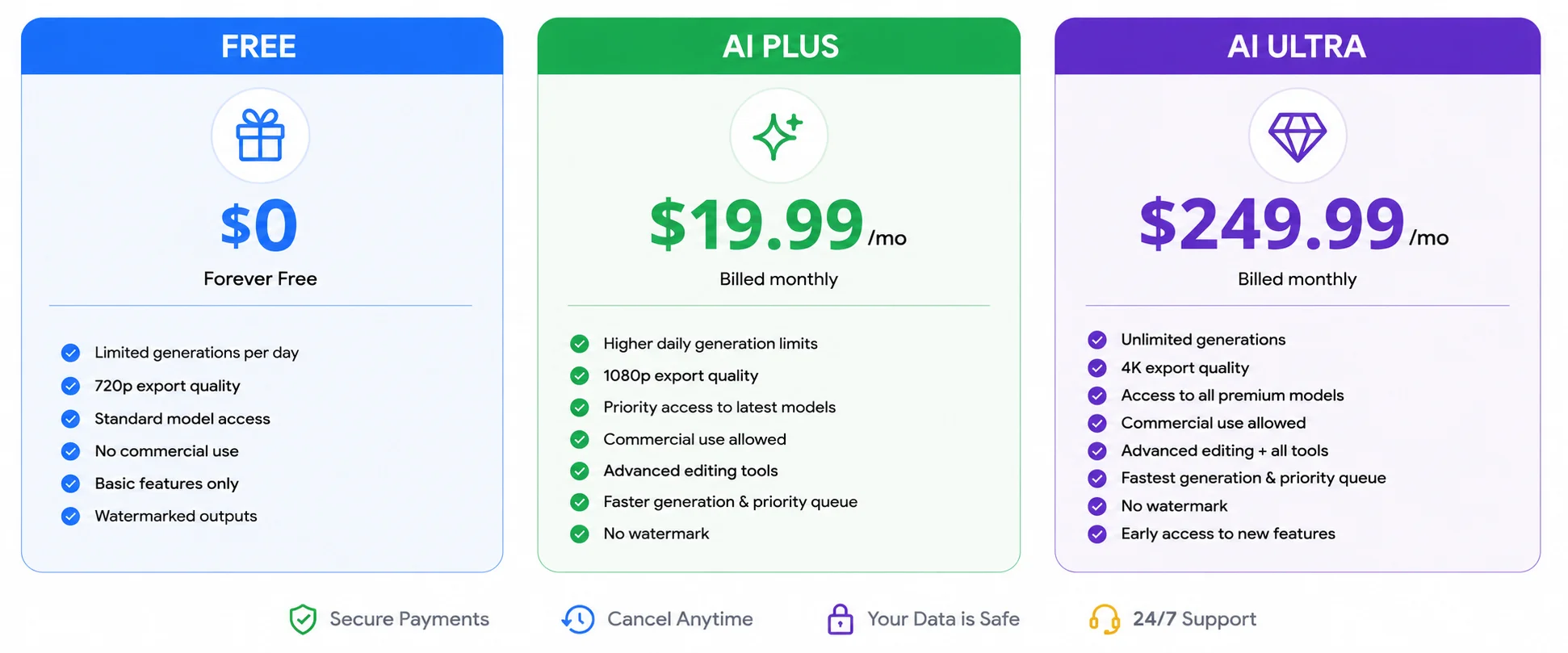
Important: Google Flow AI is NOT fully free in 2026. Here is the honest breakdown.
Free Tier — $0
| Feature | Status |
|---|---|
| Image generation | ✅ Available (daily limits) |
| Video generation | ⚠️ Veo 3.1 Lite only (low quality, slow queue) |
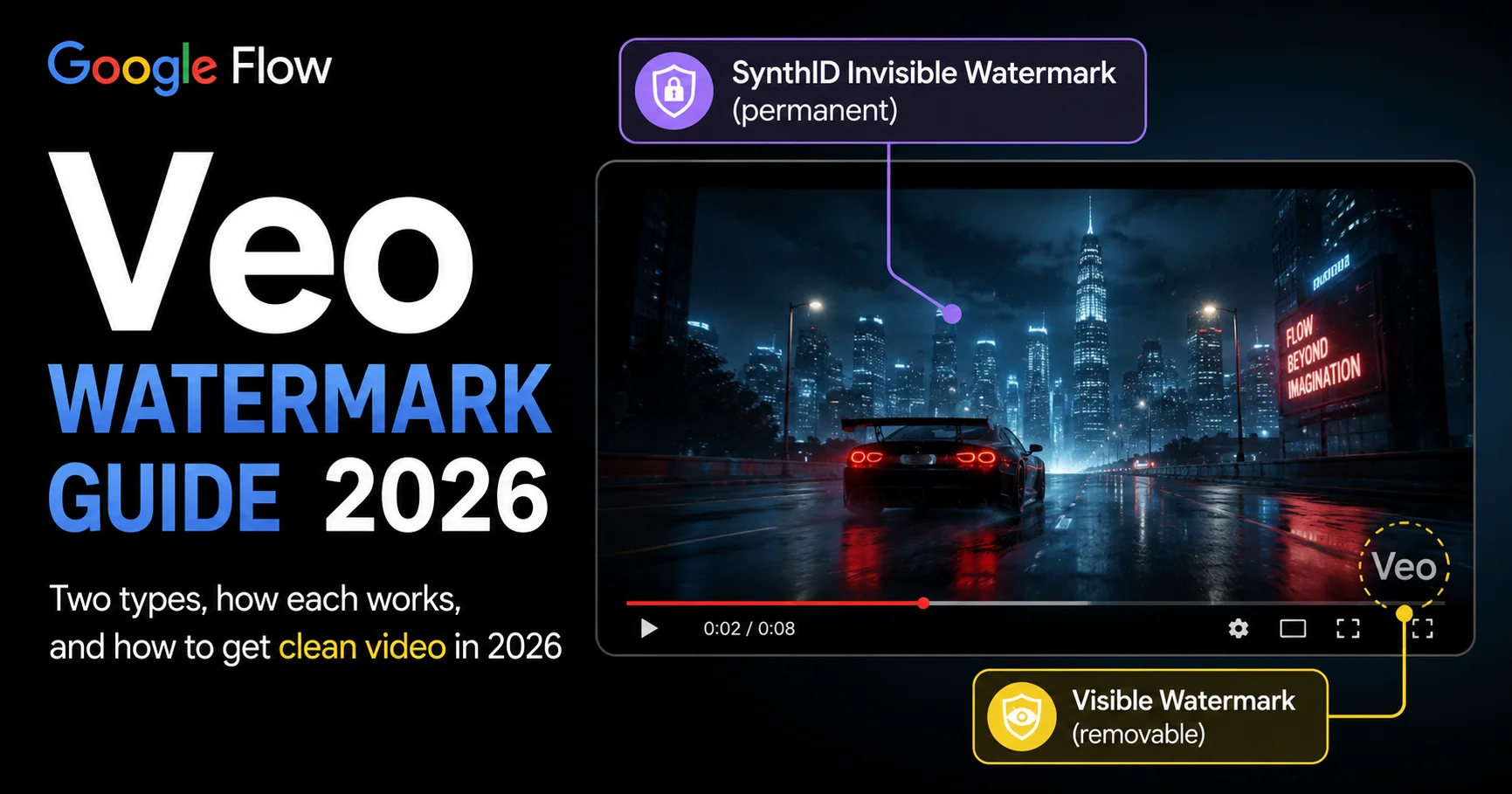
| Video watermark | ❌ “Made with Veo” watermark on all exports |
| SceneBuilder | ✅ Basic access |
Bottom line: Free tier is good for learning and experimenting. Not practical for regular content production or any commercial use.
Google AI Plus — $19.99/month (Rs. 1,400/month in Pakistan)
- Veo 3.1 Fast access (no slow queue)
- Higher monthly credit allocation
- Gemini Advanced included
- NotebookLM Plus included
- ⚠️ Video exports still include watermark at this tier
Google AI Ultra — $249.99/month
- Highest video generation limits
- Watermark-free exports (where local regulations allow)
- Gemini Omni Flash model access
- 4K video output
- Priority generation queue
- Early access to new features
Who needs what:
| Your Situation | Plan |
|---|---|
| Learning and experimenting | Free |
| Regular content creator | AI Plus ($19.99) |
| Publishing videos publicly | AI Ultra (watermark-free) |
| Commercial / client work | AI Ultra |
Always verify current plan details at: one.google.com/about/google-ai-plans
7. What YouTube Tutorials Miss About Google Flow AI {#youtube-misses}
YouTube tutorials are useful for seeing the interface in action. But there are 5 things most of them do not tell you — and these are the things that determine whether your results are good or frustrating.
1. Credit consumption is unpredictable
Most tutorials show generation as fast and unlimited. What they do not show: Quality mode burns credits much faster than Fast mode, and limits can change without announcement. Most tutorial creators have Pro or Ultra accounts and do not mention it.
What to do: Always start with Veo 3.1 Fast. Switch to Quality only for your final output.
2. Your Ingredients photo quality is the most important factor
Tutorials upload whatever reference photo is handy and show decent results. What they miss: the quality of your reference photo directly determines character consistency. Blurry photo = inconsistent character every time. Sharp, well-lit photo = consistent character across every generation.
What to do: Use the best available reference — clear lighting, subject centered, minimal background.
3. Shorter prompts often beat longer ones
Many tutorials show 100-word prompts full of descriptors. For Veo 3.1, shorter and clearer prompts often produce better results. Gemini understands intent well. You do not need to over-explain.
The structure that works: Subject + Action + Setting + Mood/Lighting. That is it.
4. The watermark issue on free and Plus tier
Some tutorials filmed before the current subscription model show watermark-free exports on free accounts. This is no longer accurate. Free and AI Plus exports include the “Made with Veo” watermark. If a tutorial shows clean watermark-free exports, the creator is on Ultra and may not be telling you that.
5. Extend works best when clips end on a pause
Clips that end mid-movement often produce jarring or inconsistent extensions. Clips that end on a moment of stillness — a character stopping, a scene settling — extend much more smoothly.
What to do: If you plan to extend a clip, write your initial prompt to end naturally on a pause rather than mid-action.
8. Google Flow AI vs Competitors {#vs}
Google Flow AI vs Midjourney
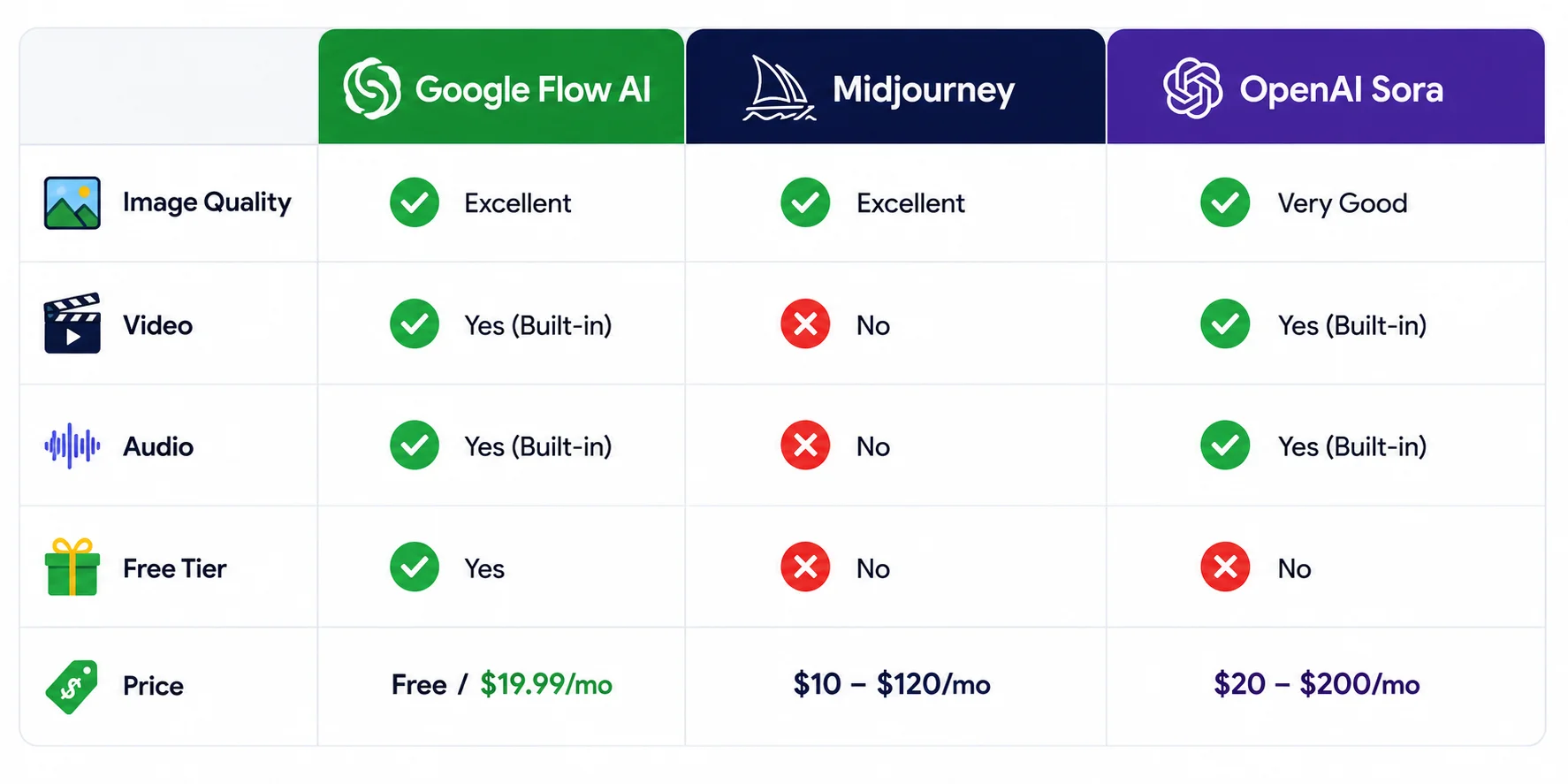
| Factor | Google Flow AI | Midjourney |
|---|---|---|
| Image quality | Very good (Imagen 4) | Best-in-class (v7) |
| Video generation | ✅ Yes — with audio | ❌ No |
| Free tier | ✅ Yes (limited) | ❌ No ($10/mo minimum) |
| Interface | Browser app | Discord / Web app |
| Character consistency | ✅ Ingredients system | ✅ –cref flag |
| Commercial use | Ultra tier required | Paid plans |
Verdict: For pure artistic images, Midjourney still wins. For anyone who needs both images AND video in one tool, Flow wins easily — Midjourney has no equivalent to what Veo 3.1 produces.
Google Flow AI vs OpenAI Sora
| Factor | Google Flow AI | OpenAI Sora |
|---|---|---|
| Video quality | Excellent | Excellent |
| Native audio | ✅ Yes (Veo 3.1) | ⚠️ Limited |
| Image generation | ✅ Yes (Imagen 4) | Via DALL-E 3 |
| Free tier | ✅ Yes | ❌ ChatGPT Pro only |
| Timeline editor | ✅ SceneBuilder | ❌ No |
| Price for video | $19.99/mo (AI Plus) | $20/mo (ChatGPT Pro) |
Verdict: Same price, comparable video quality. Flow wins on native audio and the full image-to-video pipeline. Sora wins on conversational editing within ChatGPT.
Google Flow AI vs Adobe Firefly
| Factor | Google Flow AI | Adobe Firefly |
|---|---|---|
| Image generation | ✅ Yes (Imagen 4) | ✅ Yes (Firefly 3) |
| Video generation | ✅ Yes (Veo 3.1) | ⚠️ Limited |
| Commercial licensing | Ultra tier only | ✅ All paid tiers |
| Training data | Not fully disclosed | ✅ Licensed only |
| Free tier | ✅ Yes | ✅ 25 credits/month |
Verdict: For commercial client work where IP clarity matters, Adobe Firefly is the safer choice — it is trained on licensed content and commercial use is clear at all paid tiers. For creative output volume and video capability, Flow is more powerful.
9. Common Problems and Fixes {#fixes}
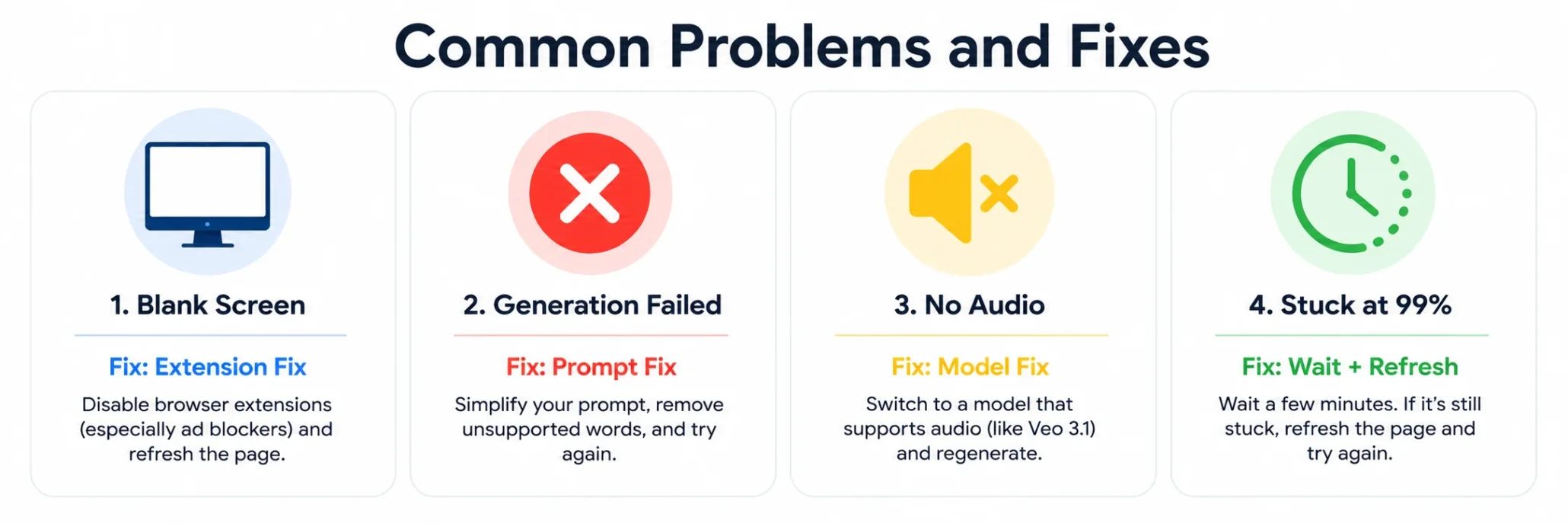
Problem: Blank Screen When Opening Flow
Cause: Browser extension blocking the canvas. Fix: Open flow.google in Chrome Incognito mode. If it loads there, disable your extensions one by one to find the conflict — ad blockers and VPN browser extensions are the most common cause.
Problem: “Generation Failed” Error
Cause: Content policy flag on prompt, or temporary server issue. Fix: Simplify your prompt first. Remove any mentions of real celebrities, weapons, or violent content. If a simplified prompt also fails, wait 15 minutes and try again. Full guide: Google Flow Generation Failed Fix 2026
Problem: No Audio on Generated Videos
Cause: Veo 3.1 Lite (free tier) does not reliably produce audio. Fix: Switch to Veo 3.1 Fast or Quality mode. Add the words “with natural ambient audio” to your prompt explicitly. Full guide: Google Flow No Sound Fix 2026
Problem: Video Stuck at 99%
Cause: Generation completed on Google’s servers but the transfer to your browser stalled. Fix: Do NOT close the tab. Wait 2–3 minutes — the transfer sometimes completes late. If it stays at 99% beyond 5 minutes, refresh the page. Your clip should still appear in your generation history. Full guide: Google Flow Video Stuck at 99% Fix
Problem: Flow Not Available in My Country
Full guide: Whisk AI / Flow AI Not Available Fix
10. Is Google Flow AI Worth It in 2026? {#verdict}
For former Whisk AI users: Yes. Image generation quality is preserved and video capability has been added on top. Start on the free tier and upgrade only if you hit the generation limits.
For content creators who need video: Yes — if you can accept the watermark on Plus tier, or justify Ultra for watermark-free publishing. The audio-native video generation removes the biggest bottleneck in short-form content creation.
For graphic designers: Yes on free or Plus tier for concept generation and mockups. For commercial client deliverables where IP clarity matters, be aware of licensing terms — Adobe Firefly is clearer at lower price points.
For complete beginners: Yes — the free tier is a real starting point with no cost. Flow is harder to learn than Whisk was, but our Google Flow AI Tutorial for Beginners covers every step with screenshots.
For professional studios: Evaluate Ultra ($249.99/month) against your current production costs. For teams already on Google Workspace, the value calculation often works out.
11. Frequently Asked Questions {#faq}
Is Google Flow AI actually free? The free tier is real but limited. Video generation uses Veo 3.1 Lite only (lower quality, slower queue), and all video exports include a visible “Made with Veo” watermark. For regular content creation, AI Plus ($19.99/month) is the practical minimum.
What replaced Google Whisk AI? Google Flow AI replaced Whisk AI on April 30, 2026. All Whisk features — image generation, Subject/Scene/Style reference inputs, Whisk FX — are now inside Google Flow at flow.google.
Can I use Google Flow AI in Pakistan? Yes. Google Flow AI is available in Pakistan. AI Plus costs Rs. 1,400/month and is often available at 50% off for new subscribers. See our Pakistan access guide for step-by-step setup.
Is Google Flow AI better than Midjourney? For video: yes, definitively — Midjourney does not generate video. For still images: Midjourney produces higher artistic quality. Flow wins for the combined image + video pipeline and real-world photography-style images.
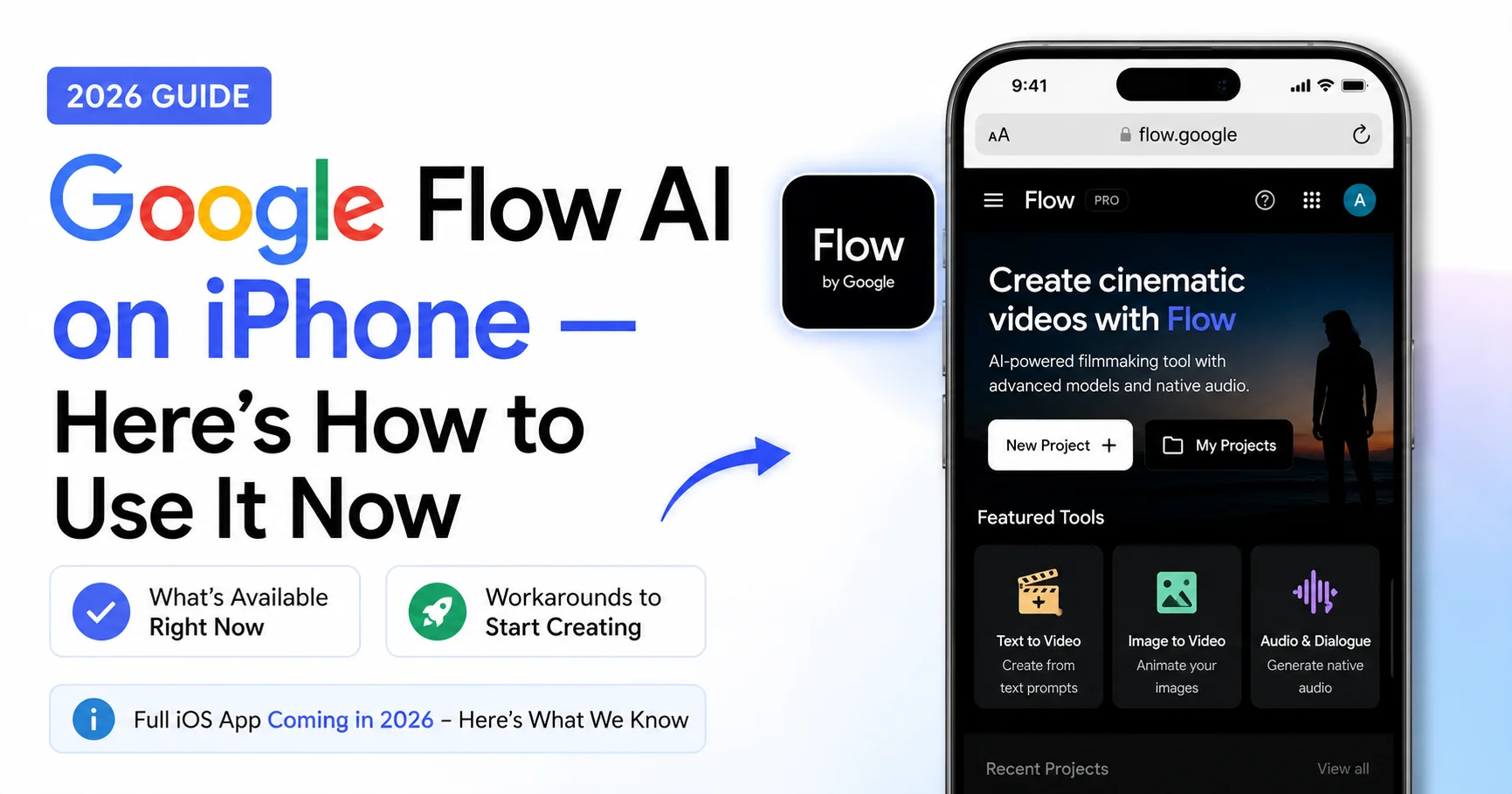
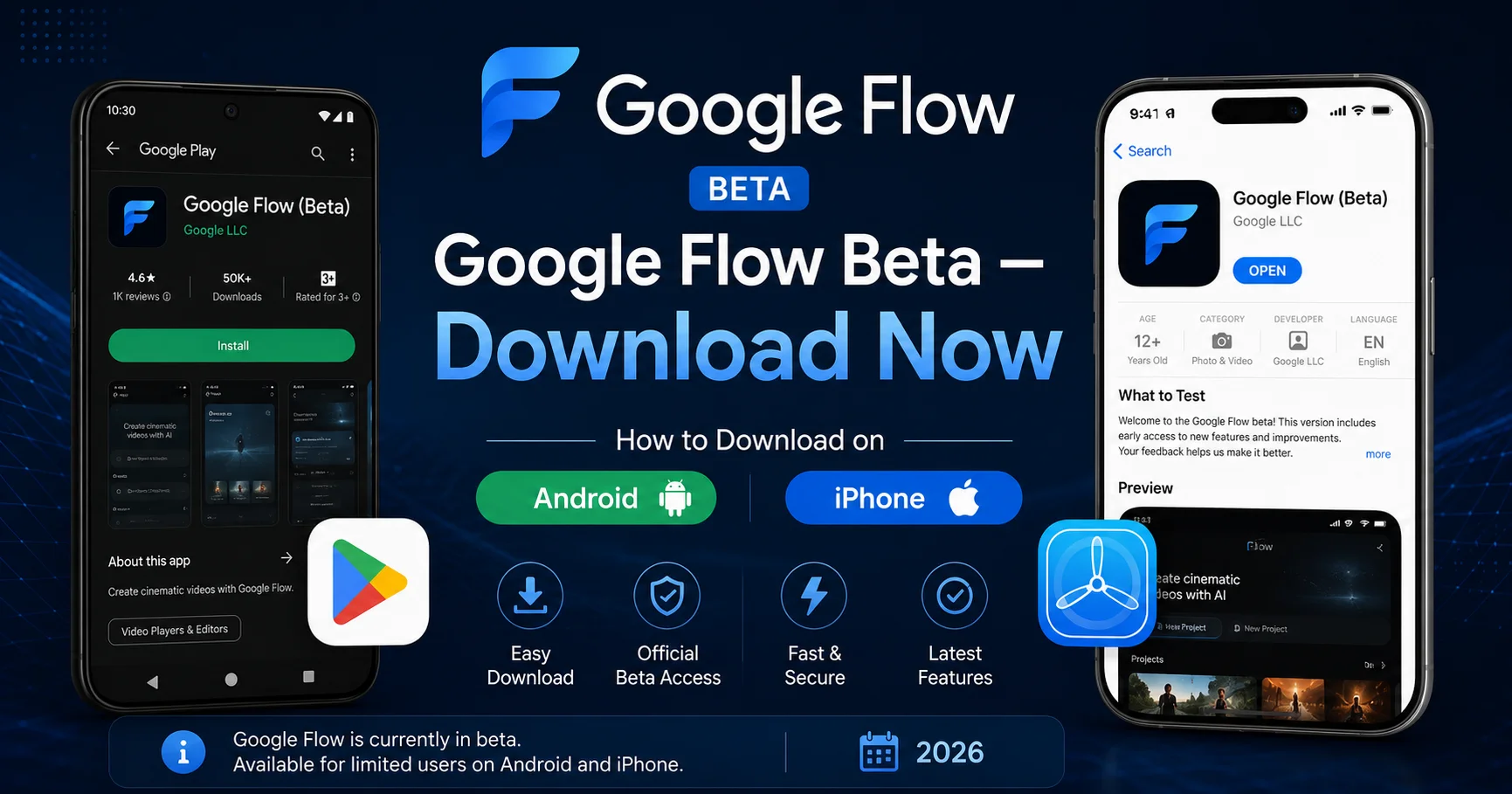
Does Google Flow AI have a mobile app? Yes. Official Android (12+) and iOS apps launched at Google I/O 2026. For full editing features including SceneBuilder, use Flow on a desktop Chrome browser.
How long can videos be in Google Flow AI? Individual Veo clips are up to 8 seconds. Using the Extend feature, you can chain clips into videos a minute or longer. SceneBuilder can sequence multiple extended clips into a full project.
Can I use Google Flow AI outputs commercially? This depends on your subscription tier. Watermark-free commercial use requires AI Ultra. For work where IP and licensing clarity is essential, verify current terms at one.google.com/about/google-ai-plans before publishing for clients.
What is Gemini Omni Flash in Google Flow? Gemini Omni Flash is Google’s newest model inside Flow, available to Pro and Ultra subscribers. It provides better understanding of complex narrative prompts and multi-step instructions compared to the standard model.